Contact Detail View – A Walkthrough
The new Contact Detail View offers a streamlined and organized way to view and manage your contacts. With all information separated into intuitive tabs, you’ll find everything you need at a glance—making it easy to update, communicate, and stay on top of every relationship.

- Contact Status - Shows the current status of the contact. Can be updated from any tab.
- Quick Actions - Perform essential tasks (email, text, call, edit) without leaving the view.
- Segment Tabs - Switch between different categories of information instantly.
- Tab Details - Displays the specific data related to the tab you've selected.
- Tags - Organize and segment contacts using customizable tags.
- Contact Information - Displays key information and can be edited using the Edit Contact button in the top-right.
Contact Status
A contact status is a single point for quickly identifying the current situation of a contact. At a glance, it should inform a team exactly what the contact means to them. The status can be updated at anytime, either manually, or by a contact or transaction based automation.
To change it manually, simply click the status and choose one of the available options, as seen in the animated GIF below. To learn more about how create new contact statuses, click here.
⚠️ Updating or changing a contact status has the potential to enroll the contact into an automation. It's important to understand which statuses can do this for your team.
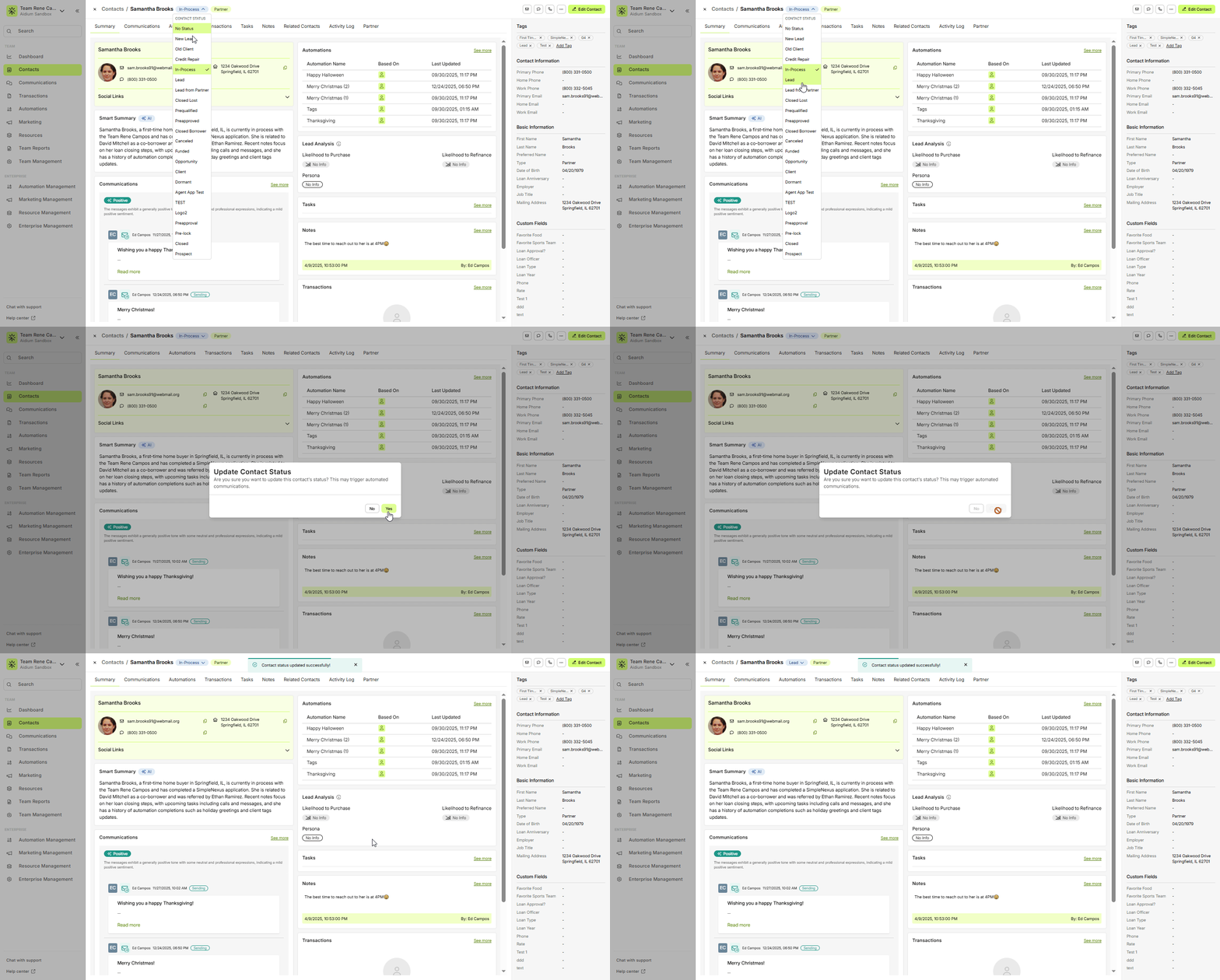
👍 This concludes viewing and updating the contact status.
Quick Actions
Located at the top-right of the contact details, these buttons provide quick and easy access to add or assign just about anything with minimal effort.
Send Email:
Simply click the email button and start typing the subject and body. You can also add a Cc and Bcc. To learn more about sending emails, click here.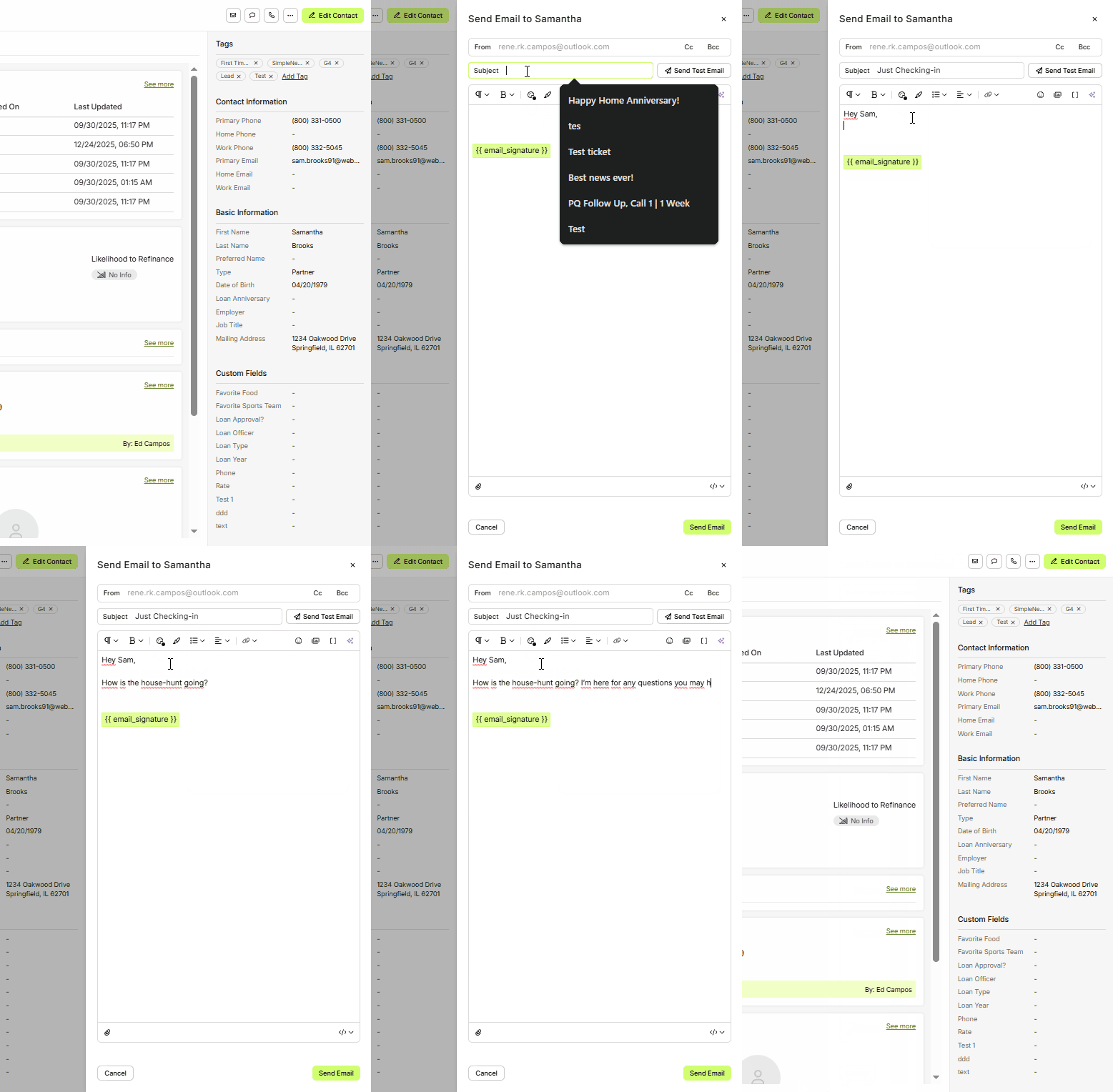
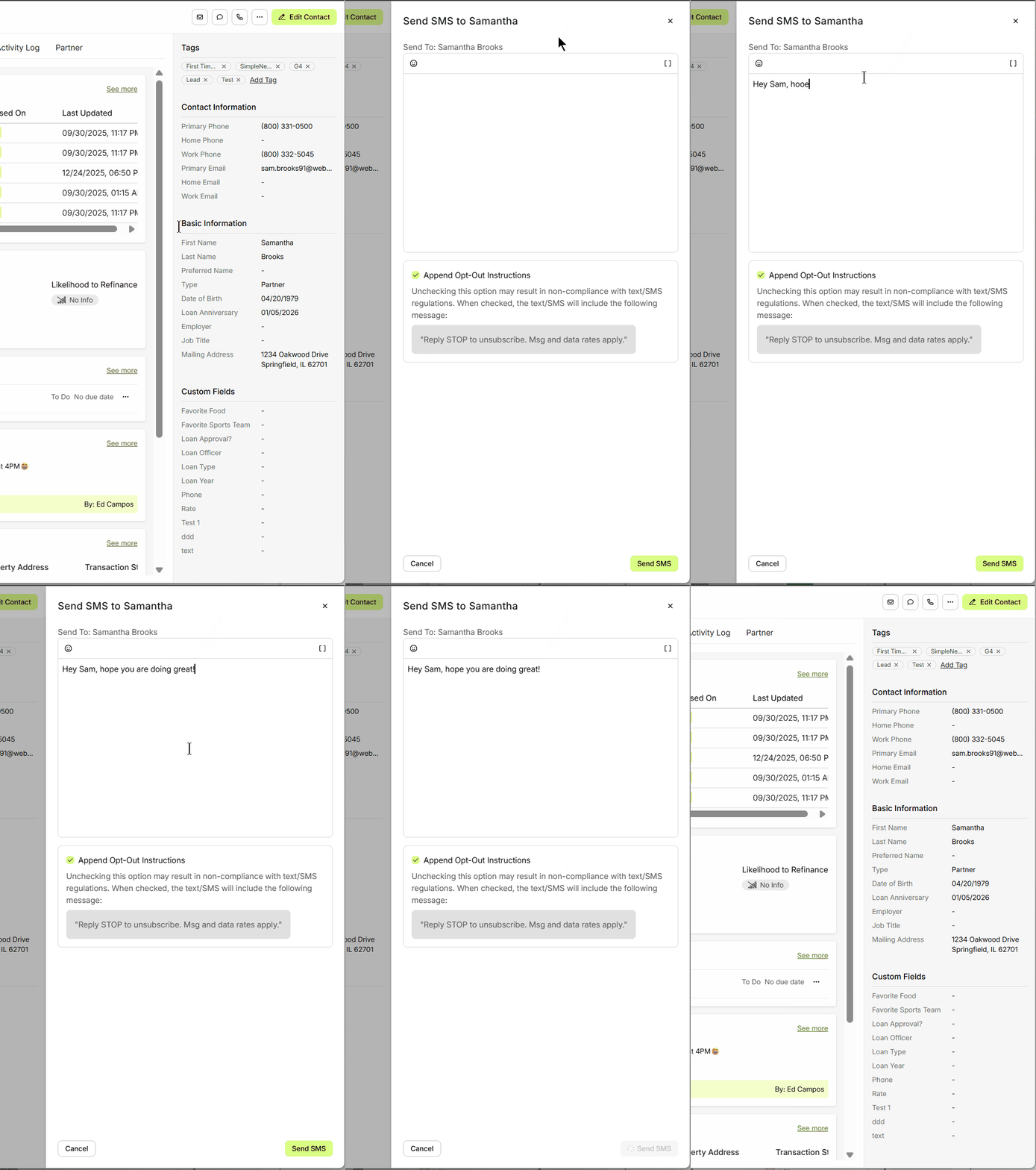
Send SMS/Text:
Much like sending an email, to send a Text, click the 'text' button and start typing your message. The message will always send from the team #.
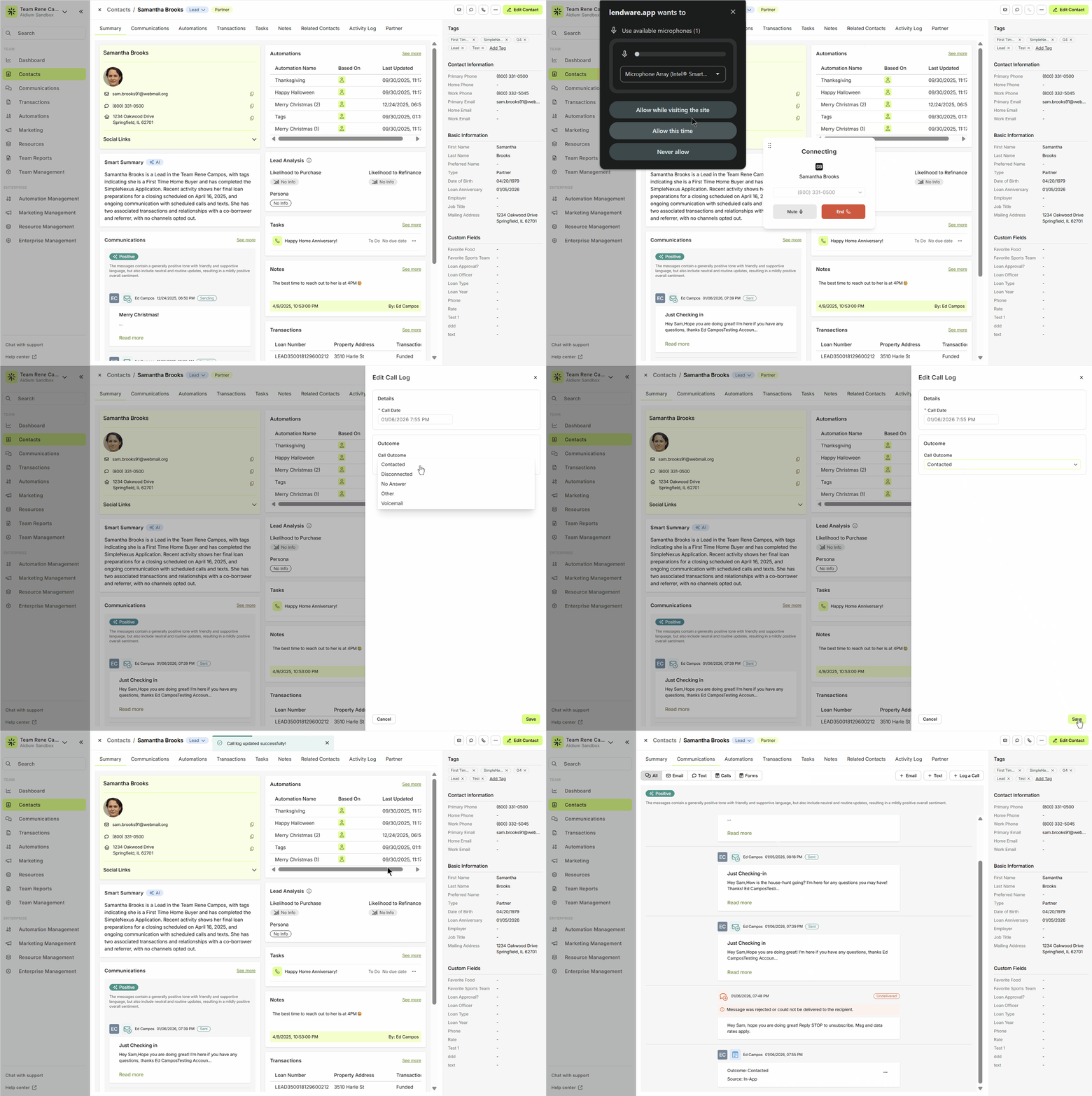
Make a Call:
Click the phone icon to initiate a call to the contact. A call log will be saved to the contact history (if enabled). To learn more In-App (Dailer)
More Quick Actions:
There are seven additional options for quick actions available. Each of the top five are also actions available in their respective 'Segment tabs', which we will cover in the section below.

The two not covered in their respective 'Segment tags' are:
Send Partner Report Email
Partner reports are only available on contacts with Type = Partner. To learn more about partner reports, click here.
Delete Contact
Before deleting a contact, there are a few items that are important to understand. If the contact to be deleted is a Borrower (Primary Contact) on a transaction, the transaction will also be deleted.
If the contact is a co-borrower or linked business contact on a transaction, the association will be lost.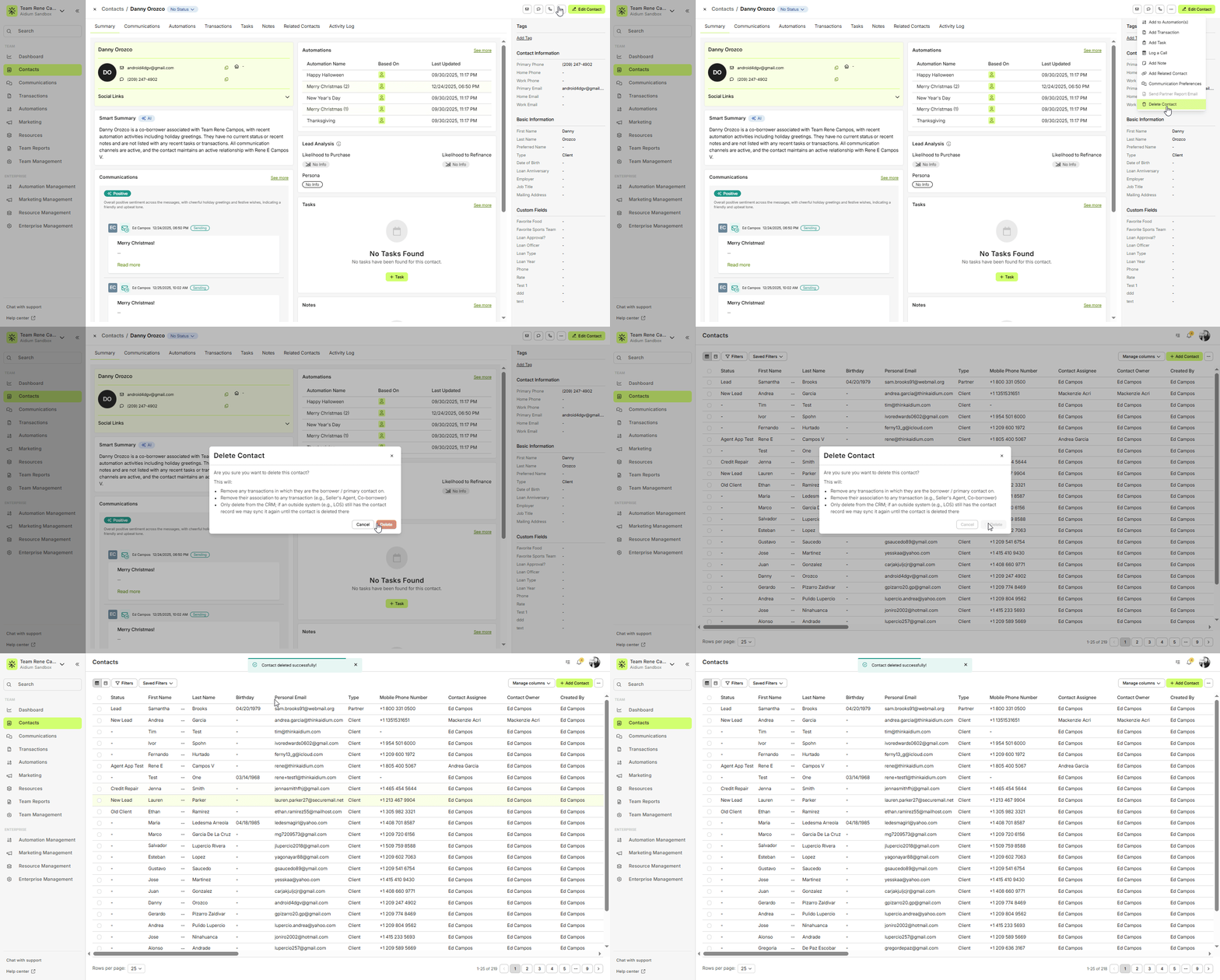
👍 This concludes quick actions that act on the current contact.
Segment Tabs
Segmenting each type of information about a contact provides more and better organized data. This will allow you and your team to view what you want, when you need it. Below, we'll review each tab and what information is available.
- Summary - This tab can be considered the Contact Dashboard - showing all the important details at a glance. We'll see contact info, tasks, recent communications, tasks, notes, transactions and automations. Each section in the contact summary will show the most recent item(s).

Click to learn more about the Summary Tab. - Communications - This is where all outbound and inbound emails and text messages are documented. They can be segregated from All, to just Email or just Text. Additionally, at the upper-right of this tab, we can click to send a direct email or text.
Additionally, each email will have a 'View' link that can be used to preview the entire email that was sent, or received. Any communication where the 'bubble source' is on the left, is an inbound communication from the contact. Any communication where the 'bubble source' is on the right, is an outbound communication from your team, to the contact. Each communication also has a timestamp, when outbound, will show which user sent it.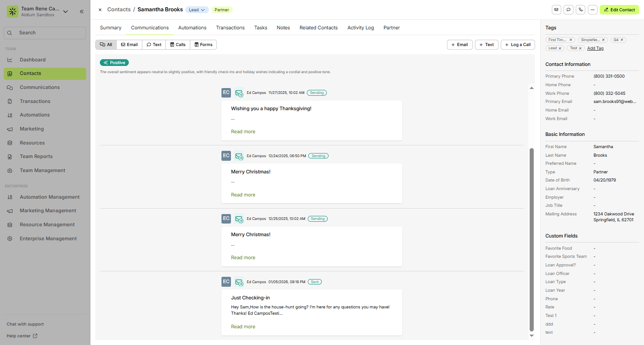
Click to learn more about the Communications Tab. - Automations - This tab will show which Automations are currently active or completed. It will also provide important information about the automation target (Based On) - either Contact or Transaction. Finally, if the automation has a description, it will display here as well.
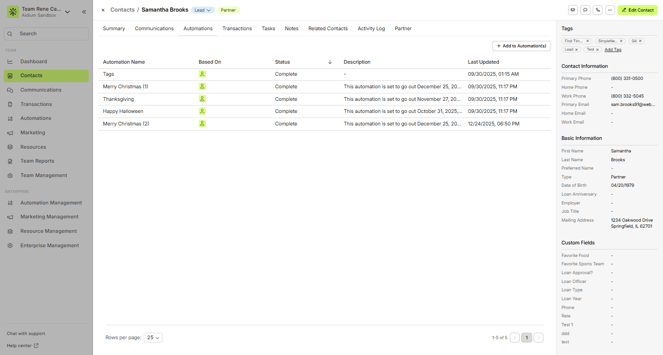
To add this contact to an automation, simply click the '+ Add to Automation(s)' button.
Every 'Active' Contact based automation will have an 'ellipsis' [...] next to the automation name. This can be used to un-assign that automation.
Click to learn more about the Automations Tab. - Transactions - This tab will show every transaction this contact is linked to. Whether a Borrower, Co-borrower, Agent or other loan related contact, those transactions will display here. As seen in the animated GIF below, the important 'at-a-glance' information is shown, like, Loan Number, Property Address, Transaction Status, Loan Amount, Funded Date and Contact Role (why this transaction is linked to this contact).
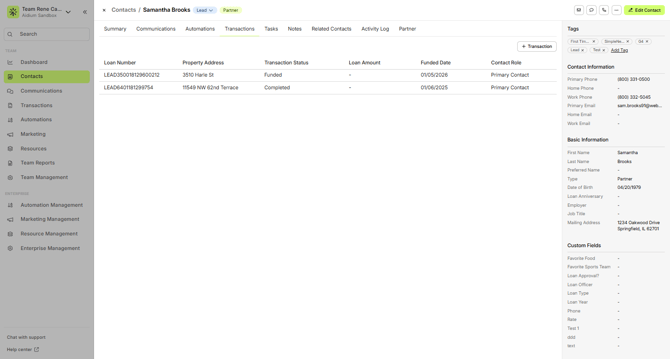
Additionally, we can click on the Loan Number (in green) to open the transaction view. This view displays the Summary, Automations, and Notes for the transaction. From there, we can click Edit Transaction to update any details as needed.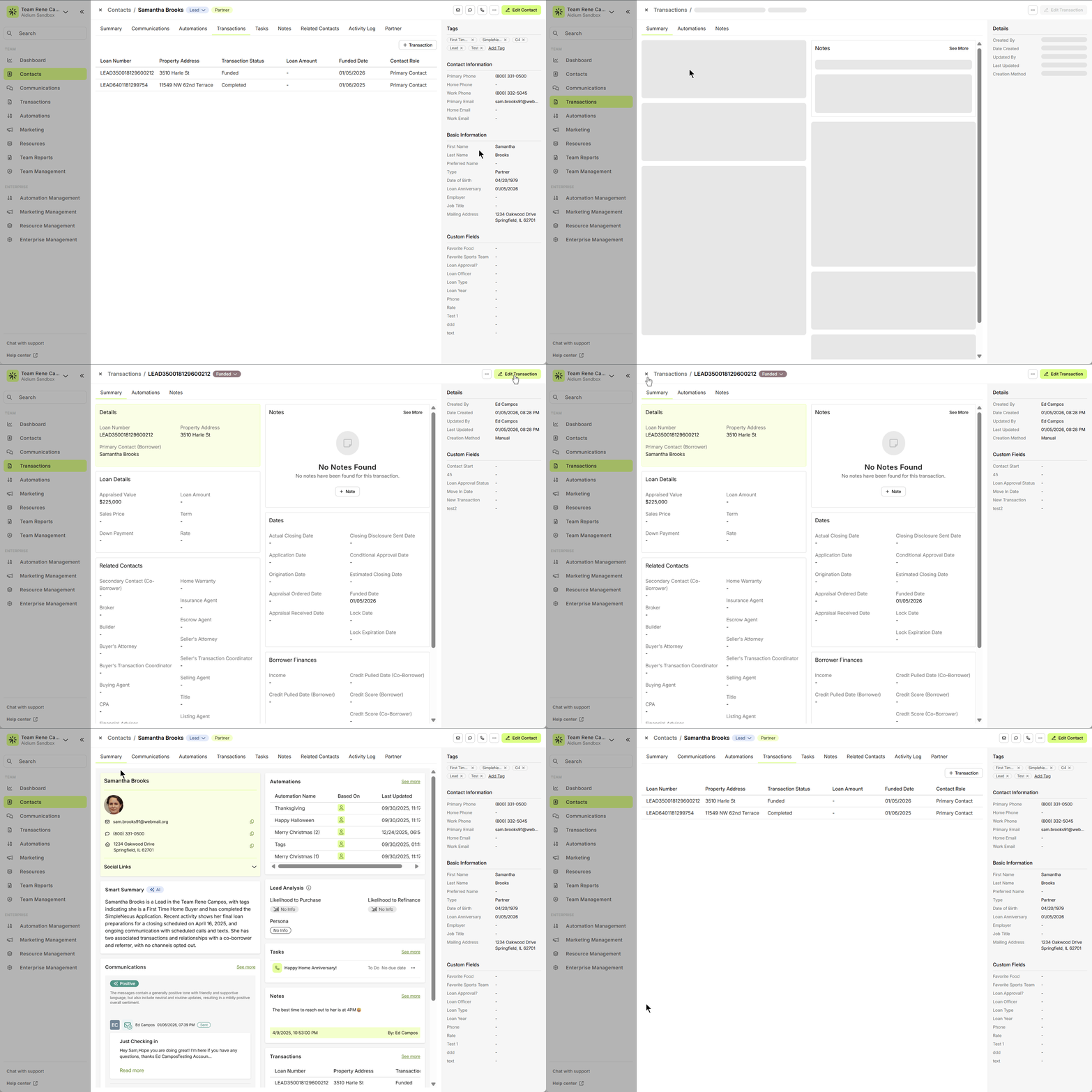
We can also click the '+ Transaction' button to start a new, manually created transaction.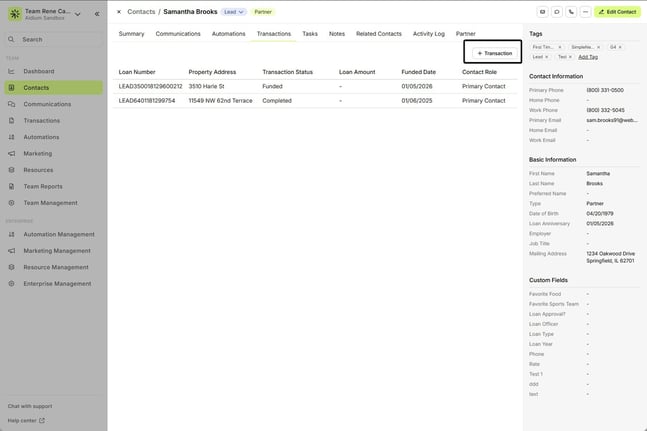
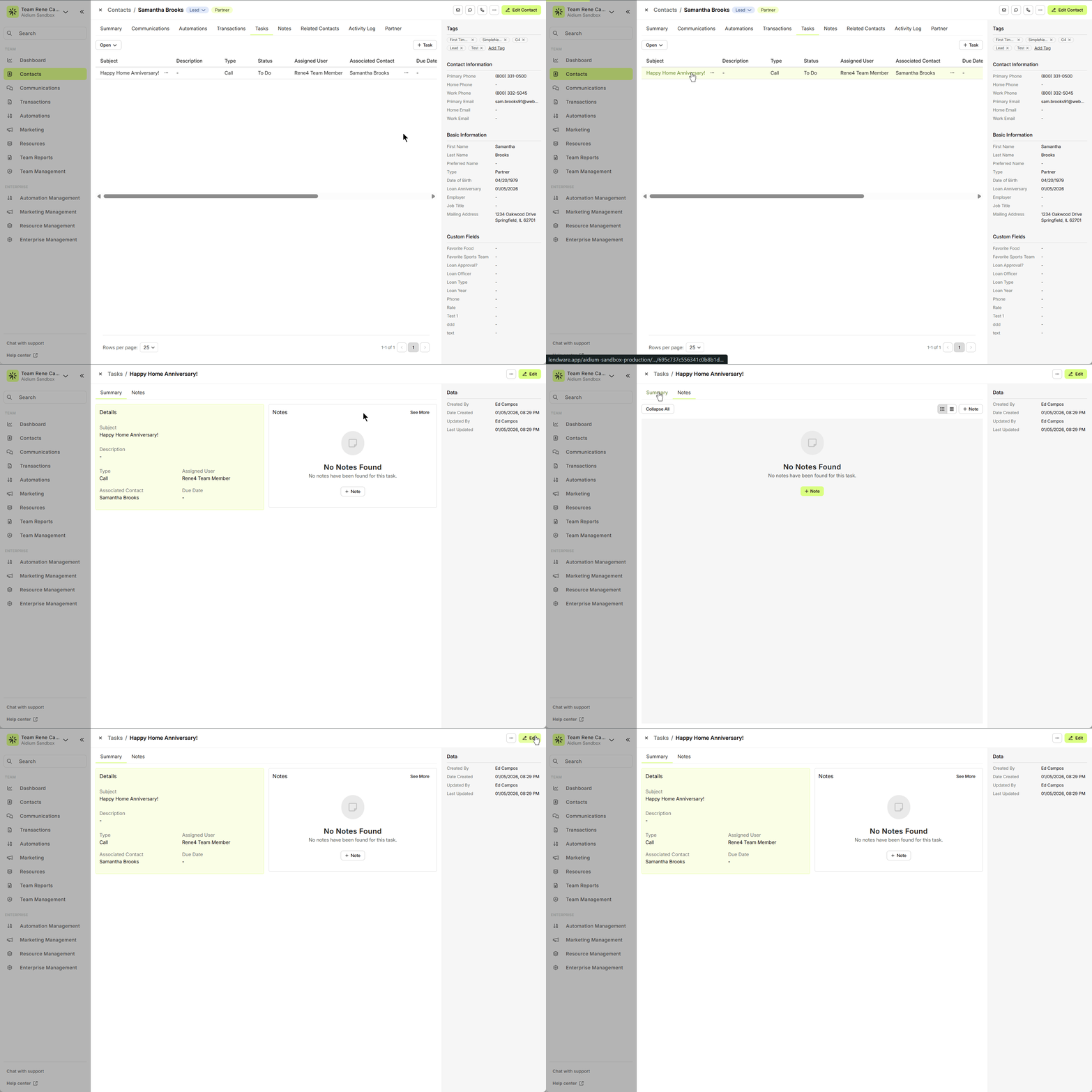
Click to learn more about Transactions Tab. - Tasks - Here is where we find all tasks linked to this contact. As seen in the animated GIF below, the important 'at-a-glance' information is shown, like, Subject, Description, Type, Status, Assigned User, Due Date, Created by and Created Date.

Additionally, we can click on the Task Name (in green) to open the task view. This view shows the Summary and Notes for the task. From there, we can click Edit Task to update any details as needed. You can also click the ellipsis [...] on any task to access the available Quick Actions.
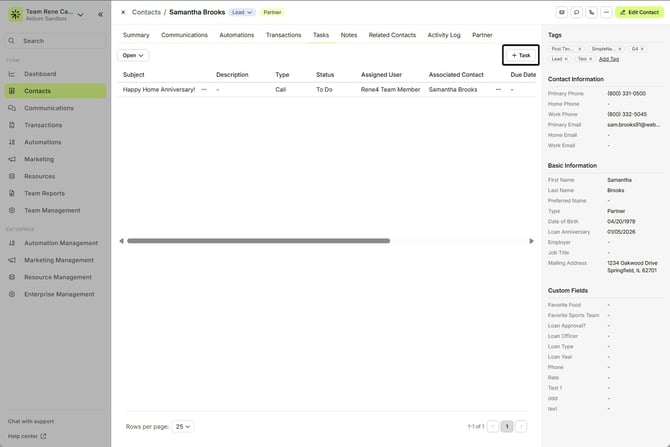
 We can also click the '+ Task' button to create a new task.
 Click to learn more about the Tasks Tab.
 - Notes - This is a central repository for manual updates and important information about this contact. They can be anything you or your team wants to track. It's ideal to put details like, life details, actions taken, purchase or refinance details, as well as personal preferences, kids, pets and interests.
Additionally, each note will track who added it and when it was created.
To create a new note, simply click the ‘+ Note’ button, and to edit an existing note, click the ellipsis [...] on that note.
Click to learn more about the Notes Tab. - Related Contacts - All contacts that are 'linked' to this contact will be located here. If your team has an LOS integrated, 'Co-borrower' contacts will automatically be linked. A 'Referred By' contact can be automatically linked, depending on your team's integrations (or by import), however, when generating a new contact manually, or if the above is not the case, it's highly suggested to always link the 'Referred By' contact manually.If the Contact Type = Partner, we'll see an ellipsis [...] button. This will provide the option to quickly send a Partner Report via email to this contact.To link a contact, click the '+ Related Contact' button - Search for the contact to link, then choose the relationship type. In the following animated GIF, we'll link the contact Gregory Peck, as Business Partner of George Kanis.
 We can also click the ellipsis [...] next to each related contact to perform the following 'quick actions' to that contact. This is a great time saving feature, allowing you to make changes to the related contact without having to open it.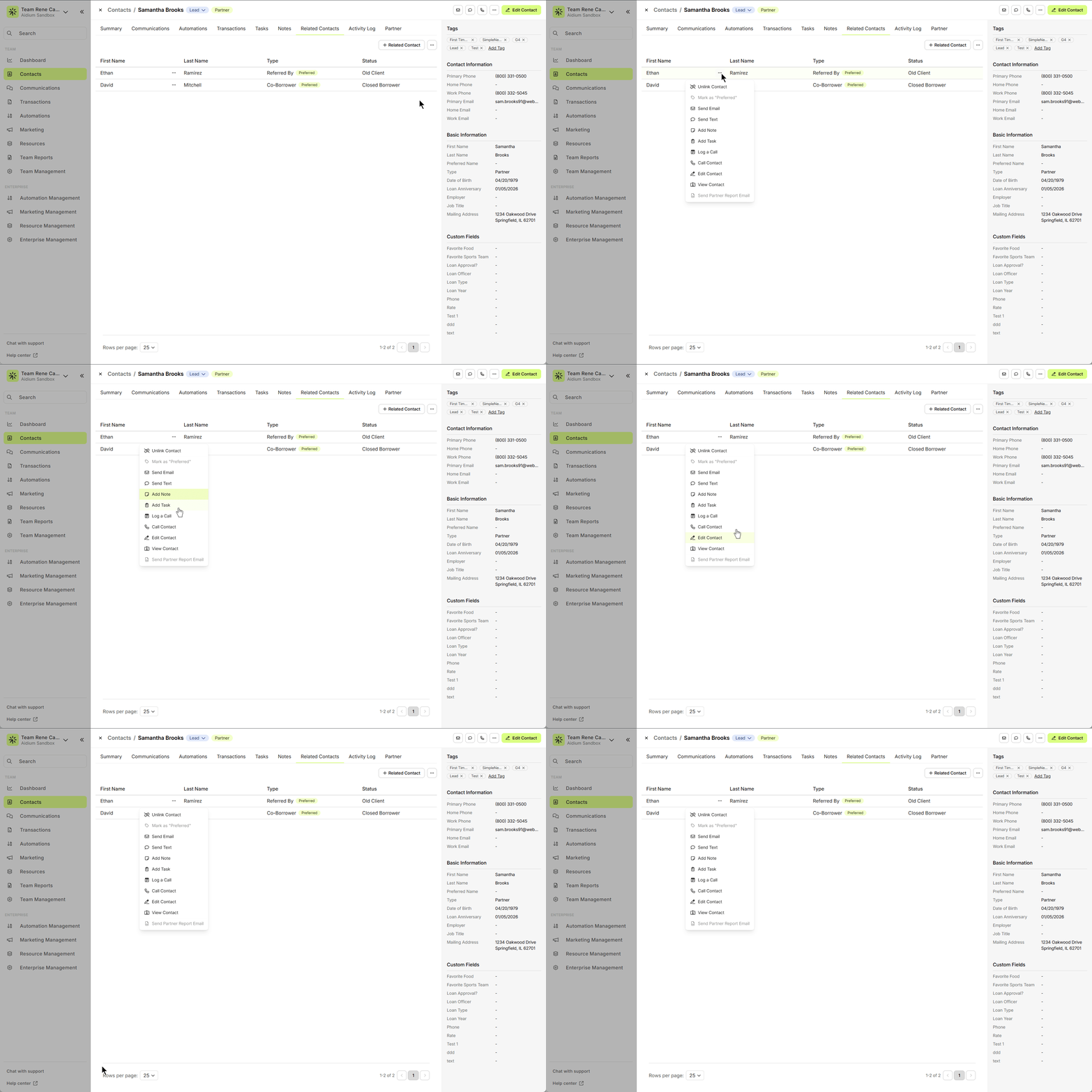
Available Actions:
Unlink Contact – Removes the relationship link between the two contacts.
Mark as "Preferred" – Sets this contact as the primary when more than one linked contact has the same relationship type. The preferred contact is used in merge fields (e.g., for emails or partner reports).
Send Email – Opens the email drawer to send a message to the linked contact.
Send Text – Opens the messaging drawer to send an SMS/text.
Add Note – Quickly add a note to the linked contact without leaving the current page.
Add Task – Assign a task associated with the linked contact for tracking purposes.
Log a Call – Manually log a phone call with the linked contact, including notes and outcome.
Call Contact – Initiates a call using your team’s calling system (if enabled).
Edit Contact – Opens the Edit Contact drawer for the linked contact, so you can make changes without leaving your current view.
View Contact – Takes you directly to the full Contact Detail page of the linked contact.
Send Partner Report Email – Sends the current status report email to the linked contact (available only if they are a Partner-type contact).
Click to learn more about the Related Contacts Tab. - Activity Log - This will provide a view of each action that has taken place and what caused the action to happen. They are ordered by most recent at the top and will allow a full view of the historic changes, updates, automations and tasks.This log is view-only to show all the important changes and actions on a contact. It's not intended for viewing interactions, but an opportunity to see when, how and by whom, things happened.In the screencap below, we'll explain each activity event recorded from top to bottom.
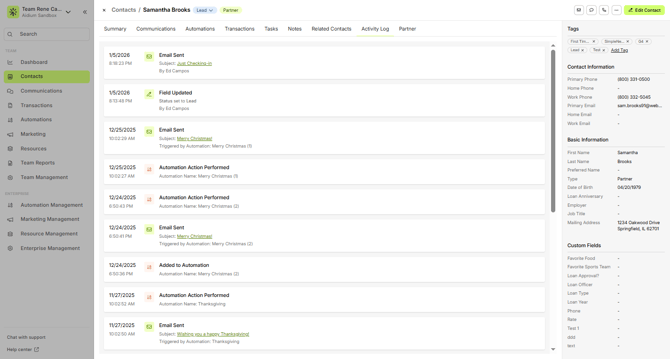
Email Sent – the user, Ed Campos, created and sent an email directly to the contact with subject: “Just Checking-in” on 1/5/2026 @ 8:18:23 PM
Field Updated – the user, Ed Campos, updated the Status field to Lead on 1/5/2026 @ 8:13:48 PM
Email Sent – an email was sent via automation with subject: “Merry Christmas!” triggered by Automation: Merry Christmas (1) on 12/25/2025 @ 10:02:29 AM
Automation Action Performed – the automation Merry Christmas (1) performed an action on 12/25/2025 @ 10:02:27 AM
Automation Action Performed – the automation Merry Christmas (2) performed an action on 12/24/2025 @ 6:50:43 PM
Email Sent – an email was sent via automation with subject: “Merry Christmas!” triggered by Automation: Merry Christmas (2) on 12/24/2025 @ 6:50:41 PM
Added to Automation – the contact was added to Automation: Merry Christmas (2) on 12/24/2025 @ 6:50:36 PM
Automation Action Performed – the automation Thanksgiving performed an action on 11/27/2025 @ 10:02:52 AM
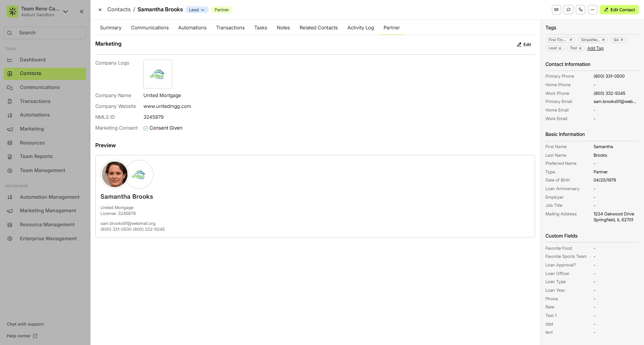
Click to learn more about the Activity Log Tab. The Partner section displays key marketing and branding information tied to the linked partner contact, such as a referral partner. It’s used to manage how their info appears in marketing materials.
What it shows:
Company branding: Logo, name, website, NMLS ID
Marketing consent: Whether the partner has agreed to appear in co-branded marketing
Preview card: Shows how the partner’s info (name, company, license, email, phone, profile picture) will display on marketing assets
👍 This concludes a walk-through of each segmented tab in the contact detail.
Tags
Team tags are not just a way to segment contacts based on their situation, but are also a great way to tell the story of what the contact means to your team. The best part is that one or more tags can be used as entry conditions for automations. This will help determine which contacts should automatically be enrolled in future automations. For example: Holiday Newsletters, Event Invites, Check-ins, Opportunities, and much more!
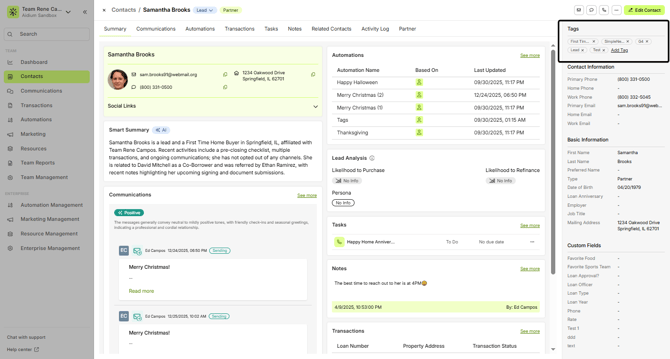
To add a tag to a contact, simply click the 'Add Tag' link, in yellow to reveal a drop-down of all available tags. Next, scroll down OR type the first letter of the tag, then choose the tag to add.
We'll receive a pop-up message asking if we're sure, contacts can be enrolled in automations by using tags.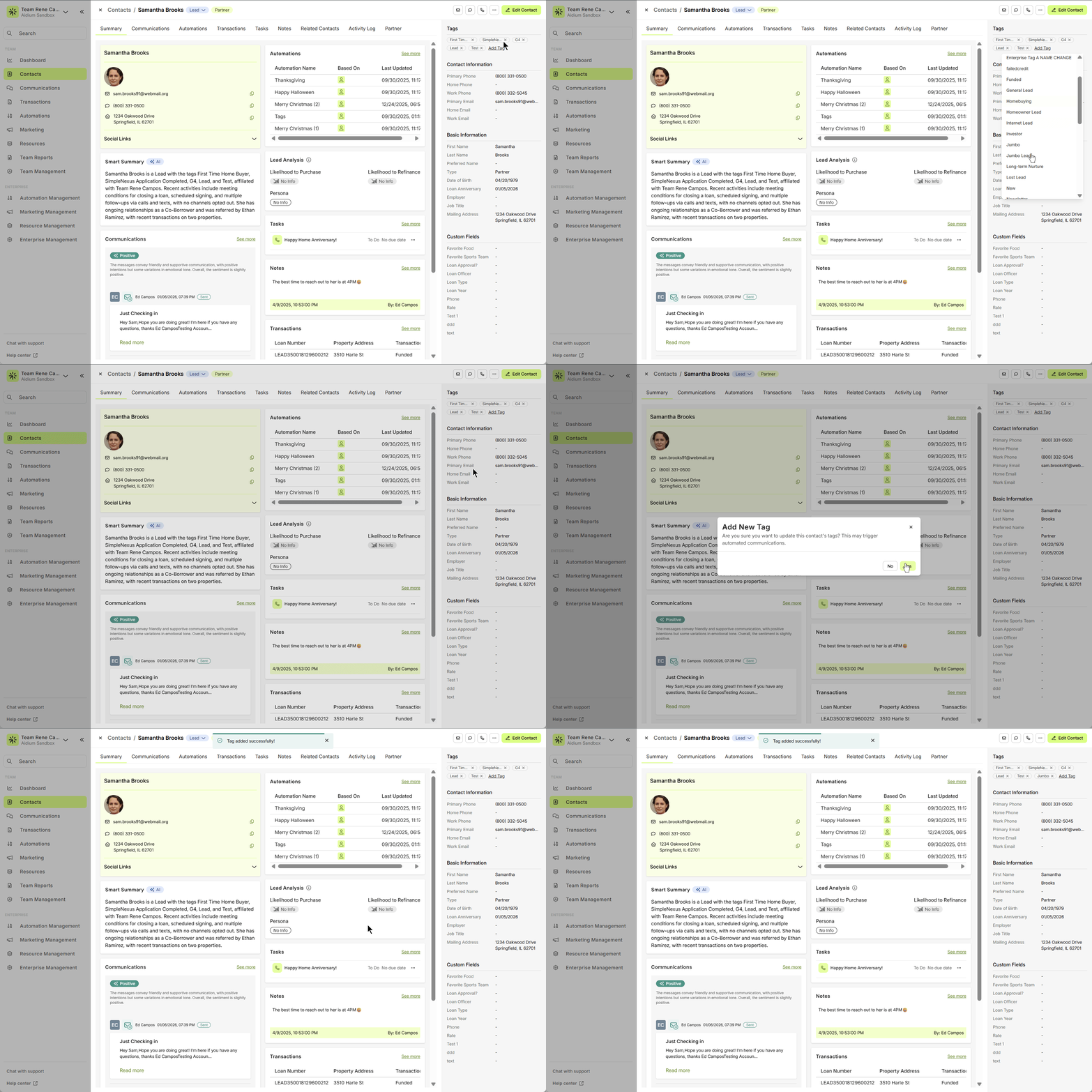
If the tag we want to add does not exist in our team, we can add it on the fly. Simply scroll down to the bottom of the list and click, '+ Create New Tag'.
A pop-up will appear where we can type the new tag. It will verify the tag is unique, at which point we click the yellow 'Confirm' button. Once created, it will automatically be added to the contact. The new tag will also now be available to add to any other contact on our team. Additionally, it's now available for use in automations.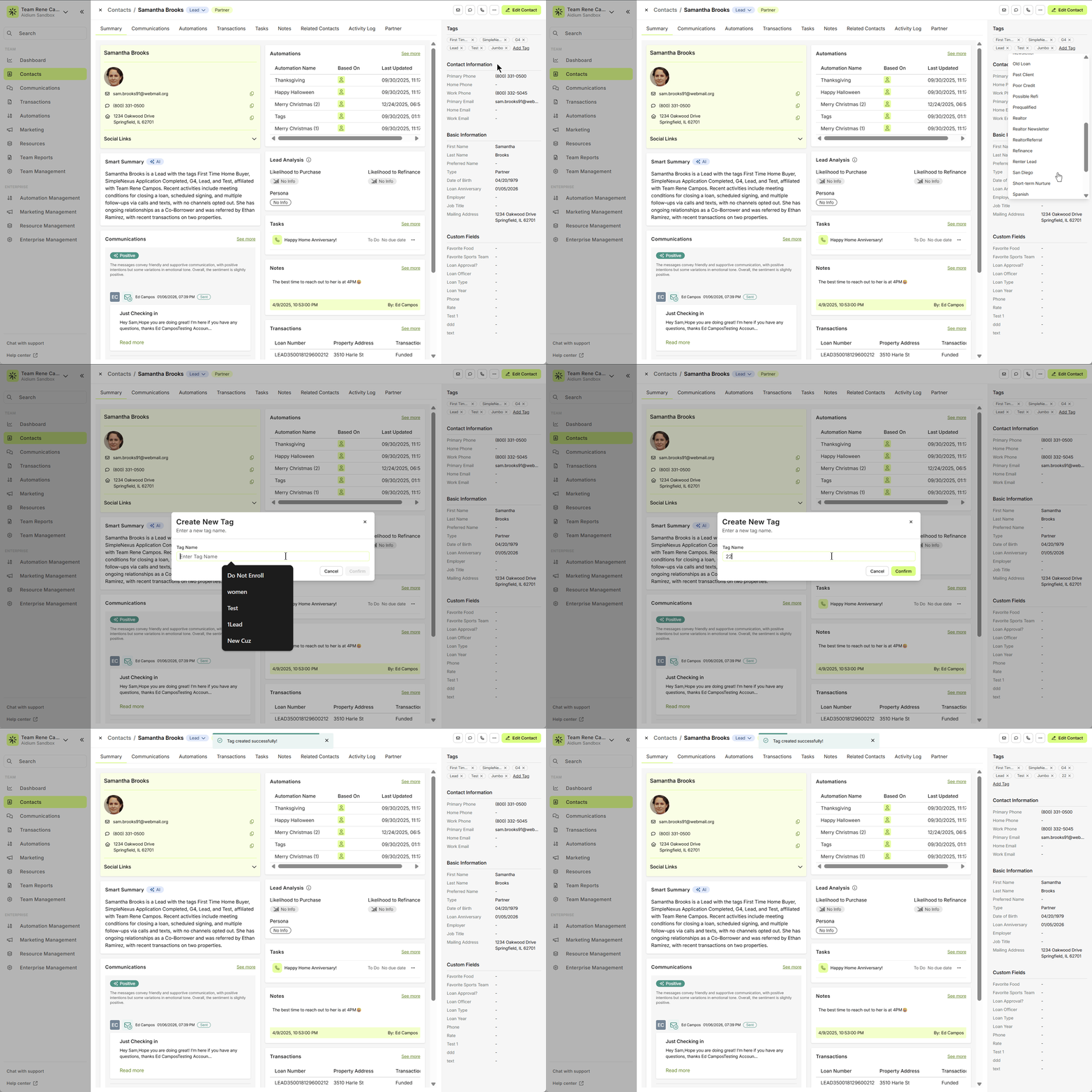
👍 This concludes how to add an existing tag and create a new tag on the fly.
Contact Information
Below tags, we'll find all the Contact information, Basic information and Custom fields. These are static fields, meaning they are not editable. To view more, hover over this section and scroll down. Depending upon the screen resolution and browser window size, some fields may not be visible, like Contact Custom Fields.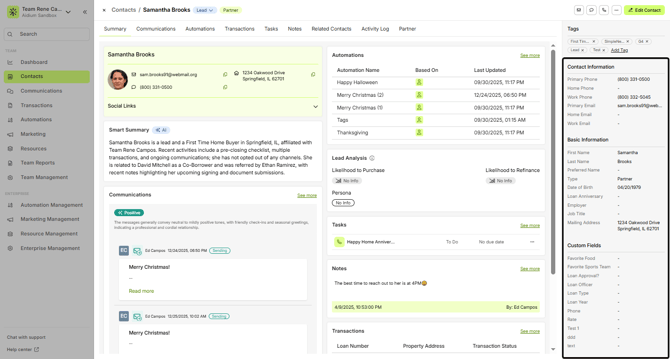
By clicking the yellow, 'Edit Contact' button at the top-right, we can edit any of the fields displayed. In this case, we'll add a work phone and birth date to the contact.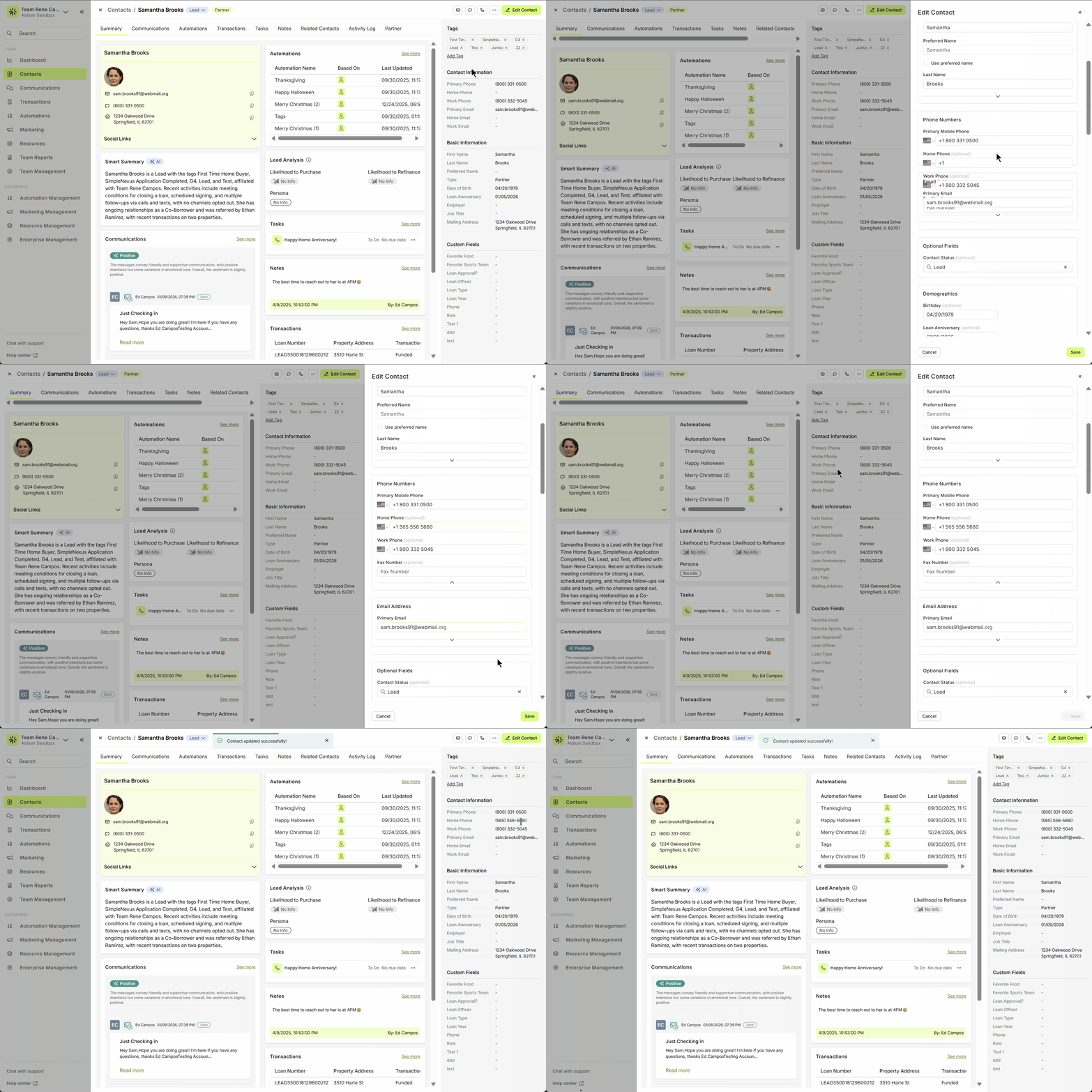
Editing or adding contact information can be done at anytime on any contact.
👍 This concludes viewing and editing contact information.
Need more help? Check out: Merge Contacts Guide
Related Articles
Contact Detail View – Tags
Tags are a simple yet powerful way to highlight what matters most about a contact. Whether it's their status, source, or role in your process, tags help tell each contact's story—boosting clarity for your team and enabling automations to act more ...Contact View - Summary Tab
The Summary tab in the new Contact View acts as a snapshot of your contact’s most important details and recent activity. It offers a streamlined overview of tasks, communications, transactions, and more—all in one place. When opening a contact, the ...Contact View - Transactions Tab
The Transactions tab is a straightforward way to view and interact with every transaction (loan) that a single contact is associated with. Whether a borrower, co-borrower, real estate agent or other loan related contact - it will display. This tab ...Contact View - Notes Tab
The Notes tab in the new contact view is the ideal place to record detailed, contact-specific information. Whether it’s insights from phone calls, key interests, or any other relevant details, this tab helps you track the story of each contact for ...Contact View - Communication Tab
The Communications tab in the new Contact View provides a centralized, chronological feed of all interactions with a contact—including emails, text messages, calls, and submitted forms. This offers a complete picture of engagement, allowing you to ...