Contact View – Related Contacts Tab
The Related Contacts tab in the new contact view makes it easy to link any contact to another using a relationship type. This helps your team quickly understand connections, keep track of referrals and partners, and streamline communication.
There’s no limit to how many contacts you can link, making it a powerful tool for building context around relationships. Common examples include:
Business Partners – Two contacts who work together or in the same company.
Spouse/Domestic Partner – A permanent relationship, such as partners who live together or share finances.
Referred By – A contact introduced or referred by another. For example, if a real estate agent refers a lead, you can link the agent as “Referred By.”
Co-Borrower – Another borrower on a loan or transaction. If the LOS provides a co-borrower, the system will automatically link them.
Why use Related Contacts?
Linking contacts isn’t just about organization—it unlocks some powerful features:
- Send emails or texts to related contacts within automations.
- Use merge fields to pull data from related contacts.
- Quickly interact with related contacts without leaving the primary record.
- Generate and send Partner Reports with just a few clicks.
Using the below image as a reference, we'll review each option available.
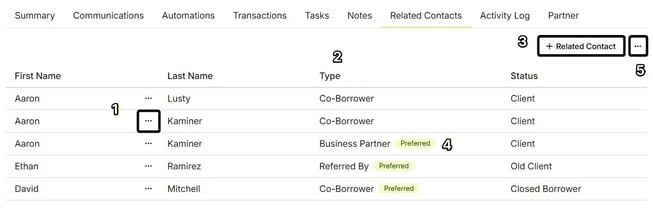
- Quick Options for a linked contact
- Related 'Type'
- '+ Related Contact'
- 'Preferred' contact
- Send 'Referral Partner' Report
Quick Options for a Linked Contact
This is another great efficiency feature. By clicking the ellipsis [...] next to any of the related contacts listed, we can do many important functions/actions without ever leaving the current contact.
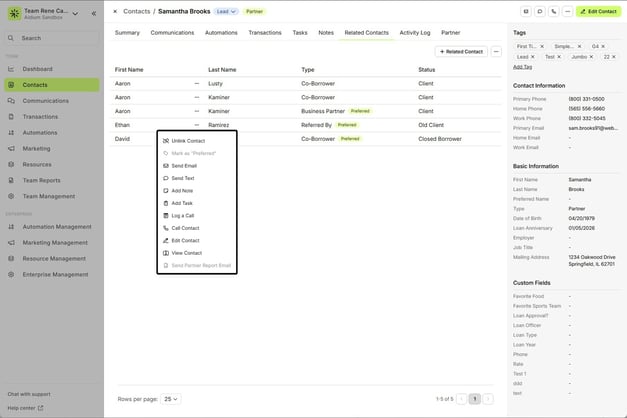
- Unlink Contact - this will remove the 'related' link with the current contact.
- Mark as "Preferred" - this will only be an option when there is more than one linked contact of the same type. We'll go into more detail later in this article.
- Send Email - Provides the ability to quickly send an email to this related contact.
- Send Text - Provides the ability to quickly send a text message to this related contact.
- Add Note - Creates a note that is save on the related contact.
- Add Task - Creates a task that is linked to the related contact.
- Edit Contact - Will provide the Edit Contact drawer on the right and allow us to edit the related contact.
- Log a Call - Create a logged call activity (outcome) tied to this related contact- great for keeping a record of phone conversations.
Call Contact - Start a phone call to the related contact.
- View Contact - Will open the related contact. This will exit the contact we're currently viewing.
- Send Partner Report Email - Click here to learn more.
Related Contact 'Type'
This is how we will identify the relationship between the contacts, and will make it easy to understand why each related contact is listed.
There are 4 options to choose from when linking a related contact that we defined at the beginning of this article.
In the next section, we'll go into a little more detail.
'+ Related Contact' - Add Related Contact
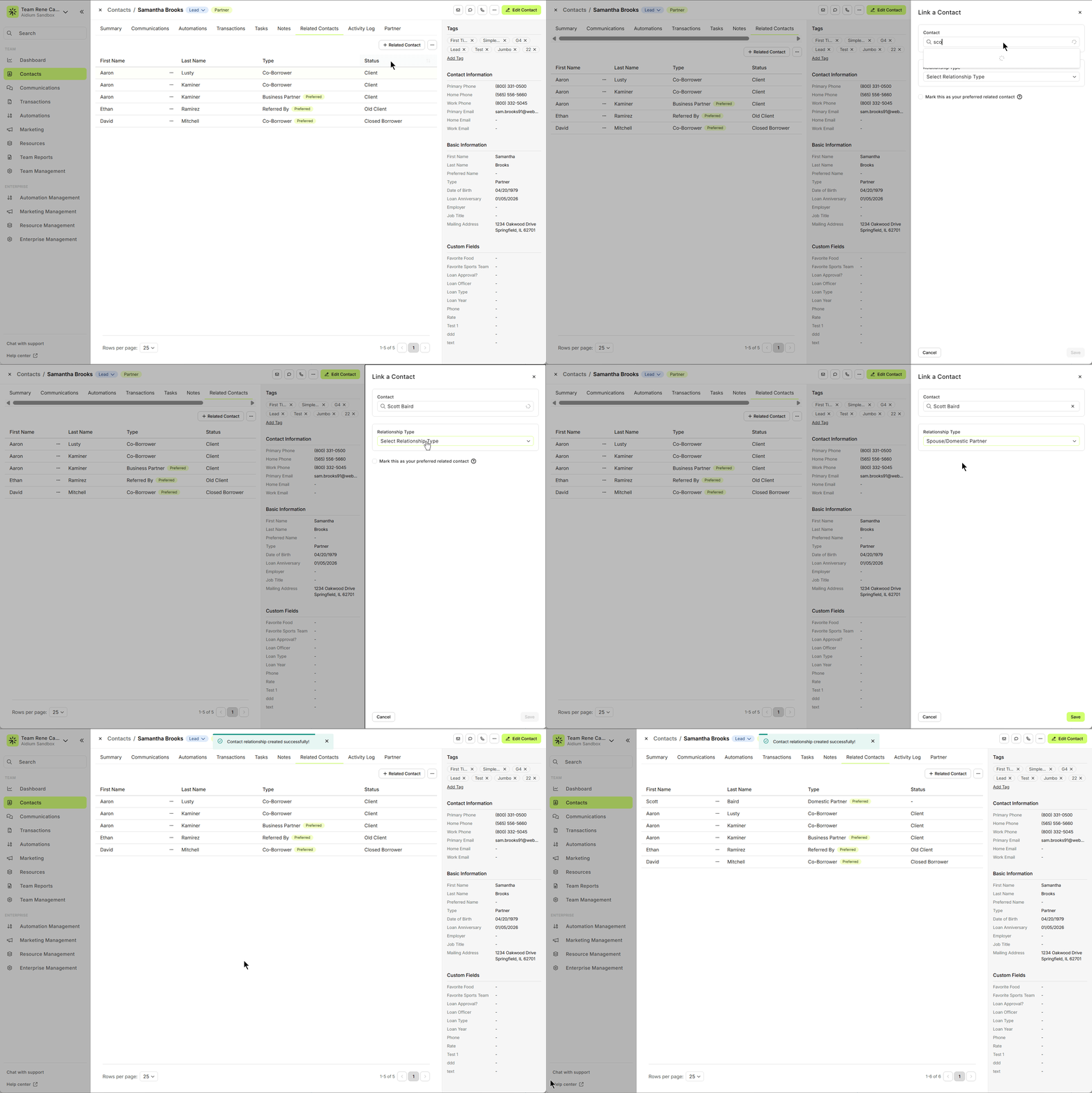
Adding a related contact can take very little time, as long as the contact already exists within our team. If the contact we want to link does not exist, we must create it first.
In the below animated GIF, we'll add related contact with a type = Spouse/Domestic Partner
'Preferred' Contact
This is an option available as we link a contact, when a related contact of the same 'type' already exist. The purpose is to identify the 'preferred' contact for sending automated emails, text messages and using merge fields in either of those communication methods.
When linking a related contact with the same type as an existing related contact, we'll see a check-box under the 'Relationship Type' drop-down. If we want to update the 'preferred' contact to the one we're adding, we'll simply check that box.
Additionally, we can adjust which contact is 'preferred' by using the quick options described above in this article.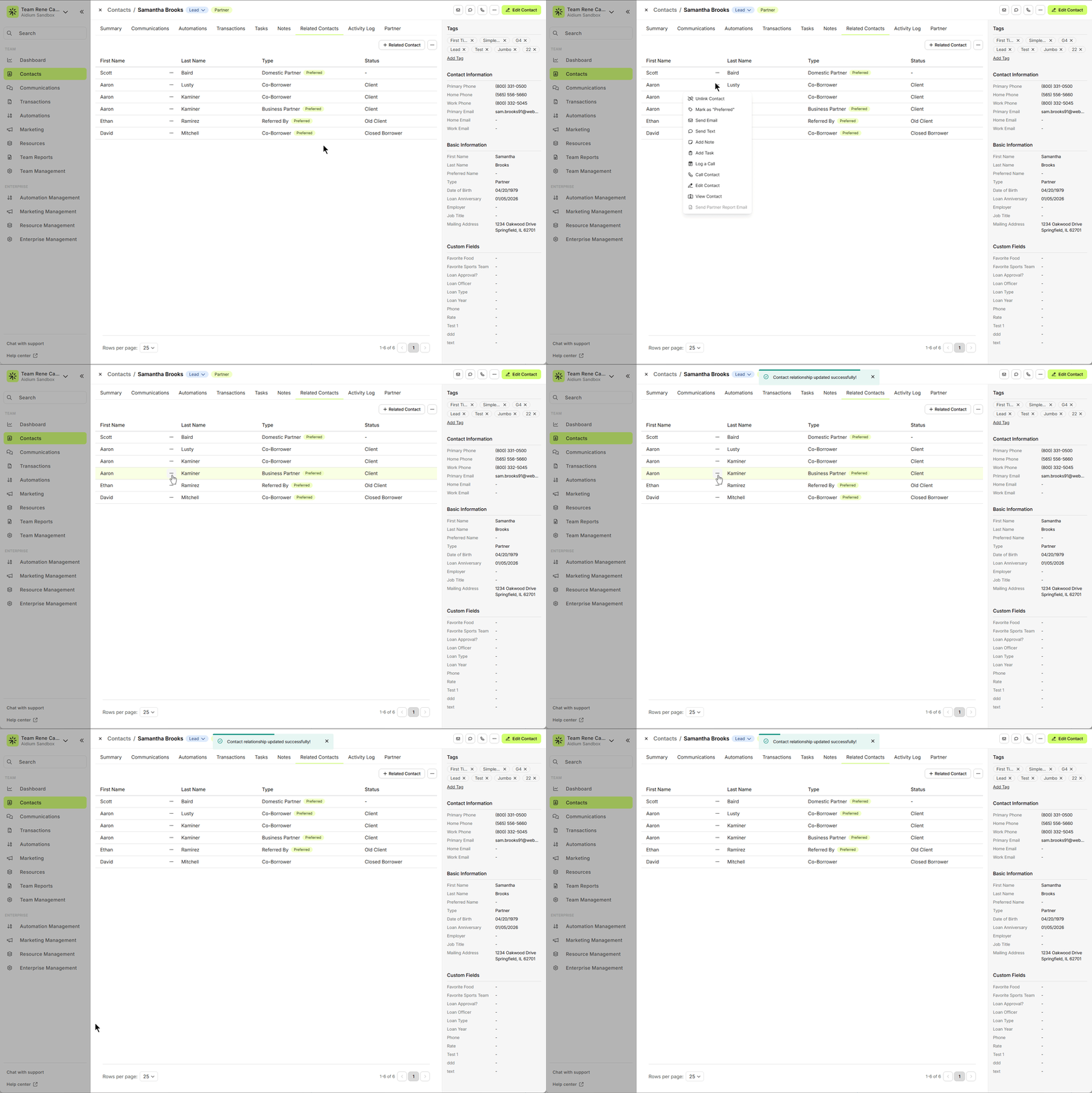
Send 'Referral Partner' Report
To send a Referral Partner Report to the current contact, we can click the ellipsis [...] button at the top-right of the Related Contacts tab. If, after clicking the button, the option is not enabled, that means the contact we are viewing is not eligible to receive this report.
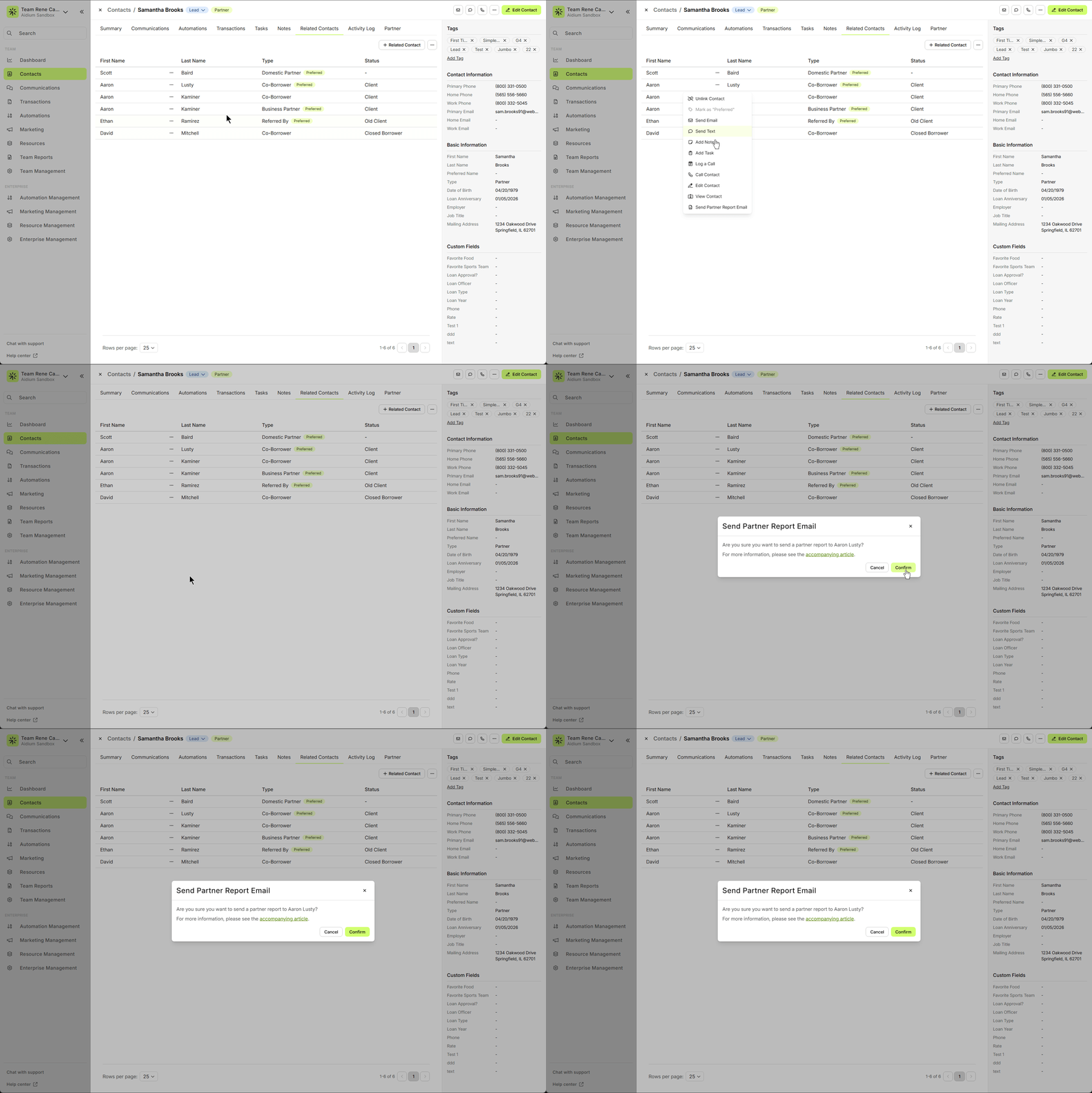
To learn more about setting up a contact to be eligible for a referral pipeline report, click here.
🚧 To help streamline the report and to ensure old leads are not referenced - Only contacts that have been communicated with in the last 90-days will be included on this report.
👍 This concludes an overview of the contact view - related contacts tab.
Related Articles
Contact View - Summary Tab
The Summary tab in the new Contact View acts as a snapshot of your contact’s most important details and recent activity. It offers a streamlined overview of tasks, communications, transactions, and more—all in one place. When opening a contact, the ...Contact View - Transactions Tab
The Transactions tab is a straightforward way to view and interact with every transaction (loan) that a single contact is associated with. Whether a borrower, co-borrower, real estate agent or other loan related contact - it will display. This tab ...Contact View - Tasks Tab
The Tasks tab in the new contact view displays all tasks linked to the contact. It includes all statuses — whether To-Do, In-Progress, Complete, or On Hold — and these can all be easily viewed, sorted, and edited with just a few clicks. Tasks are ...Contact Detail View – A Walkthrough
The new Contact Detail View offers a streamlined and organized way to view and manage your contacts. With all information separated into intuitive tabs, you’ll find everything you need at a glance—making it easy to update, communicate, and stay on ...Import Contacts with CSV or XLSX File - Lendware
Managing contact imports in Lendware is straightforward and can be done in just a few simple steps with some initial organization. Both CSV (Comma-Separated Values) and XLSX (Excel Spreadsheet) files are supported for import. CSV is a universally ...