Contact View - Summary Tab
The Summary tab in the new Contact View acts as a snapshot of your contact’s most important details and recent activity. It offers a streamlined overview of tasks, communications, transactions, and more—all in one place.
When opening a contact, the Summary tab is the first screen presented. While the other tabs provide deeper, specific information, the Summary gives you a high-level view, helping you quickly understand recent interactions and next steps.
Each section within the Summary displays the most recent items related to that category. If additional entries exist, a link will allow you to view the full list.
Using the image below, we’ll walk through each section of the Contact Summary.
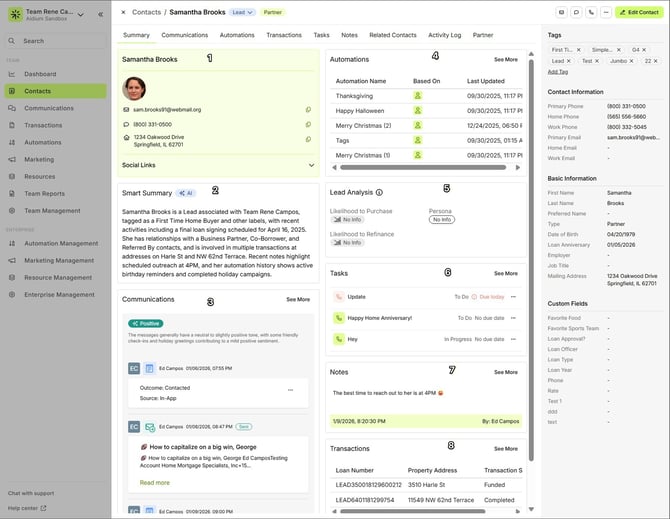
Quick Contact Information - This section highlights the contact’s email, mobile phone, and physical address and photo.
Each field includes a copy icon, enabling one-click copying for quick pasting into another app or tool.
- Smart Summary – An AI-generated overview that summarizes key contact details, including contact type, team assignment, tags, recent activity, relationships, transactions, notes, and automation history, giving a quick snapshot of the contact’s current status and engagement.
Each field includes a copy icon, enabling one-click copying for quick pasting into another app or tool.
Communications - Displays the three most recent text messages, calls, forms or emails—inbound and outbound.
Automations - Lists the most recent automations assigned to the contact and indicates whether they’re contact-based or transaction-based.
If an ellipsis […] appears next to an automation, it’s an active contact-based automation, and you can click it to unassign it as needed.
- Lead Analysis – Lendware Intelligence analyzes contacts using multiple factors such as demographics, contact activity, and loan history to predict the likelihood of purchasing or refinancing, and to assign associated personas. These scores help prioritize contacts with higher conversion potential in your sales efforts.
If an ellipsis […] appears next to an automation, it’s an active contact-based automation, and you can click it to unassign it as needed.
Tasks - Shows all tasks linked to the contact. Clicking a task opens the Edit Task drawer for fast updates or status changes.
Each message includes a “Read more” link, allowing you to see the full message content without switching tabs.
Each message includes a “Read more” link, allowing you to see the full message content without switching tabs.
Notes - Shows the most recent note added to the contact.
Transactions - Displays the most recent loan transaction(s) associated with the contact.
Clicking on the green loan number opens the full Transaction Detail view.
The Summary tab provides a real-time overview of all relevant activity, saving time and giving you the context needed to act quickly—without jumping between multiple tabs.
In most sections of the Summary tab—like Tasks, Communications, Transactions, and Automations—you’ll see a “See more” link.
🡺 Clicking “See more” doesn’t just expand the section—it takes you straight to the full tab related to that section. This lets you dive deeper into the full history without extra steps.
👍 This concludes an overview of the contact view summary tab.
Clicking on the green loan number opens the full Transaction Detail view.
The Summary tab provides a real-time overview of all relevant activity, saving time and giving you the context needed to act quickly—without jumping between multiple tabs.
In most sections of the Summary tab—like Tasks, Communications, Transactions, and Automations—you’ll see a “See more” link.
🡺 Clicking “See more” doesn’t just expand the section—it takes you straight to the full tab related to that section. This lets you dive deeper into the full history without extra steps.
👍 This concludes an overview of the contact view summary tab.
Related Articles
Contact Detail View – A Walkthrough
The new Contact Detail View offers a streamlined and organized way to view and manage your contacts. With all information separated into intuitive tabs, you’ll find everything you need at a glance—making it easy to update, communicate, and stay on ...Contact View - Transactions Tab
The Transactions tab is a straightforward way to view and interact with every transaction (loan) that a single contact is associated with. Whether a borrower, co-borrower, real estate agent or other loan related contact - it will display. This tab ...Contact View - Notes Tab
The Notes tab in the new contact view is the ideal place to record detailed, contact-specific information. Whether it’s insights from phone calls, key interests, or any other relevant details, this tab helps you track the story of each contact for ...Contact View - Communication Tab
The Communications tab in the new Contact View provides a centralized, chronological feed of all interactions with a contact—including emails, text messages, calls, and submitted forms. This offers a complete picture of engagement, allowing you to ...Contact View - Tasks Tab
The Tasks tab in the new contact view displays all tasks linked to the contact. It includes all statuses — whether To-Do, In-Progress, Complete, or On Hold — and these can all be easily viewed, sorted, and edited with just a few clicks. Tasks are ...