Contact View - Communication Tab
The Communications tab in the new Contact View provides a centralized, chronological feed of all interactions with a contact—including emails, text messages, calls, and submitted forms. This offers a complete picture of engagement, allowing you to quickly understand the contact's history, follow up effectively, and maintain team alignment.
Having full visibility into both inbound and outbound communications is especially helpful for referencing past conversations, identifying promises made, and staying on top of ongoing conversations—whether they were sent manually, through automations, or submitted by the contact themselves.
Overview of the Communications Tab
Refer to the image below as we walk through each section of the Communications tab interface:
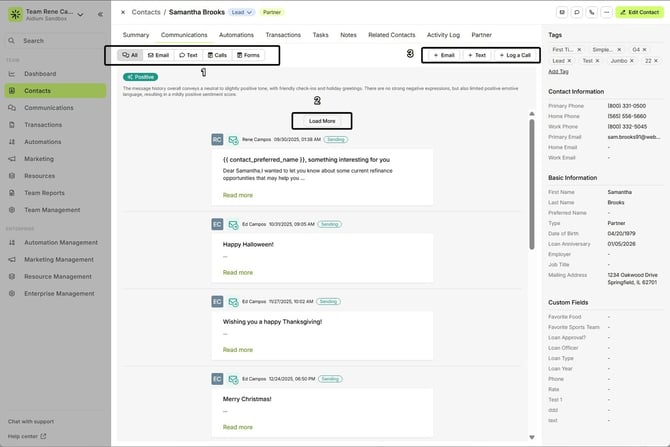
- Filter by Communication Type
- Load More History
- Send or Log a New Communication
Full Conversation History
Messages and activity are listed in chronological order, with the newest at the bottom and oldest at the top. The number of visible entries depends on your browser window size.
Each item appears in its own "bubble":
Inbound messages (from the contact)
Outbound messages (sent by your team)
Each bubble is clearly labeled by communication type:
Text message
Email
Call
Form submission
Outbound emails and texts will also show which team member sent the message, along with a timestamp. For emails, you can click ‘View’ to see the full content of the message.
Outbound messages also show:
The team member who sent the message
A timestamp
The status of the message, such as:
Delivered / Received
Opened
Clicked (for emails with links)
Undelivered (in rare cases of delivery errors)

For emails, you can also click ‘Read more’ to see the full content of the message.
Filter by Communication Type
Use the filter buttons at the top of the tab to focus on a specific message type:
Click Email, Text, Call, or Form
This helps you quickly locate relevant conversations or review communication trends by channel
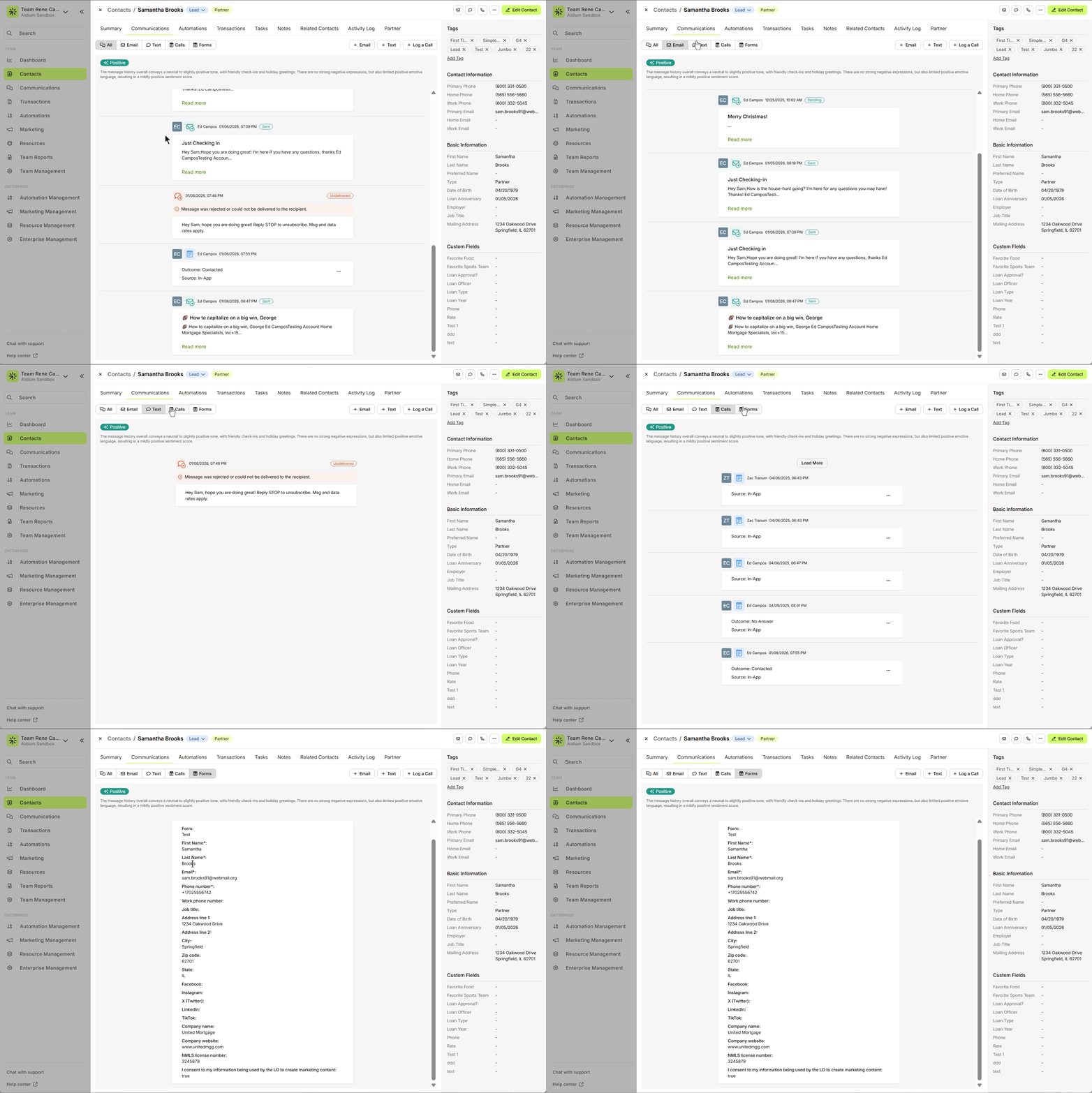
Load More History
When opening the Communications tab, only the most recent interactions will display. To view older items, click "Load More" at the top of the list. You can continue to load additional messages until everything has been shown—at which point the button will display "Nothing to load".

Send or Log a New Communication
In addition to reviewing past interactions, the Communications tab allows you to quickly reach out or log activity without leaving the timeline. You’ll find three options:
+ Email – Compose and send a new email
+ Text – Send a quick SMS message
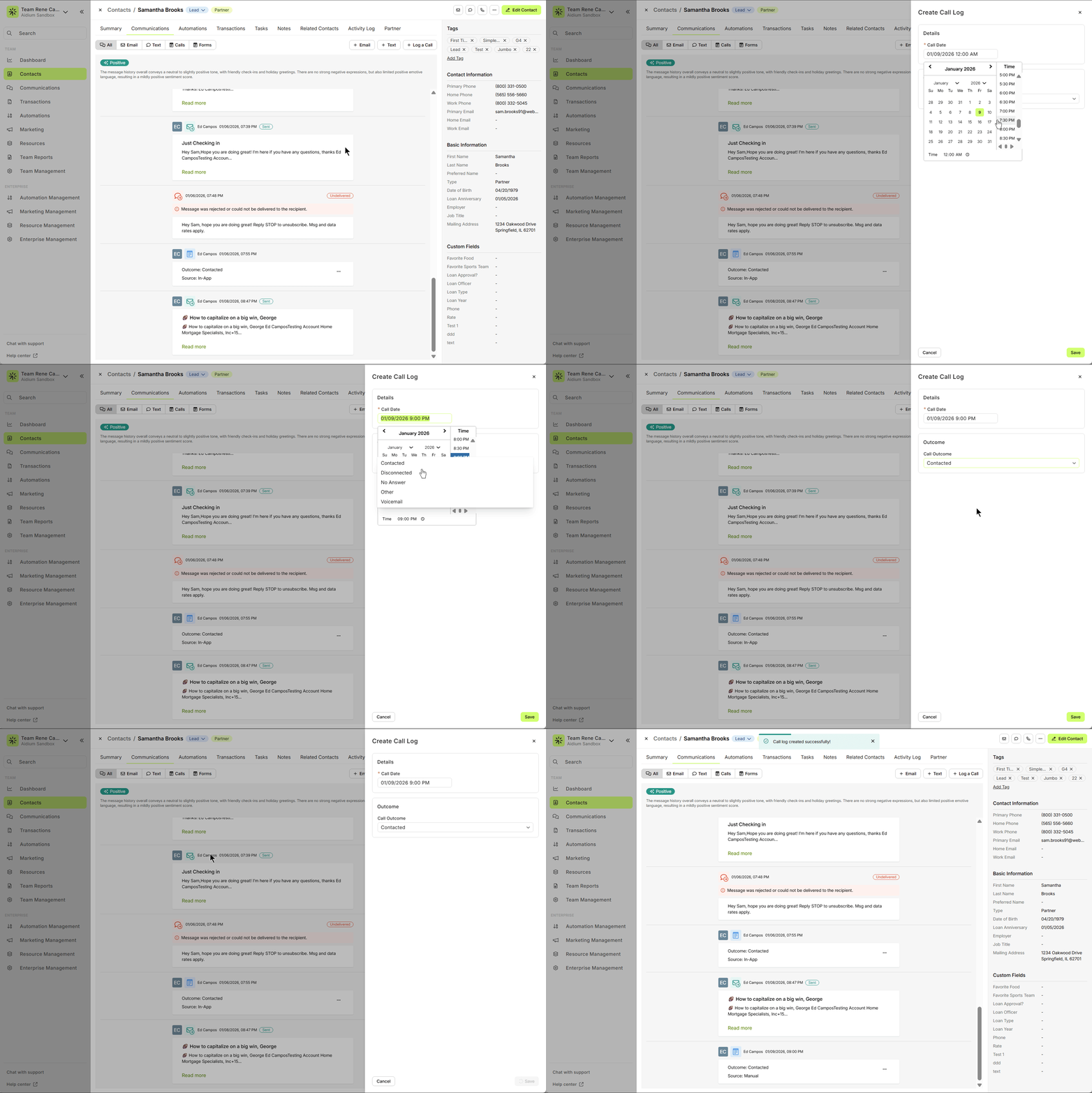
+ Log a Call – Record details of a phone conversation manually
Each option opens a drawer where you can enter or send your message or notes. Logged calls are added to the conversation timeline, just like sent messages and form submissions, helping your team stay aligned and informed.
👍 This concludes an overview of the contact view - communications tab.
Related Articles
Contact Detail View – A Walkthrough
The new Contact Detail View offers a streamlined and organized way to view and manage your contacts. With all information separated into intuitive tabs, you’ll find everything you need at a glance—making it easy to update, communicate, and stay on ...Contact View - Summary Tab
The Summary tab in the new Contact View acts as a snapshot of your contact’s most important details and recent activity. It offers a streamlined overview of tasks, communications, transactions, and more—all in one place. When opening a contact, the ...Contact View - Transactions Tab
The Transactions tab is a straightforward way to view and interact with every transaction (loan) that a single contact is associated with. Whether a borrower, co-borrower, real estate agent or other loan related contact - it will display. This tab ...Contact View - Activity Log Tab
The Activity Log tab in the new contact view shows you all actions that have taken place on a contact. This can be actions taken by users, automations, communication and much more. Every change or update to a contact is captured here for review. ...Contact View - Notes Tab
The Notes tab in the new contact view is the ideal place to record detailed, contact-specific information. Whether it’s insights from phone calls, key interests, or any other relevant details, this tab helps you track the story of each contact for ...