Contact View - Transactions Tab
The Transactions tab is a straightforward way to view and interact with every transaction (loan) that a single contact is associated with. Whether a borrower, co-borrower, real estate agent or other loan related contact - it will display.
This tab provides an overview of all transactions (loans) that this contact have any 'linked' association with. This means that if this contact is automatically linked as a borrower, co-borrower or business contact by our integrated LOS (like Encompass), the transaction will display on this tab.
To jump to subjects below, follow these links:
Transactions tab walk-through
Edit a Transaction
Create a New Transaction
Transactions Tab Walk-through
Using the below image, we'll examine each section within this tab.
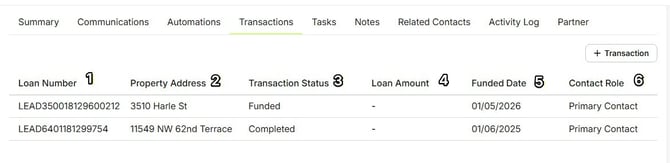
Each individual horizontal line contains a single transaction. Depending upon our browser window size, we may be required to scroll a bit to view every available transaction preview column.
- Loan Number - Not only does this number match what is provided by our LOS, but it is also a link that will open the Transaction Details and Edit drawer. We'll show that toward the end of this article.
- Property Address - Whether a purchase, refinance, heloc, etc - this is the actual property address.
- Transaction Status - Also known as Milestones, these are provided our LOS and are used as entry conditions to assign automations automatically to send notifications and check-ins to one, some or all contacts of the linked to a transaction.
- Loan Amount - This is the lending total provided by our LOS.
- Funded Date - If funded, this date will show. This generally will match or closely match the actual closing date.
- Contact Role - This will show how this contact is related to the transaction. Below is a common list.
Primary Contact = Borrower
Co-Borrower = 1st co-borrower linked in our LOS
Buying Agent = Real Estate Agent representing the buyer
Selling Agent = Real Estate Agent representing the seller
Title = Title Rep or Agent, as associated in our LOS
Builder = Builder Rep, as associated in our LOS
There are many other transaction linked contact designations - like, CPA, Financial Advisor, Broker, Buyer's Attorney, Seller's Attorney, Buyer's Transaction Coordinator, Seller's Transaction Coordinator and Home Warranty.
Edit a Transaction
At any time, we can click on the blue loan # to open the Transaction View and Edit drawer. This will show us with more details on the transaction - and - provide us that ability to modify the transaction. Keeping in mind that if we're integrated with an LOS, any changes made in Lendware (manually) can be overwritten (automatically) by our LOS.
In the below GIF, we'll link a Financial Advisor to a transaction.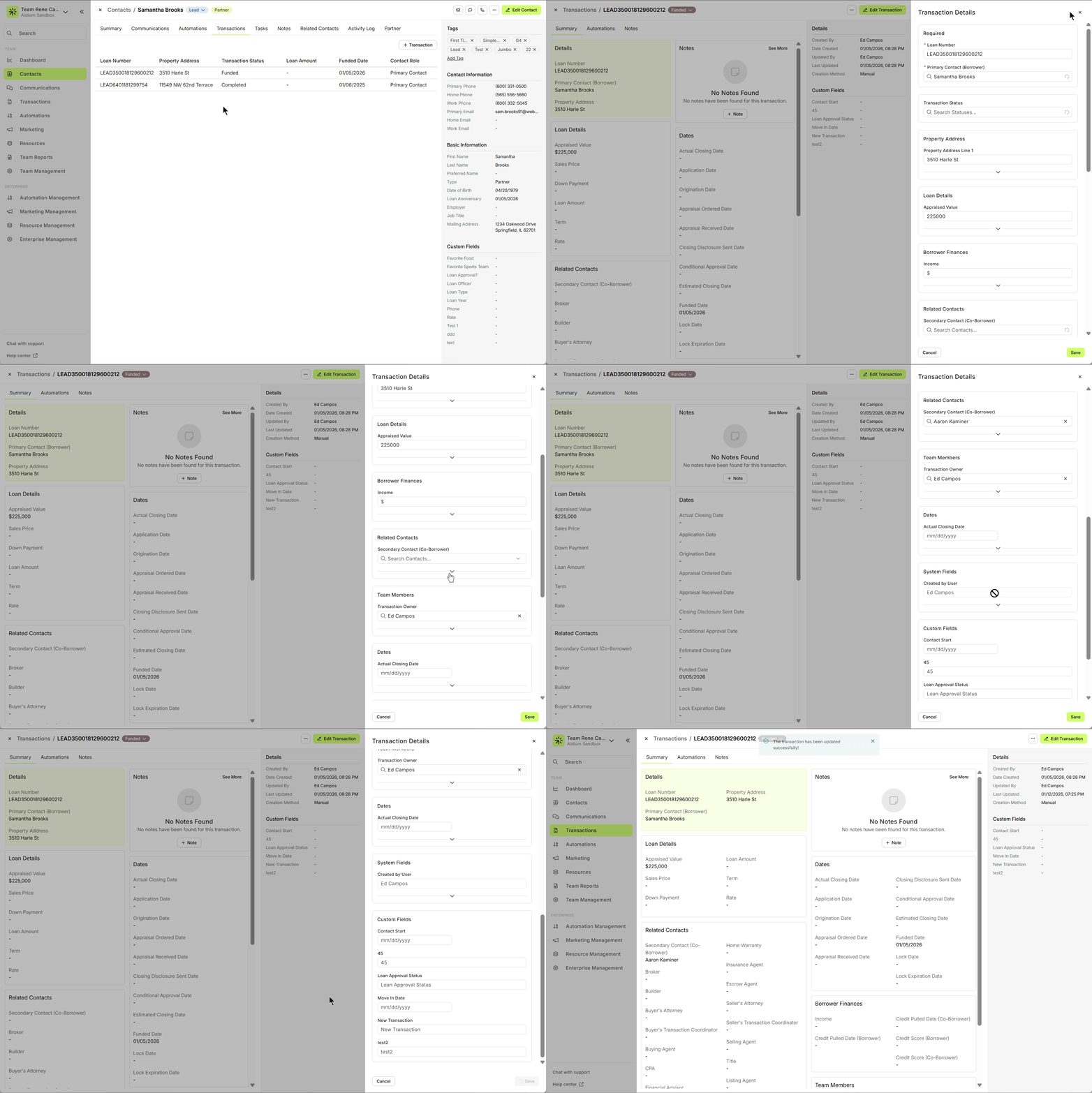
Create a New Transaction
There can be many reasons to create a new transaction - for most of us, we likely will never need to. However, for those of us either without an LOS integration setup, or for another reason, creation a manual transaction is incredibly easy by looking for the '+ Transaction' button at the top-right of the Transactions tab.
After clicking the button, an empty 'Add a Transaction' drawer will open on the right. The 'Primary Contact' (Borrower) will automatically be linked to the contact we started from. From there, the only other required information is a Loan#. Additionally, we can add as many details at this time, or later, that we'd like.
In the below animated GIF, we'll add a basic transaction manually to the contact.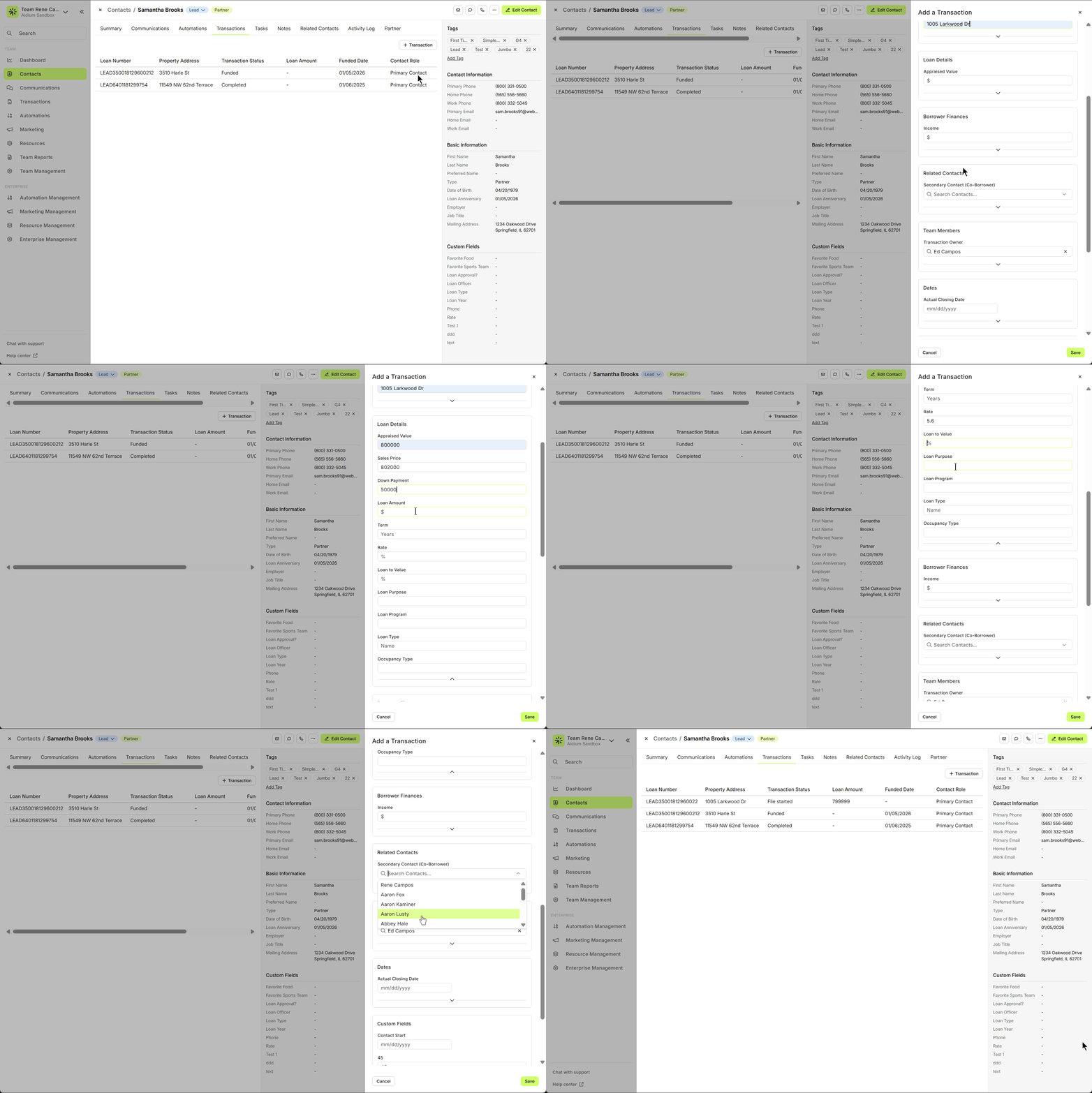
👍 This concludes an overview of the contact view - transactions tab.
Related Articles
Contact View - Summary Tab
The Summary tab in the new Contact View acts as a snapshot of your contact’s most important details and recent activity. It offers a streamlined overview of tasks, communications, transactions, and more—all in one place. When opening a contact, the ...Contact Detail View – A Walkthrough
The new Contact Detail View offers a streamlined and organized way to view and manage your contacts. With all information separated into intuitive tabs, you’ll find everything you need at a glance—making it easy to update, communicate, and stay on ...Contact View - Notes Tab
The Notes tab in the new contact view is the ideal place to record detailed, contact-specific information. Whether it’s insights from phone calls, key interests, or any other relevant details, this tab helps you track the story of each contact for ...Contact View - Communication Tab
The Communications tab in the new Contact View provides a centralized, chronological feed of all interactions with a contact—including emails, text messages, calls, and submitted forms. This offers a complete picture of engagement, allowing you to ...Contact View - Tasks Tab
The Tasks tab in the new contact view displays all tasks linked to the contact. It includes all statuses — whether To-Do, In-Progress, Complete, or On Hold — and these can all be easily viewed, sorted, and edited with just a few clicks. Tasks are ...