Contact View - Tasks Tab
The Tasks tab in the new contact view displays all tasks linked to the contact. It includes all statuses — whether To-Do, In-Progress, Complete, or On Hold — and these can all be easily viewed, sorted, and edited with just a few clicks. Tasks are essential for keeping track of responsibilities, follow-ups, and operational processes.
Tasks are a highly effective way to ensure promises are fulfilled, responsibilities are tracked, and no important process falls through the cracks. They help to identify who on the team is managing what, what has been completed, and by whom. Tasks are also an excellent tool for redistributing responsibilities when team members are on vacation or out sick.
To jump to subjects below, follow these links:
- Tasks tab walk-through
- Edit a task
- Create a new task
Task Tab Walk-though
Using the image below, we'll give a brief walk-through of each section on this Tasks tab.

Subject: A clear and concise title identifying the purpose of the task.
Description: A section where you can add more detailed information about the task, notes, or explanations for its current status.
Type: The type of task (e.g., Email, Call, Text Message, or Other), which quickly indicates the expected action for the task.
Status: Displays the current status of the task. The task can be in one of the following statuses:
To Do: The task is pending and waiting to be started.
In Progress: The task is actively being worked on.
Done: The task has been completed.
On Hold: The task is temporarily paused or delayed. This status is useful when the task cannot proceed due to external factors or dependencies.
Assigned User: Displays which team member is responsible for completing the task.
Associated Contact: Shows which contact is linked to the task. This ensures clarity and tracking for tasks that are related to specific contacts.
Due Date: The target date by which the task is to be completed. This helps prioritize tasks and meet deadlines.
Created By: Identifies the team member who created the task. This is helpful for accountability and context.
Created Date: The date when the task was created. This provides an easy reference point for when the task was initiated.
- Completed Date: The date the task was marked as Completed. This field is automatically populated once the task is marked as Completed, helping track completion timing and performance.
These task statuses can be fully customized. From Enterprise Management, you can create and manage your own task statuses to better match your team’s workflow.
For a task to appear as completed, it must now be explicitly marked as Completed.
If you’d like to learn more about how task completion works, here’s a helpful knowledge base article: Task Management: Understanding Task States
Edit a Task
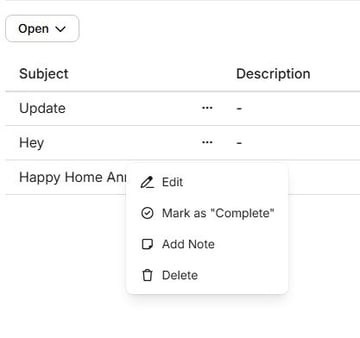
Editing a task is easy. To do so, click the ellipsis [...] next to the subject of the task. You'll be presented with a few options depending on the current status of the task:
Edit: Opens the Edit Task drawer, allowing you to update task details such as the description, status, due date, or assigned user.
Mark as Completed: Instantly marks the task as completed and records the completed date.
Add Note: Allows you to add internal notes or updates related to the task without changing its status.
Delete: Permanently removes the task from the system.
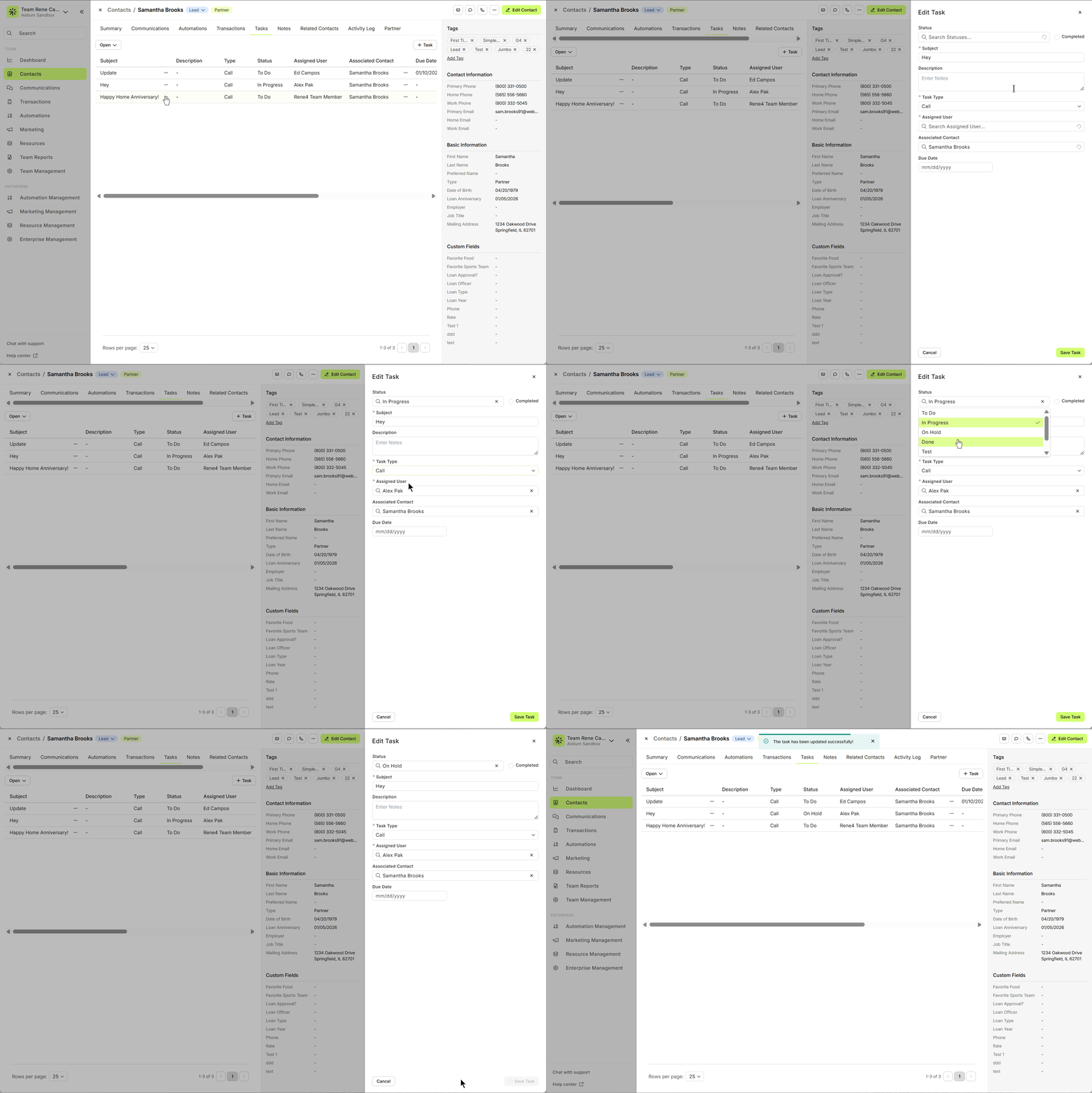
In the below animated GIF, we'll demonstrate a quick edit to an existing task.
Create a New Task
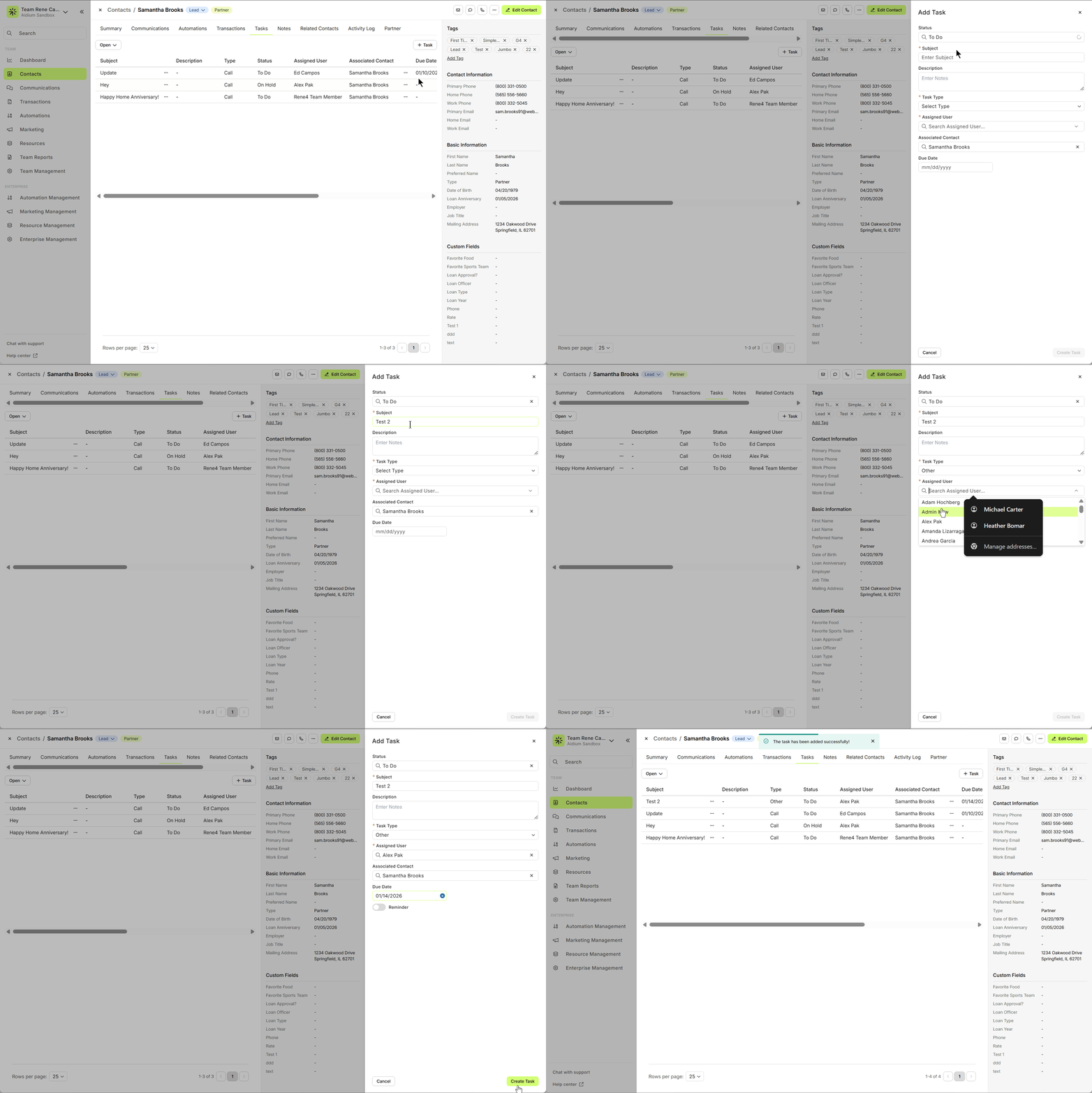
Creating a new task is simple. The best way to create a task is directly from within the contact's details. When you create a task here, it will automatically link the task to the contact, allowing you to immediately view and manage it.
To create a new task:
Click the + Task button in the top-right corner of the tasks tab.
The Create Task drawer will appear, where you can enter all relevant information, including subject, description, type, and assign a user.
Once created, the task will be automatically linked to the contact and will appear in the Tasks tab.
👍 This concludes an overview of the contact view - tasks tab.
Need more help? Check out: Task Management: Understanding Task States
Related Articles
Contact View - Summary Tab
The Summary tab in the new Contact View acts as a snapshot of your contact’s most important details and recent activity. It offers a streamlined overview of tasks, communications, transactions, and more—all in one place. When opening a contact, the ...Contact View - Transactions Tab
The Transactions tab is a straightforward way to view and interact with every transaction (loan) that a single contact is associated with. Whether a borrower, co-borrower, real estate agent or other loan related contact - it will display. This tab ...Contact Detail View – A Walkthrough
The new Contact Detail View offers a streamlined and organized way to view and manage your contacts. With all information separated into intuitive tabs, you’ll find everything you need at a glance—making it easy to update, communicate, and stay on ...Contact View - Notes Tab
The Notes tab in the new contact view is the ideal place to record detailed, contact-specific information. Whether it’s insights from phone calls, key interests, or any other relevant details, this tab helps you track the story of each contact for ...Contact View - Communication Tab
The Communications tab in the new Contact View provides a centralized, chronological feed of all interactions with a contact—including emails, text messages, calls, and submitted forms. This offers a complete picture of engagement, allowing you to ...