Contact View - Notes Tab
The Notes tab in the new contact view is the ideal place to record detailed, contact-specific information. Whether it’s insights from phone calls, key interests, or any other relevant details, this tab helps you track the story of each contact for quick and easy future reference.
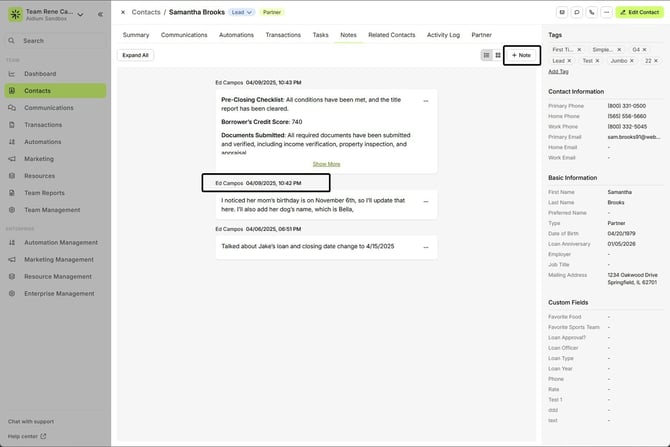
In Lendware, notes are simple, straightforward, and user-friendly. They are organized chronologically from top-left to bottom-right, making it easy to follow the contact’s journey. Each note is displayed with a clear preview, timestamp, and the team member who created it (highlighted in the image below).
Edit a Note
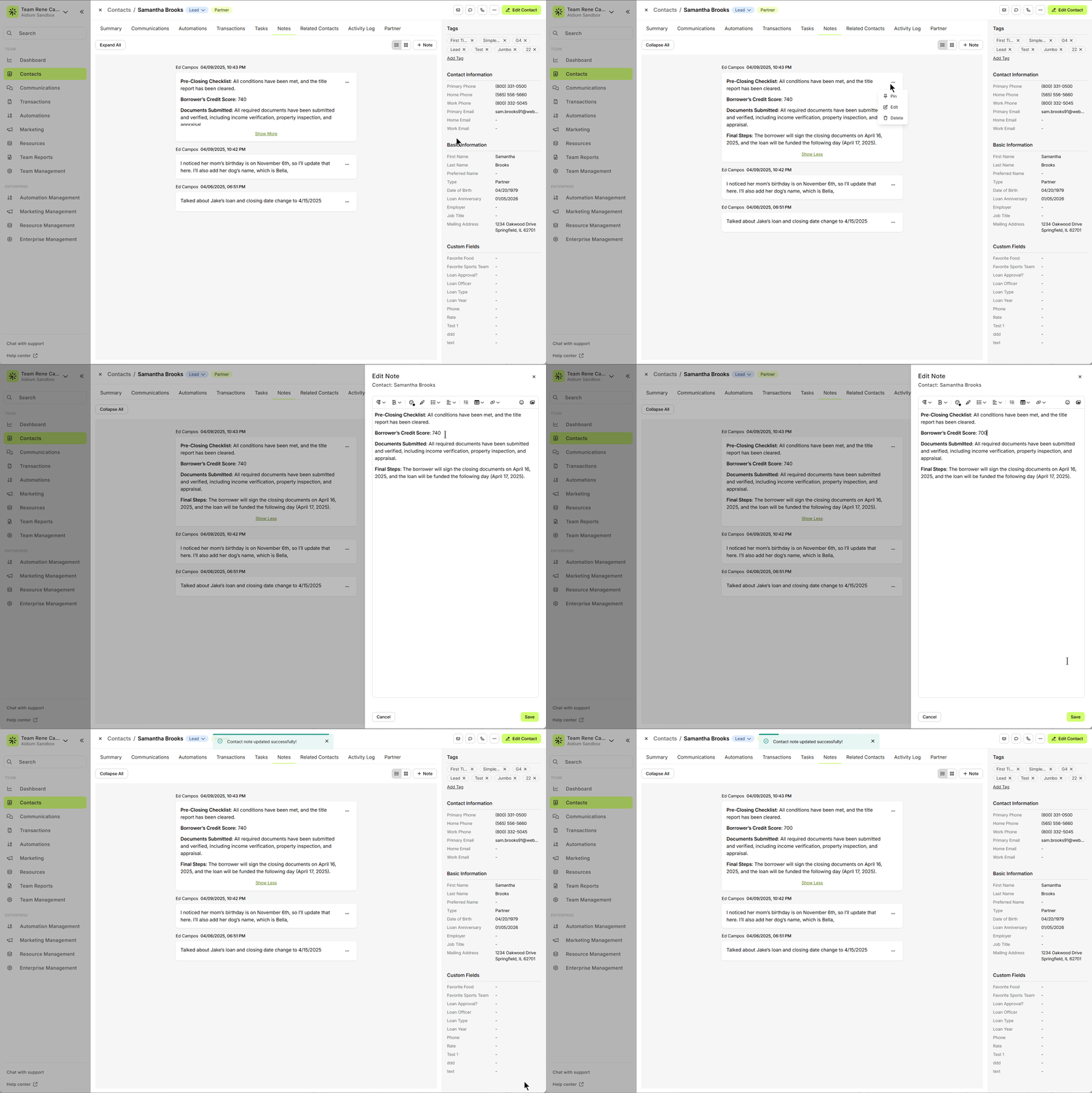
Editing an existing note is a great way to add further details or update information without cluttering your record with additional notes. This approach helps keep your contact’s information concise, up-to-date, and accurate. Editing is especially useful when you need to expand on the same subject matter.
In the animated GIF below, we’ll demonstrate how to edit an existing note.
Create a New Note
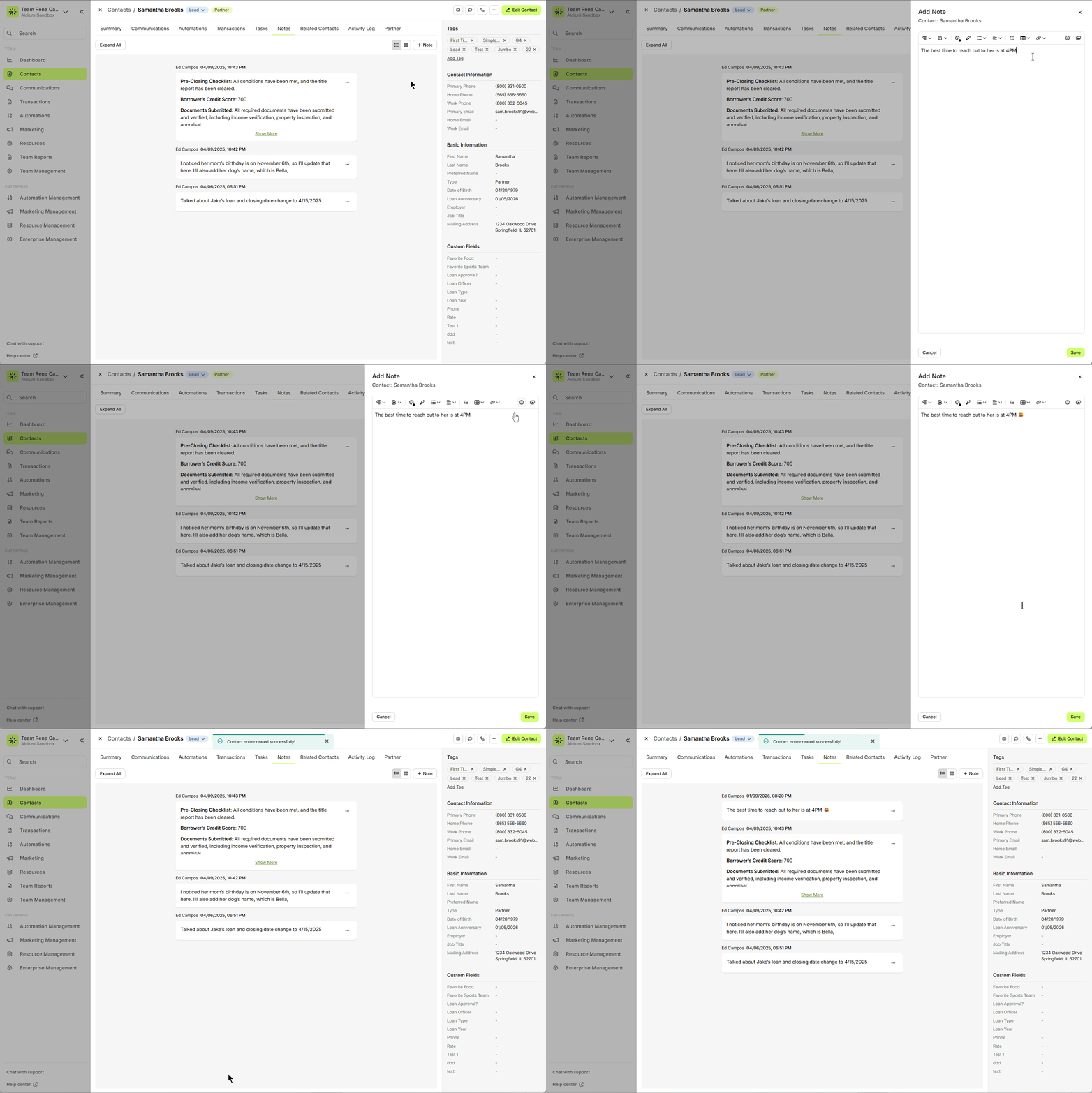
To create a new note, simply click the '+ Note' button located at the top-right of the Notes tab. This will open the 'Add Note' drawer, where you can easily enter and format your note.
The note editor offers a variety of formatting options, just like composing an email. You can apply text formatting (e.g., colors, fonts), insert hyperlinks, add images, and even use emojis to make your notes more dynamic.
In the animated GIF below, we'll show you how to add and format a new note.
Pin a Note
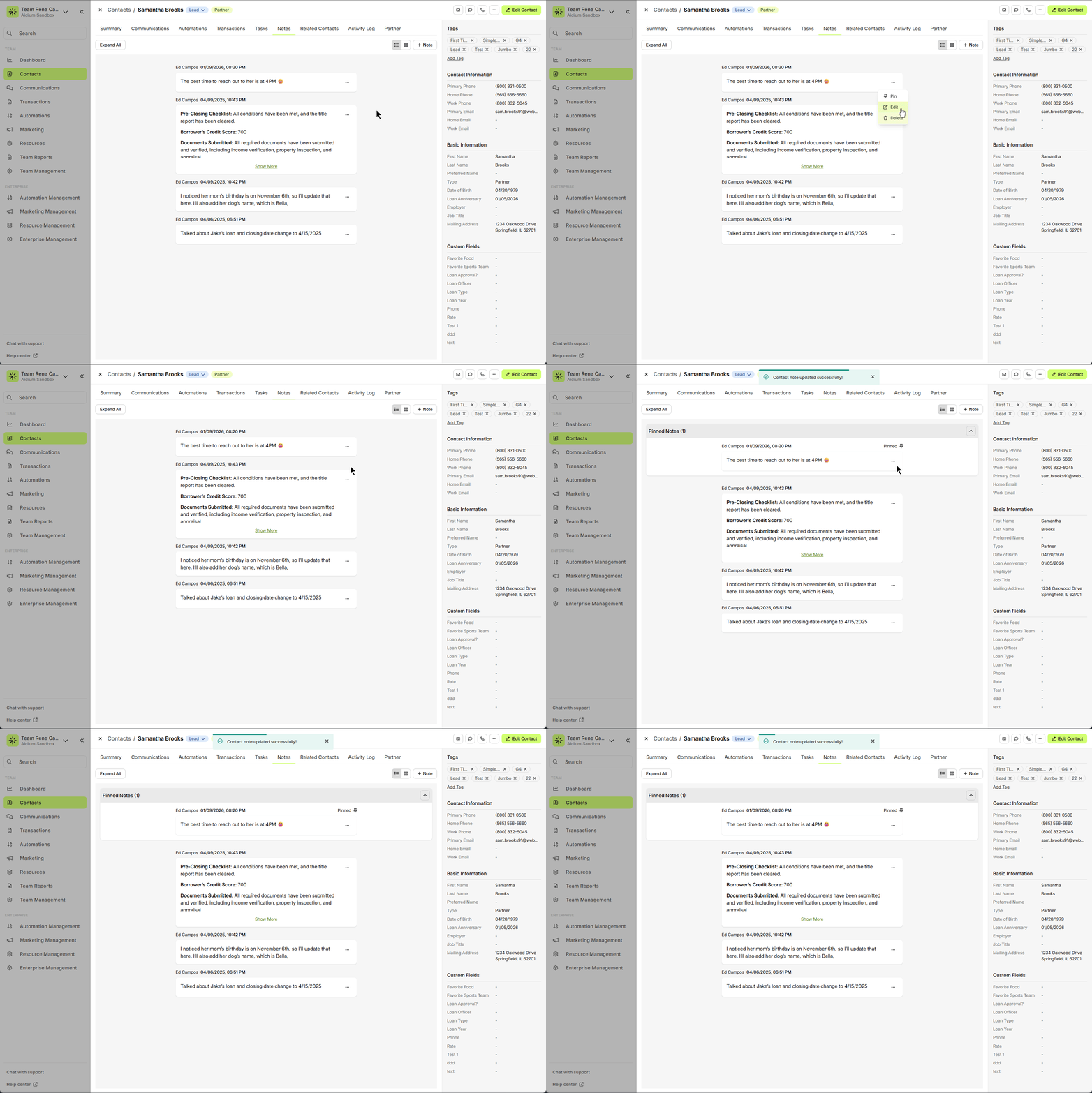
For important notes that need to stay at the top for easy access, you can pin a note. This feature ensures that vital information is always visible, making it easier to refer to key details quickly.
👍 This concludes an overview of the contact view - notes tab.
Related Articles
Contact View - Summary Tab
The Summary tab in the new Contact View acts as a snapshot of your contact’s most important details and recent activity. It offers a streamlined overview of tasks, communications, transactions, and more—all in one place. When opening a contact, the ...Contact View - Communication Tab
The Communications tab in the new Contact View provides a centralized, chronological feed of all interactions with a contact—including emails, text messages, calls, and submitted forms. This offers a complete picture of engagement, allowing you to ...Contact View - Tasks Tab
The Tasks tab in the new contact view displays all tasks linked to the contact. It includes all statuses — whether To-Do, In-Progress, Complete, or On Hold — and these can all be easily viewed, sorted, and edited with just a few clicks. Tasks are ...Contact Detail View – A Walkthrough
The new Contact Detail View offers a streamlined and organized way to view and manage your contacts. With all information separated into intuitive tabs, you’ll find everything you need at a glance—making it easy to update, communicate, and stay on ...Contact View - Transactions Tab
The Transactions tab is a straightforward way to view and interact with every transaction (loan) that a single contact is associated with. Whether a borrower, co-borrower, real estate agent or other loan related contact - it will display. This tab ...