Contact View - Activity Log Tab
The Activity Log tab in the new contact view shows you all actions that have taken place on a contact. This can be actions taken by users, automations, communication and much more. Every change or update to a contact is captured here for review.
Sometimes, it can be helpful to understand how, why and by whom, a contact is setup the way they are. That's where the Activity Log tab comes in. Every action taken on a contact is documented in detail, as a single notated activity in chronological order. No matter how minor or major the action, it's documented for future reference.
In this article, we'll show how to understand each type of activity that can be stored. Using the below image, we'll examine each element documented in a every individual activity.

- Date / Time
- Activity Type Icon
- Activity Title
- Activity Description
- Who / How Activity Happened
Date / Time
This will display the precise moment the displayed activity took place, which will also be the order in which the activities list is sorted. Most recent at the top with an infinite scroll until we reach the beginning with "Contact Created".
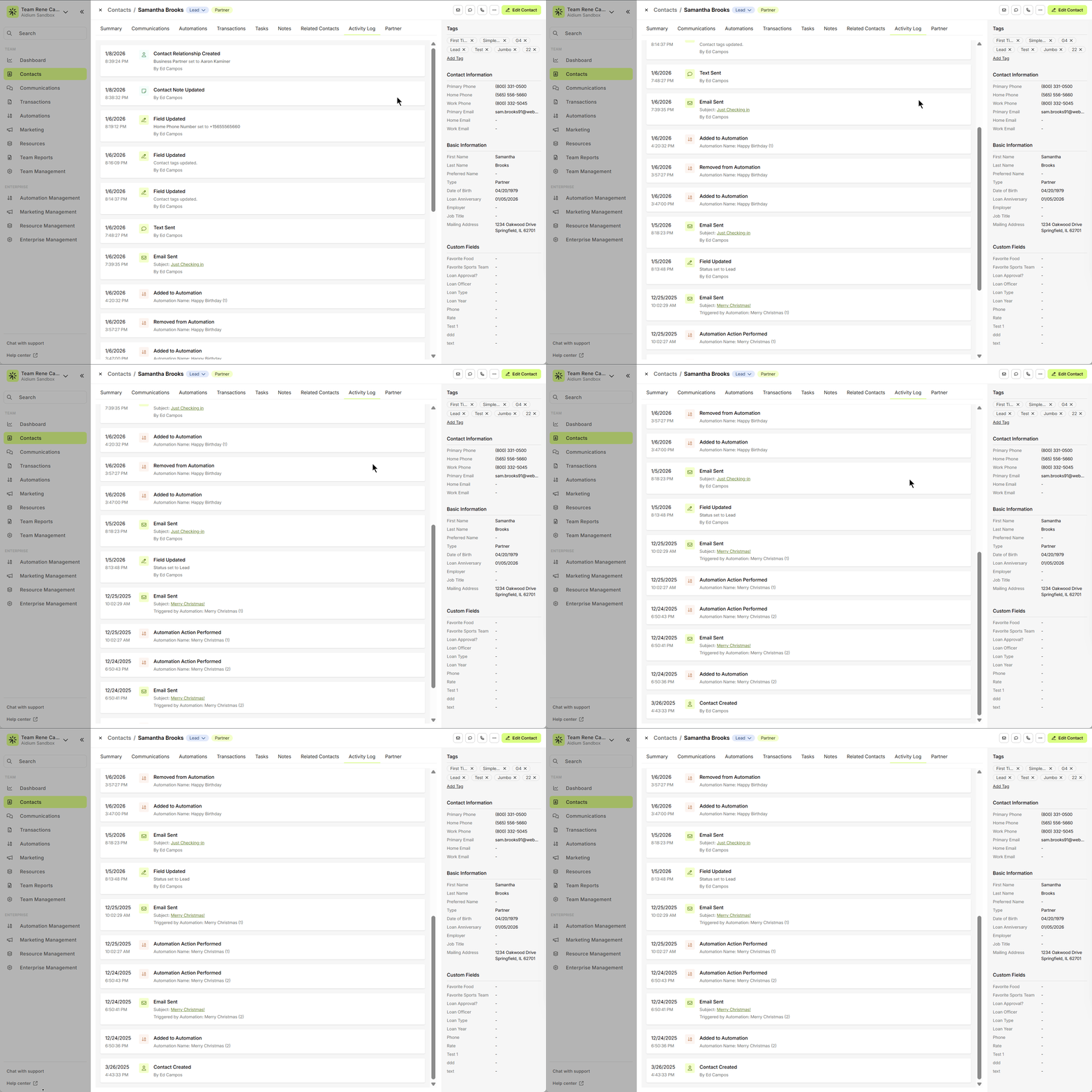
Activity Type Icon
These will help us visually identify the activity type that took place. Below are the icons, activity type they correspond to and reasons they are captured.
 | Contact Created |
 | Contact Field - Edited or Updated |
 | Email - Sent or Received |
 | Text Message - Sent or Received |
 | Task - Created or Edited |
 | Note - Created or Edited |
 | Related Contact - Linked or Unlinked |
 | Automation Activity - Added, Removed, or Automated Action |
Activity Title
These are brief and direct descriptions of the activity itself. What actually took place. These go into more detail than an icon alone. For example, the image below displays the icon for Related Contact, while the title shows that a Contact Relationship was Created.

While the the next image below displays the icon for Note, while the title shows that a Contact Note was Update (edited or changed).

Activity Description
This will provide the additional context or description of what took place in the activity. For example, the image below displays the icon for Email and a title stating an Email was Sent. The description says that the email was sent with a Subject, "🏈 How to capitalize on a big win, George".

Who / How the Activity Happened
The who and how are a great way to understand the process, automation or person behind the activity being documented. For example, the image below displays the icon for Contact Field and a title stating a Field was Updated. The description says the Contact Status was updated to Lead. Then, finally, it shows that update was made by the user, Ed Campos.

While the next image below displays the icon for Email and a title stating that an Email was Sent. The description says that the email was sent with a Subject, "Merry Christmas!". Then, finally, it shows that the email was Triggered by an Automation with the name, "Merry Christmas (1)"

Not all activities will necessarily display the 'Who' or 'How' - in those cases, they are generally background processes or automation steps that are triggering a separately documented activity.
👍 This concludes an overview of the contact view - activity log tab.
Related Articles
Contact View - Communication Tab
The Communications tab in the new Contact View provides a centralized, chronological feed of all interactions with a contact—including emails, text messages, calls, and submitted forms. This offers a complete picture of engagement, allowing you to ...Contact Detail View – A Walkthrough
The new Contact Detail View offers a streamlined and organized way to view and manage your contacts. With all information separated into intuitive tabs, you’ll find everything you need at a glance—making it easy to update, communicate, and stay on ...Contact View – Related Contacts Tab
The Related Contacts tab in the new contact view makes it easy to link any contact to another using a relationship type. This helps your team quickly understand connections, keep track of referrals and partners, and streamline communication. There’s ...Contact View - Summary Tab
The Summary tab in the new Contact View acts as a snapshot of your contact’s most important details and recent activity. It offers a streamlined overview of tasks, communications, transactions, and more—all in one place. When opening a contact, the ...Contact View - Transactions Tab
The Transactions tab is a straightforward way to view and interact with every transaction (loan) that a single contact is associated with. Whether a borrower, co-borrower, real estate agent or other loan related contact - it will display. This tab ...