Import Contacts with CSV or XLSX File - Lendware
Managing contact imports in Lendware is straightforward and can be done in just a few simple steps with some initial organization.
Both CSV (Comma-Separated Values) and XLSX (Excel Spreadsheet) files are supported for import. CSV is a universally recognized format, while XLSX is the default for Microsoft Excel. Typically, when exporting from another CRM or system, a downloadable CSV file will be provided.
In some cases, manually adding a small number of contacts (1-10) may be faster than importing them in bulk. However, if you’re working with a larger list, importing via a spreadsheet can save time and effort.
Spreadsheet Setup
Before importing, it’s essential to know what data is required, suggested, and optional in the contact fields.
Required Fields:
First Name
Last Name
Email or Phone (at least one communication medium must be provided)
Suggested Fields:
Type: Either "Client" or "Partner" (defaults to "Client" if left blank)
Status: A short description of the contact’s current situation (e.g., Lead, Prospect, Closed Borrower, Agent)
Tags: Labels that categorize contacts (e.g., Realtor, Friend, Top Agent, Weekly Newsletter)
Optional Fields:
All other contact fields, custom fields, and related contacts.
🚧 When importing dates, to ensure all dates are imported as expected, it's high suggested including the full year, for example: 1/1/1947 and 2/2/2002
Importing Walk-Through
- Navigate to the Contacts Section:
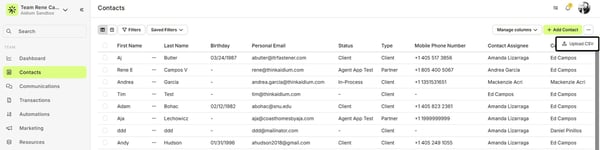
In the Contacts section of Lendware, locate the three vertical dots button in the top-right corner. Click it and select "Upload CSV."
- Select the User:
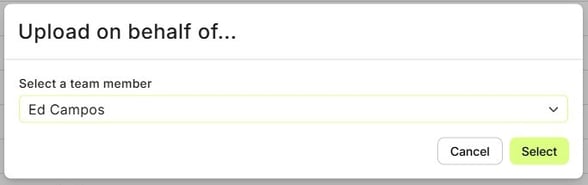
A pop-up window will appear asking you to select the user for whom you are importing contacts. If you're importing on behalf of another team member, select their name from the drop-down menu. This will automatically set the contact owner to that user.
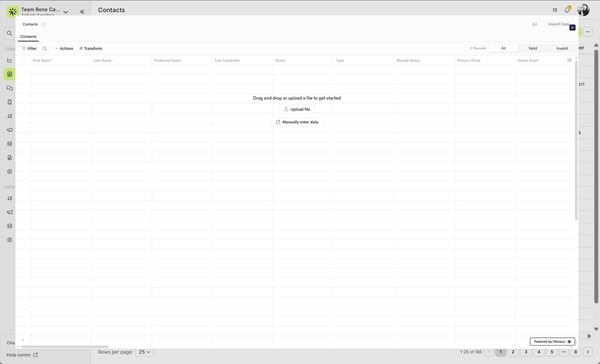
After selecting the user, the import screen will appear. You can either drag-and-drop your file into the browser or click "Select file" to browse and choose your file through the normal file manager (File Explorer on Windows, Finder on Mac).
Preview the File:
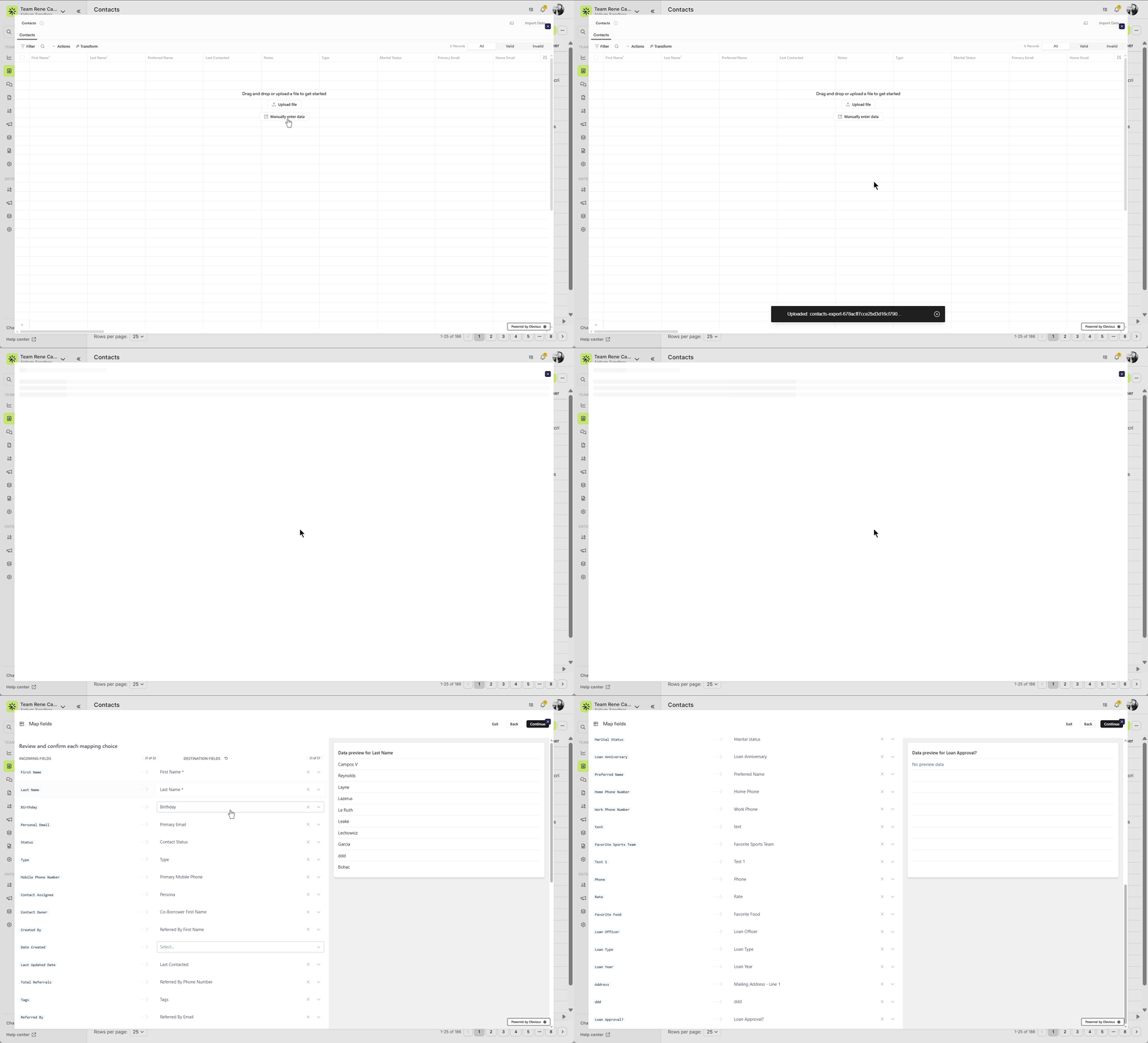
After uploading your file, a preview of the document will appear. Lendware will automatically treat the first row of data as column titles. If the file includes headers, click "Continue."
Map the Fields (Part 1):
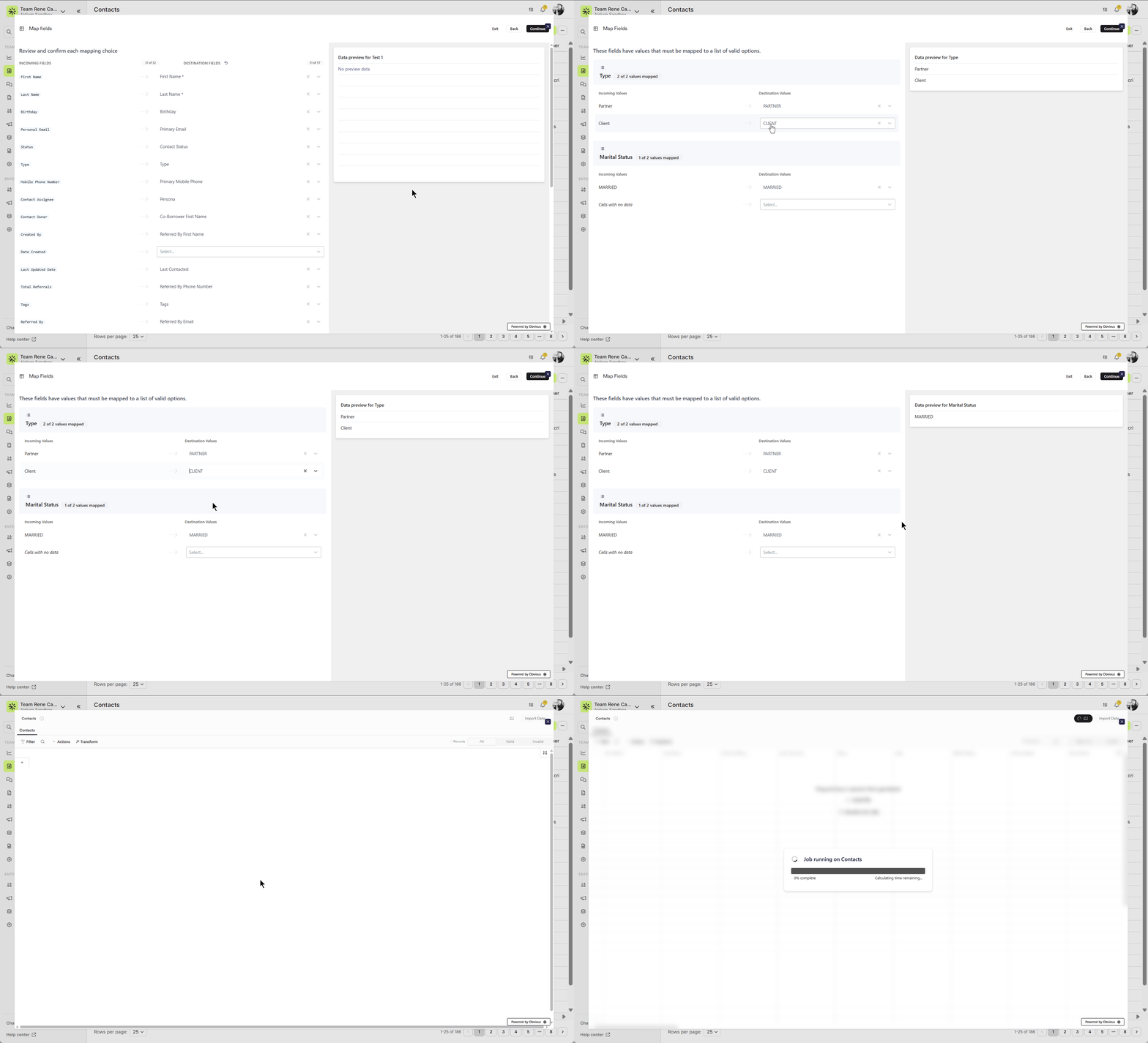
Lendware will attempt to auto-map the columns to the correct contact fields. Review and confirm each mapping choice. If necessary, manually map the fields to the correct contact fields. Once confirmed, click "Continue."
Map the Fields (Part 2):
After confirming the mappings, you will see fields that must be mapped to a list of valid options. For example, you may need to map "Type" with values like "Partner" or "Client." The system will provide options such as:
Incoming Values: These are the values in your file (e.g., "Partner").
Destination Values: These are the valid options that Lendware can accept. You will see a list with options like:
Option 1: PARTNER
Option 2: Keep this value as is
Option 3: Do not import (you can choose not to import these values).
Review the incoming and destination values to ensure they align properly. If everything looks good, click "Continue."
Final Review and Errors:
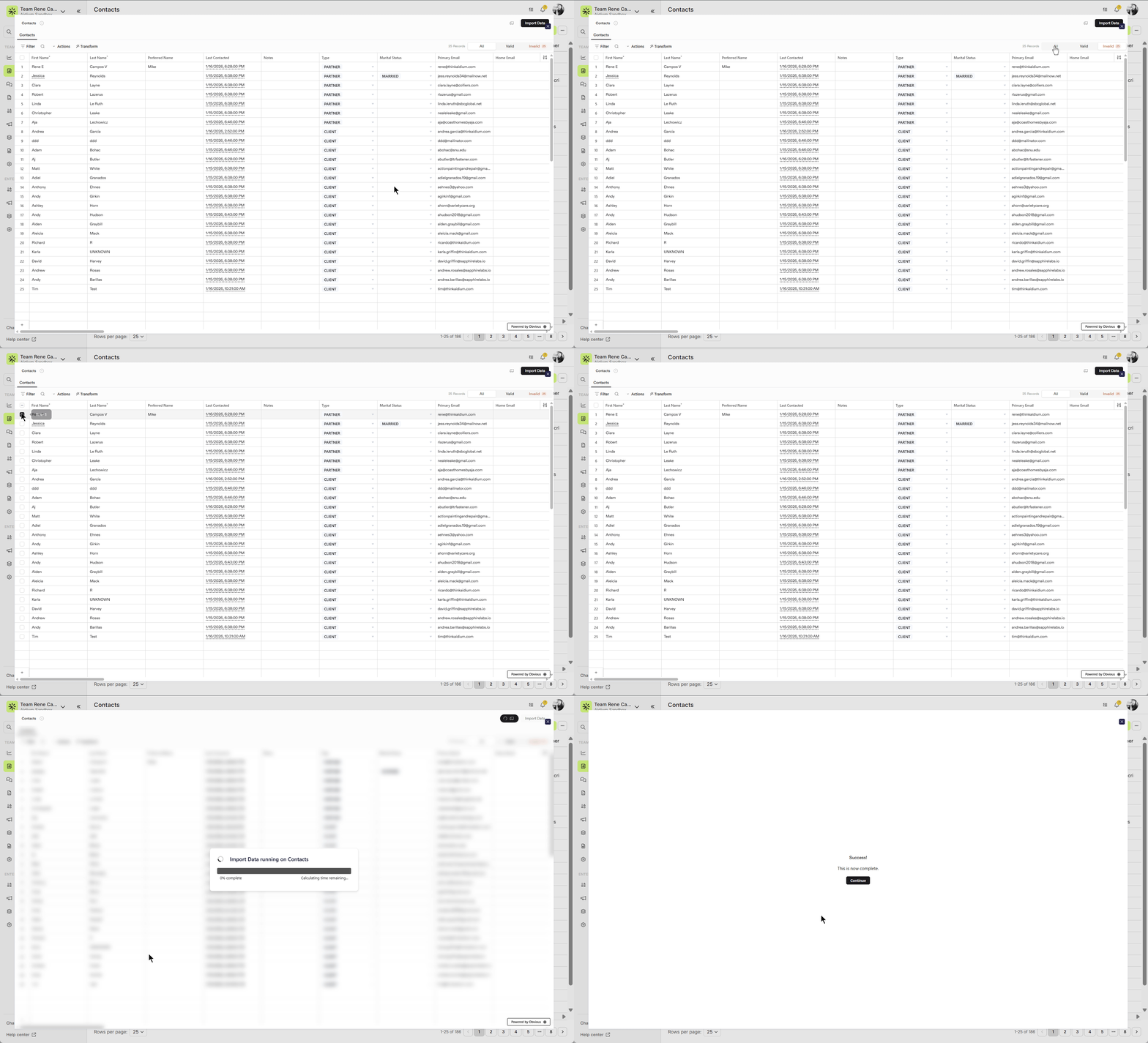
Once all fields are mapped, you’ll see three tabs for review: All, Valid, and Invalid. Here, you can review the data:
All: View all the records you've mapped.
Valid: This tab shows the correctly mapped records that will be imported.
Invalid: This tab shows records with errors that need attention.
You have the option to modify any data in these tabs. Additionally, you can delete or download selected data. Once everything looks good and errors are resolved, click "Submit."
- Complete the Import:
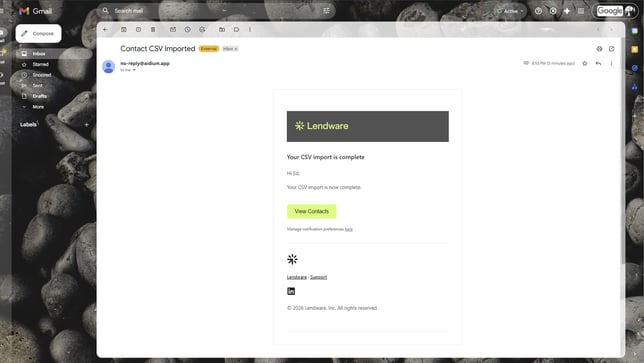
After submission, you'll receive a notification about the import status. If successful, your contacts will appear in the Contacts section. If there are errors, you will receive an email with details and instructions for corrections.
❌ If you exit the import process before submission, you’ll need to start over. There is no save-and-return feature at this time.
✅ However, during the mapping phase, you can exit to upload a different file or go back to adjust mappings without restarting the full process.
👍 This concludes the importing walk-through
In the Contacts section of Lendware, locate the three vertical dots button in the top-right corner. Click it and select "Upload CSV."
A pop-up window will appear asking you to select the user for whom you are importing contacts. If you're importing on behalf of another team member, select their name from the drop-down menu. This will automatically set the contact owner to that user.
After selecting the user, the import screen will appear. You can either drag-and-drop your file into the browser or click "Select file" to browse and choose your file through the normal file manager (File Explorer on Windows, Finder on Mac).
Preview the File:
After uploading your file, a preview of the document will appear. Lendware will automatically treat the first row of data as column titles. If the file includes headers, click "Continue."
Map the Fields (Part 1):
Lendware will attempt to auto-map the columns to the correct contact fields. Review and confirm each mapping choice. If necessary, manually map the fields to the correct contact fields. Once confirmed, click "Continue."
Map the Fields (Part 2):
After confirming the mappings, you will see fields that must be mapped to a list of valid options. For example, you may need to map "Type" with values like "Partner" or "Client." The system will provide options such as:
Incoming Values: These are the values in your file (e.g., "Partner").
Destination Values: These are the valid options that Lendware can accept. You will see a list with options like:
Option 1: PARTNER
Option 2: Keep this value as is
Option 3: Do not import (you can choose not to import these values).
Final Review and Errors:
Once all fields are mapped, you’ll see three tabs for review: All, Valid, and Invalid. Here, you can review the data:
All: View all the records you've mapped.
Valid: This tab shows the correctly mapped records that will be imported.
Invalid: This tab shows records with errors that need attention.
You have the option to modify any data in these tabs. Additionally, you can delete or download selected data. Once everything looks good and errors are resolved, click "Submit."
After submission, you'll receive a notification about the import status. If successful, your contacts will appear in the Contacts section. If there are errors, you will receive an email with details and instructions for corrections.
❌ If you exit the import process before submission, you’ll need to start over. There is no save-and-return feature at this time.
✅ However, during the mapping phase, you can exit to upload a different file or go back to adjust mappings without restarting the full process.
👍 This concludes the importing walk-through
Related Articles
Contact Import Template
The Contact Import Template is the standardized spreadsheet used to create or update contacts inside Lendware. This template ensures your data maps correctly to the system and prevents upload errors. Below is a step-by-step guide on how to complete ...Exporting Contacts in Lendware
Lendware allows you to export all of your contacts with no export limit when using the correct selection option. Important: To export your full contact list, always use Select All Across Pages. Preparing your contact list for export Before exporting, ...Using Mass Actions in Contacts
Mass Actions allow you to efficiently make changes or send communications to multiple contacts at once. Whether it's exporting, deleting, reassigning, or sending mass emails, Mass Actions simplify bulk updates. Before diving into Mass Actions, it's ...How to Delete Contacts and Transactions
Deleting one or many Contacts / Transactions can be done easily from list view in their respective pages. Whether you're cleaning up test data, removing duplicates, or streamlining your database, Lendware makes it easy to delete Contacts and ...Contacts - Table View vs. Pipeline View
There are two easy-to-change views within Contacts. Table View, for a customizable list of contacts for a traditional spreadsheet style experience. While Pipeline View provides you with pre-sorted previews of each contact according to their Status. ...