Exporting Contacts in Lendware
Lendware allows you to export all of your contacts with no export limit when using the correct selection option.
Important: To export your full contact list, always use Select All Across Pages.
Preparing your contact list for export
Before exporting, it’s recommended to review and adjust what you want included in the file.
- Navigate to Contacts
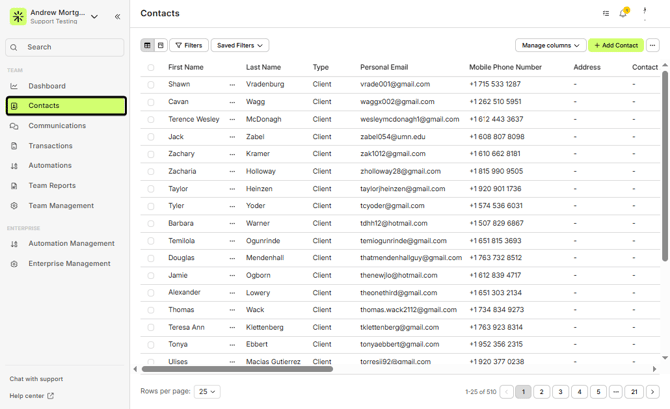
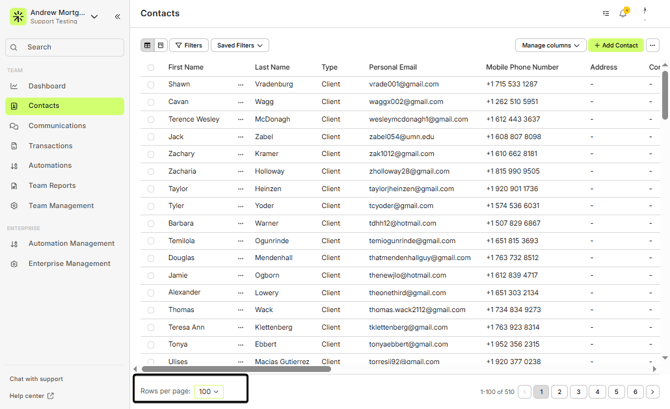
- Adjust records per page
Open the Records per page dropdown in the bottom-left corner and select 100 per page. This displays the maximum number of contacts on screen.
- Apply filters (optional)
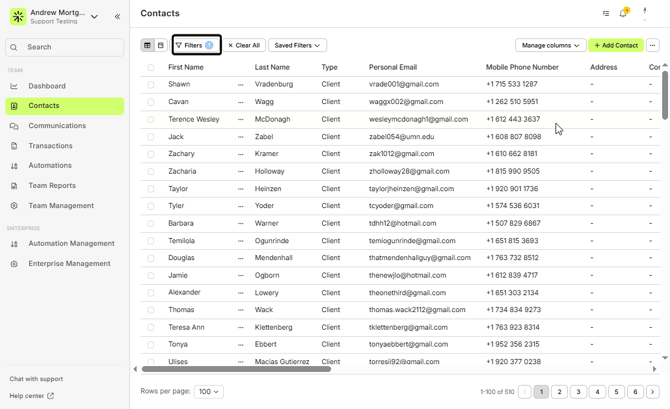
ℹ️ Filters are optional, but helpful when exporting a specific subset of contacts.
- Choose export fields
Click Manage columns to select the fields you want included in the CSV. You can also reorder columns by dragging them—for example, moving Mobile Phone Number higher in the list.
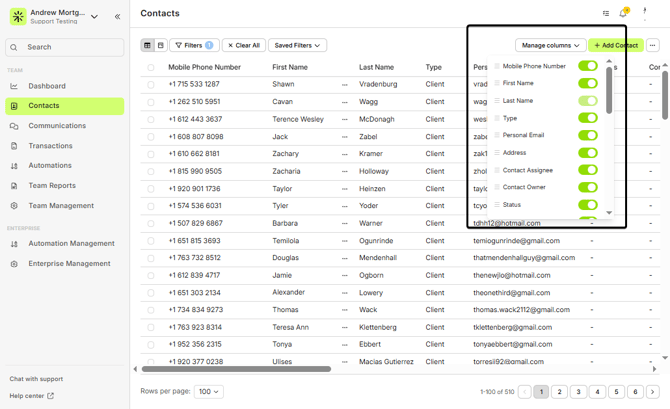
Only columns visible in Manage columns will be included in the export.
Selecting all contacts and exporting
Once your contacts, filters, and columns are set:
- Select the checkbox at the top of the contact list
- On the right side of the screen, click Select All Across Pages
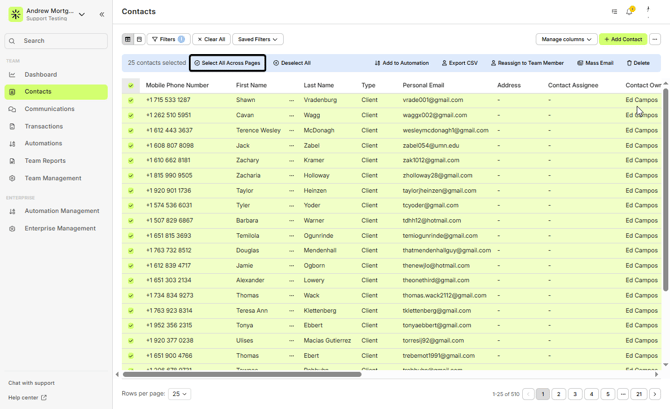
⚠️ Even if the banner shows a smaller number selected, Select All Across Pages ensures every contact is included.
Click Export CSV to start the export
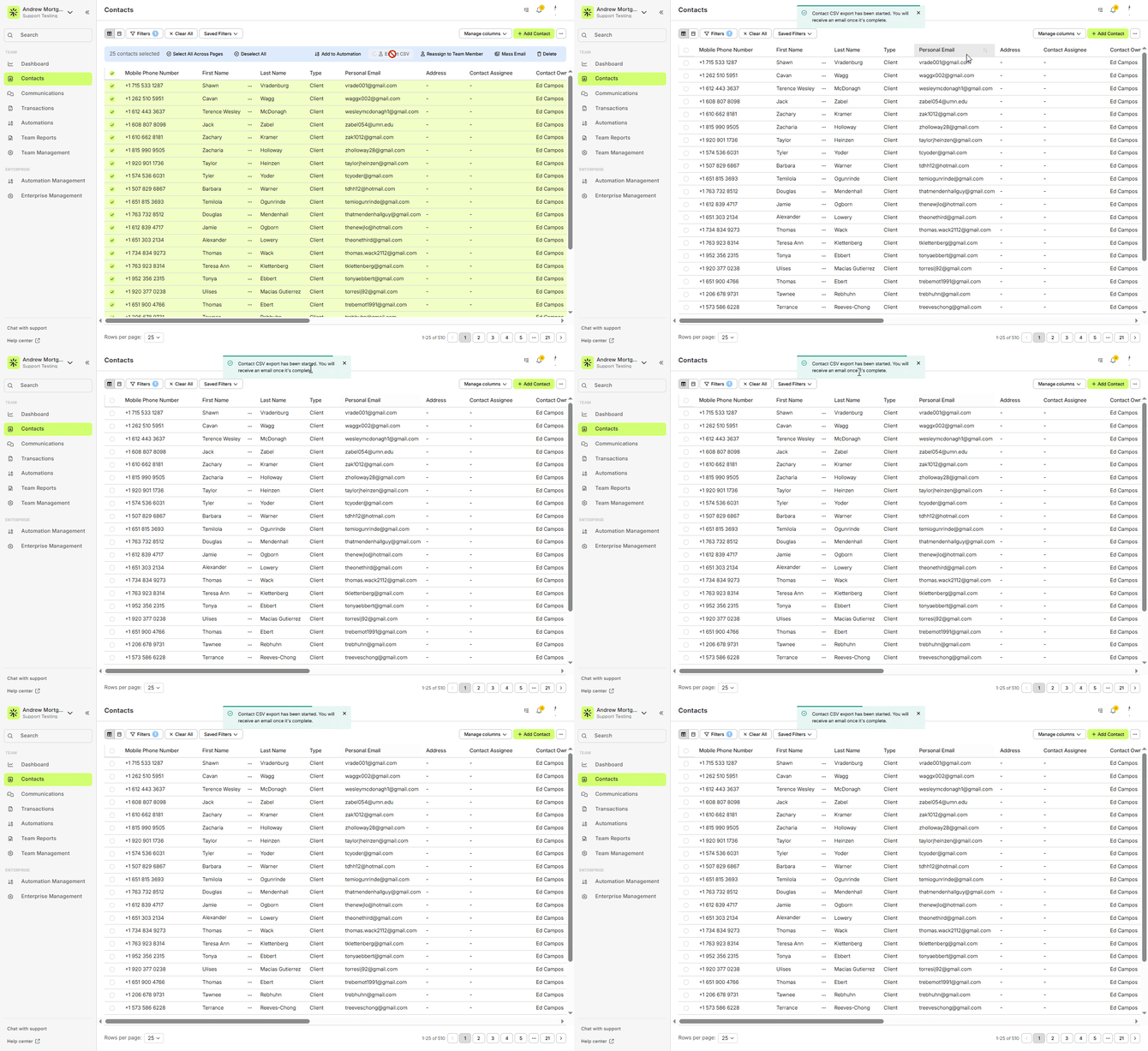
If you do not see the Export CSV option, please contact support@lendware.ai for assistance.
Downloading your file
- The export runs in the background
- Within approximately one minute, you will receive an email with a download link
- The email is sent to the address associated with your Lendware login
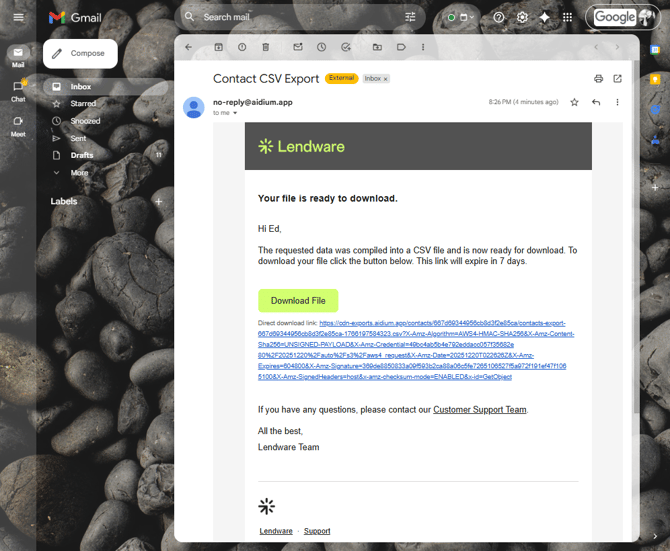
Your contacts have been successfully exported
Need more help? Check out: Export Transactions
Related Articles
Import Contacts with CSV or XLSX File - Lendware
Managing contact imports in Lendware is straightforward and can be done in just a few simple steps with some initial organization. Both CSV (Comma-Separated Values) and XLSX (Excel Spreadsheet) files are supported for import. CSV is a universally ...Using Mass Actions in Contacts
Mass Actions allow you to efficiently make changes or send communications to multiple contacts at once. Whether it's exporting, deleting, reassigning, or sending mass emails, Mass Actions simplify bulk updates. Before diving into Mass Actions, it's ...Contacts - Table View vs. Pipeline View
There are two easy-to-change views within Contacts. Table View, for a customizable list of contacts for a traditional spreadsheet style experience. While Pipeline View provides you with pre-sorted previews of each contact according to their Status. ...How to Delete Contacts and Transactions
Deleting one or many Contacts / Transactions can be done easily from list view in their respective pages. Whether you're cleaning up test data, removing duplicates, or streamlining your database, Lendware makes it easy to delete Contacts and ...Contact View – Related Contacts Tab
The Related Contacts tab in the new contact view makes it easy to link any contact to another using a relationship type. This helps your team quickly understand connections, keep track of referrals and partners, and streamline communication. There’s ...