Exporting Transactions in Lendware
Lendware allows you to export all transactions with no export limits.
Important: To export all transactions, always use Select All Across Pages.
Important: To export all transactions, always use Select All Across Pages.
Preparing your transaction list for export
Before exporting, it’s recommended to review and adjust what you want included in the file.
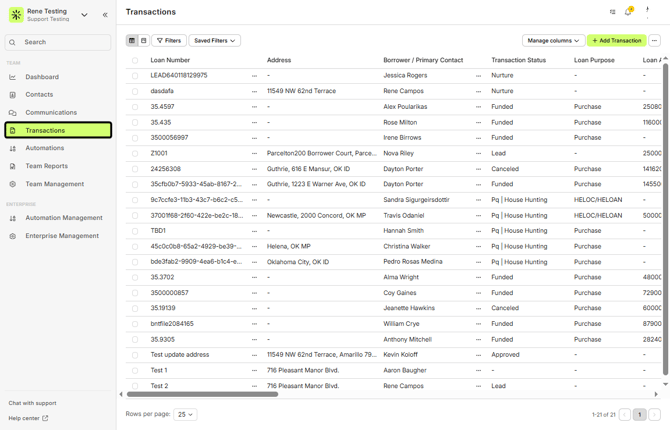
- Navigate to Transactions
Select Transactions from the main menu on the left-hand side.
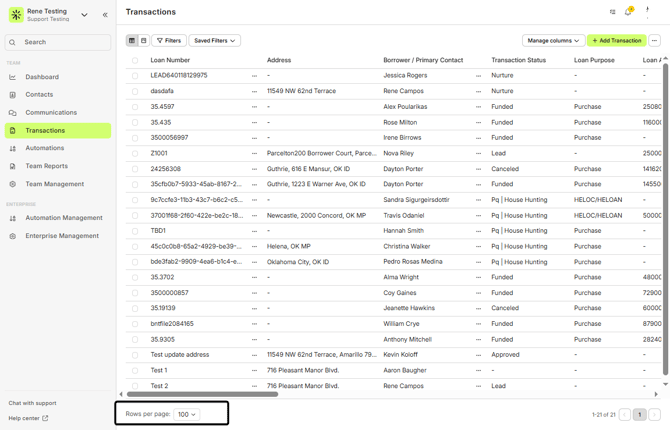
- Adjust records per page
- Apply filters (optional)
Use Filters to narrow down the transactions you want to export. For example, applying Status = Closed will limit the export to only closed transactions.

ℹ️ Filters are optional, but helpful for reporting, reconciliation, or audits.
- Choose export fields
Click Manage columns to select the fields you want included in the CSV. You can also reorder columns by dragging them—for example, moving Co-borrower higher in the list.
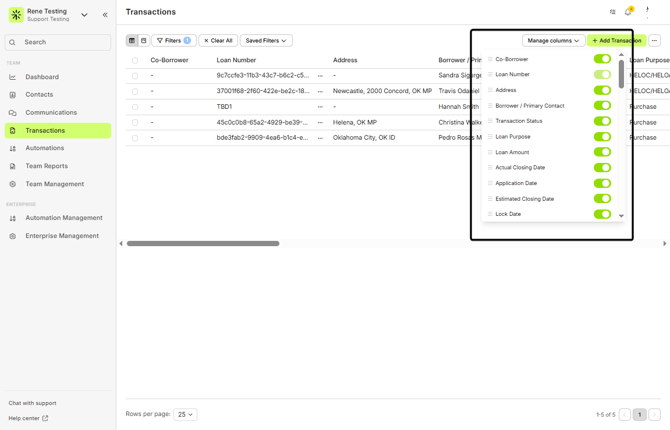
Only columns visible in Manage columns will be included in the export.
Selecting all transactions and exporting
Once your transactions, filters, and columns are set:
- Select the checkbox at the top of the transaction list
On the right side of the screen, click Select All Across Pages
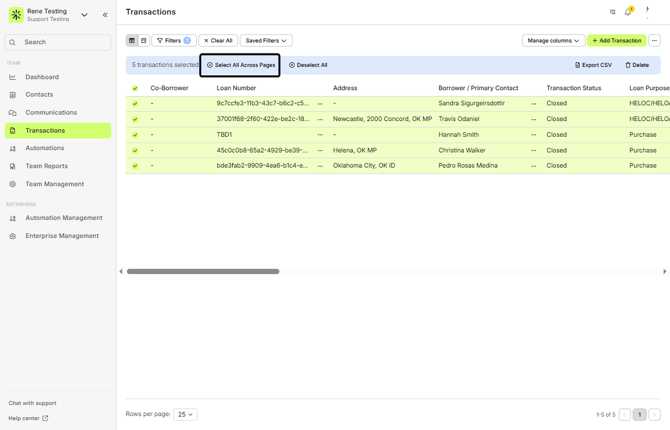
⚠️ Even if the banner shows a smaller number selected, Select All Across Pages ensures every transaction is included.
- Click Export CSV to start the export
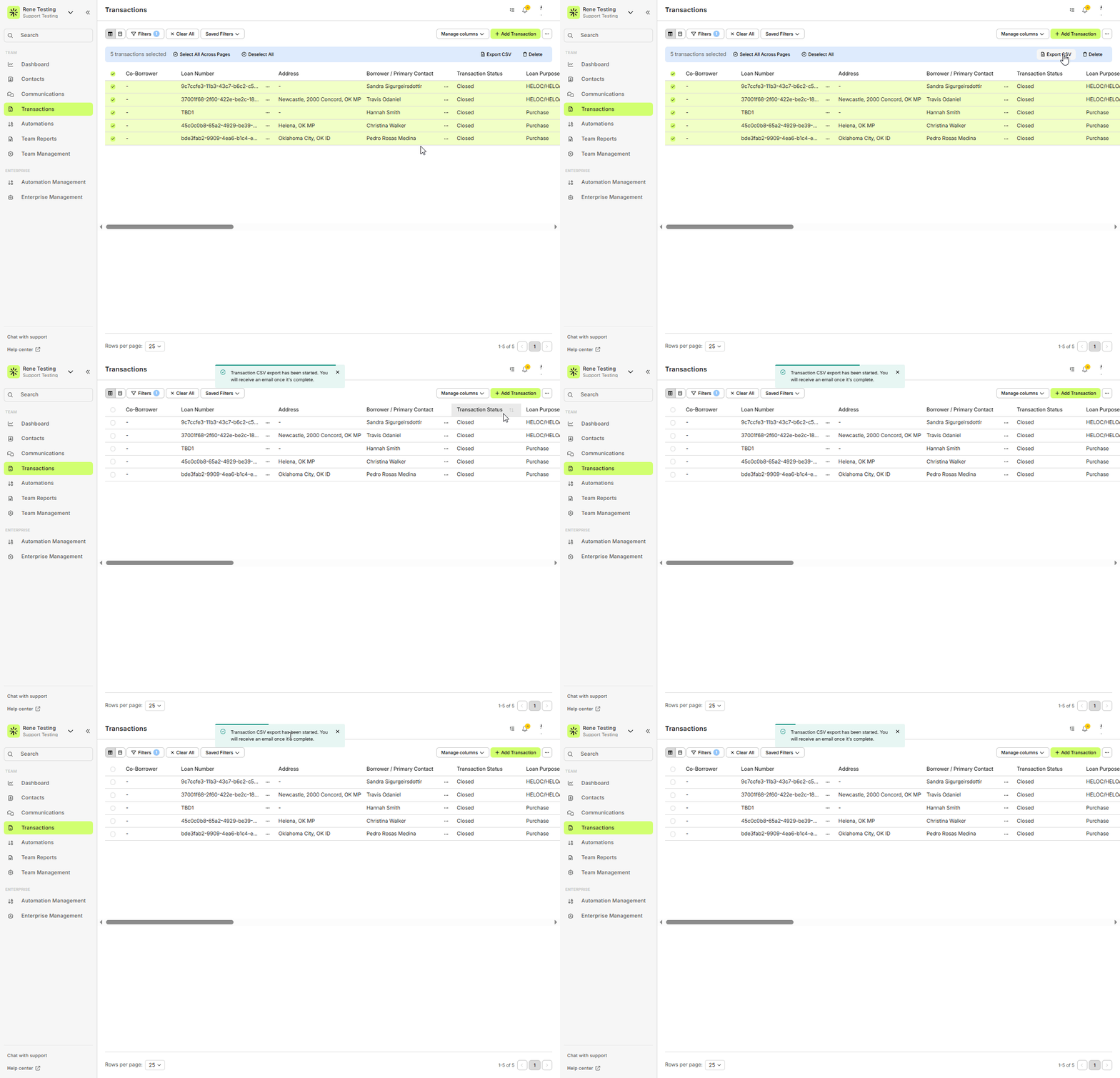
If you do not see the Export CSV option, please contact support@lendware.ai for assistance.
Downloading your file
- The export runs in the background
- Within approximately one minute, you will receive an email with a download link
- The email is sent to the address associated with your Lendware login
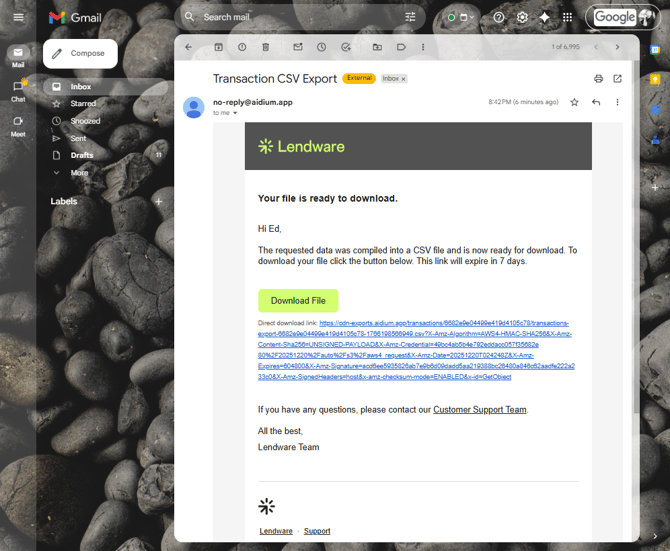
Your transactions have been successfully exported
Need more help? Check out: Export Contacts
Related Articles
Import Transactions via CSV or XLSX File
Managing your own Transaction Imports can be completed in a matter of just a few steps and a little bit of organization ahead of time. You can easily import your transactions into Lendware with a CSV or XLSX file. These file types are standard and ...Transactions Introduction and Walk-through
The Transactions page is your hub for managing all loan data. You can sort, filter, search, and customize how information is displayed. Transactions can be synced automatically from your LOS, added via Zapier, or created manually. Get to know ...Transactions – Table View vs. Pipeline View
There are two easy-to-change views within Transactions. Table View, for a customizable list of contacts for a traditional spreadsheet style experience. While Pipeline View provides you with pre-sorted previews of each transaction based on Status. ...How to Filter Your Transactions
Filtering Transactions is a quick and effective way to narrow down what you see, whether you're using Table View or Pipeline View. Filtering Transactions works in a very similar way as Filtering Contacts. You're simply filtering for different fields. ...Using Custom Transaction Fields
Default fields are great for capturing standardized information to help identify and understand each transaction in your database. But often, you and your team may want to track additional details specific to your process. That’s where Custom ...