Import Transactions via CSV or XLSX File
Managing your own Transaction Imports can be completed in a matter of just a few steps and a little bit of organization ahead of time.
You can easily import your transactions into Lendware with a CSV or XLSX file. These file types are standard and supported by most spreadsheet programs like Excel, Google Sheets, and Apple Numbers. If you’re exporting from another system, use the “Download,” “Export,” or “Save As” function to get your file in CSV or XLSX format.
We recommend using our Transaction Import Template to organize your data before importing.
🚧 When importing dates, to ensure all dates are imported as expected, it's high suggested including the full year, for example: 1/1/1947 and 2/2/2002
Importing Walk-Through
Upload the File
In the Transactions section, click the three vertical dots at the top-right and select Upload CSV.
A popup will ask you to select the user the transactions will be assigned to. You can upload on behalf of any team member.
Then, choose your file either by:
Drag-and-dropping it into the window, or
Clicking Select file to open your file browser.
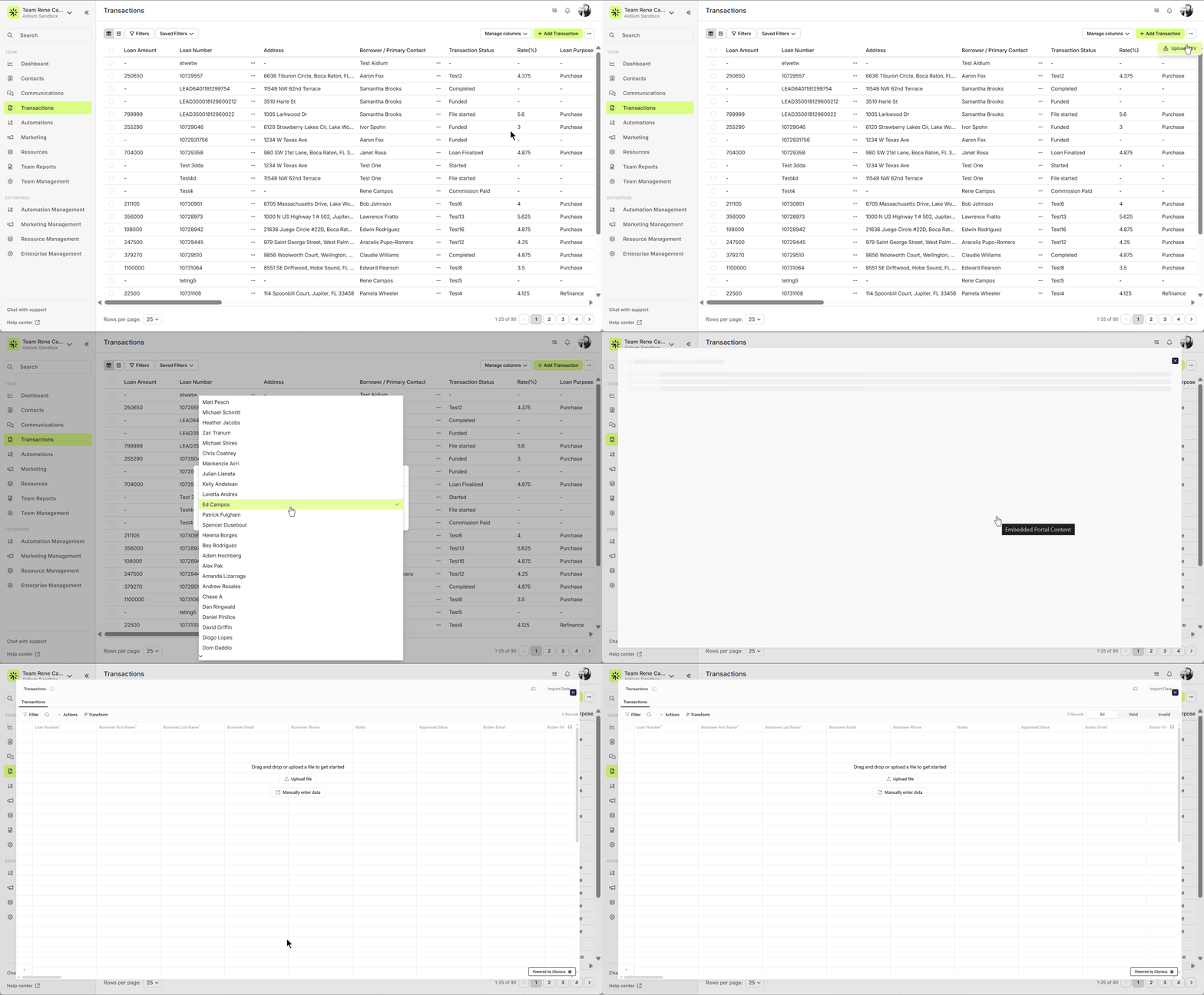
In the Transactions section, click the three vertical dots at the top-right and select Upload CSV.
A popup will ask you to select the user the transactions will be assigned to. You can upload on behalf of any team member.
Then, choose your file either by:
Drag-and-dropping it into the window, or
Clicking Select file to open your file browser.
Map the Fields
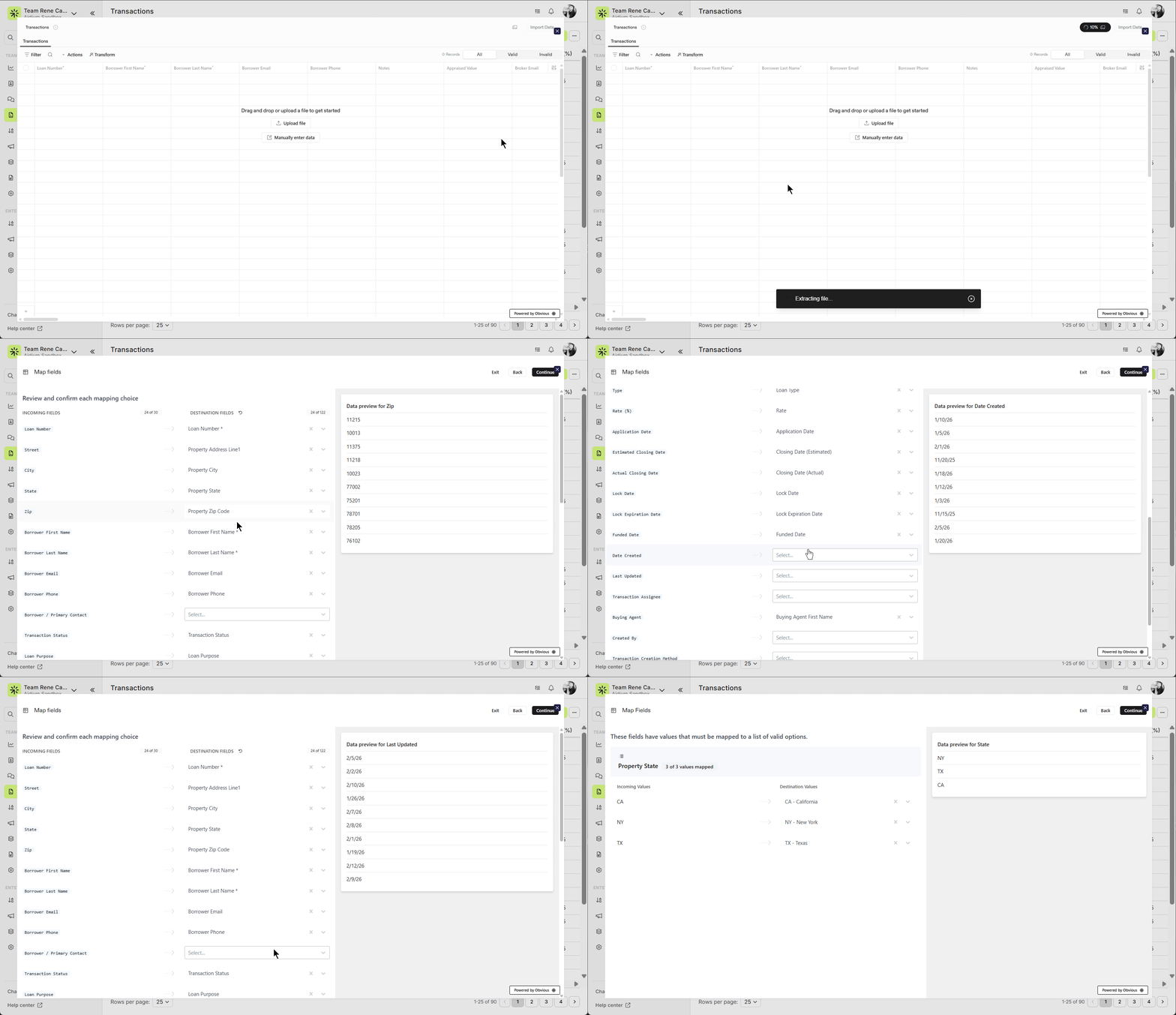
After uploading your file, Lendware will display a preview of your data. The first row is automatically treated as headers. You’ll complete the mapping in two steps:
2.1 Review and Confirm Each Mapping Choice
Lendware will try to auto-map your columns to the correct transaction fields. You can:
Hover over each column to preview the values.
Use the dropdown to select the appropriate Lendware field.
Adjust any fields that weren’t mapped correctly.
Click Continue once everything is mapped.
2.2 Map Incoming Values to Valid Options
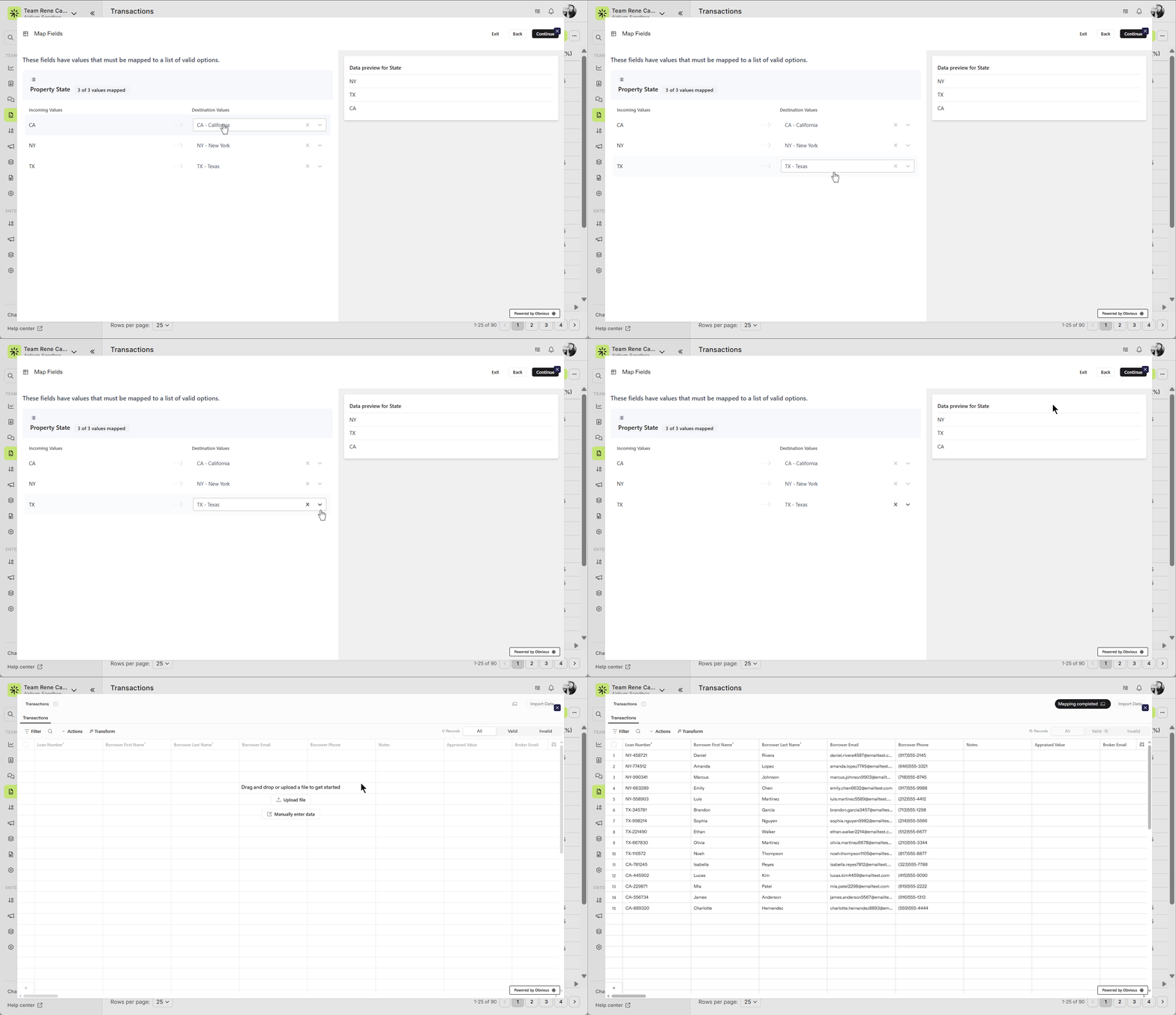
Some fields (e.g., Property State, Transaction Type) require matching values from a predefined list. You’ll be prompted to map each unique value to a valid Lendware option.
Example:
Property State – 3 of 3 values mapped
CA → CA - California
TX → TX - Texas
NY → NY - New York
- Final Review
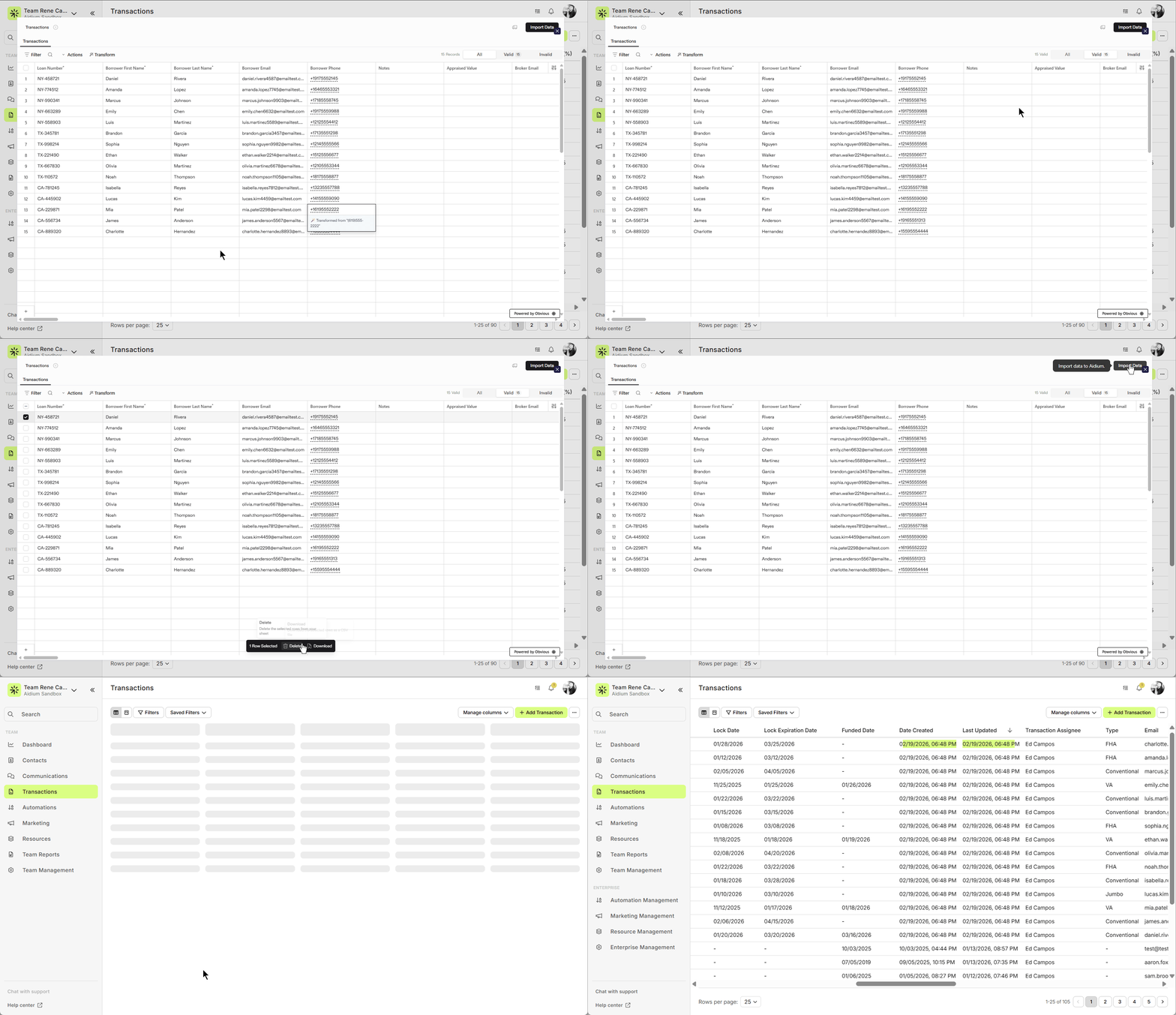
The final step shows three tabs:
All: All records
Valid: Records ready to import
Invalid: Records with errors
You can:
Edit any field directly
Delete selected rows
Download selected data
Once reviewed, click Import Data to complete the import.
After uploading your file, Lendware will display a preview of your data. The first row is automatically treated as headers. You’ll complete the mapping in two steps:
2.1 Review and Confirm Each Mapping Choice
Lendware will try to auto-map your columns to the correct transaction fields. You can:
Hover over each column to preview the values.
Use the dropdown to select the appropriate Lendware field.
Adjust any fields that weren’t mapped correctly.
Click Continue once everything is mapped.
2.2 Map Incoming Values to Valid Options
Some fields (e.g., Property State, Transaction Type) require matching values from a predefined list. You’ll be prompted to map each unique value to a valid Lendware option.
Example:
Property State – 3 of 3 values mapped
CA → CA - California
TX → TX - Texas
NY → NY - New York
The final step shows three tabs:
All: All records
Valid: Records ready to import
Invalid: Records with errors
You can:
Edit any field directly
Delete selected rows
Download selected data
Once reviewed, click Import Data to complete the import.
Completion
After submitting, you'll receive a success message. If any errors occurred, you’ll get an email with details so you can re-import corrected data.
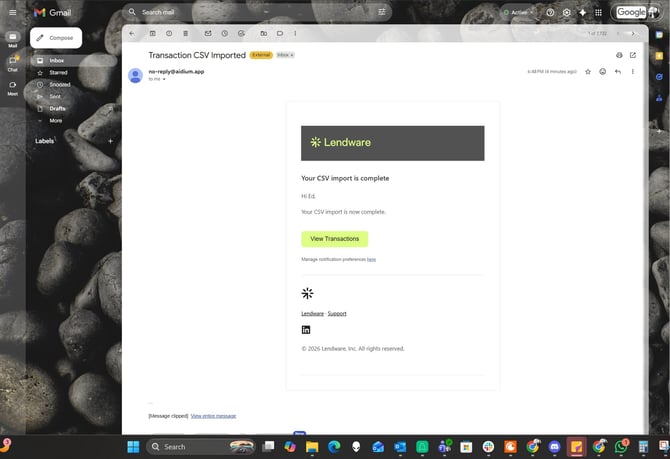
After submitting, you'll receive a success message. If any errors occurred, you’ll get an email with details so you can re-import corrected data.
Mapping Transaction Fields
If your column names don’t match Lendware’s fields, or if your file has no headers, you’ll need to map fields manually.
Lendware will show previews of your data.
Use the dropdown to link each column to the appropriate field.
Adding headers in your spreadsheet ahead of time will make this process much faster.
❌ If you exit the import process before submission, you’ll need to start over. There is no save-and-return feature at this time.
✅ However, during the mapping phase, you can exit to upload a different file or go back to adjust mappings without restarting the full process.
👍 This concludes the importing walk-through.
If your column names don’t match Lendware’s fields, or if your file has no headers, you’ll need to map fields manually.
Lendware will show previews of your data.
Use the dropdown to link each column to the appropriate field.
Adding headers in your spreadsheet ahead of time will make this process much faster.
❌ If you exit the import process before submission, you’ll need to start over. There is no save-and-return feature at this time.
✅ However, during the mapping phase, you can exit to upload a different file or go back to adjust mappings without restarting the full process.
👍 This concludes the importing walk-through.
Related Articles
Transaction Import Template
The Transaction Import Template is the standardized spreadsheet used to create or update transactions inside Lendware. This template ensures your data maps correctly to the system and prevents upload errors. Below is a step-by-step guide on how to ...Exporting Transactions in Lendware
Lendware allows you to export all transactions with no export limits. Important: To export all transactions, always use Select All Across Pages. Preparing your transaction list for export Before exporting, it’s recommended to review and adjust what ...Transactions Introduction and Walk-through
The Transactions page is your hub for managing all loan data. You can sort, filter, search, and customize how information is displayed. Transactions can be synced automatically from your LOS, added via Zapier, or created manually. Get to know ...Transactions – Table View vs. Pipeline View
There are two easy-to-change views within Transactions. Table View, for a customizable list of contacts for a traditional spreadsheet style experience. While Pipeline View provides you with pre-sorted previews of each transaction based on Status. ...How to Filter Your Transactions
Filtering Transactions is a quick and effective way to narrow down what you see, whether you're using Table View or Pipeline View. Filtering Transactions works in a very similar way as Filtering Contacts. You're simply filtering for different fields. ...