Using Custom Transaction Fields
Default fields are great for capturing standardized information to help identify and understand each transaction in your database. But often, you and your team may want to track additional details specific to your process. That’s where Custom Transaction Fields come in.
Custom Transaction Fields let you:
- Store transaction-specific information.
- Use those fields as merge fields in emails and SMS for more personalized communication.
- Filter and trigger automations for smarter data management in the future.
Types of Custom Fields
When creating a new field, you can choose from three data types:
- Text – Add open text (anything from a single word to a full sentence).
- Number – Store numbers only.
- Date – Save a month, day, and year.
In this article, you’ll learn how to:
- Add a Custom Transaction Fields
- Edit a Custom Transaction Field
- Delete a Custom Transaction Field
- Editing Transaction to Add Data to Custom Fields
- Using Custom Merge Fields
⚠️ Important: Custom fields are shared across your team. Check with your team’s decision maker before creating new ones. Some fields may also be created at the Enterprise level — these cannot be edited at the team or user level and are managed by your enterprise administrator.
Add a Custom Transaction Field
Go to Team Management → Custom Transaction Fields.
Click + Add Custom Field (top right or middle of the page).
Fill in the details:
Field Name – The label that will display. Keep it clear and consistent.
Field Type – Choose Text, Number, or Date.
Merge Field Name – Automatically generated based on the Field Name (you can edit this, but usually no need).
Click Create Custom Field.
Go to Team Management → Custom Transaction Fields.
Click + Add Custom Field (top right or middle of the page).
Fill in the details:
Field Name – The label that will display. Keep it clear and consistent.
Field Type – Choose Text, Number, or Date.
Merge Field Name – Automatically generated based on the Field Name (you can edit this, but usually no need).
Click Create Custom Field.
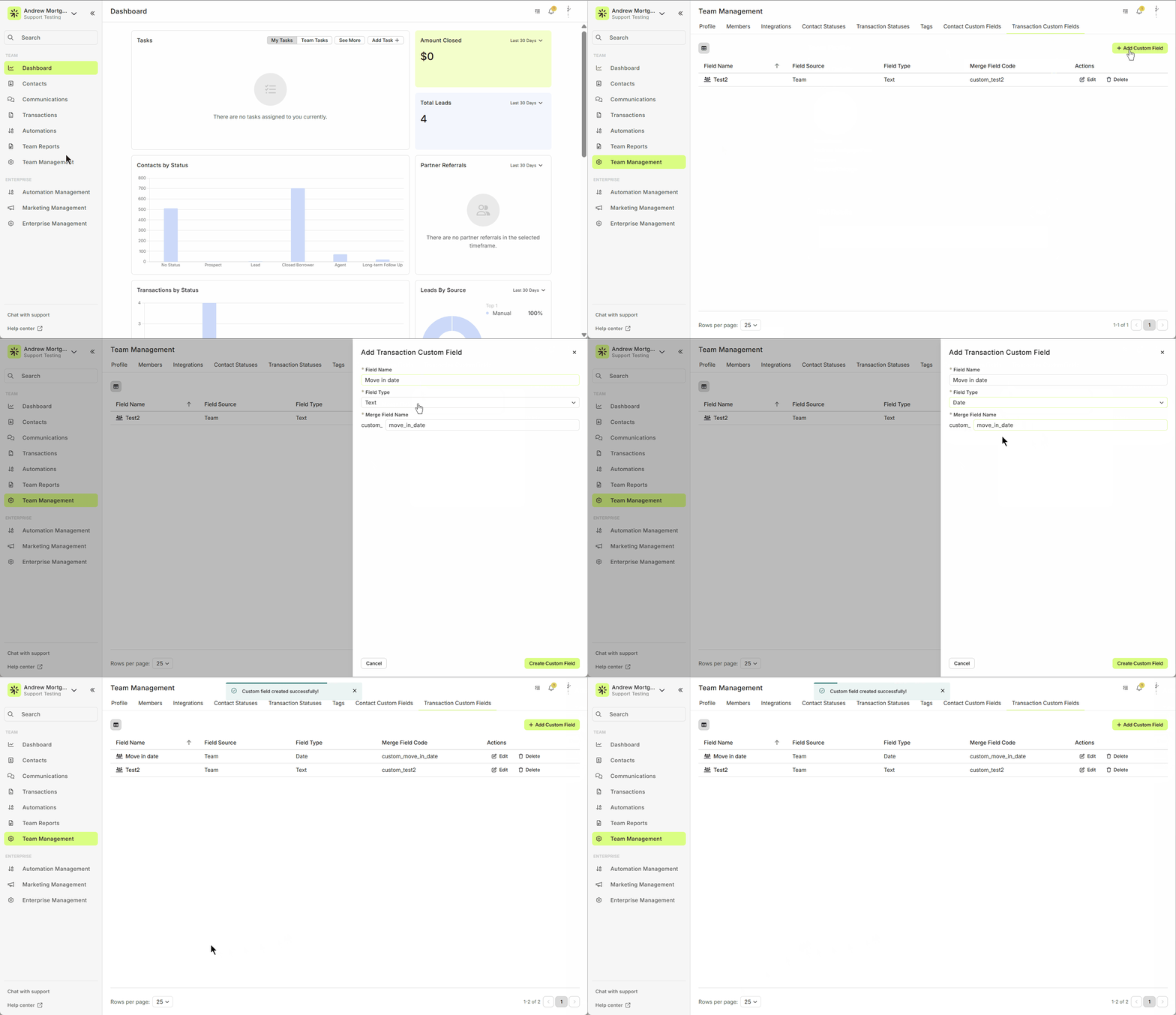
Your new field will now appear on the page and be available for all transactions.
Tip: You may need to refresh your browser for the new field to appear.
Edit a Custom Transaction Field
Go to Team Management → Custom Transaction Fields.
For fields created by your team (Field Source = Team), click Edit.
Update the Field Name or details.
Click Edit Custom Field to confirm.
Go to Team Management → Custom Transaction Fields.
For fields created by your team (Field Source = Team), click Edit.
Update the Field Name or details.
Click Edit Custom Field to confirm.
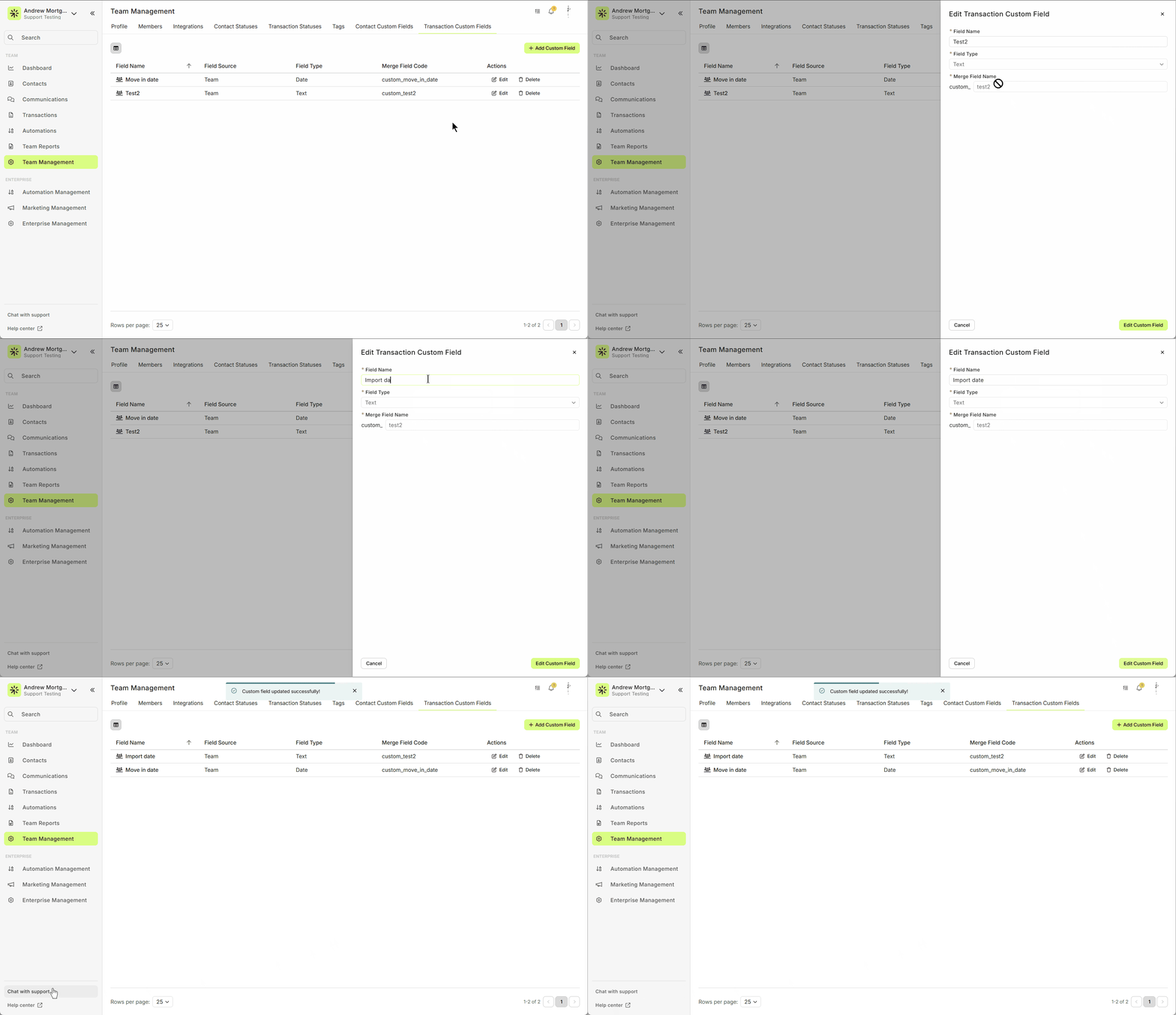
Delete a Custom Transaction Field
⚠️ Warning: Deleting a field permanently removes all of its data from every transaction.
Go to Team Management → Custom Transaction Fields.
For fields created by your team, click Delete.
Type (or copy/paste) the confirmation text provided.
Confirm deletion.
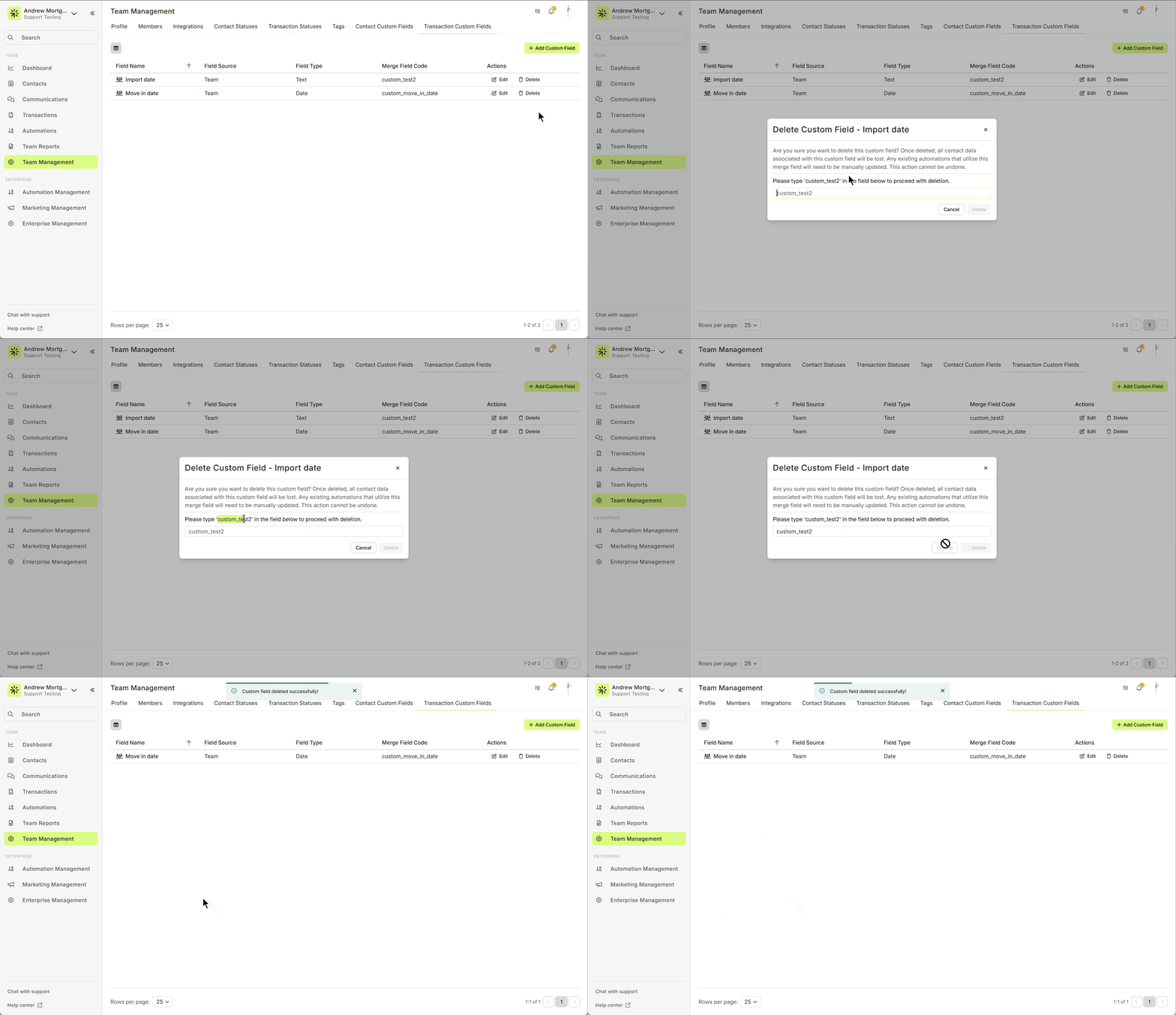
Add or Update Data in a Transaction’s Custom Fields
Open the transaction (from the Transactions page or from the borrower’s Contact Detail view).
When the transaction drawer slides out, scroll to the bottom to see all available custom fields.
Enter or update data directly — fields are instantly editable.
Open the transaction (from the Transactions page or from the borrower’s Contact Detail view).
When the transaction drawer slides out, scroll to the bottom to see all available custom fields.
Enter or update data directly — fields are instantly editable.
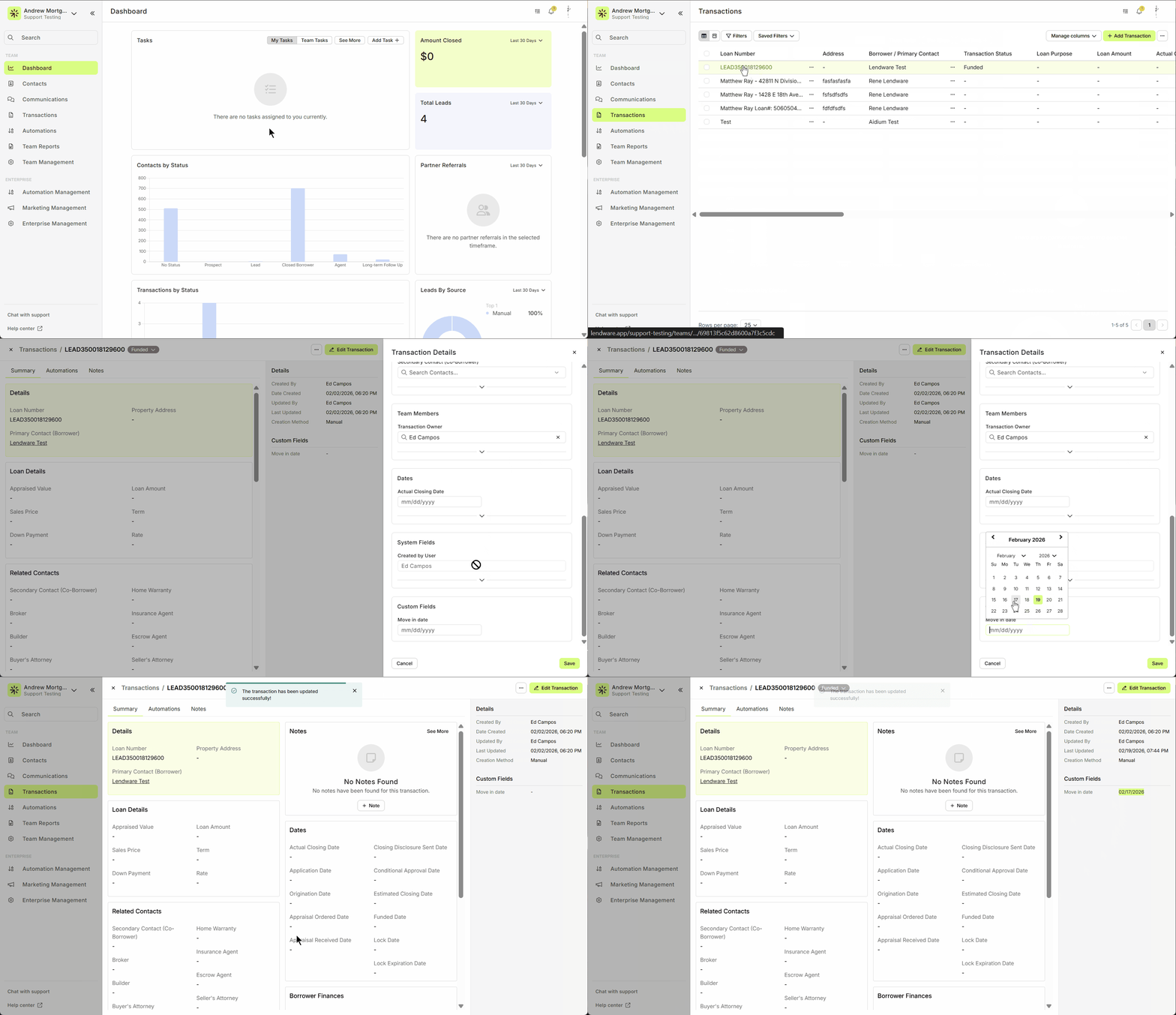
Use Custom Merge Fields
Each custom field automatically generates a merge field you can insert into emails or SMS.
While creating a message, click the Merge Field icon.
Search for your custom field.
Insert it into your message for personalized communication.
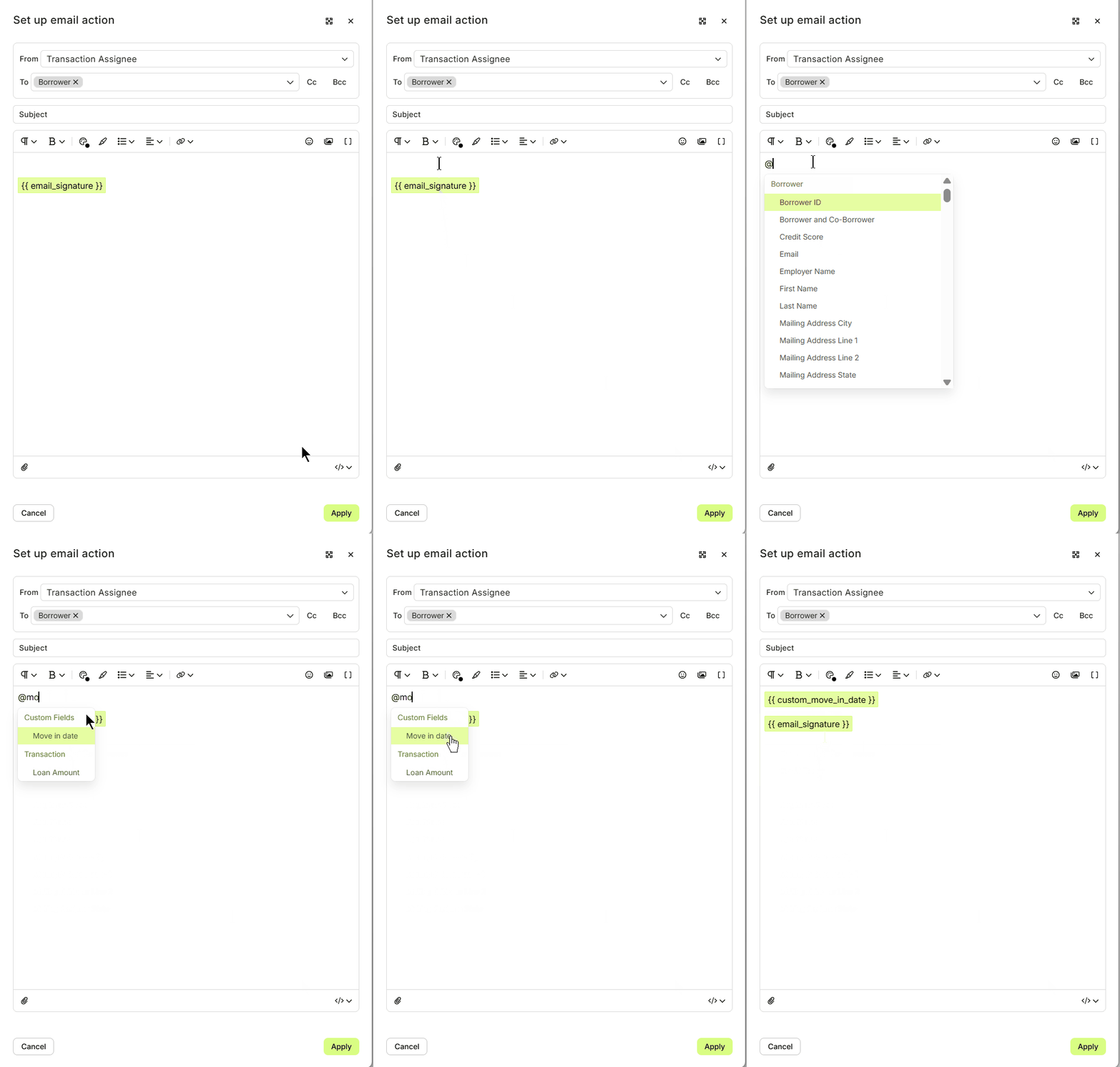
⚠️ Note: Transaction merge fields can only be used in transaction-based automations.
You’re all set to personalize messages with Custom Transaction Fields!
Need more help? Check out: Using Custom Contact Fields
Related Articles
Transactions – Table View vs. Pipeline View
There are two easy-to-change views within Transactions. Table View, for a customizable list of contacts for a traditional spreadsheet style experience. While Pipeline View provides you with pre-sorted previews of each transaction based on Status. ...Anatomy of a Transaction
A Transaction Record contains the core details of a loan—pulled from your LOS or added manually. It helps track loan progress, update statuses, manage contacts, and support communication. Transactions themselves are viewed a little differently from ...Transaction Import Template
The Transaction Import Template is the standardized spreadsheet used to create or update transactions inside Lendware. This template ensures your data maps correctly to the system and prevents upload errors. Below is a step-by-step guide on how to ...Transaction Detail View – A Walkthrough
The new Transaction Detail View provides a clear and organized way to view and manage your transactions. All information is separated into intuitive tabs, giving you everything at a glance—making it easy to update, track, and stay on top of every ...How to Filter Your Transactions
Filtering Transactions is a quick and effective way to narrow down what you see, whether you're using Table View or Pipeline View. Filtering Transactions works in a very similar way as Filtering Contacts. You're simply filtering for different fields. ...