Transaction Detail View – A Walkthrough
The new Transaction Detail View provides a clear and organized way to view and manage your transactions. All information is separated into intuitive tabs, giving you everything at a glance—making it easy to update, track, and stay on top of every transaction.
Transaction Summary
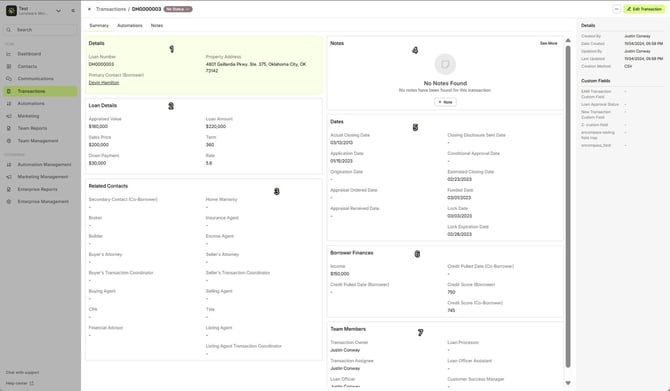
The Summary tab acts as your transaction dashboard, showing all key details at a glance:
Details → Basic loan information like loan number, borrower, and property address.
Loan Details → Financial data including appraised value, loan amount, interest rate, and terms.
Related Contacts → All parties linked to the transaction (co-borrower, agents, attorneys, processors, etc.).
Notes → Activity log and important comments from team members.
Dates → Key transaction milestones (application date, funded date, lock date, closing date, etc.).
Borrower Finances → Borrower and co-borrower income, credit pull dates, and credit scores.
Team Members → Assigned staff such as loan officer, processor, assistant, and transaction owner.
At the top-right corner, you also have access to the Edit Transaction button. Next to it, the ellipsis menu (⋮) gives you quick actions like:
- Add to Automation
- Add Note
- Delete Transaction
You can also see Details such as:
- Created By, Date Created
- Updated By, Last Updated
- Creation Method
Finally, any Custom Fields are displayed on the left-hand side of the transaction view.
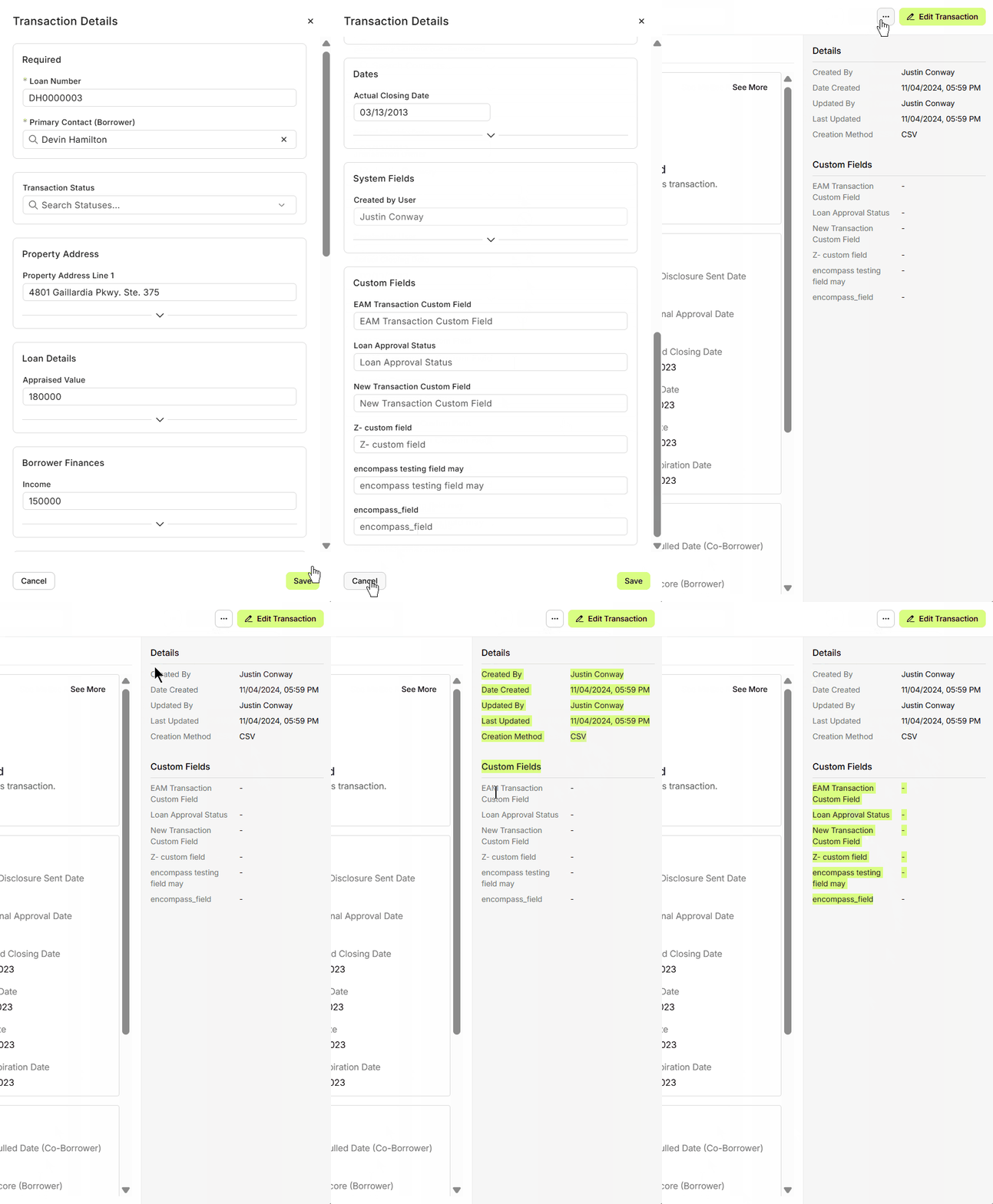
📌 Tip: When you’re in the Transactions tab of a contact, you can quickly access the full details of any linked transaction by clicking on the Loan Number. And vice versa—when viewing a Transaction, you can also click on the linked contacts to navigate back to their full contact details.
Transaction Automations
The Automations tab shows all active or completed workflows related to this transaction.
Each automation displays the target type (Transaction-based) and any description included.
Use the + Add to Automation(s) button to enroll this transaction in an automation.
To unassign an active automation, click the ellipsis […] next to the automation name.
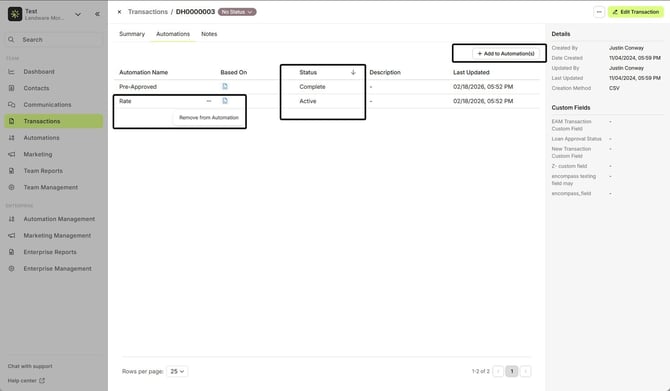
📌 Tip: Click the Automation name to update details or see the full transaction information.
Transaction Notes
The Notes tab is a central repository for manual updates or important information about a transaction. Notes can include:
Life details, purchase or refinance information
Actions taken by the team
Preferences, special requests, or relevant transaction context
Each note tracks:
Created by – Who added the note
Date – When it was added
Managing Notes:
Click + Note to create a new note.
Click the ellipsis […] on a note to Edit or Delete.
Click + Note to create a new note.
Click the ellipsis […] on a note to Edit or Delete.
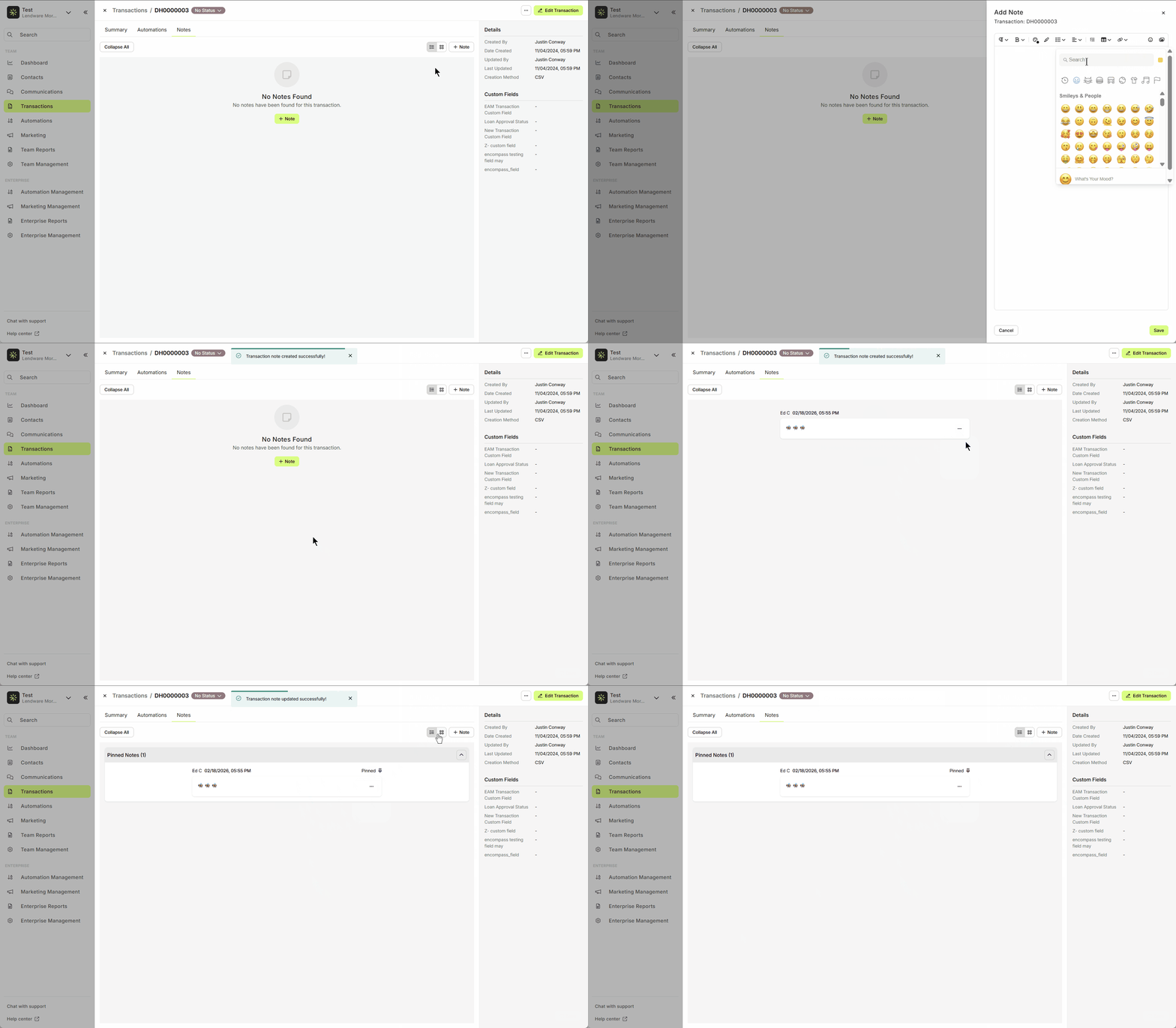
📌 Tip: Notes are ideal for keeping your team informed about any transaction-specific context that may affect follow-ups or automations.
Quick Overview
Summary Tab – Quick access to key loan details and related contacts.
Automations Tab – Manage active/completed automations; apply Agent Actions.
Notes Tab – Track all important transaction updates manually.
Summary Tab – Quick access to key loan details and related contacts.
Automations Tab – Manage active/completed automations; apply Agent Actions.
Notes Tab – Track all important transaction updates manually.
Need more help? Check out: Anatomy of a Transaction
Related Articles
Anatomy of a Transaction
A Transaction Record contains the core details of a loan—pulled from your LOS or added manually. It helps track loan progress, update statuses, manage contacts, and support communication. Transactions themselves are viewed a little differently from ...Using Custom Transaction Fields
Default fields are great for capturing standardized information to help identify and understand each transaction in your database. But often, you and your team may want to track additional details specific to your process. That’s where Custom ...Transaction Import Template
The Transaction Import Template is the standardized spreadsheet used to create or update transactions inside Lendware. This template ensures your data maps correctly to the system and prevents upload errors. Below is a step-by-step guide on how to ...Create and Save Transaction Filters
Creating and saving commonly used transaction filters can save time and streamline your team’s processes. Filters help with repeatable tasks, re-targeting, check-ins, and pipeline reporting. In this guide, we’ll show you how to create basic ...Transactions – Table View vs. Pipeline View
There are two easy-to-change views within Transactions. Table View, for a customizable list of contacts for a traditional spreadsheet style experience. While Pipeline View provides you with pre-sorted previews of each transaction based on Status. ...