Anatomy of a Transaction
A Transaction Record contains the core details of a loan—pulled from your LOS or added manually. It helps track loan progress, update statuses, manage contacts, and support communication.
Transactions themselves are viewed a little differently from Contacts. Rather than a full-page display of information, Transactions are summarized with the important details from either the Table View or Pipeline View. To hone in on additional information associated with the transaction, you will click to open the Transaction Details slide-out.
There are 3 easy ways to get to the transaction record you are looking for. Each link below will open a corresponding article.
We will review each of the following in this article.
- What is in a Transaction Record
- Update Transaction Status
- Edit Transaction Details
- Add Transaction Coordinator for Agent Communications
What is in a Transaction Record (Details)
- A Transaction Record is visible by starting in the Transactions section and clicking on a Transaction preview. This will trigger a slide-out with that loan's Transaction Details. You can view and edit any of the fields available.
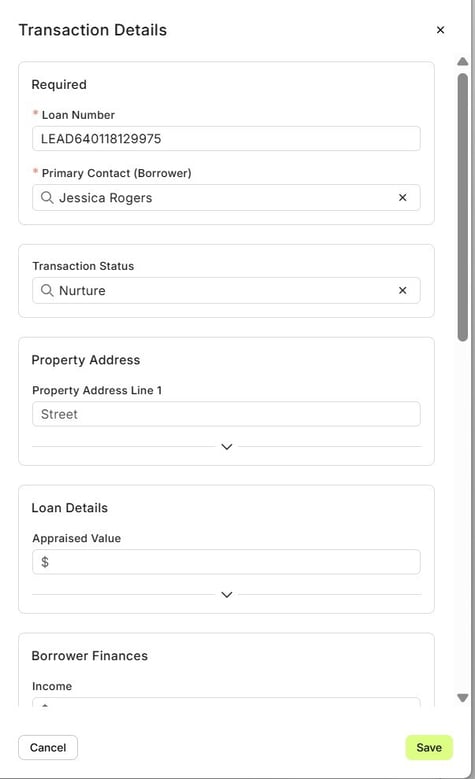
- Nearly all sections within the slide-out are expandable to display more information. Look for the downward facing expansion arrow, as seen in the image below.
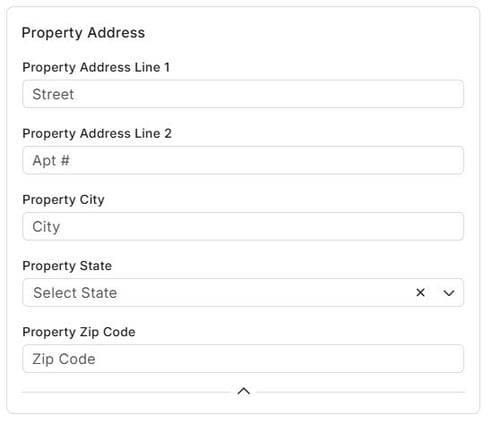
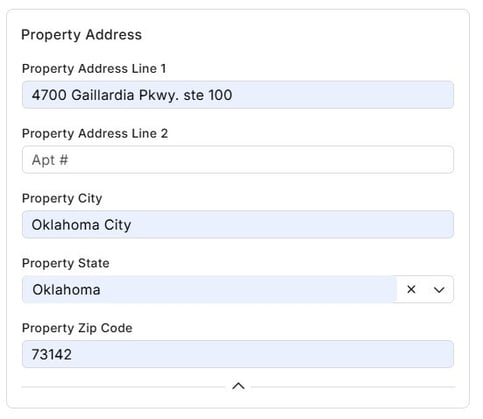
- After clicking the expansion arrow, you will see additional relevant information. In this case, we expanded the Primary details to show the Property Address associated with this transaction.
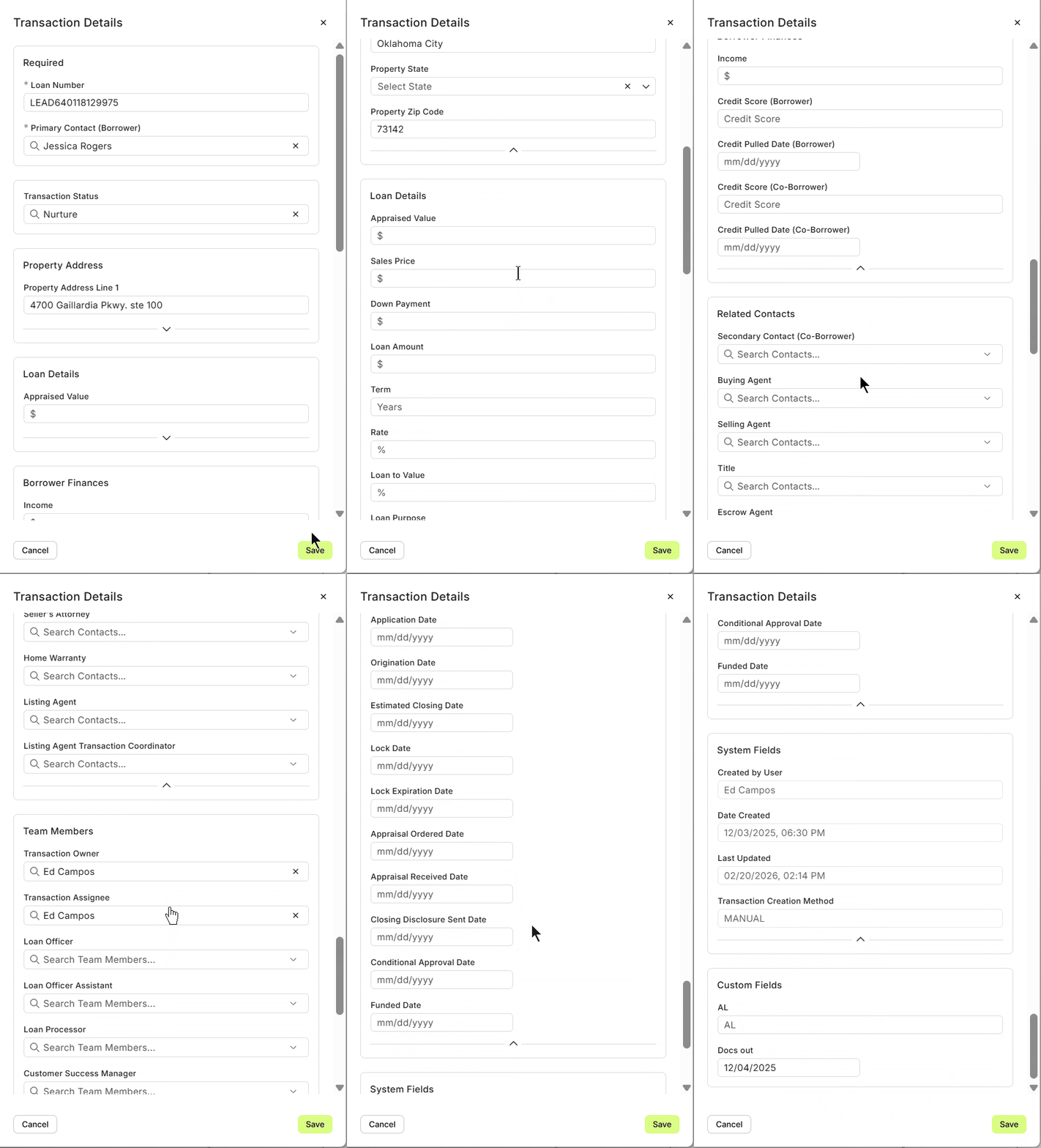
- To view more information, simply scroll down, as seen in the animated GIF below.
👍 This concludes what is in a transaction record
👍 This concludes what is in a transaction record
Update Transaction Status
A Transaction Status will not only show exactly where a loan is in the process, but will also drive automatons -or- Milestone communications. Depending upon your setup, it is most likely that your LOS will provide all the transaction updates needed and for the most part, this is completely hands-off.
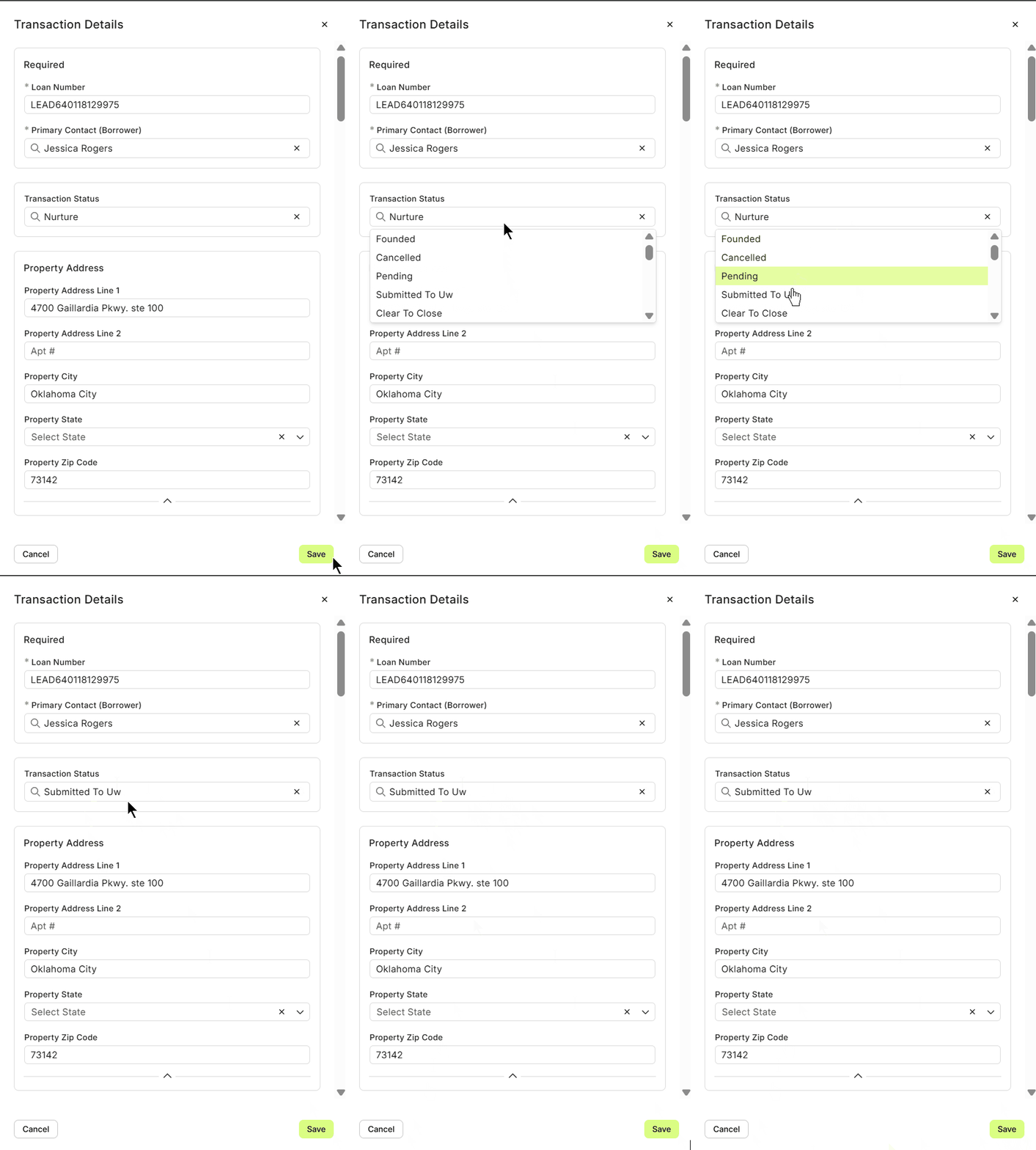
However, if you do find yourself in a situation where manually changing the Transaction Status is desired, it's incredibly easy to do using one of two methods. The first is described this article describing the Pipeline View. The following will show you how to edit from within the Transaction Details.
- As in the previous section above, open your desired Transaction slide-out.
- Look for 'Transaction Status' - Click the drop-down. Then, chose the appropriate status and click 'Save' at the bottom, in blue. See animated GIF below.
Edit Transaction Details
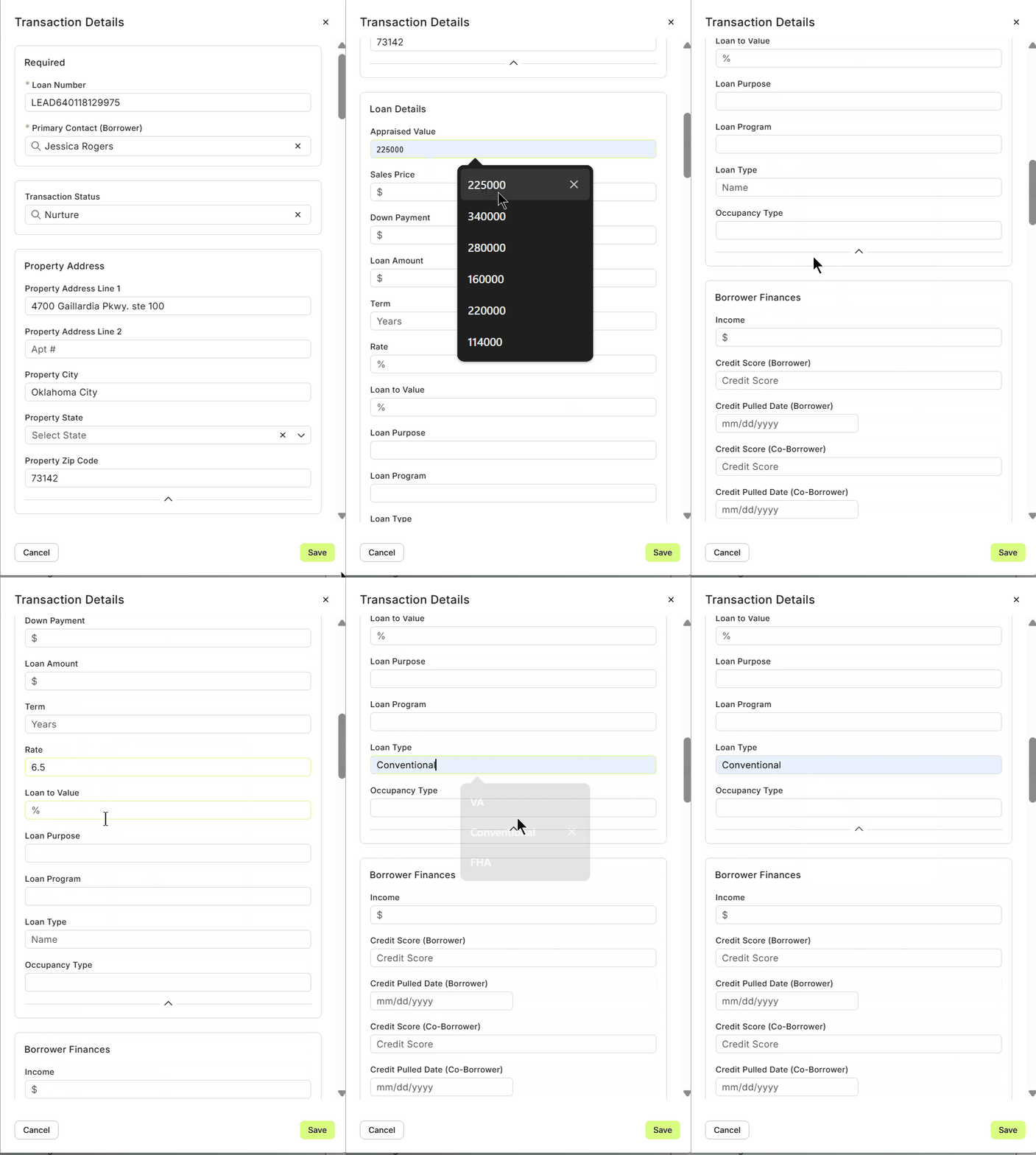
Nearly all fields in the Transaction Detail slide-out are editable. Simply click within the field you want to update. Once complete, click 'Save' at the bottom, in blue. See animated GIF below.
⚠️ If this transaction originated from your LOS connection/integration, any changes may be overwritten by the next automatic update received.
👍 This concludes editing a transaction
Add Transaction Coordinator
Additionally, for each Agent on the Transaction, you can manually add a 'Transaction Coordinator' or 'Assistant'. To do so, simply find the either: "Buyer's Transaction Coordinator" or "Seller's Transaction Coordinator" and add that Contact to its respective field.
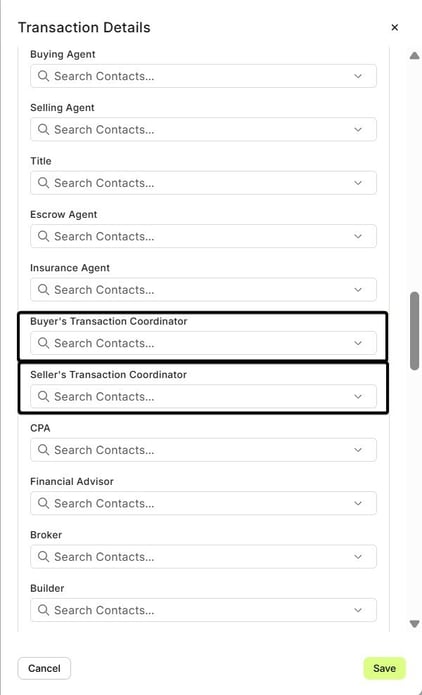
Your Automations will should always Cc the Transaction Coordinator in Transactional emails to the Real Estate Agent. If there is a linked contact, it will Cc them, if there is not, the email will send as normal.
👍 This concludes adding a transaction coordinator
Related Articles
Transaction Detail View – A Walkthrough
The new Transaction Detail View provides a clear and organized way to view and manage your transactions. All information is separated into intuitive tabs, giving you everything at a glance—making it easy to update, track, and stay on top of every ...Transaction Import Template
The Transaction Import Template is the standardized spreadsheet used to create or update transactions inside Lendware. This template ensures your data maps correctly to the system and prevents upload errors. Below is a step-by-step guide on how to ...Using Custom Transaction Fields
Default fields are great for capturing standardized information to help identify and understand each transaction in your database. But often, you and your team may want to track additional details specific to your process. That’s where Custom ...Create and Save Transaction Filters
Creating and saving commonly used transaction filters can save time and streamline your team’s processes. Filters help with repeatable tasks, re-targeting, check-ins, and pipeline reporting. In this guide, we’ll show you how to create basic ...Transactions – Table View vs. Pipeline View
There are two easy-to-change views within Transactions. Table View, for a customizable list of contacts for a traditional spreadsheet style experience. While Pipeline View provides you with pre-sorted previews of each transaction based on Status. ...