Using Custom Contact Fields
Custom contact fields give you and your team the flexibility to capture the exact information you need about your contacts — in a way that works best for your process.
While the built-in default fields cover the basics (like name, phone, or email), sometimes you’ll want to track extra details. That’s where Custom Contact Fields shine.
Not only can these fields store information, but they can also be used as merge fields in emails and text messages. That means you can personalize your outreach even more, making your messages accurate and relevant to each contact.
Types of Custom Fields
When creating a new field, you can choose from three data types:
- Text – Add any word, phrase, or short sentence
- Number – Store numbers only
- Date – Save month, day, and year
In this article, you’ll learn how to:
- Add a Custom Contact Field
- Edit a Custom Contact Field
- Delete a Custom Contact Field
- Editing Contact to Add Data to Custom Fields
- Using Custom Merge Fields + AI Email Editor
⚠️ Important: Custom fields are shared across your whole team. Check in with your team’s decision maker before creating new ones. Some fields may also be created at the Enterprise level — those cannot be edited at the team or user level.
Add a Custom Contact Field
Go to Team Management → Custom Contact Fields.
Click + Add Custom Field.
Fill in the details:
Field Name – What you want the field to be called
Field Type – Text, Number, or Date
Merge Field Name – Auto-generated from the Field Name (you can edit this, but usually no need)
Click Create Custom Field.
Go to Team Management → Custom Contact Fields.
Click + Add Custom Field.
Fill in the details:
Field Name – What you want the field to be called
Field Type – Text, Number, or Date
Merge Field Name – Auto-generated from the Field Name (you can edit this, but usually no need)
Click Create Custom Field.
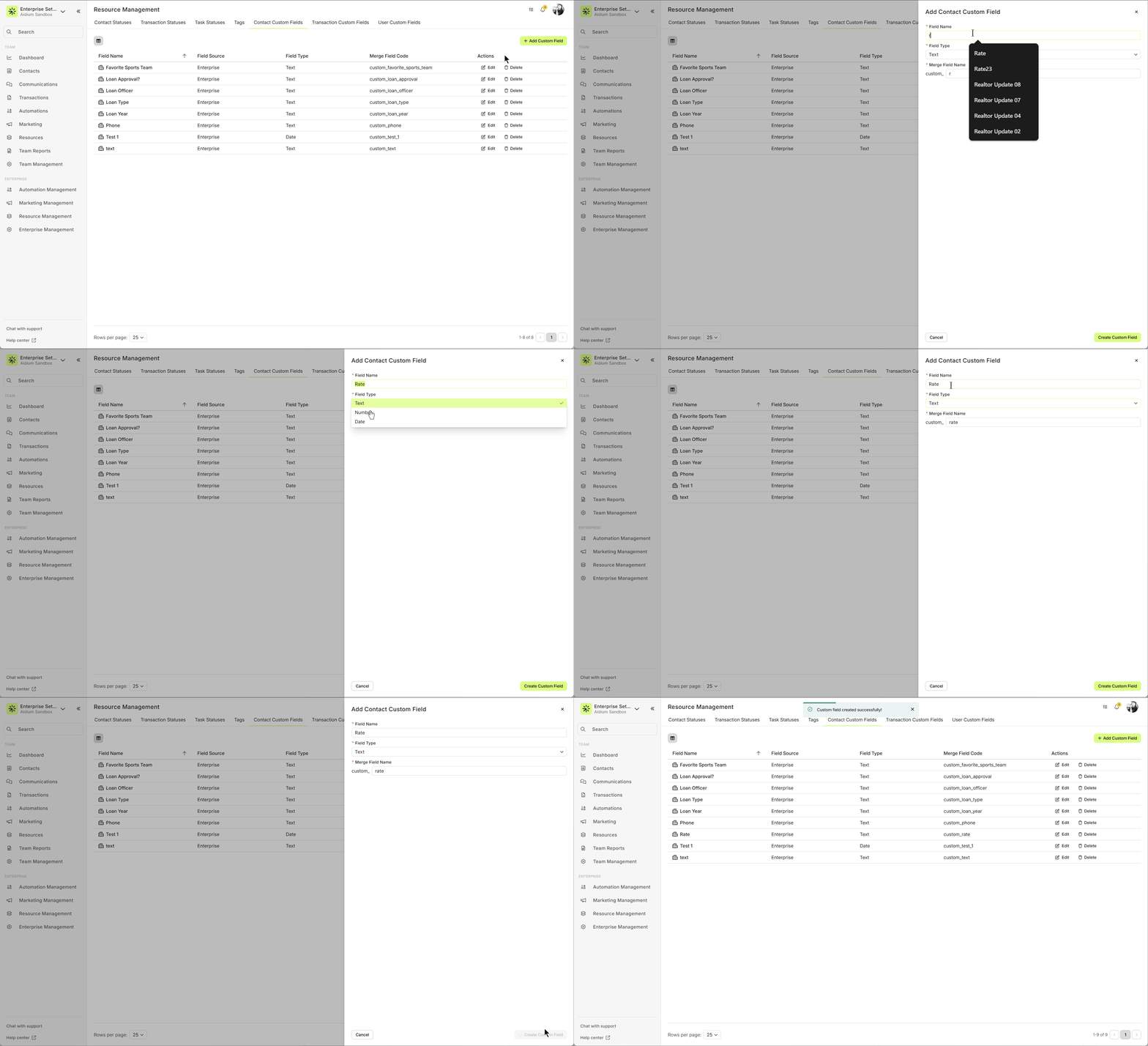
Your new custom field will now appear on the page and will be available on all contacts.
Pro tip: You may need to refresh your browser for the new field to appear in contact records.
Edit a Custom Contact Field
In Team Management → Custom Contact Fields, find the field you want to edit (must be Field Source = Team).
Click Edit.
Update the name or details as needed.
Save your changes.
In Team Management → Custom Contact Fields, find the field you want to edit (must be Field Source = Team).
Click Edit.
Update the name or details as needed.
Save your changes.
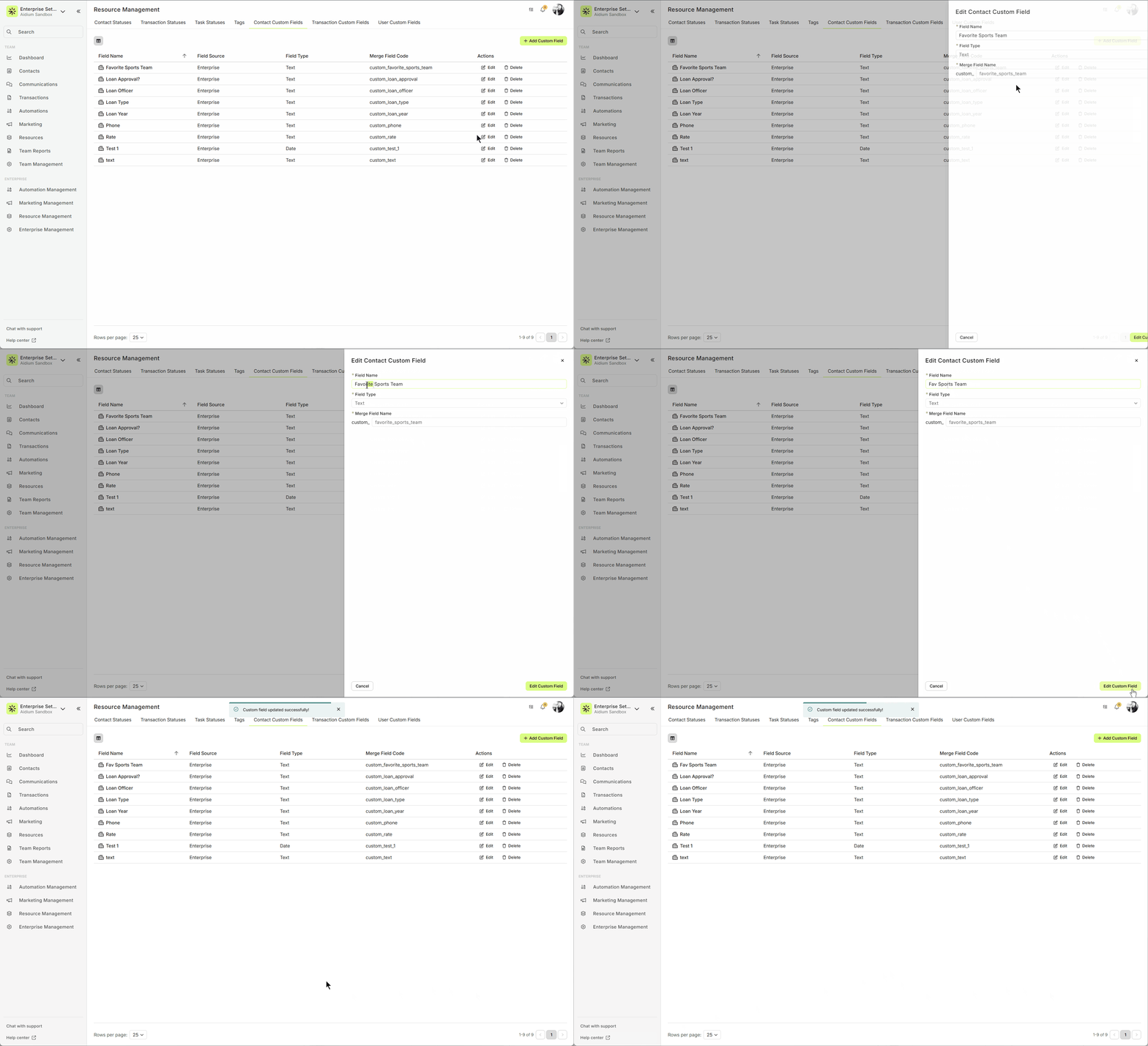
Fields are displayed in numerical order first, then alphabetical. If you’d like a specific order, try adding numbers at the beginning of your field names.
Delete a Custom Contact Field
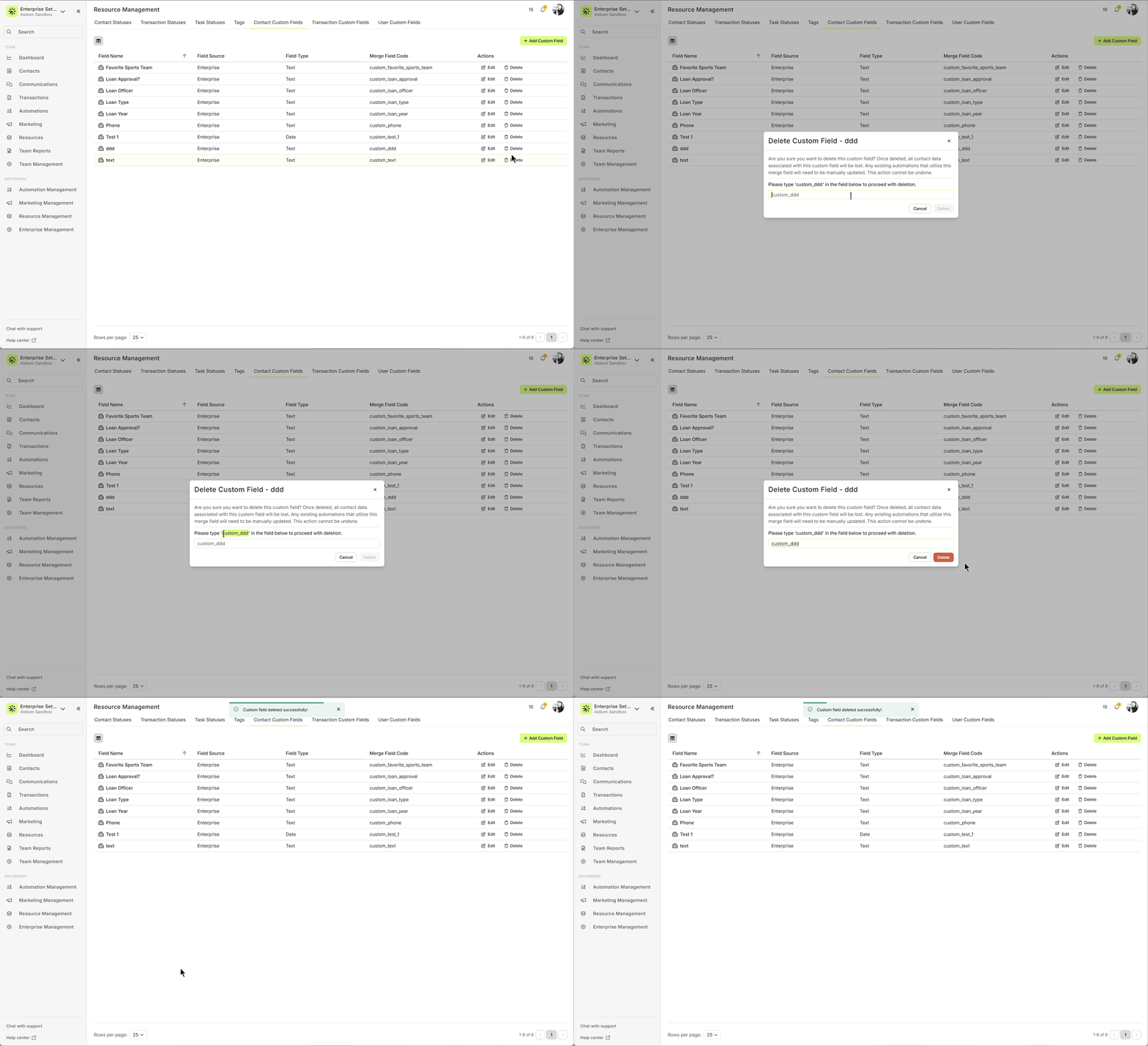
⚠️ Be careful! Deleting a field permanently removes all the data stored in it for every contact.
In Team Management → Custom Contact Fields, click Delete (Team fields only).
Type or paste the confirmation text.
Confirm the deletion.
Add or Update Custom Fields on a Contact
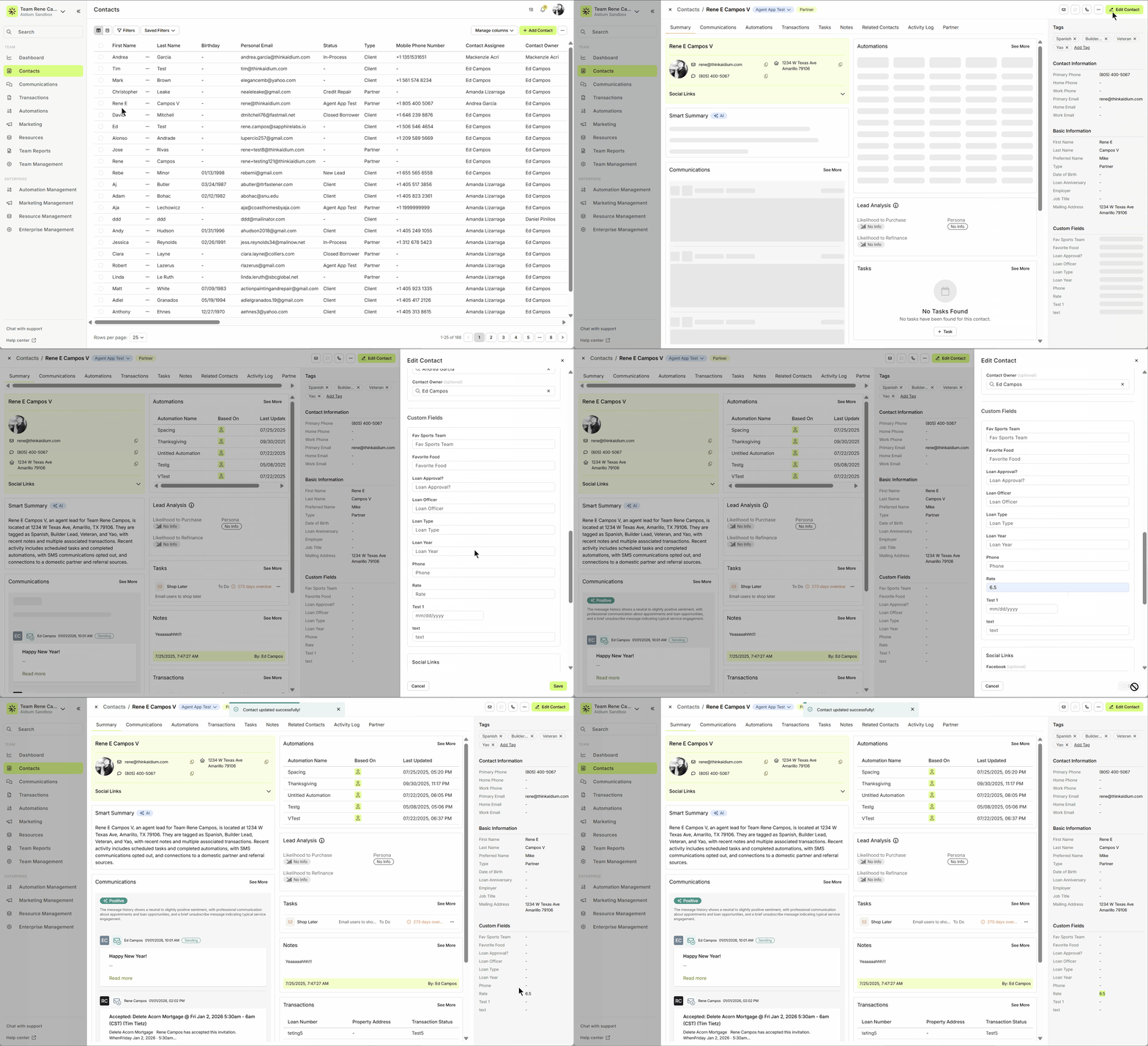
Every custom field you create will appear in each contact’s record. To add or update:
Open a contact.
Find the Custom Fields section.
Enter or edit the data.
Use Custom Merge Fields
Each custom field automatically creates a merge field for emails and texts.
When creating a message:
Click the Merge Field icon.
Search for your custom field.
Insert it into your message for personalized communication.
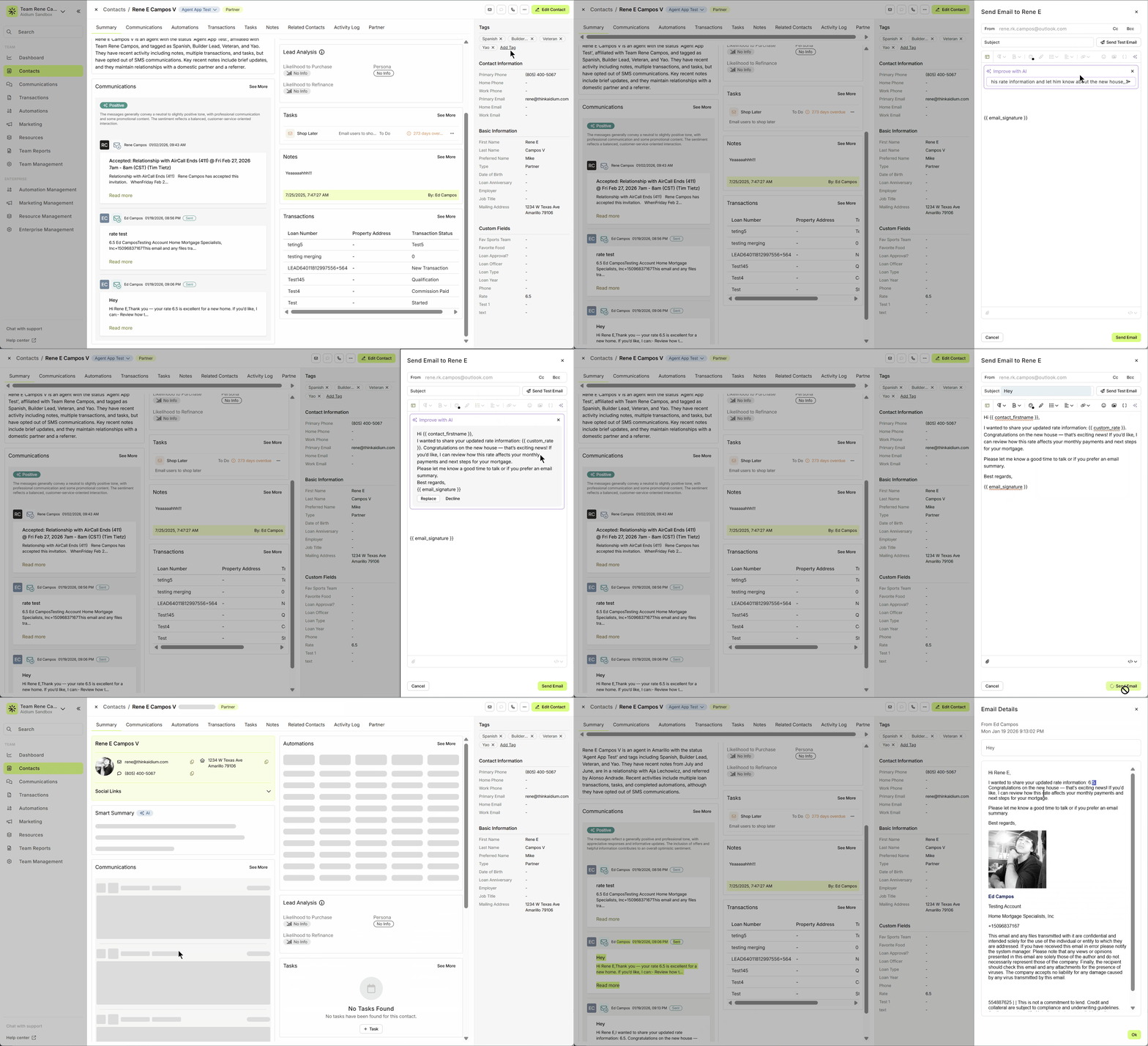
Meet your new AI Email Editor!
That’s it! Now you know how to add, edit, and use Custom Contact Fields to keep your contact data flexible and your communications personalized.
Need more help? Check out: Using Custom Transaction Fields
Related Articles
Contact Import Template
The Contact Import Template is the standardized spreadsheet used to create or update contacts inside Lendware. This template ensures your data maps correctly to the system and prevents upload errors. Below is a step-by-step guide on how to complete ...Contact Detail View – A Walkthrough
The new Contact Detail View offers a streamlined and organized way to view and manage your contacts. With all information separated into intuitive tabs, you’ll find everything you need at a glance—making it easy to update, communicate, and stay on ...Transfer Contacts to Another Team
Lendware allows you to transfer contacts between teams, making it easier to manage changes within your organization, support team growth, and maintain accurate contact ownership across your Enterprise. A contact transfer moves a contact record from a ...Manage Columns in Table View
In both Contacts and Transactions, the Table View displays columns of data by default. With the Manage Columns tool, you can easily customize which columns are visible and how they are ordered. Using the Manage Columns function will allow you to ...Contact View – Related Contacts Tab
The Related Contacts tab in the new contact view makes it easy to link any contact to another using a relationship type. This helps your team quickly understand connections, keep track of referrals and partners, and streamline communication. There’s ...