Meet the AI Email Editor for AdHoc & Mass Emails.
Say goodbye to writer’s block! Our AI Email Editor helps you draft, polish, and perfect emails in just a few clicks directly in the AdHoc or Mass Email editors.
This feature is currently in beta and not yet generally available. If you’d like early access, please contact our Support team at support@lendware.ai and we’ll enable it for you.
This feature is currently in beta and not yet generally available. If you’d like early access, please contact our Support team at support@lendware.ai and we’ll enable it for you.
Ready to transform your emails? With the AI Email Editor, drafting, customizing, and sending messages has never been easier. Whether it’s an anniversary reminder, a special offer, or an important update, this tool helps you create impactful emails in seconds.
Where to Find It
Open your AdHoc or Mass Email editor.
Look for the sparkly icon ✨ in the top-right corner.
Click it and let the magic begin!
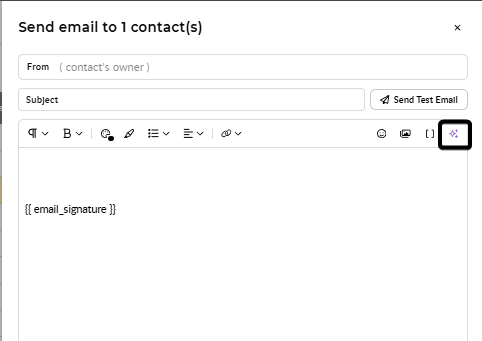
Open your AdHoc or Mass Email editor.
Look for the sparkly icon ✨ in the top-right corner.
Click it and let the magic begin!
How to Use It
Generate an Email in Seconds
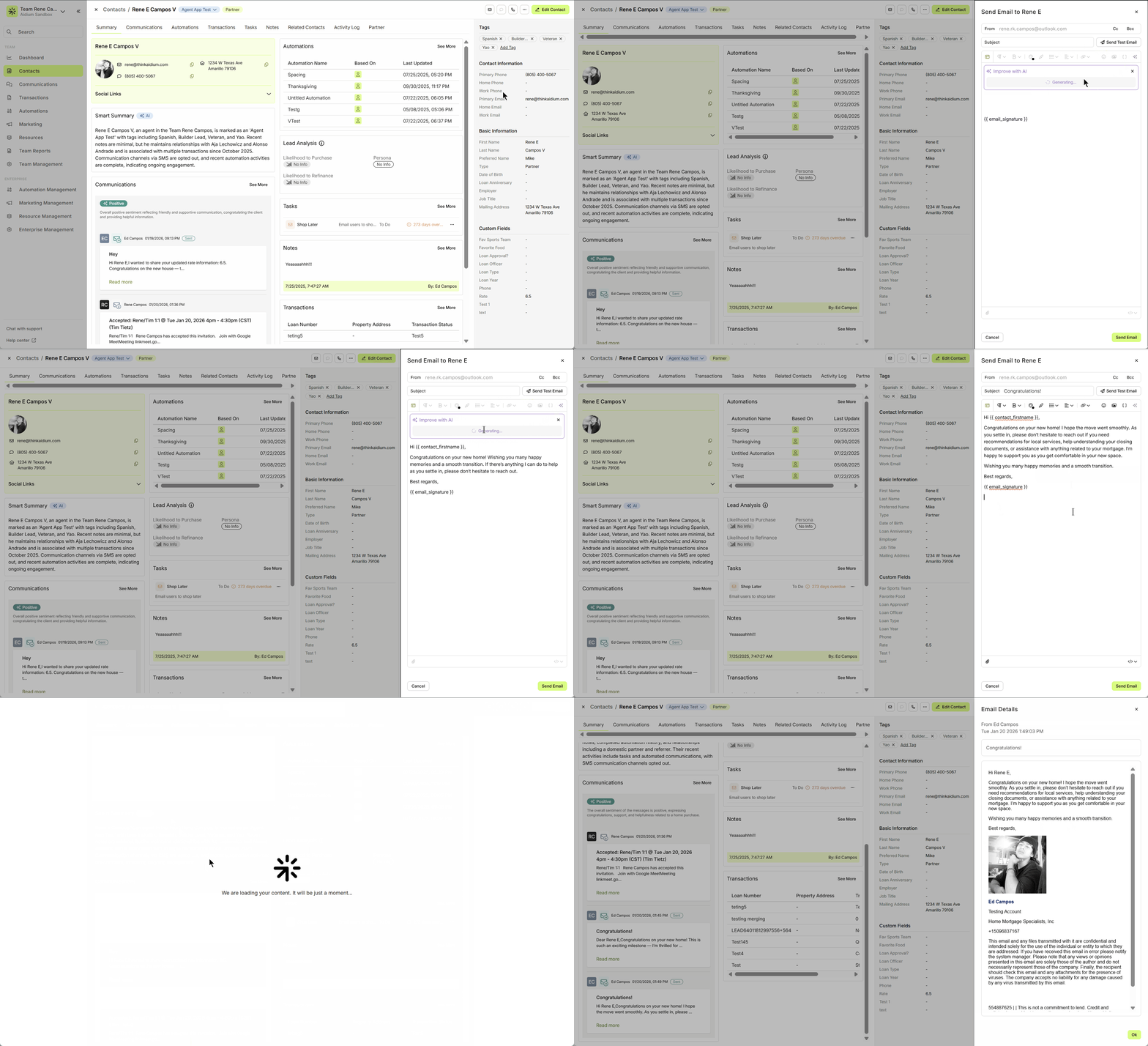
Click the sparkly icon and type what you want your email to say.
Example: “Interest rates are down. Write an email asking a prospect if they want to discuss.”
The AI drafts your email instantly—no more staring at a blank screen!
Make It Your Own
Adjust the tone: casual, professional, or anything in between.
Shorten or tweak content for clarity and style with just a few clicks.
Send It Off
Review the AI’s draft, click Replace to apply changes, and hit Send.
Boom! Email done.
Generate an Email in Seconds
Click the sparkly icon and type what you want your email to say.
Example: “Interest rates are down. Write an email asking a prospect if they want to discuss.”
The AI drafts your email instantly—no more staring at a blank screen!
Make It Your Own
Adjust the tone: casual, professional, or anything in between.
Shorten or tweak content for clarity and style with just a few clicks.
Send It Off
Review the AI’s draft, click Replace to apply changes, and hit Send.
Boom! Email done.
Why You’ll Love It
Fast and effortless: Get your emails drafted in seconds.
Customizable: Adjust tone, length, and style in a snap.
Consistent: Keep messages polished and professional across your team.
Fun to use: Sparkly icon = instant creativity boost!
Fast and effortless: Get your emails drafted in seconds.
Customizable: Adjust tone, length, and style in a snap.
Consistent: Keep messages polished and professional across your team.
Fun to use: Sparkly icon = instant creativity boost!
Tips
- Be clear with prompts for the best results.
- Always give it a quick read before sending—it’s your voice, after all!
- Perfect for quick AdHoc emails or big Mass campaigns.
- Be clear with prompts for the best results.
- Always give it a quick read before sending—it’s your voice, after all!
- Perfect for quick AdHoc emails or big Mass campaigns.
Give it a try—the sparkly icon is your new favorite teammate! ✨
Need more help? Check out: Tips to Increase Email Delivery and Open Rates
Related Articles
Email Templates in Lendware: Creation, Management, and Usage
Design once, reuse everywhere—create consistent, branded emails across teams with full control over layout and content. Email Templates in Lendware allow you to create reusable, visually rich emails using the Lendware Email Template Builder. These ...How to Build and Send an Email to a Contact
Sending an email from a contact record in Lendware is quick, simple, and packed with helpful tools. You can format text, add links or images, insert merge fields, and even send attachments—all in just a few clicks. Below, we’ll walk through each part ...Communications Page Overview
The Communications page is your team's centralized inbox for managing email and SMS/text conversations with contacts. It’s designed to provide a clear, organized way to track all recent communications across your team. To get started, click on ...When Are Emails Sent via Inbox Integration vs. Lendware’s Email Servers?
Emails sent from Lendware can go through one of two channels, each designed for specific use cases and offering unique benefits: Inbox Integration (Google or Microsoft 365) Lendware's Marketing & Mass Email Servers Our goal with every email is to ...Add a Link to Any Image in an Email
You can make your emails more engaging by turning any image or animated GIF into a clickable link. This is a simple way to direct recipients to a webpage, video, or landing page — while also making your emails more interactive and visually appealing. ...