Email Templates in Lendware: Creation, Management, and Usage
Design once, reuse everywhere—create consistent, branded emails across teams with full control over layout and content.
Email Templates in Lendware allow you to create reusable, visually rich emails using the Lendware Email Template Builder. These templates are designed to standardize messaging while giving teams flexibility to customize content and branding.
Supported use cases:
Contact-based automations
Mass emails
Ad-hoc (one-off) emails
At this time, Email Templates are not available for transaction-based automations.
Where to Find Email Templates
Admin (Enterprise) Level
Admins can access templates by navigating to:
Marketing Management → Email Templates

From here, admins can:
Create new email templates
Edit existing templates
Filter templates by name, created date, created by, or last updated date
Team Level
Teams can find templates under:
Marketing → Email Templates

At the team level, users can:
Create team-specific templates
Edit templates that have been copied down from the admin level
Creating an Email Template
When creating a new template, you have two options:
Option 1: Use a Pre-Built Template
Pre-built templates provide a structured layout that follows common email best practices. These templates are similar to automation playbooks and are ideal if you want a clean, professional design without starting from scratch.
You can:
Use the existing layout as-is or modify it
Replace text, images, and buttons with your own content
Apply your branding, colors, and links
This option is recommended for teams that want consistency across communications while minimizing setup time.

Option 2: Start from a Blank Template
Starting from a blank template gives you full creative control over the email design. This option is best if you need a highly customized layout or want to build a template tailored to a specific campaign or brand style.
Using the Lendware Email Template Builder, you can:
Add and arrange rows with different column structures
Drag and drop content blocks such as text, images, and buttons
Customize fonts, colors, spacing, and alignment
Configure global styling and layout settings
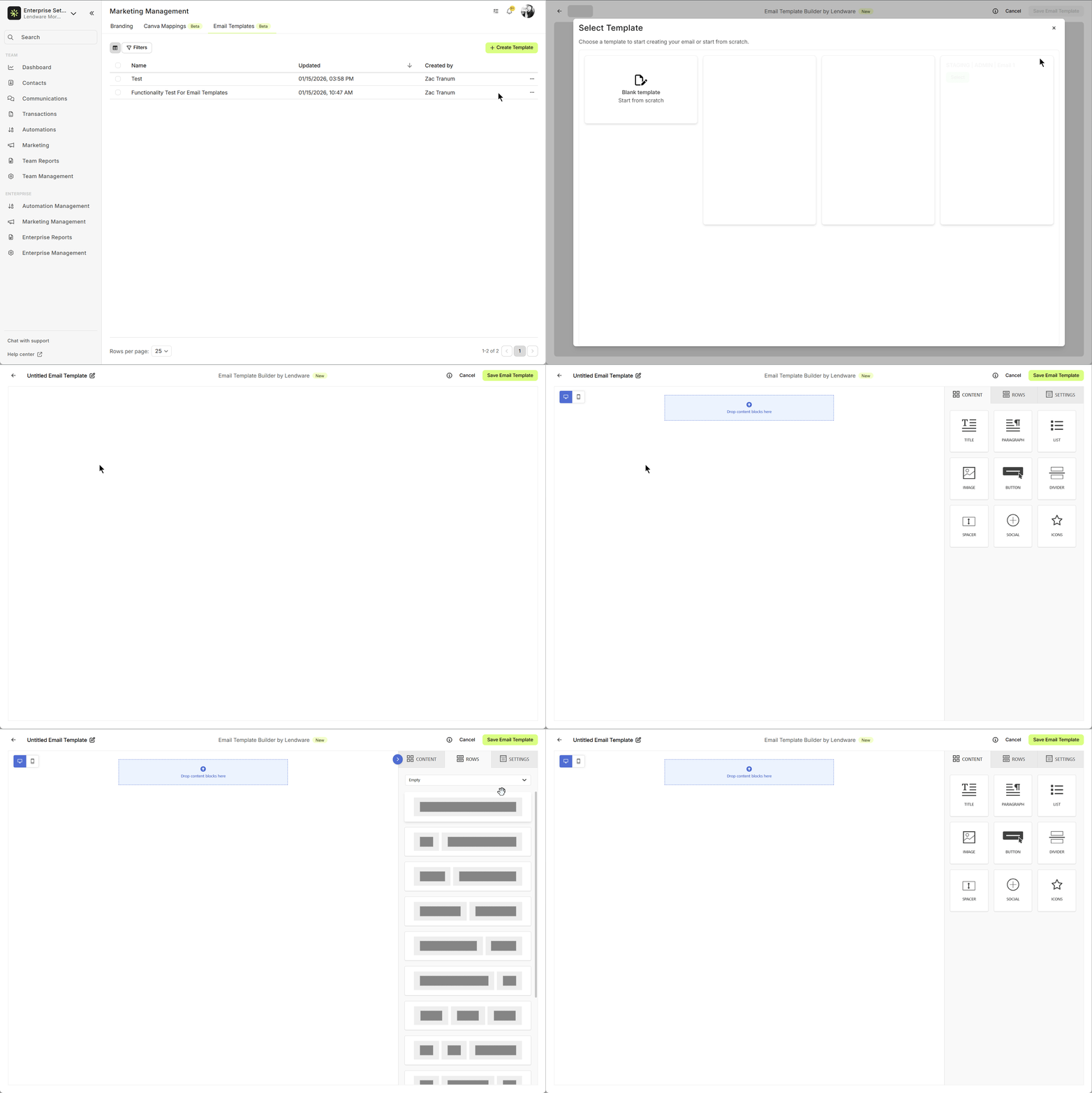
Regardless of which option you choose, all templates can be edited and refined over time directly from the Marketing → Email Templates page.
Lendware Email Template Builder Overview
The Lendware Email Template Builder is a drag-and-drop builder that offers extensive customization. Almost every element within the builder can be adjusted.
Rows
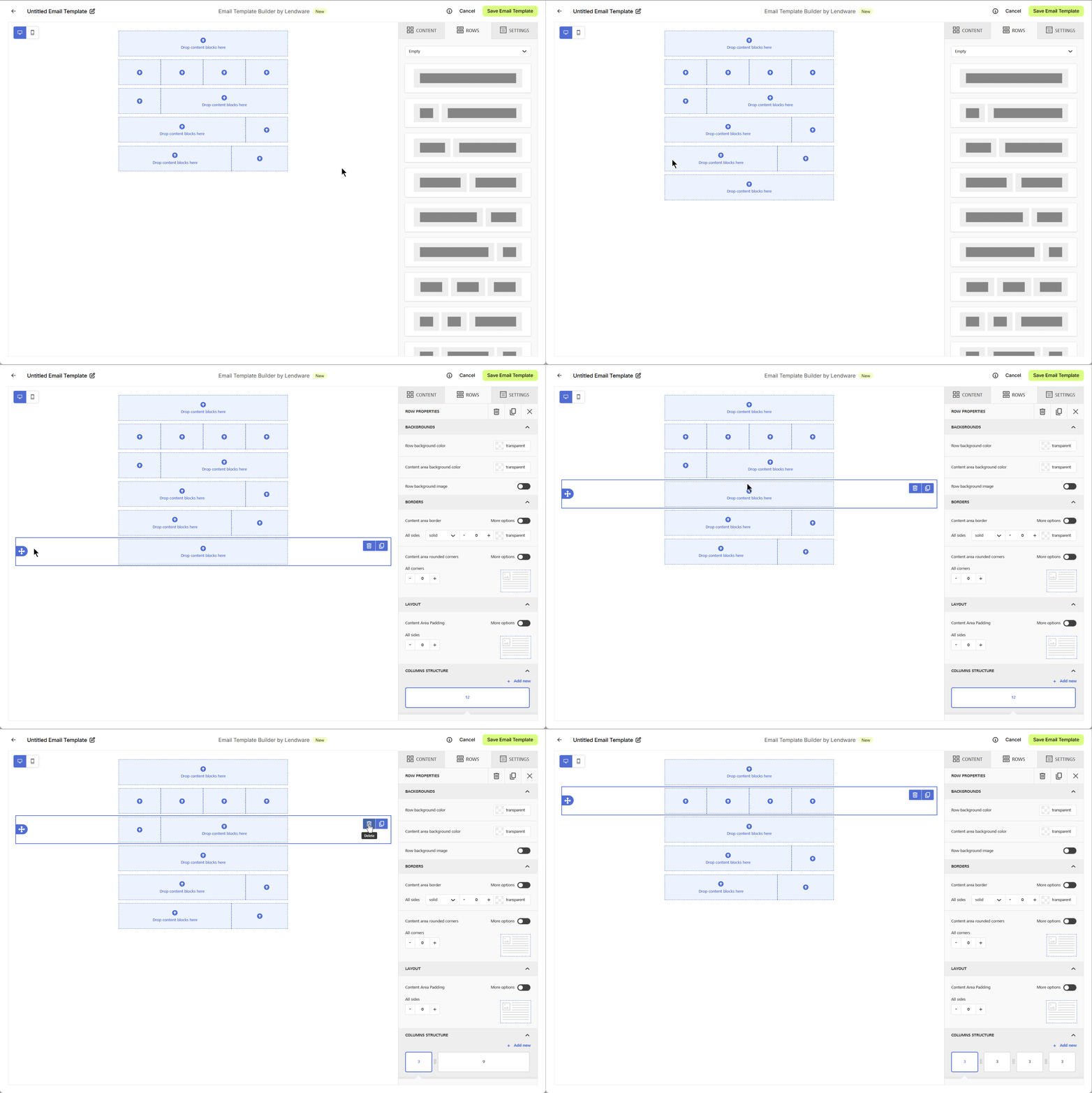
Rows are the foundation of your email layout.
Add new rows with different column structures
Reorder rows by dragging and dropping
Apply formatting at the row level
Content
Content blocks can be dragged into rows, including:
Titles and text blocks
Images (must be uploaded to the File Manager first)
Buttons with custom URLs
Dividers, icons, and social media blocks
Each content block supports:
Font, size, color, and alignment changes
Hyperlinks and merge tags
Background color and advanced styling options

HTML Block
The HTML block allows you to insert fully custom HTML code directly into your email template. This is useful for:
Embedding custom-designed email sections
Adding third-party widgets or formatted layouts
Maintaining exact brand styling from external design tools
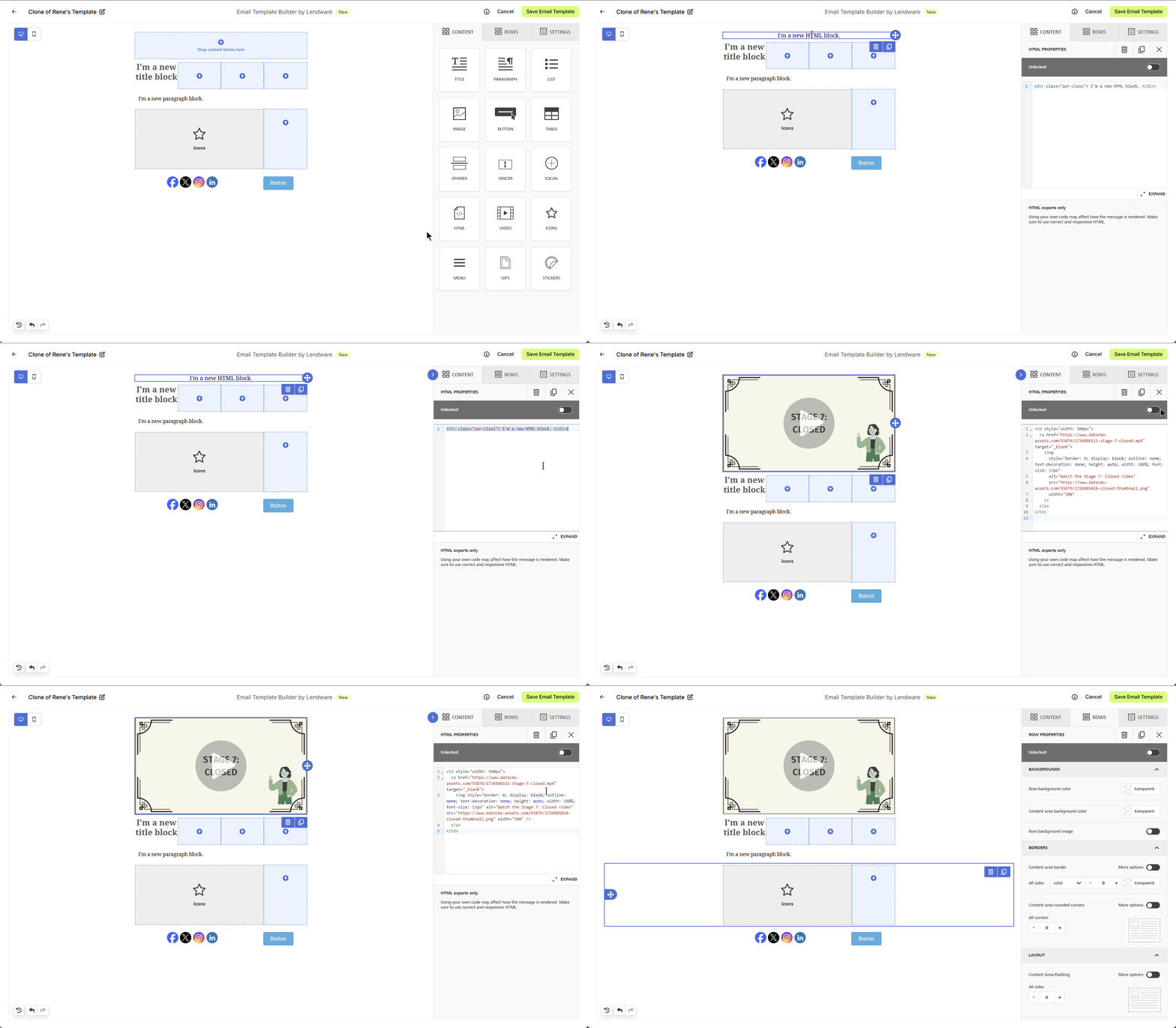
Custom HTML should follow email-client compatibility best practices to ensure proper rendering across devices and inbox providers.
Settings
Global email settings allow you to configure:
Content width (in pixels)
Email alignment
Overall background color and content-area background
Background images
Default font and link colors

Tip: You can preview your email in desktop and mobile views before saving.
Important: Always save your changes before exiting the builder.
Cloning Email Templates
Cloning allows you to quickly duplicate an existing template without starting from scratch.
When you clone a template:
A copy is created with identical layout and content
The cloned version can be renamed and edited
Changes made to the clone do not affect the original template
Cloning is especially useful when:
Creating variations of a campaign
Updating branding while preserving structure
Testing different messaging versions
Steps to Clone an Email Template
Navigate to Marketing → Email Templates (or Marketing Management → Email Templates at the Admin level).
Locate the template you want to clone.
Click the three-dot menu (⋯) at the end of the template row.
Select “Clone Email Template.”
Once selected, you will see a confirmation message:
“Email template cloned successfully!”
Navigate to Marketing → Email Templates (or Marketing Management → Email Templates at the Admin level).
Locate the template you want to clone.
Click the three-dot menu (⋯) at the end of the template row.
Select “Clone Email Template.”
Once selected, you will see a confirmation message:
“Email template cloned successfully!”
After cloning:
A new template will appear in the list.
The name will automatically be set to:
“Clone of [Original Template Name]”The Created By field will display the user who performed the cloning action.
You can then open the cloned template, rename it if needed, and make any desired edits.
Cloning a template does not create a synced version. Any changes made to the cloned template will not affect the original template, and vice versa.
Cloning is ideal when testing different subject lines, calls-to-action, or branding variations without modifying your original approved template.
Copying Templates to Teams
Admins can distribute email templates to one or more teams directly from the Marketing Management section. This allows organizations to maintain consistent messaging while still giving teams the ability to manage templates locally.
How Copying Templates Works
Copying a template creates an independent version of that template on the selected team(s). Once copied, teams can edit their version without affecting the original admin-level template.
Steps to Copy a Template
Navigate to Marketing Management → Email Templates
Select the email template you want to distribute
Click Copy to Team(s) (or use the context menu next to the template)
Choose one or more teams, or select all teams
Confirm the action
Navigate to Marketing Management → Email Templates
Select the email template you want to distribute
Click Copy to Team(s) (or use the context menu next to the template)
Choose one or more teams, or select all teams
Confirm the action
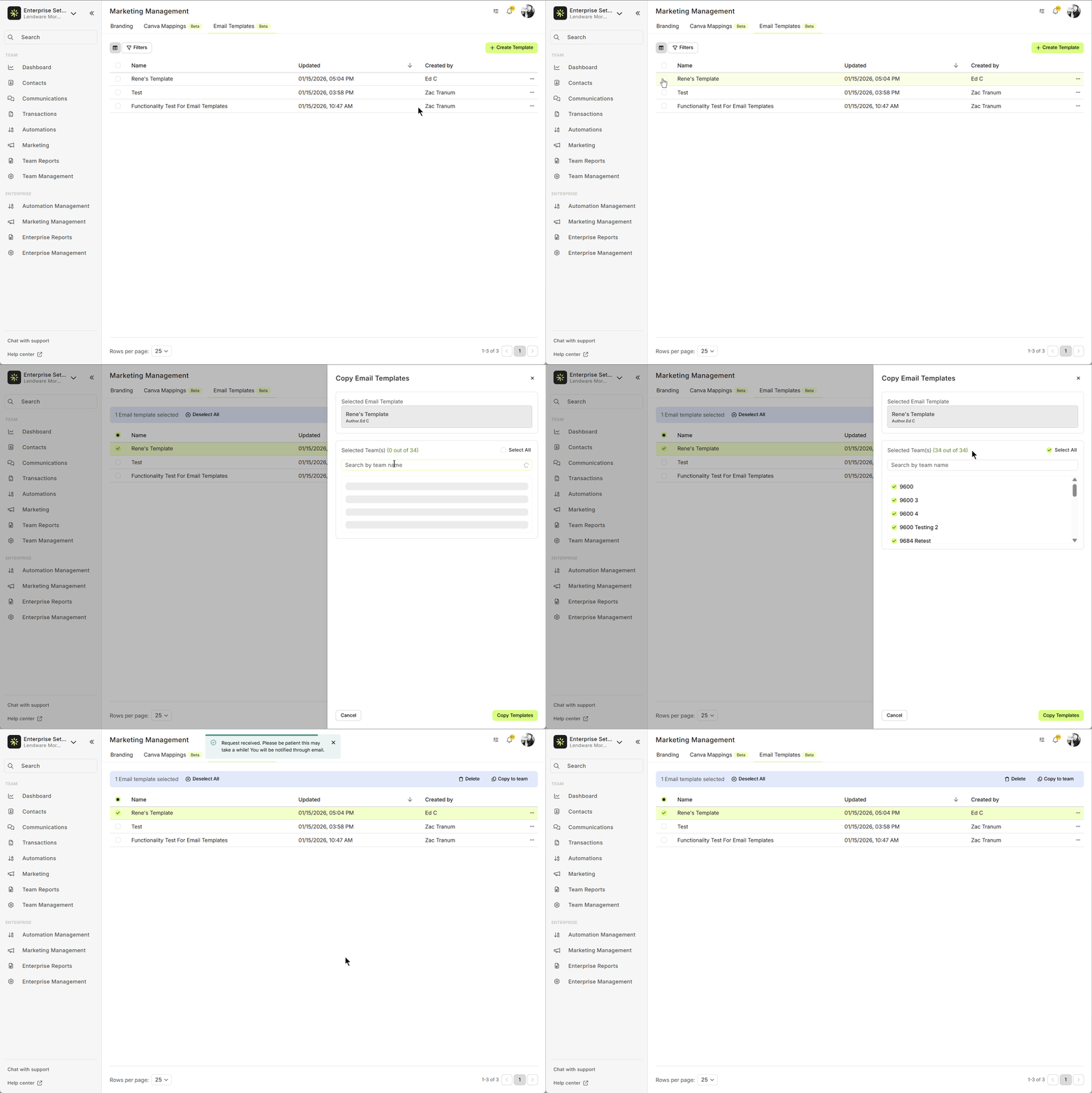
Once the process is complete, the template will appear under:
Marketing → Email Templates within the selected team(s)

Important Behavior Copying a template does not create a live connection between the admin template and the team template. Any future updates made at the admin level will not automatically sync to teams and must be re-copied if changes are needed.
Using Email Templates
After a template is created or copied to a team, it can be used in the following ways:
Contact-Based Automations
Open the email action within an automation
Click Insert from Email Templates
Select the desired template and apply it
Add a subject line and save
Open the email action within an automation
Click Insert from Email Templates
Select the desired template and apply it
Add a subject line and save

Mass Emails
Select one or more contacts
Click Mass Email
Insert the email template
Select one or more contacts
Click Mass Email
Insert the email template

Ad-Hoc Emails
Open an individual contact
Choose to send an email
Insert the template from Email Templates
Open an individual contact
Choose to send an email
Insert the template from Email Templates

Editing Limitations
Important Limitation Once an email template is inserted into an email, it cannot be edited from the email editor itself.
Important Limitation Once an email template is inserted into an email, it cannot be edited from the email editor itself.
To make changes:
Remove the template from the email
Edit the template directly from Marketing → Email Templates
Reinsert the updated version
Template Updates and Syncing Behavior
Understanding how updates work is critical when managing templates across teams and automations.
When a template is copied to a team, future updates to the original admin-level template do not automatically apply
The same behavior applies to templates used in automations
Templates are treated as static snapshots once copied or inserted.
To apply updates:
Re-copy the updated template to the team, or
Remove the existing template from the automation/email and insert the updated version
Key Takeaways
Templates are currently supported only for contact-based emails (not transaction-based automations)
Once a template is inserted into an email, it cannot be edited from the email editor
Template updates do not automatically sync across teams or existing automations
To apply changes, templates must be reinserted into emails or re-copied to teams
Templates are currently supported only for contact-based emails (not transaction-based automations)
Once a template is inserted into an email, it cannot be edited from the email editor
Template updates do not automatically sync across teams or existing automations
To apply changes, templates must be reinserted into emails or re-copied to teams
Need more help? Check out: Meet the Ai Email Editor
Related Articles
How to Build and Send an Email to a Contact
Sending an email from a contact record in Lendware is quick, simple, and packed with helpful tools. You can format text, add links or images, insert merge fields, and even send attachments—all in just a few clicks. Below, we’ll walk through each part ...Subscription Management (SMS and Email Opt-out) an Introduction
Providing easy methods for your clients and partners to opt-out of both email and SMS/text communications not only shows respect, but will also help keep you in compliance with current national and state/provincial laws. There are two easy ways to ...Ways to Send and Respond with Text Message or Email
In just about any place that you find a contact referenced, a text message or email can be quickly sent to that contact. We'll show all the ways that you can send text message or email to a contact within Lendware. Communication is key in building ...Communications Page Overview
The Communications page is your team's centralized inbox for managing email and SMS/text conversations with contacts. It’s designed to provide a clear, organized way to track all recent communications across your team. To get started, click on ...When Are Emails Sent via Inbox Integration vs. Lendware’s Email Servers?
Emails sent from Lendware can go through one of two channels, each designed for specific use cases and offering unique benefits: Inbox Integration (Google or Microsoft 365) Lendware's Marketing & Mass Email Servers Our goal with every email is to ...