Communications Page Overview
The Communications page is your team's centralized inbox for managing email and SMS/text conversations with contacts. It’s designed to provide a clear, organized way to track all recent communications across your team.
To get started, click on "Communications" in the left-hand menu.
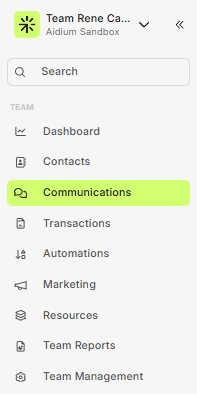
Once inside the Communications page, you'll see:
A list of recently contacted individuals on the left
A preview pane on the right that shows the conversation history (email + SMS)
Key Features & Functions
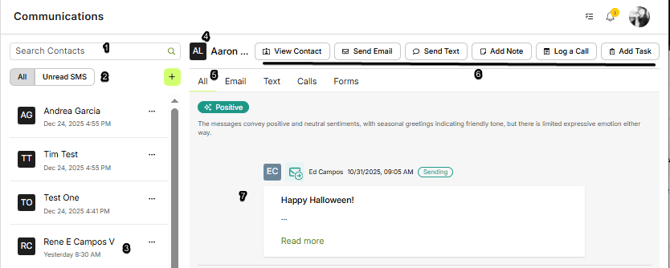
- Search Contacts - This provides a quick and easy way to search all contacts for communications.
- View Unread SMS - Toggle on to view only unread SMS/Texts
- Contacts - Clickable contacts shown with a timestamp of last communication that groups communications relating to just that contact.
- Name - Displays the name of the contact for which we are previewing communications
- Start Communication (+) - Allows the sending of a new email or SMS/Text to any contact
- Quick Actions - Clicking each of these buttons will perform the displayed action on the current contact being previewed.
- Communication Preview - This area will display all recent communications on the contact being previewed.
Search Contacts
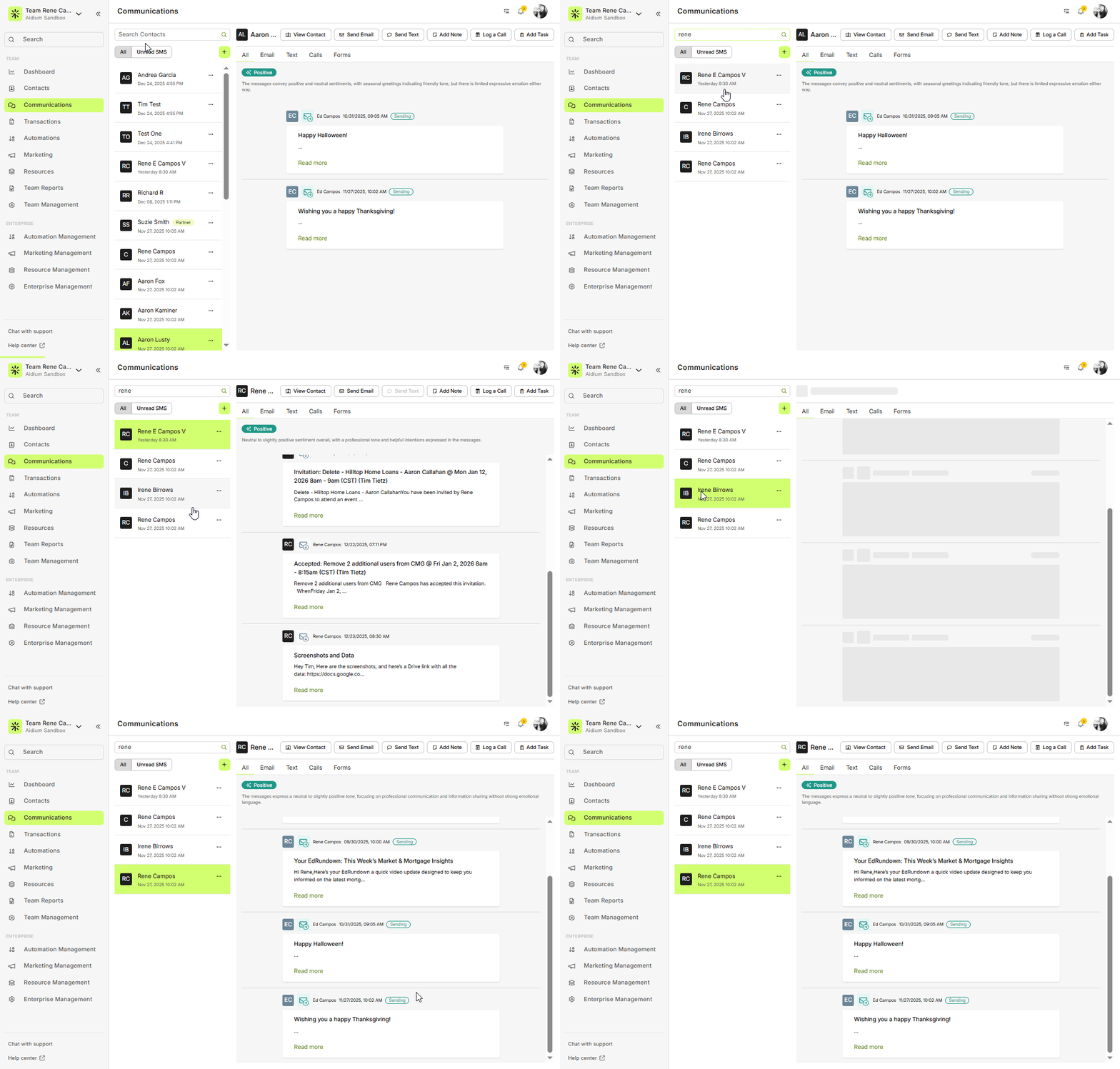
Use the search bar to quickly locate any contact by typing their name or email. Results update as you type, making it fast and efficient to find past conversations.
View Unread SMS
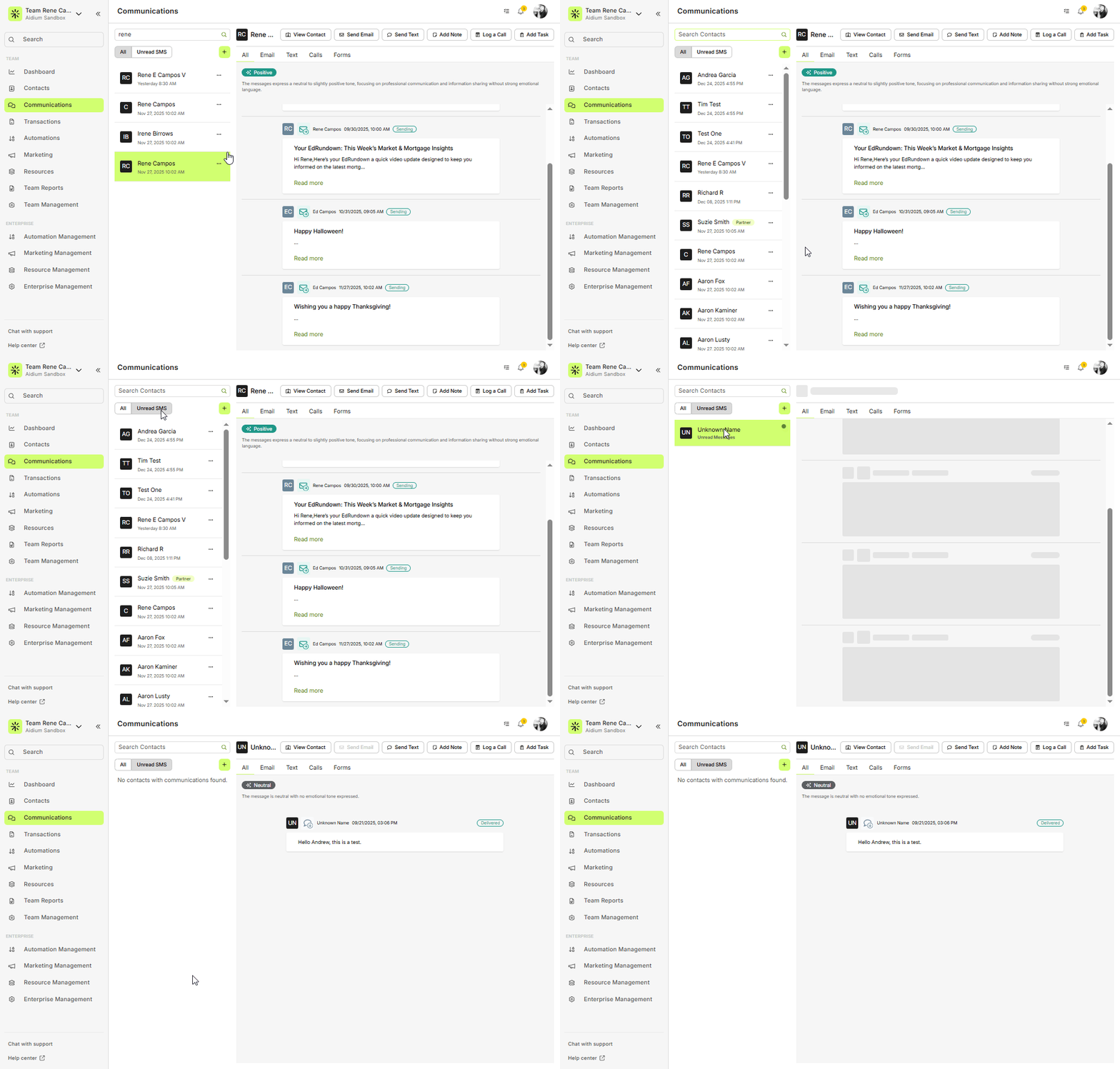
Toggle "View Unread SMS" to filter and view only unread text messages. This helps you stay on top of anything that still needs your attention.
Contacts List
Displays contacts sorted by most recent communication
Each contact is clickable and shows the last message timestamp
Clicking a contact updates the preview pane with all communication history for that person
Displays contacts sorted by most recent communication
Each contact is clickable and shows the last message timestamp
Clicking a contact updates the preview pane with all communication history for that person
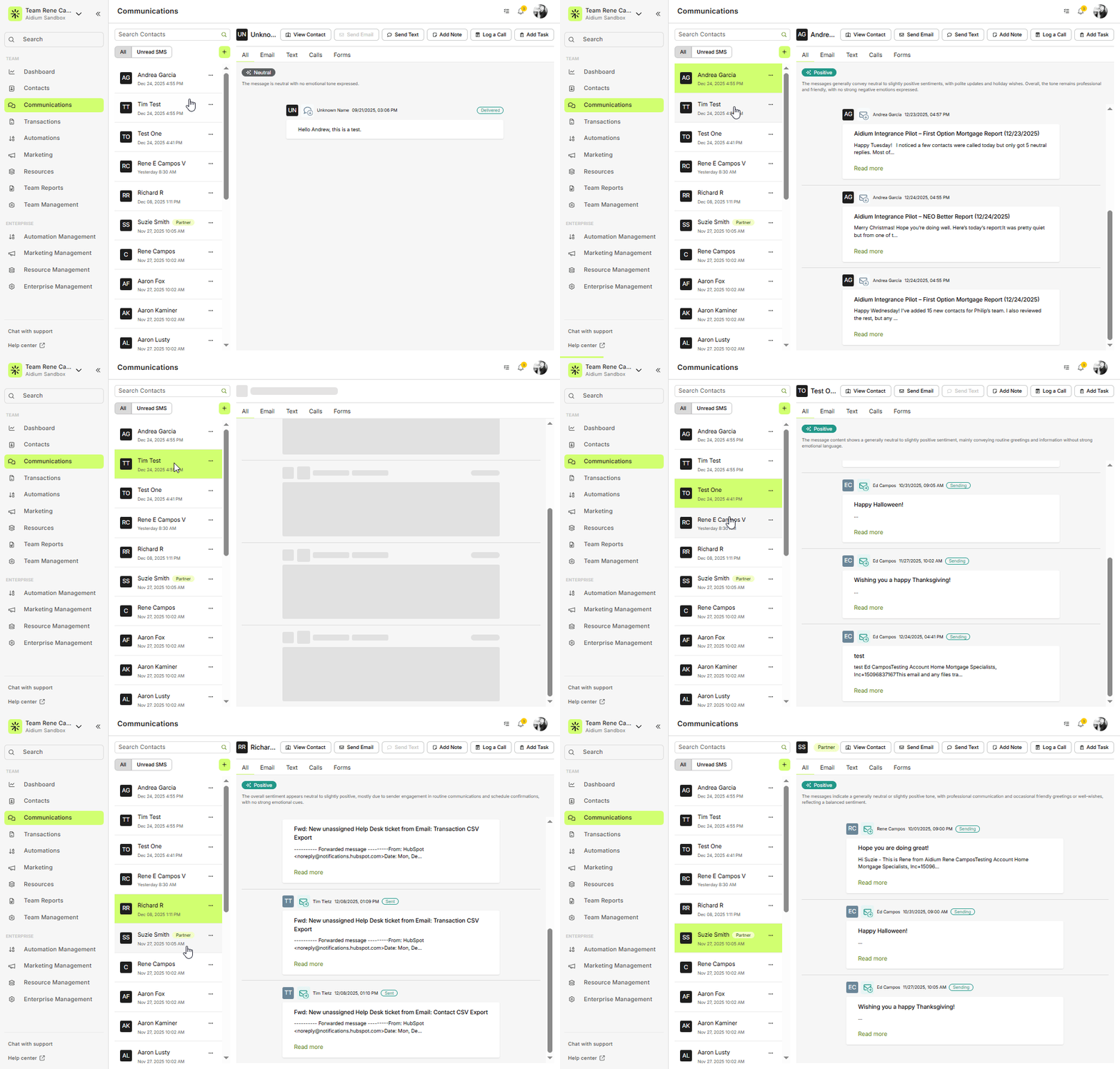
Start New Communication
Click the “+” button in the upper-left corner to start a new email or SMS. Simply search for the contact you'd like to reach out to, then begin messaging right from the same page.
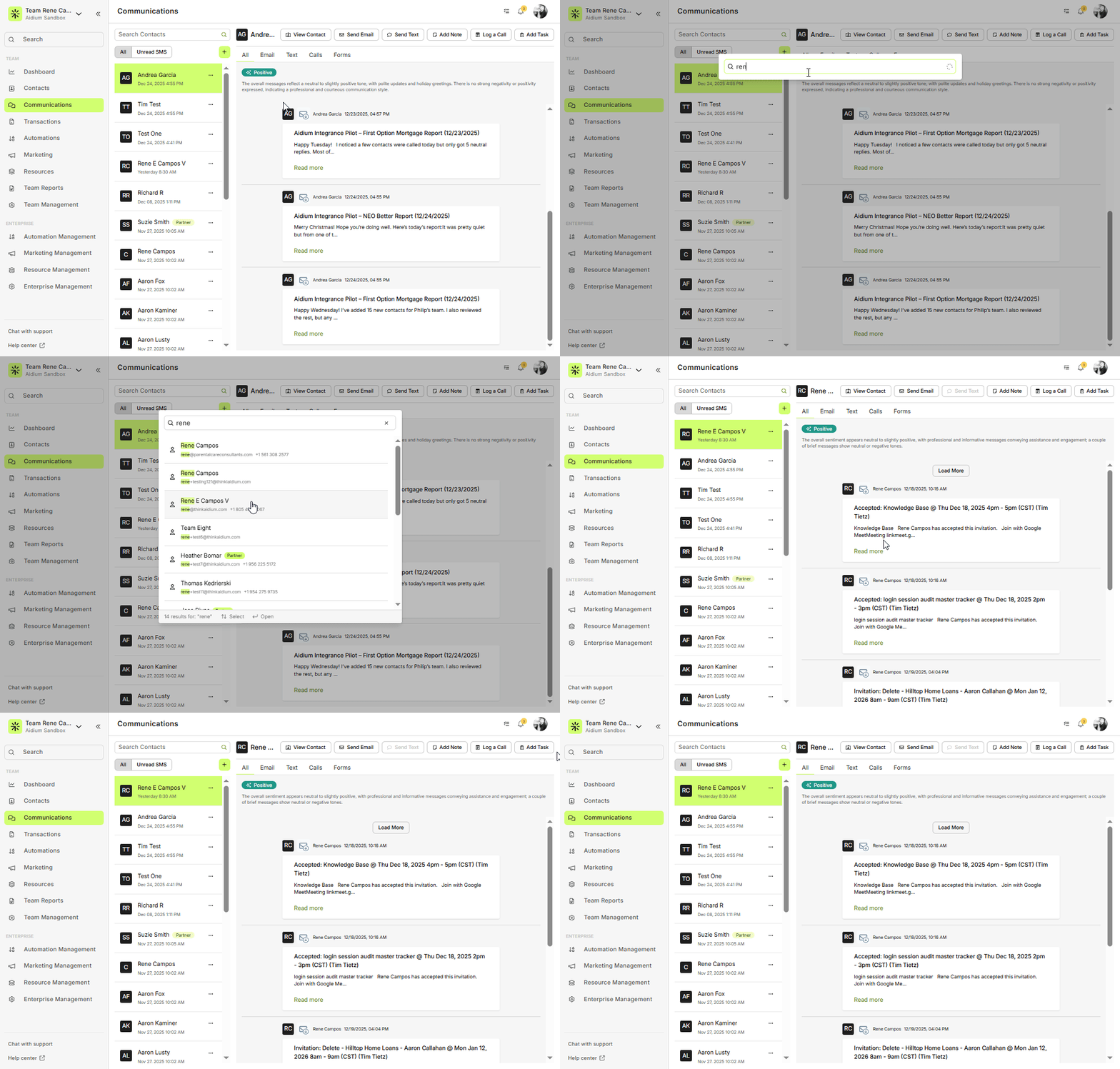
Quick Actions
While previewing any contact, you can take immediate action using the buttons at the top of the communication preview pane. These actions help you stay productive without ever leaving the Communications page:
View Contact – Opens the full Contact Detail page for viewing and editing.
Send Email – Slides out the email drawer to quickly send a message.
Send Text – Opens the SMS drawer to send a text message.
Add Note – Allows you to jot down important notes related to the contact.
Log a Call – Record call details manually for future reference and tracking.
Add Task – Create a follow-up task to ensure nothing falls through the cracks.
These tools are designed for fast interaction, helping you manage relationships efficiently from one place.
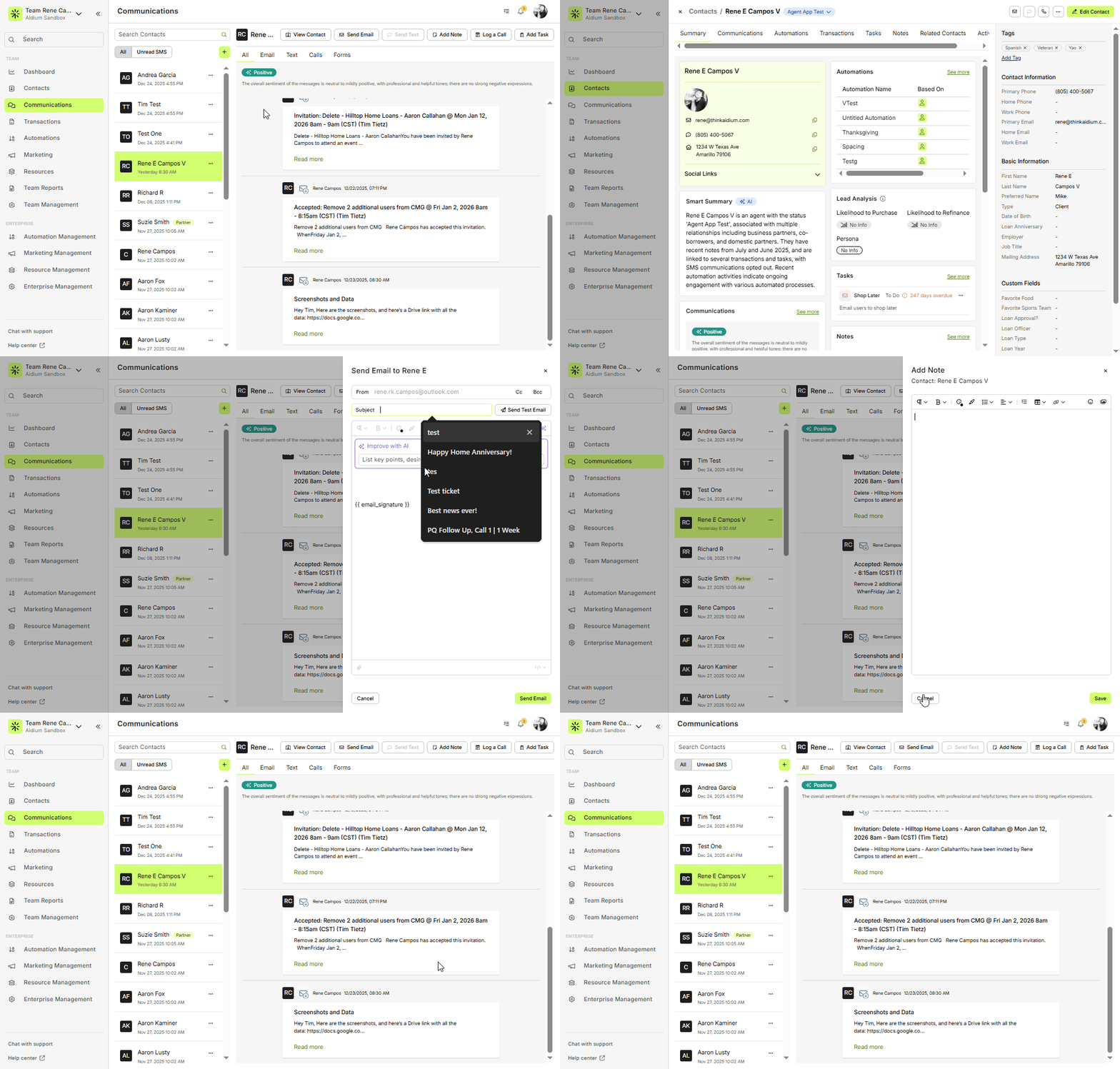
Communication Preview
The right panel displays a full history of communications with the selected contact. Here’s how to read it:
Green icon with right arrow = Sent message
Gray icon with down arrow = Received message
Envelope icon = Email
Chat bubble icon = SMS/Text
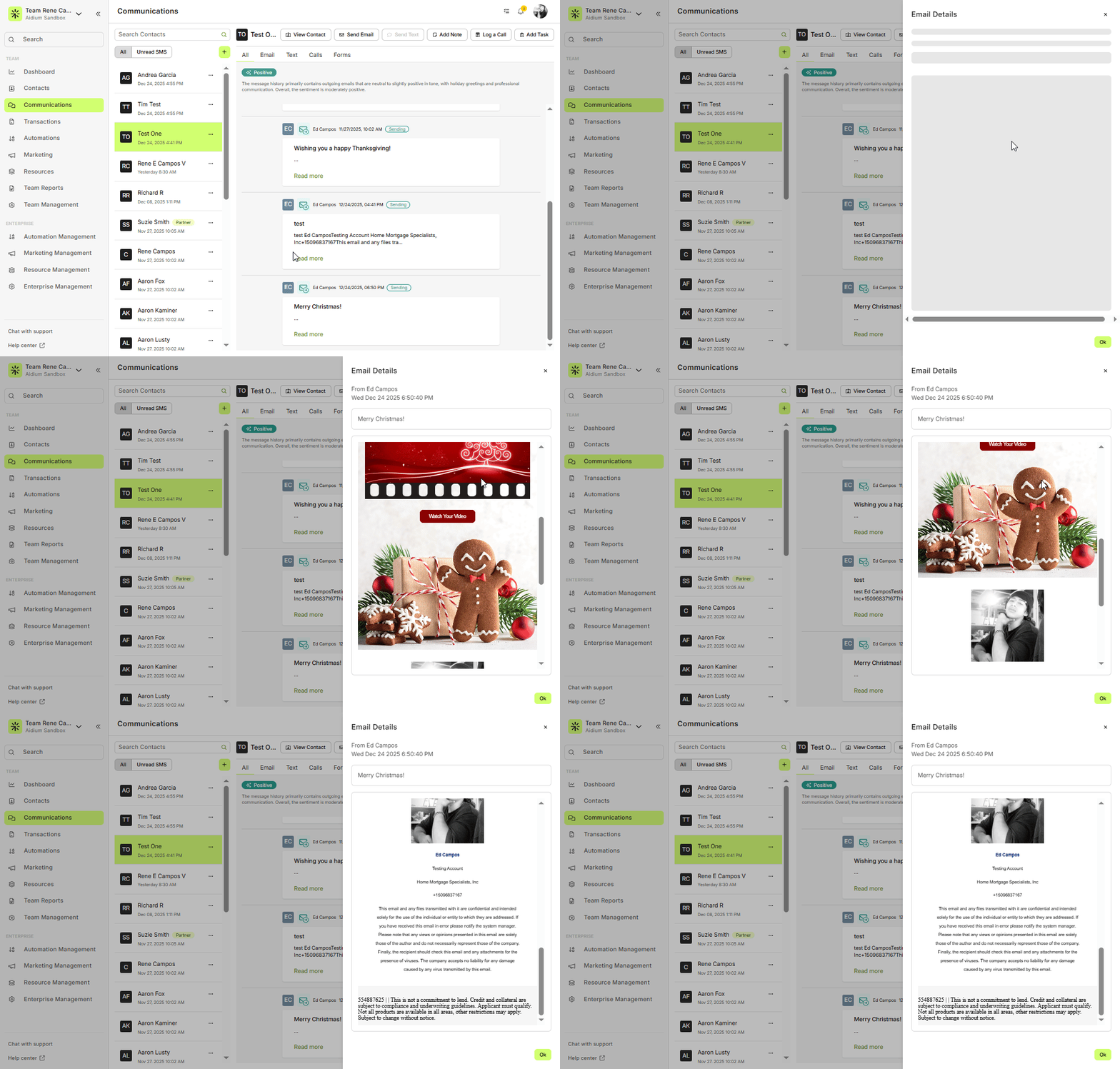
You can click "View" next to any email to see a full preview, which slides out on the right side of your screen.
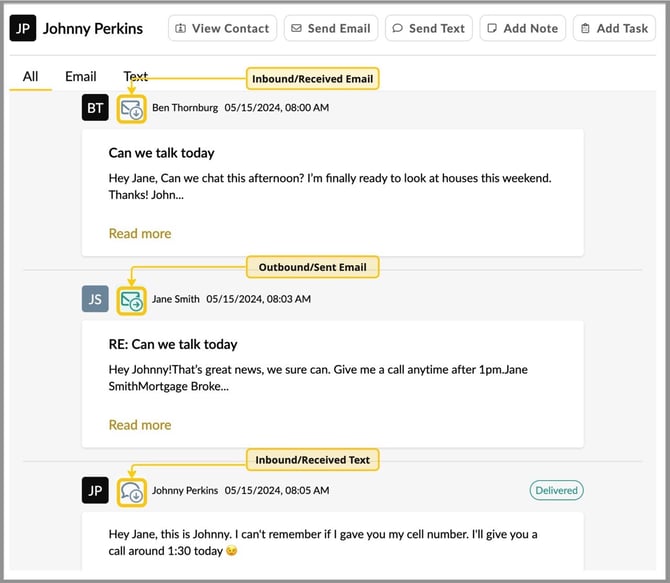
Every email will also have a "View" link. By clicking this link, a preview of the email will slide-out on the right side of the screen. The animated GIF below demonstrates previewing both inbound and outbound emails.
Filter by Communication Type
By default, all communication types are displayed in the preview pane. However, you can easily narrow down what you see by using the communication type filter at the top of the preview section.
Available filter options include:
All – Displays all communication types (Email, Text, Calls, and Forms)
Email – Shows only email conversations
Text – Shows only SMS/Text messages
Calls – Displays only logged phone calls
Forms – Displays only form submissions linked to the contact
Switching between these filters can help you quickly focus on specific types of interactions—especially useful when working with contacts who have a long communication history.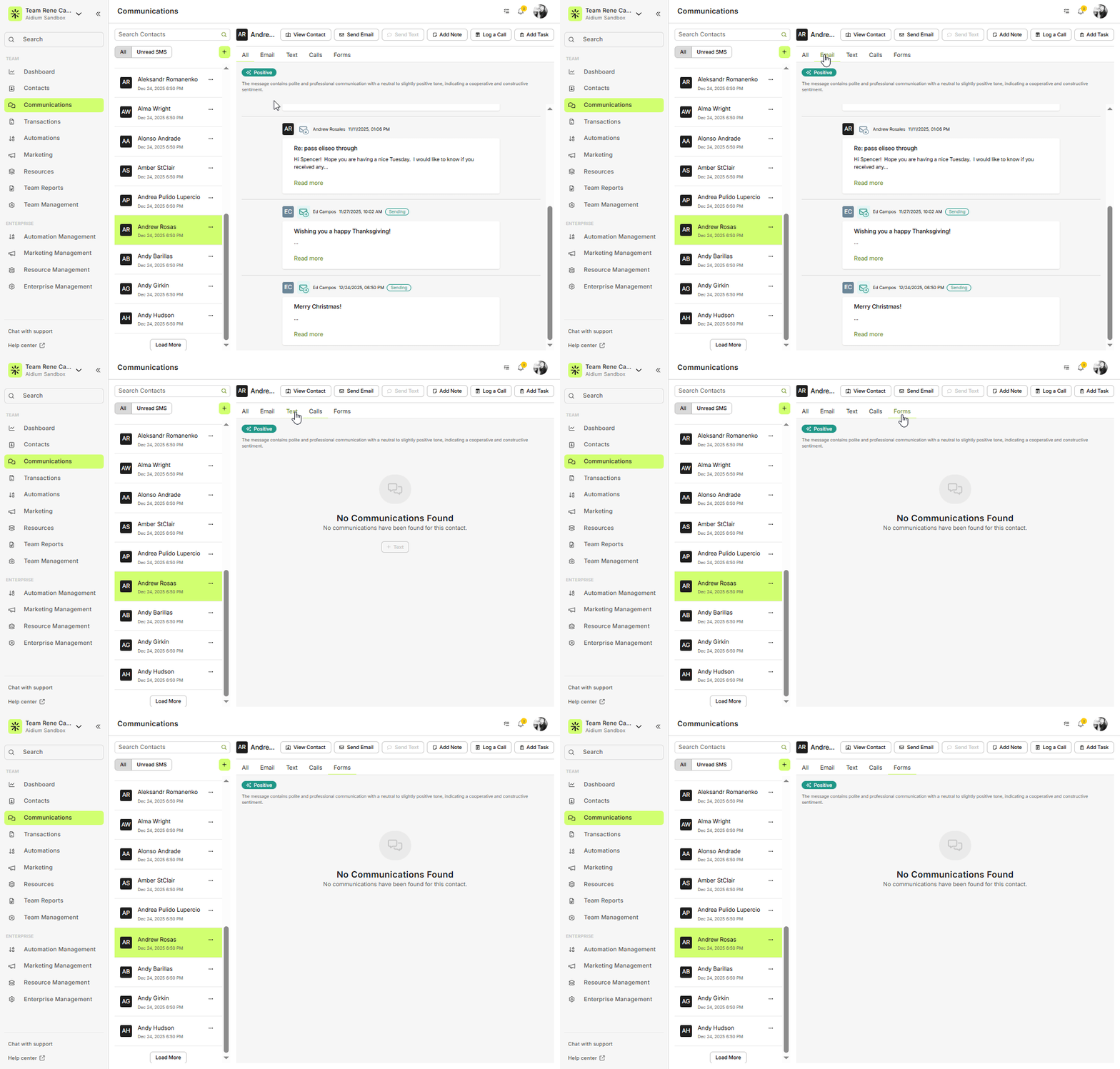
👍 This concludes a walk-though of the Communications Page
Need more help? Check out: Contact View - Summary Tab
Related Articles
Email Templates in Lendware: Creation, Management, and Usage
Design once, reuse everywhere—create consistent, branded emails across teams with full control over layout and content. Email Templates in Lendware allow you to create reusable, visually rich emails using the Lendware Email Template Builder. These ...In-app (Dialer) Calling from Desktop Browser
As a low-cost feature, Enterprises can opt-in to making outbound calls using their Team's SMS/Texting phone number. This unlimited calling feature fully integrated calling right from the browser and automatically tracks the calls made. Any Enterprise ...Ways to Send and Respond with Text Message or Email
In just about any place that you find a contact referenced, a text message or email can be quickly sent to that contact. We'll show all the ways that you can send text message or email to a contact within Lendware. Communication is key in building ...A2P 10DLC SMS Requirements
This guide outlines the critical website requirements—including specific language for your Privacy Policy and Terms and Conditions, as well as clear consent mechanisms—that must be met to ensure successful A2P 10DLC (Application-to-Person 10-Digit ...Subscription Management (SMS and Email Opt-out) an Introduction
Providing easy methods for your clients and partners to opt-out of both email and SMS/text communications not only shows respect, but will also help keep you in compliance with current national and state/provincial laws. There are two easy ways to ...