Add a Link to Any Image in an Email
You can make your emails more engaging by turning any image or animated GIF into a clickable link. This is a simple way to direct recipients to a webpage, video, or landing page — while also making your emails more interactive and visually appealing.
Make sure your email is fully built before adding the image link. Once you add HTML code, avoid switching between HTML mode and Text mode, since that can break the link.
⚙️ If you use bombbomb and want to embed a video preview in email, click here.
Step 1: Insert Your Image
Open the email editor and click the Insert Image icon in the toolbar.
Upload or select the image you want to use.
Open the email editor and click the Insert Image icon in the toolbar.
Upload or select the image you want to use.
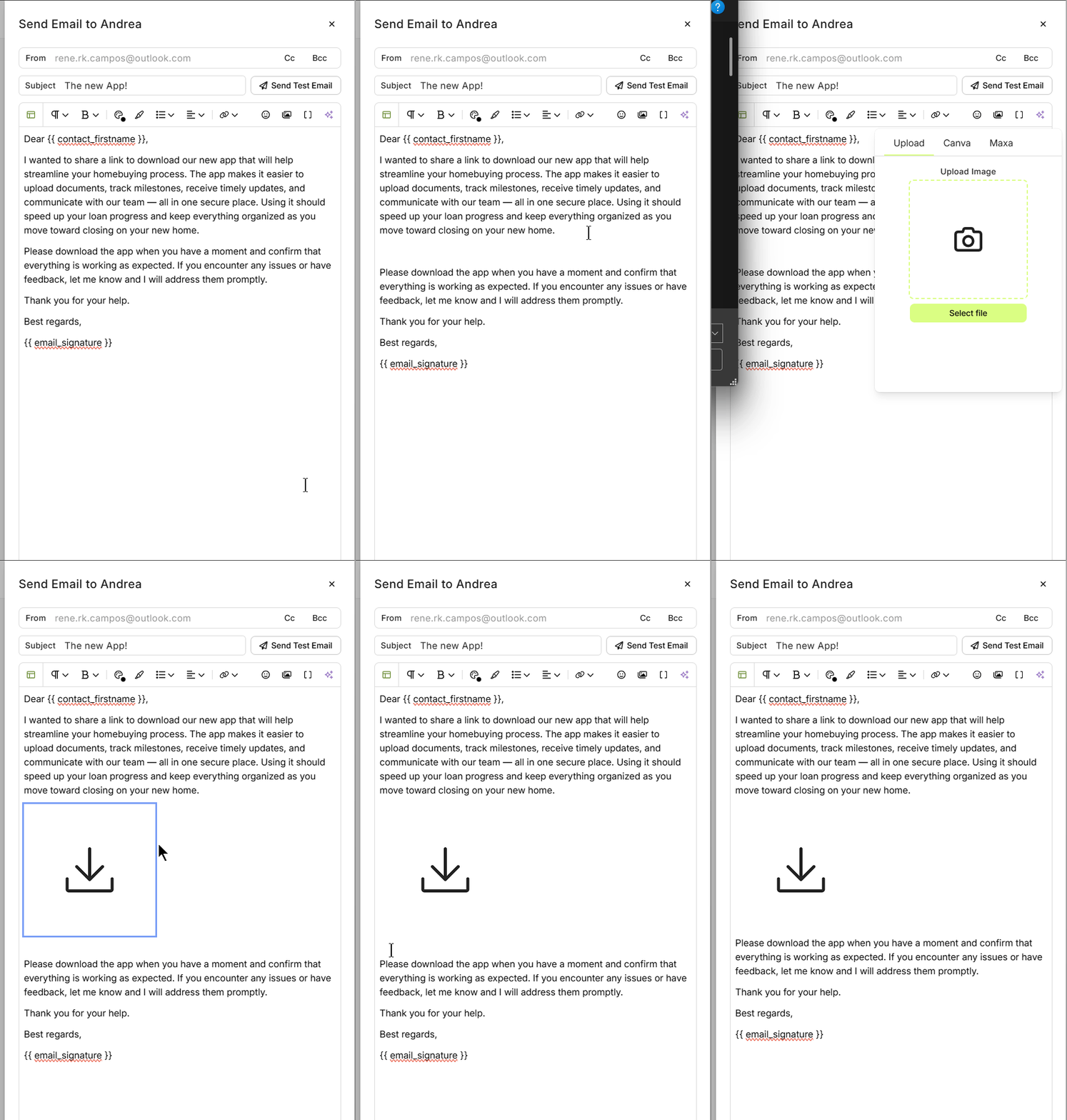
💡 Best practice: Keep images between 500–600px wide. This ensures they display properly across most email clients.
Step 2: Switch to HTML Mode
Click the HTML editor button to view and edit the raw code.
You’ll see something like this:
<img style="..." src="your-image.jpg">
Place your cursor just before the <img ...> tag and press Enter a few times to create space.
Step 3: Add the Link Code
Now, wrap your image in an HTML anchor tag:
<a href="https://your-link.com" target="_blank">
<img style="..." src="your-image.jpg">
</a>
Replace
https://your-link.comwith the URL you want to link to.The
target="_blank"ensures the link opens in a new tab.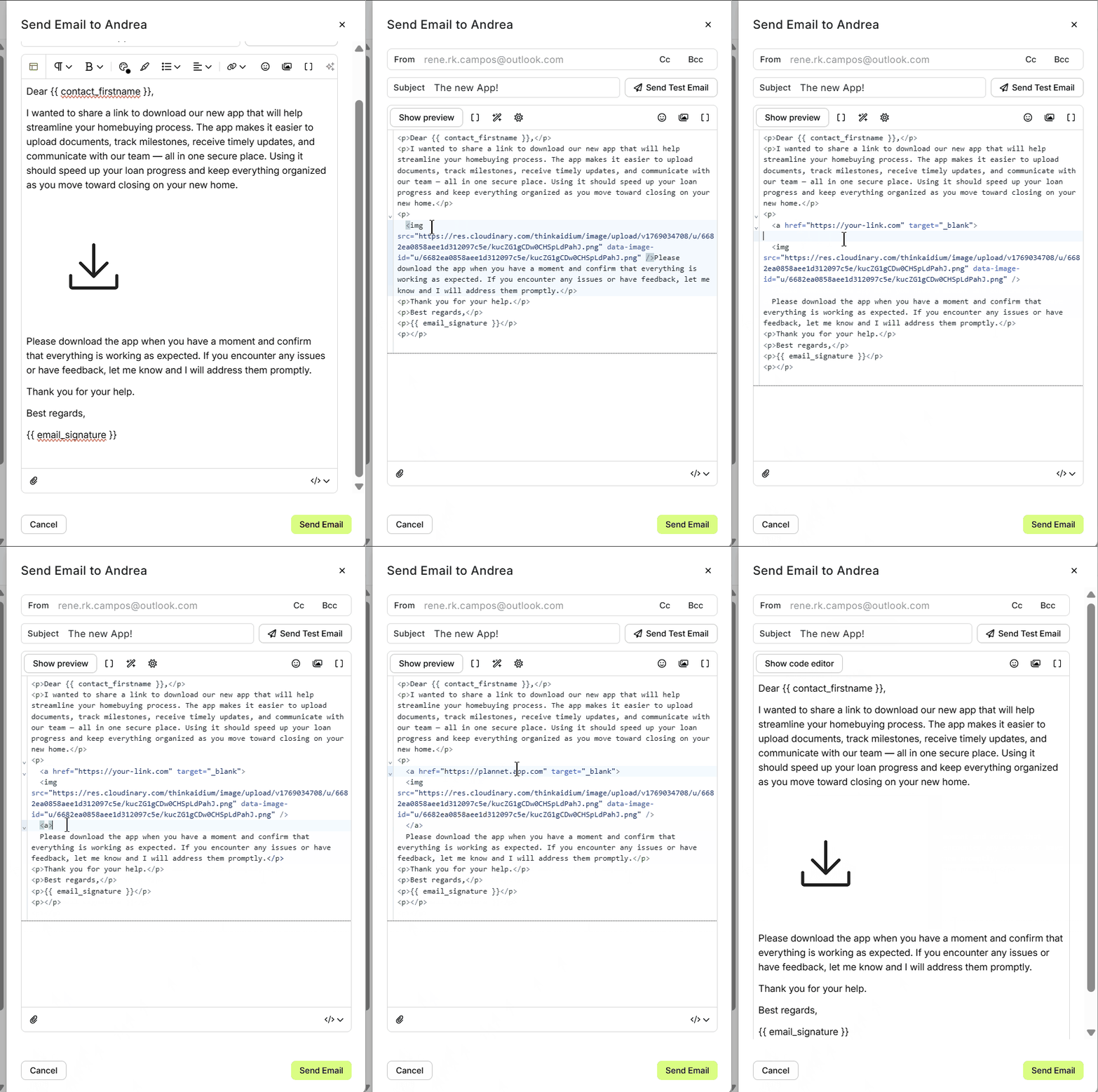
Step 4: Preview and Test
Click Preview to confirm the link works.
If sending directly, send a test email to yourself before going live.
If this is part of an automation, just save the email once the link is working.
Click Preview to confirm the link works.
If sending directly, send a test email to yourself before going live.
If this is part of an automation, just save the email once the link is working.
⚠️ Important
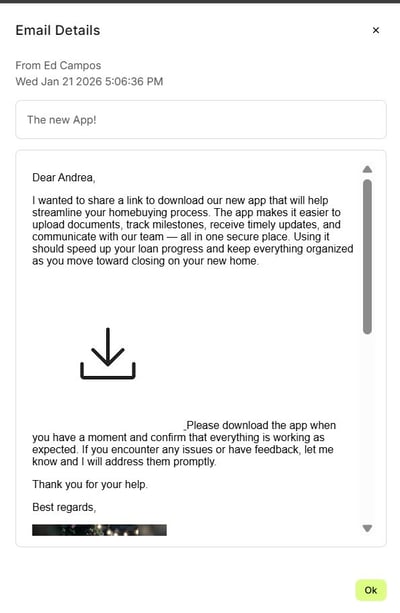
Do not toggle back to Text editor after adding the link. This can strip out the HTML and break your link. Always finish designing your email first, then add the link last.
Do not toggle back to Text editor after adding the link. This can strip out the HTML and break your link. Always finish designing your email first, then add the link last.
Quick Tip: Add a Link Without HTML
If you don’t need custom HTML, you can add a link to your image directly using the editor:
Insert your image into the email as usual.
Click the image to select it.
Click the Hyperlink (🔗) button in the toolbar.
Paste your URL into the field and confirm.
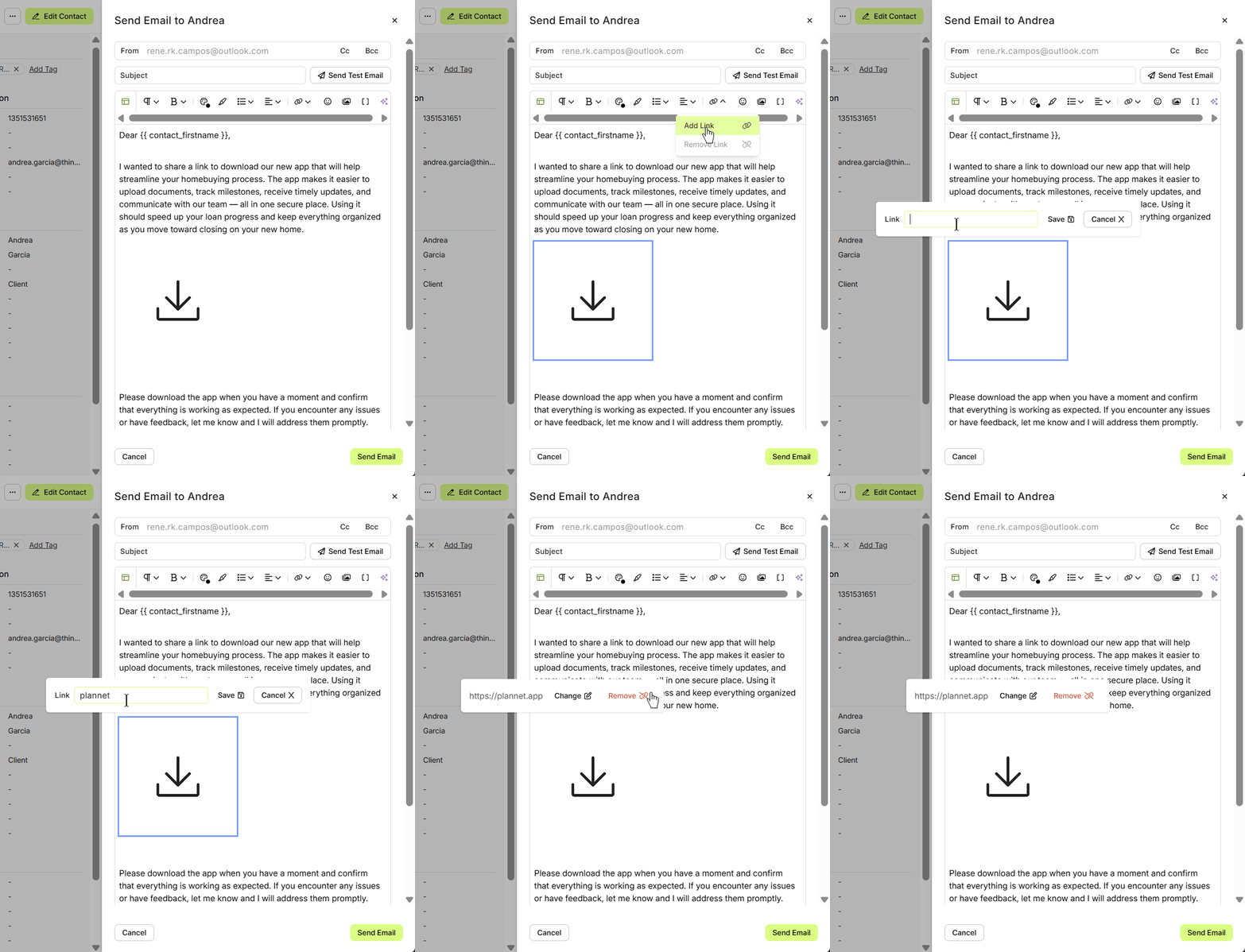
💡 Note: This method works well for most emails and automations. However, for advanced formatting, tracking, or embedding special attributes (like target="_blank"), HTML editing is recommended.
👍 This concludes adding a link to images in an email
Related Articles
How to Build and Send an Email to a Contact
Sending an email from a contact record in Lendware is quick, simple, and packed with helpful tools. You can format text, add links or images, insert merge fields, and even send attachments—all in just a few clicks. Below, we’ll walk through each part ...Tips to Avoid Email Being Captured by Filters
SPAM and Junk Filters are an unavoidable function of email. While they are designed to keep the recipient safe, they can also block legitimate email from reaching their destination. We'll show you ways to increase your chances of landing in inboxes. ...Tips to Increase Email Delivery and Open Rates
Ensuring email lands soundly in an inbox is a bit like playing chess - rules are constantly changing, but there are so many ways to ensure a solid baseline. Once you hit an inbox, the open, read and click rates are where the magic happens. Email ...Communications Page Overview
The Communications page is your team's centralized inbox for managing email and SMS/text conversations with contacts. It’s designed to provide a clear, organized way to track all recent communications across your team. To get started, click on ...Email Templates in Lendware: Creation, Management, and Usage
Design once, reuse everywhere—create consistent, branded emails across teams with full control over layout and content. Email Templates in Lendware allow you to create reusable, visually rich emails using the Lendware Email Template Builder. These ...