Add a Clickable Video Preview to Your Emails (BombBomb & Loom)
Adding a video preview to an email is an engaging way to connect with your contacts. Whether you’re using BombBomb, Loom, or another video platform, you can quickly add a clickable video to your email or automation. Recipients can click the preview image to watch the video in their browser.
Make your emails pop with a clickable video preview! Whether you’re using BombBomb or Loom, you can easily add a GIF or image that links to your video—perfect for engaging your recipients and increasing views.
BombBomb How-To: Click here
Loom Help Center: Click here
Make your emails pop with a clickable video preview! Whether you’re using BombBomb or Loom, you can easily add a GIF or image that links to your video—perfect for engaging your recipients and increasing views.
BombBomb How-To: Click here
Loom Help Center: Click here
Before You Begin
- You must have access to your video platform account (BombBomb, Loom, etc.).
- This process works for direct emails as well as email templates in automations.
- Video cannot play directly in most email clients. Instead, a clickable preview GIF or image is used to link to the video.
⚠️ Pro Tip: Avoid advanced HTML (like iframes) in emails, as this may impact deliverability or get stripped by the recipient’s email client.
⚠️ Pro Tip: Avoid advanced HTML (like iframes) in emails, as this may impact deliverability or get stripped by the recipient’s email client.
🚀 Why Use a Clickable Video Preview?
Grab attention with animated GIFs or thumbnails.
Drive clicks to your video without relying on email clients to play video directly.
🚧 Video cannot play within an email itself. This is not a limitation of any email service, but how email clients work. There are some unique exceptions. However, no matter the CRM or email marketing service used, there is not a good way to send an email that will play a video within the email with consistency across all email clients. So this method ensures consistent delivery and engagement.
Grab attention with animated GIFs or thumbnails.
Drive clicks to your video without relying on email clients to play video directly.
🚧 Video cannot play within an email itself. This is not a limitation of any email service, but how email clients work. There are some unique exceptions. However, no matter the CRM or email marketing service used, there is not a good way to send an email that will play a video within the email with consistency across all email clients. So this method ensures consistent delivery and engagement.
Step 1: Prepare Your Email ✏️
Open the contact you want to email.
Click the Email icon to open the drawer.
Draft your email content—don’t send yet!
Open the contact you want to email.
Click the Email icon to open the drawer.
Draft your email content—don’t send yet!
Step 2: Grab Your Video Preview 🎬
BombBomb
- Navigate to your video library from the left sidebar under Workspace.
- Find the video you want to embed and click the three-dot menu in the upper-right corner of the video thumbnail.
- Click Embed from the drop-down menu.

- Click Copy Embed Code. See BombBomb’s official guide here.
Loom
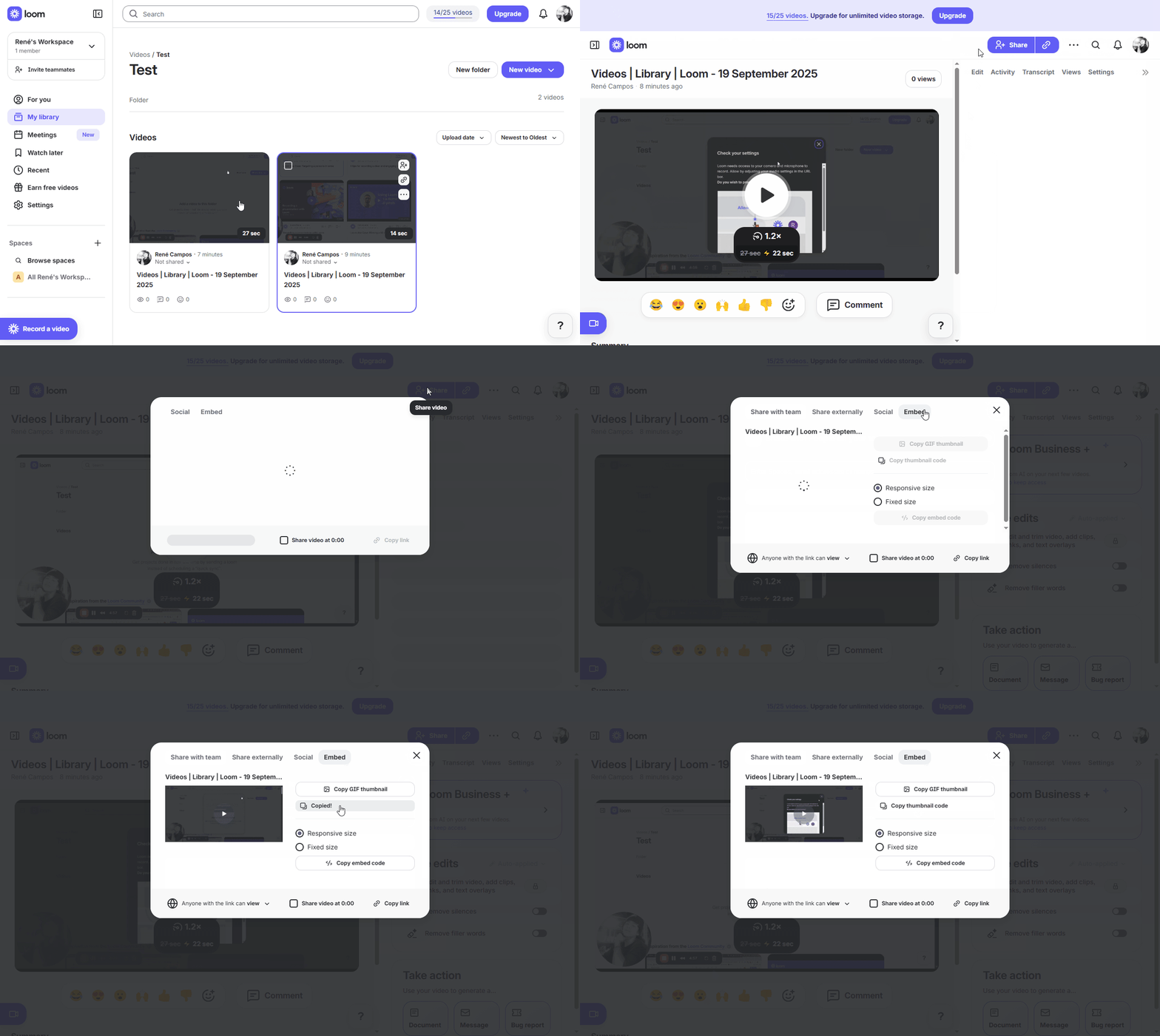
- From your video's share page, click Share above the video and click Embed
- Click on "Copy thumbnial code"
Step 3: Add the Video Preview to Your Email 💻
Switch your email to HTML mode (Text | HTML).
Place your cursor where you want the video preview (after your text, before your signature).
Paste the code:
Switch your email to HTML mode (Text | HTML).
Place your cursor where you want the video preview (after your text, before your signature).
Paste the code:
Here are clean examples for Loom and BombBomb:
<!-- ✅ Loom Video Embed -->
<div style="text-align:center; margin:20px 0;">
  <a href="https://www.loom.com/share/36b8eba5b82a4970ade52f424829971d" target="_blank" style="text-decoration:none; color:#333;">
    <img src="https://cdn.loom.com/sessions/thumbnails/36b8eba5b82a4970ade52f424829971d-7e9fbaf7bcee4109-full-play.gif"
         alt="Watch Loom Video"
         style="max-width:480px; border-radius:12px; box-shadow:0 4px 12px rgba(0,0,0,0.15);">
    <p style="margin-top:8px; font-size:16px; font-weight:500;">▶ Watch this Loom Video</p>
  </a>
</div>

<!-- ✅ BombBomb Video Embed -->
<div style="text-align:center; margin:20px 0;">
  <a href="https://bbemaildelivery.com/bbext/?p=video_land&id=ba5c0321-ca26-7917-003d-c2da39c33ffe" target="_blank" style="text-decoration:none; color:#333;">
    <img src="https://content.bombbomb.com/video_thumbs/ba5c0321-ca26-7917-003d-c2da39c33ffe.gif?r=88942"
         alt="Watch BombBomb Video"
         style="max-width:480px; border-radius:12px; box-shadow:0 4px 12px rgba(0,0,0,0.15);">
    <p style="margin-top:8px; font-size:16px; font-weight:500;">▶ Watch this BombBomb Video</p>
  </a>
</div>
Look for a <p> tag right after your intro text. That’s a safe spot to paste your embed.
Step 4: Preview & Test ✅
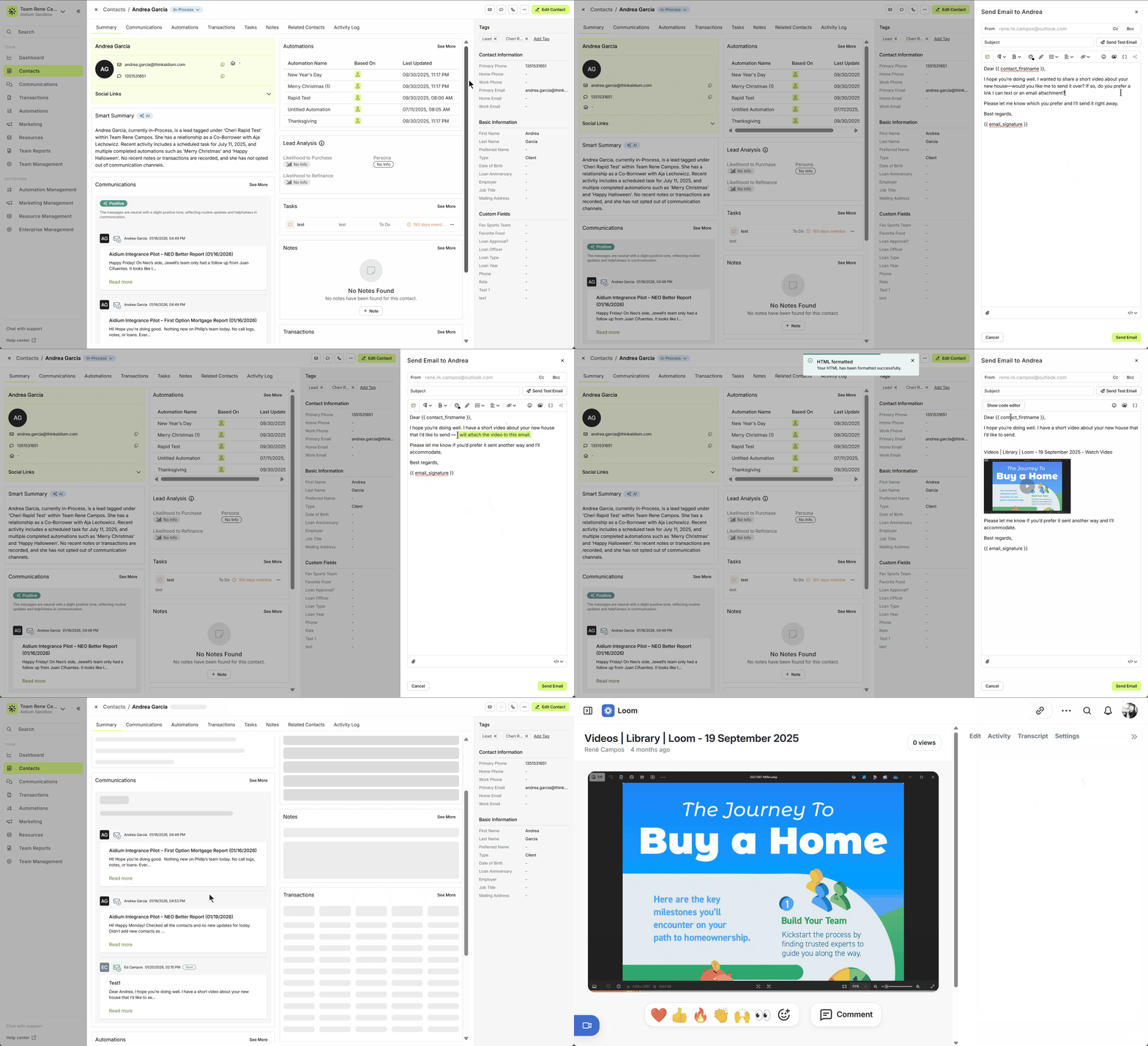
Click Show Preview to check your video preview.
Send a test email to yourself for direct emails.
For automation emails, save and include in your workflow.
Click Show Preview to check your video preview.
Send a test email to yourself for direct emails.
For automation emails, save and include in your workflow.
Here’s an example layout:
 <p>Hey there,</p>
<p>We just recorded something special for you. Check it out below 👇</p>

<!-- 🎬 YOUR VIDEO CODE GOES HERE -->
<div style="text-align:center; margin:20px 0;">
  <a href="YOUR_VIDEO_LINK_HERE" target="_blank" style="text-decoration:none; color:#333;">
    <img src="YOUR_THUMBNAIL_OR_GIF_LINK_HERE"
         alt="Watch Video"
         style="max-width:480px; border-radius:12px; box-shadow:0 4px 12px rgba(0,0,0,0.15);">
    <p style="margin-top:8px; font-size:16px; font-weight:500;">▶ Watch this Video</p>
  </a>
</div>
<!-- 🎬 END VIDEO CODE -->

<p>Talk soon,</p>
<p><span data-type="mention" class="merge-field" data-id="email_signature"></span></p>
Replace:
YOUR_VIDEO_LINK_HERE→ with your Loom or BombBomb video linkYOUR_THUMBNAIL_OR_GIF_LINK_HERE→ with your video’s thumbnail or animated GIF URL
Example Animated Preview
⚠️ Important Notes
- Works for both BombBomb and Loom.
- Do not switch back to Text mode after adding HTML.
- Videos cannot play inside emails, but this method guarantees clicks and views.
- Don’t try to use
<iframe> or advanced HTML (most email clients strip these out)
- Works for both BombBomb and Loom.
- Do not switch back to Text mode after adding HTML.
- Videos cannot play inside emails, but this method guarantees clicks and views.
- Don’t try to use
<iframe>or advanced HTML (most email clients strip these out)
Need more help? Check out:
⚙️ To learn the basics of sending an email from a contact record, click here.
📽️ To watch a video on sending an email from a contact record, click here.
Related Articles
Add a Link to Any Image in an Email
You can make your emails more engaging by turning any image or animated GIF into a clickable link. This is a simple way to direct recipients to a webpage, video, or landing page — while also making your emails more interactive and visually appealing. ...Email Templates in Lendware: Creation, Management, and Usage
Design once, reuse everywhere—create consistent, branded emails across teams with full control over layout and content. Email Templates in Lendware allow you to create reusable, visually rich emails using the Lendware Email Template Builder. These ...How to Build and Send an Email to a Contact
Sending an email from a contact record in Lendware is quick, simple, and packed with helpful tools. You can format text, add links or images, insert merge fields, and even send attachments—all in just a few clicks. Below, we’ll walk through each part ...Meet the AI Email Editor for AdHoc & Mass Emails.
Say goodbye to writer’s block! Our AI Email Editor helps you draft, polish, and perfect emails in just a few clicks directly in the AdHoc or Mass Email editors. This feature is currently in beta and not yet generally available. If you’d like early ...When Are Emails Sent via Inbox Integration vs. Lendware’s Email Servers?
Emails sent from Lendware can go through one of two channels, each designed for specific use cases and offering unique benefits: Inbox Integration (Google or Microsoft 365) Lendware's Marketing & Mass Email Servers Our goal with every email is to ...