How to Delete Contacts and Transactions
Deleting one or many Contacts / Transactions can be done easily from list view in their respective pages.
Whether you're cleaning up test data, removing duplicates, or streamlining your database, Lendware makes it easy to delete Contacts and Transactions. This guide walks you through:
- Reasons to Keep a Contact or Transaction
- Delete One or More Contacts
- Delete One or More Transactions
- Delete a Contact with a Transaction
Before You Delete: Reasons to Keep a Contact or Transaction
Deleting a Contact or Transaction is permanent within Lendware — but integrations can recreate them.
For example, if you're integrated with an LOS (Loan Origination System) and delete a Contact or Transaction in Lendware, that data could be re-imported as new the next time your LOS pushes an update.
So unless you're cleaning out duplicates or test entries, consider:
Archiving instead of deleting
Removing tags or automations to declutter without losing history
Delete one or more contacts
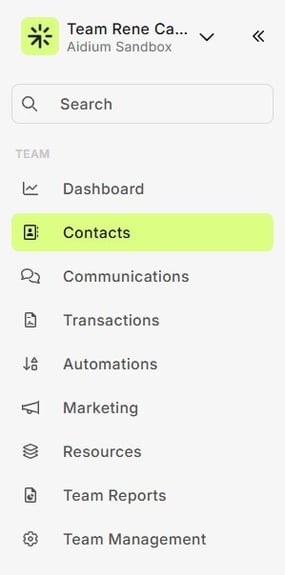
- To begin, go to the main menu group and click 'Contacts'
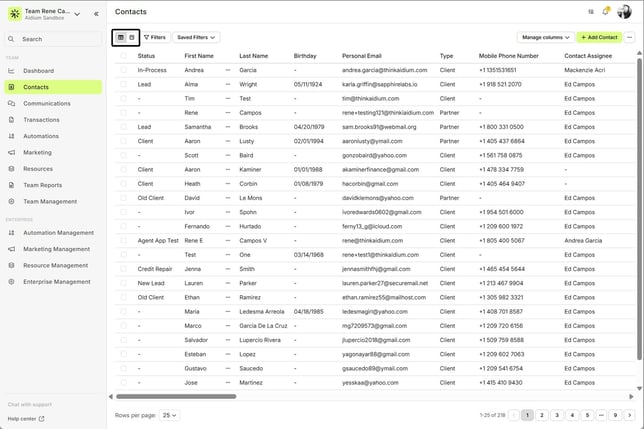
- If necessary, adjust the view to List View by clicking the view switch at the top-left. The correct view will look like the below image and have 'check-boxes' on the left next to each contact.
- To find the contact(s) to be deleted, we'll use the 'Filter' button -or- use the 'Saved Filters' drop-down. For this demonstration, we'll create a new filter for: First Name [contains] "Rich". Click the following links to learn more using Filters and Saved Filters.
- Check the box beside the Contact(s) you want to delete.
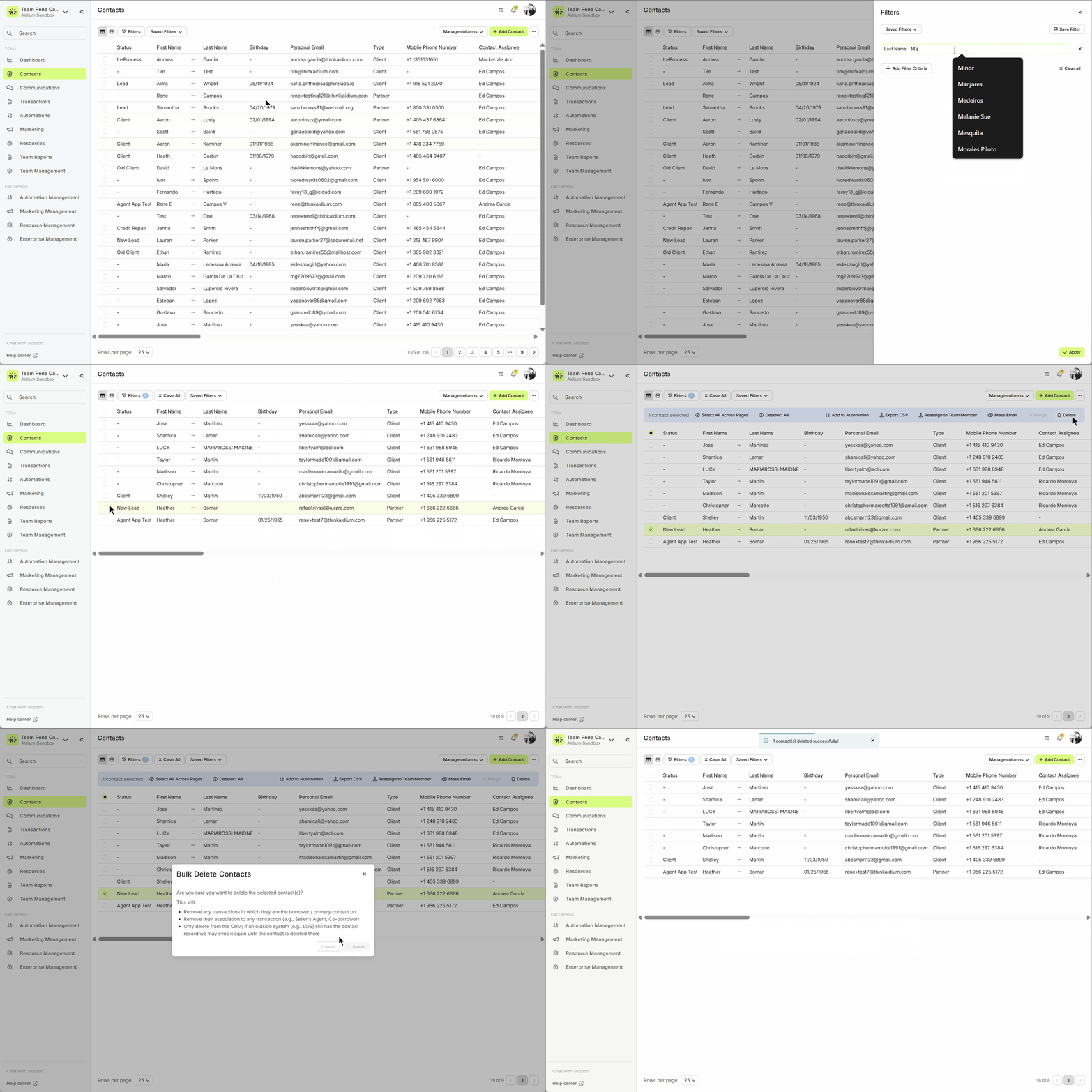
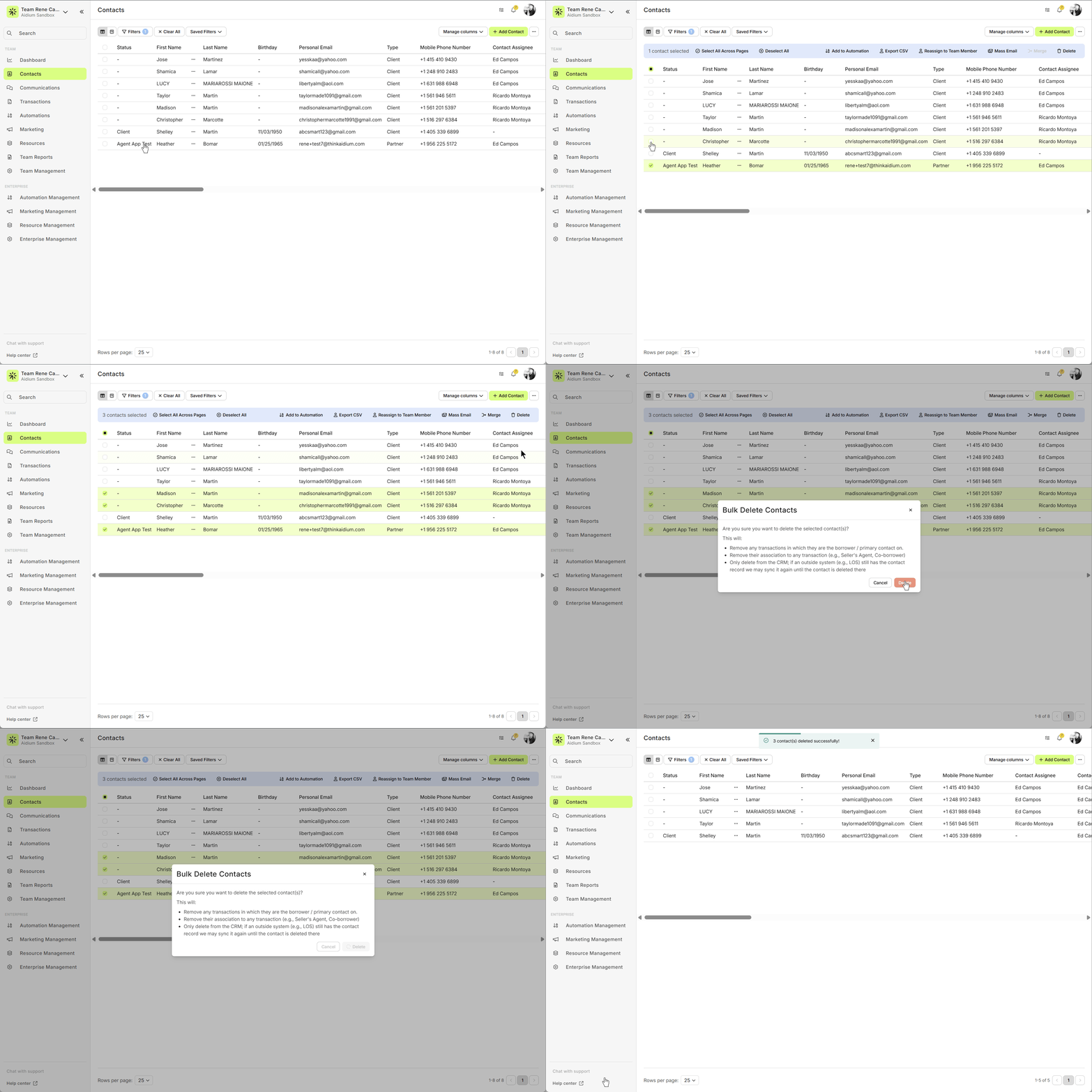
- To delete multiple contact, we'll simply check the box next to each contact we plan to delete. Then click the 'Delete' button. Before deleting the contact, we'll receive a warning. To finalize the deletion, click the 'Yes' button. To go back, click the 'No' button.
🚧 If the contact to be deleted has a transaction - the transaction should be deleted first, or, the contact should be disassociated with the transaction before deleting the contact. Learn more in the last section
👍 This concludes deleting one or more contacts.
🚧 If the contact to be deleted has a transaction - the transaction should be deleted first, or, the contact should be disassociated with the transaction before deleting the contact. Learn more in the last section
👍 This concludes deleting one or more contacts.
Delete one or more transactions
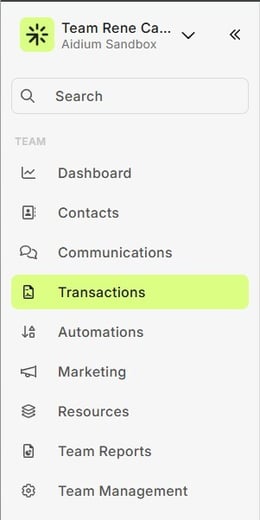
- To begin, go to the main menu group and click 'Transactions'
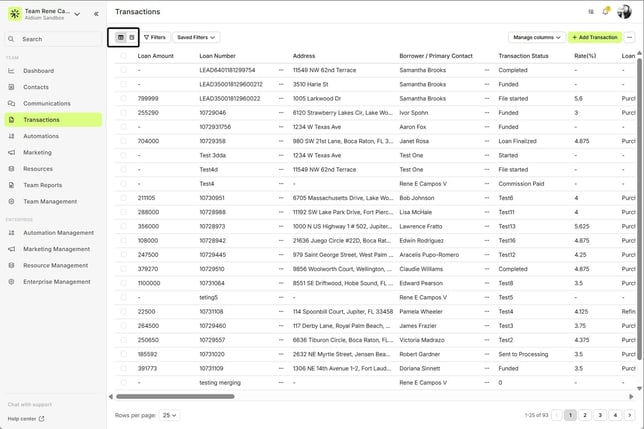
- If necessary, adjust the view to List View by clicking the view switch at the top-left. The correct view will look like the below image and have 'check-boxes' on the left next to each transaction.
- To find the transaction(s) to be deleted, we'll use the 'Filter' button -or- use the 'Saved Filters' drop-down. For this demonstration, we'll create a new filter for: Status = "Setup". Click the following links to learn more using Filters and Saved Filters.
- Next, we'll check the box next to the one or many transactions we want to delete. Then we'll click the 'Delete' button that appears above the transaction list. Before deleting the transaction, we'll receive a warning. To finalize the deletion, click the 'Yes' button. To go back, click the 'No' button.
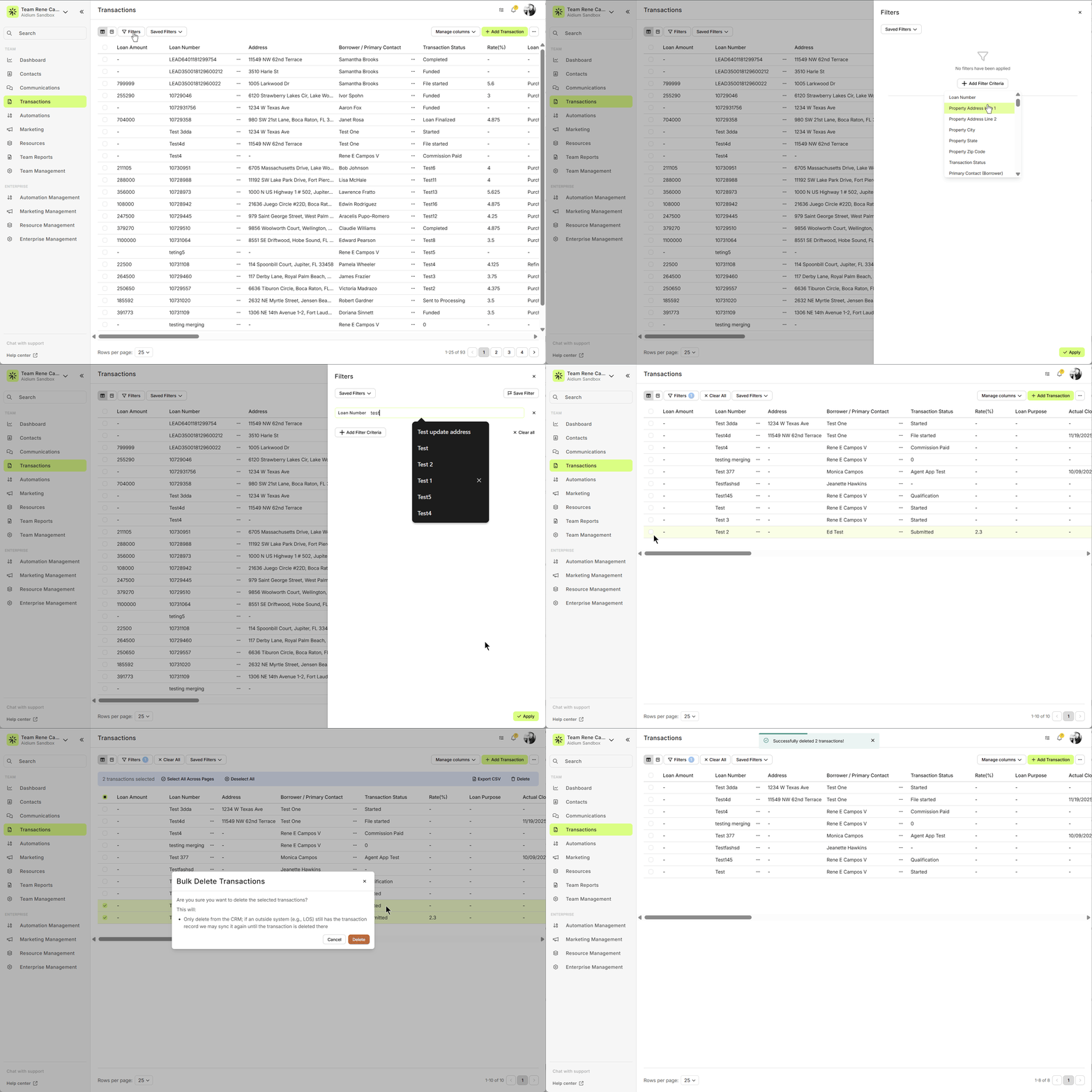
👍 This concludes deleting one or more transactions.
👍 This concludes deleting one or more transactions.
Delete a contact with a transaction
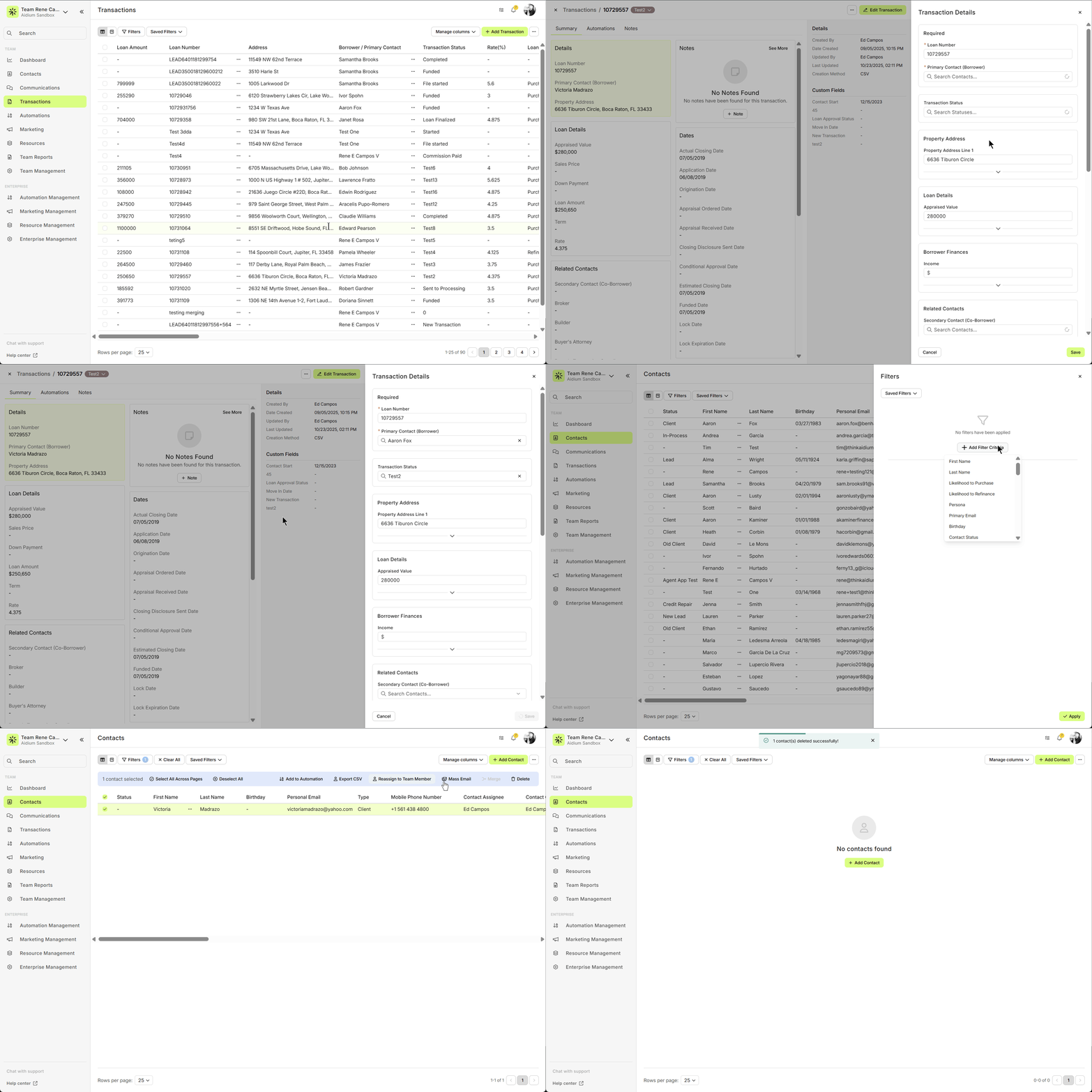
When a contact is either the Borrower on a Transaction, you cannot delete the contact. This barrier exists to maintain data integrity. However, there are a few easy ways to ensure you are able to delete the contact safely. Either delete the Transaction first, or, remove the borrower from the transaction first.
Delete the Transaction first:
When a contact to be deleted is the borrower on a transaction, just like in the above section, find the transaction. Then delete the transaction.
To demonstrating this, we'll filter transactions for the borrower: "Lisa McHale", delete the transaction, then delete the contact.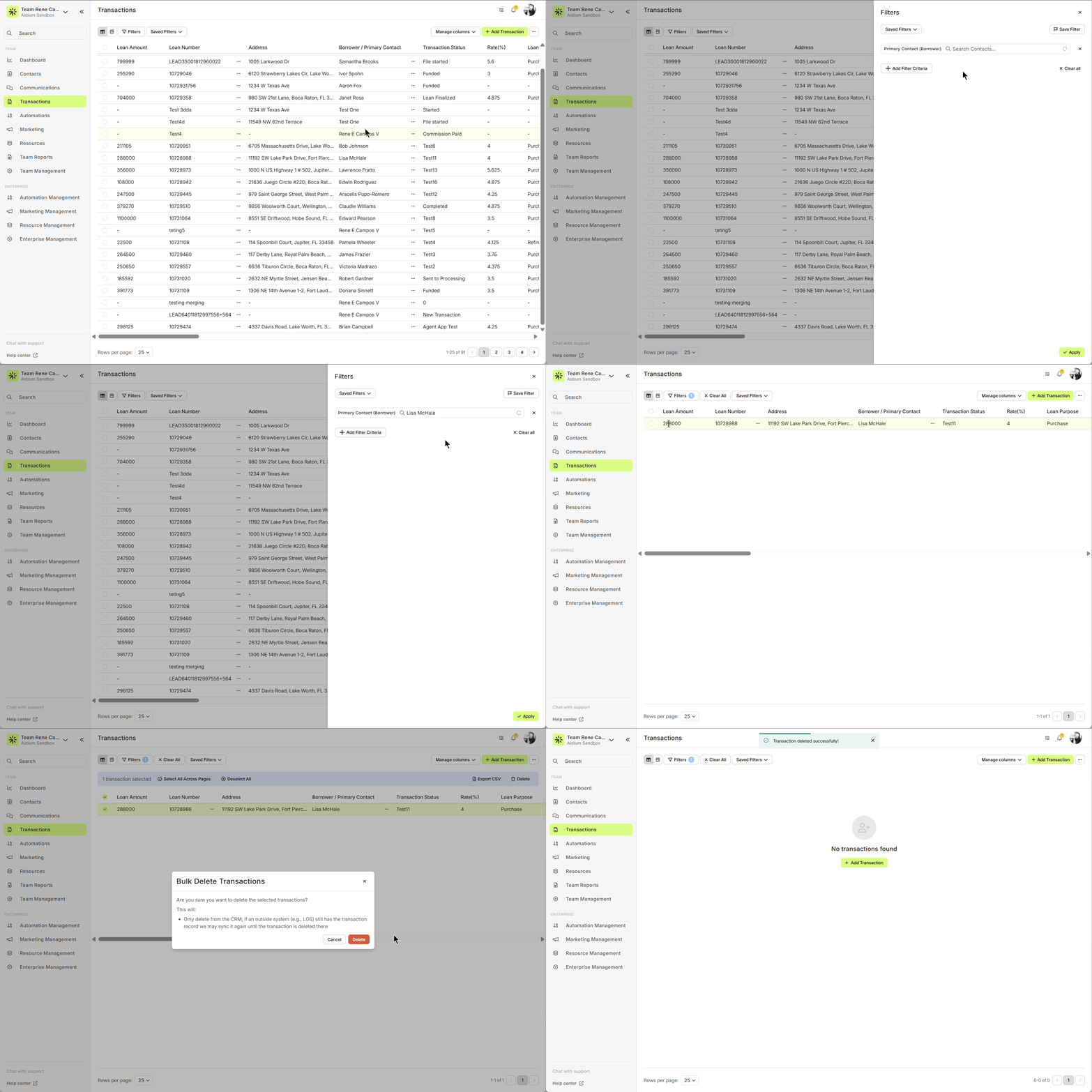
Remove the borrower from a Transaction:
To remove the borrower from a transaction, simply find and open the transaction, then change the Borrower Contact. In this case, we'll make the borrower contact a fake or placeholder contact.
If you need help deciding whether to delete or archive data, or you're not sure how a deletion might affect your integrations, feel free to reach out to Lendware Support.
👍 This concludes deleting a contact that is associated with a transaction.
Related Articles
Contacts - Table View vs. Pipeline View
There are two easy-to-change views within Contacts. Table View, for a customizable list of contacts for a traditional spreadsheet style experience. While Pipeline View provides you with pre-sorted previews of each contact according to their Status. ...Exporting Contacts in Lendware
Lendware allows you to export all of your contacts with no export limit when using the correct selection option. Important: To export your full contact list, always use Select All Across Pages. Preparing your contact list for export Before exporting, ...Merge Contacts Guide
Combine multiple contacts into one clean record while keeping key information intact. Duplicate contacts can clutter your database and create confusion. The Merge Contacts feature allows you to combine multiple contact records into a single Target ...Using Mass Actions in Contacts
Mass Actions allow you to efficiently make changes or send communications to multiple contacts at once. Whether it's exporting, deleting, reassigning, or sending mass emails, Mass Actions simplify bulk updates. Before diving into Mass Actions, it's ...Import Contacts with CSV or XLSX File - Lendware
Managing contact imports in Lendware is straightforward and can be done in just a few simple steps with some initial organization. Both CSV (Comma-Separated Values) and XLSX (Excel Spreadsheet) files are supported for import. CSV is a universally ...