Create and Save Contact Filters
Save time and stay organized by creating and saving filters for your contacts. With saved filters, you and your team can quickly repeat processes, run check-ins, and pull up the exact contacts you need in just a few clicks.
Saving contact filters is a simple way to save time and keep your team organized. Instead of rebuilding filters every time, you can quickly apply saved ones for repeatable processes and check-ins.
In this guide, you’ll learn how to:
- Create and save a new filter
- Apply a saved filter
- Manage your saved filters
Create and Save a New Filter
Go to the Contacts page from the left-hand menu.
In the list view, you’ll see two buttons at the top:
Filters → lets you create, apply, and save new filters
Saved Filters → shows a dropdown of filters you’ve already saved
Go to the Contacts page from the left-hand menu.
In the list view, you’ll see two buttons at the top:
Filters → lets you create, apply, and save new filters
Saved Filters → shows a dropdown of filters you’ve already saved
Example:
Let’s say you want to filter for contacts where:
Status = Old Client
Tag = G4
Click Filters, then + Add Filter Criteria.
Select Contact Status and set it to Old Client.
Add another filter criteria, choose Tags, and set it to G4.
Now you can either:
Apply → see the results immediately
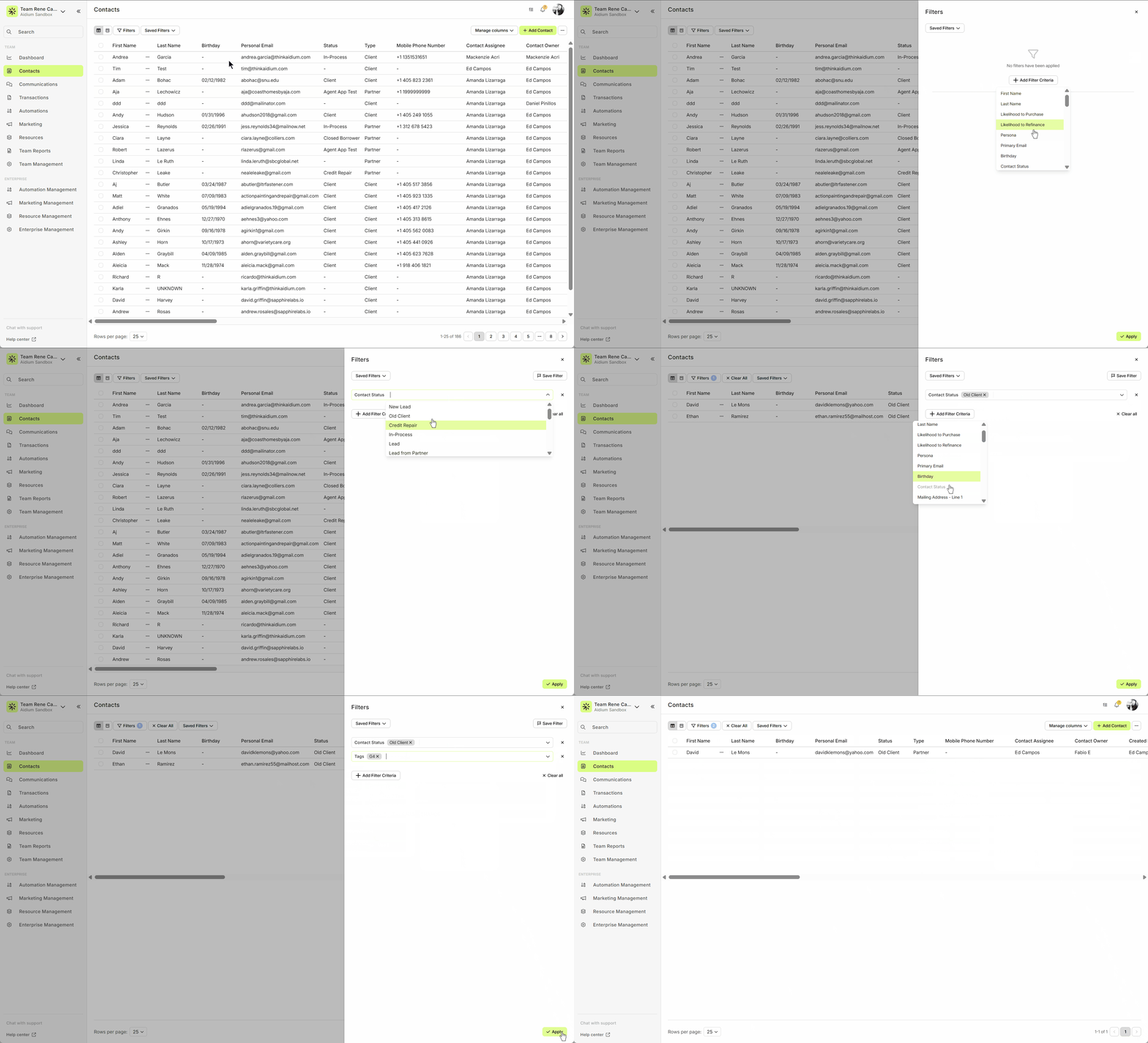
Save Filter → give it a name (make it clear and easy to recognize) and save it for future use
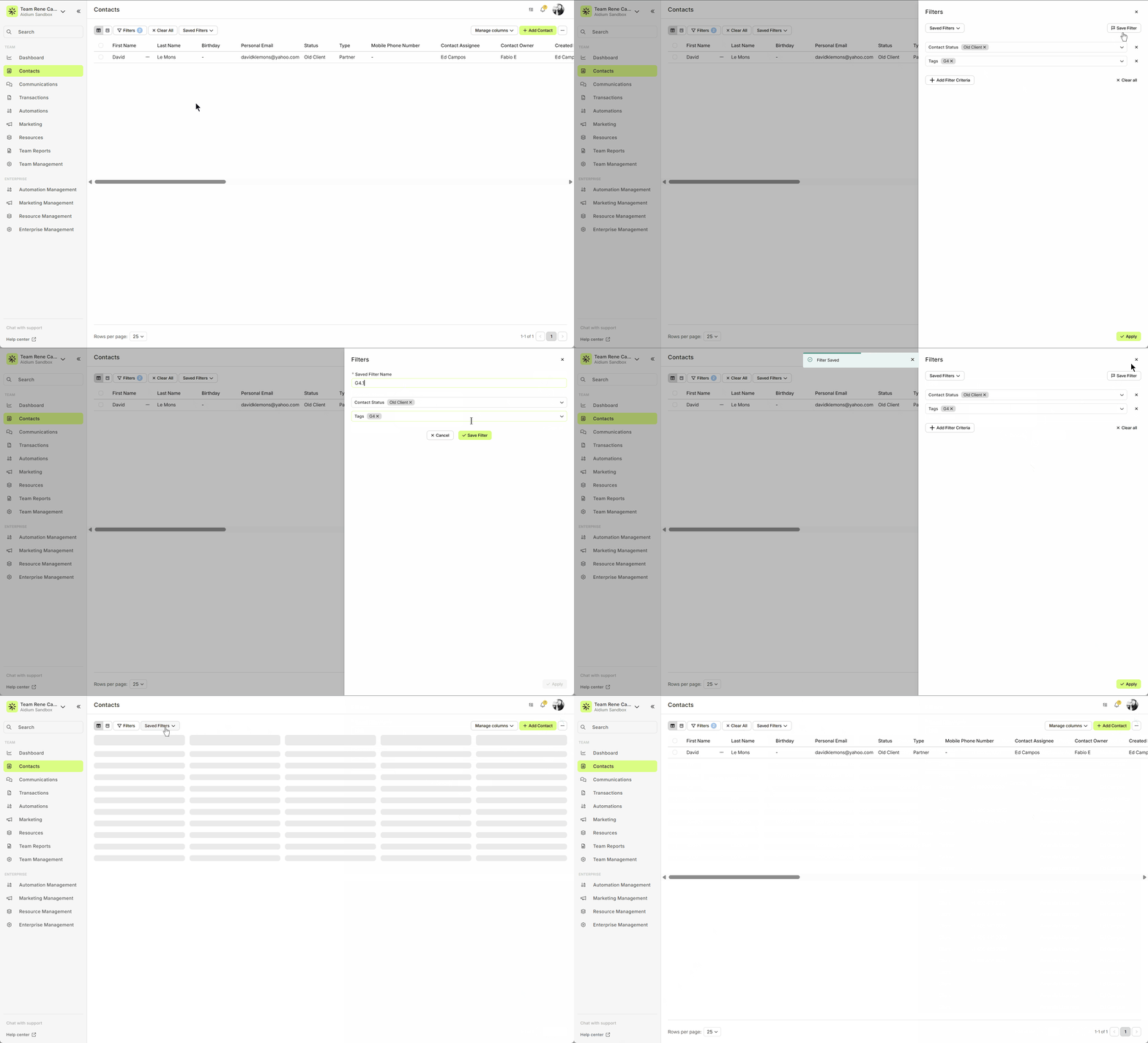
Once saved, just click Apply to view the results.
Apply a Saved Filter
Click Saved Filters and choose from the list.
You’ll see the filter name plus a quick preview of its criteria.
Select the filter you want, and the results will appear right away.
If you need to adjust, click Filters to edit — this won’t change the saved filter itself.
To clear everything, click Clear All.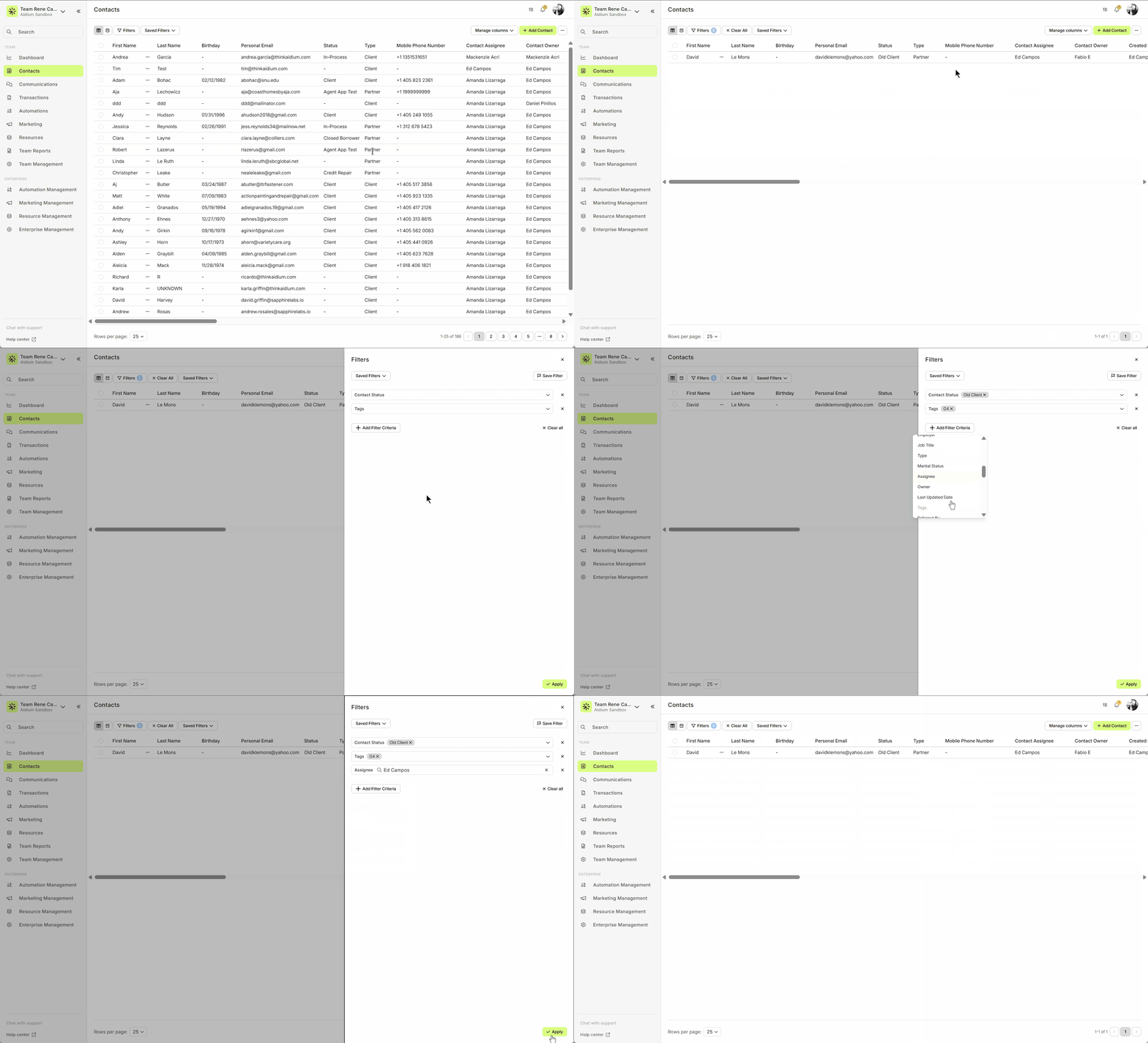
Click Saved Filters and choose from the list.
You’ll see the filter name plus a quick preview of its criteria.
Select the filter you want, and the results will appear right away.
If you need to adjust, click Filters to edit — this won’t change the saved filter itself.
To clear everything, click Clear All.
Manage Saved Filters
Over time, you may want to clean up or remove filters you no longer use.
Go to Saved Filters → Manage Saved Filters.
From the slide-out menu, you can:
Delete a filter (trashcan icon)
Load a filter (click Load)
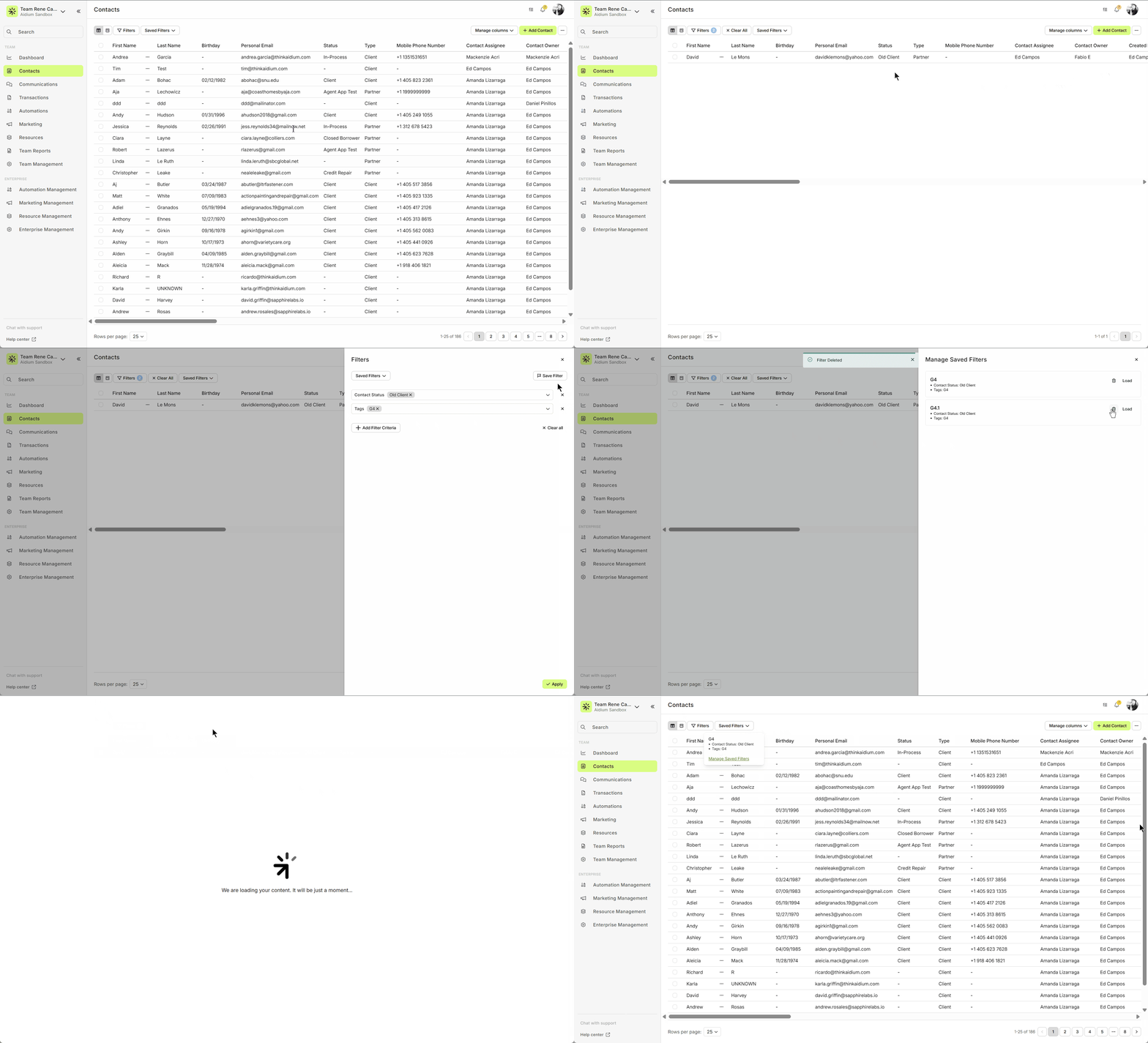
This helps keep your saved filters organized and easy to work with.
Once the filter name is saved, it cannot be changed. Be sure to choose a name you'll be comfortable with long-term.
Related Articles
How to Filter Your Contacts
Searching Contacts by using the Filter function is an easy way to narrow down the displayed Contacts to only what you want to view. Filters work the same on either Table view or Pipeline view. Filtering Contacts works in a very similar way as ...Using Mass Actions in Contacts
Mass Actions allow you to efficiently make changes or send communications to multiple contacts at once. Whether it's exporting, deleting, reassigning, or sending mass emails, Mass Actions simplify bulk updates. Before diving into Mass Actions, it's ...Manually Create a New Contact
Creating a contact manually in Lendware is quick and ensures every lead, client, or partner is captured for future engagement. Whether it’s a potential lead or a closed client, logging every interaction helps build stronger, more organized ...Contact View – Related Contacts Tab
The Related Contacts tab in the new contact view makes it easy to link any contact to another using a relationship type. This helps your team quickly understand connections, keep track of referrals and partners, and streamline communication. There’s ...Contacts - Table View vs. Pipeline View
There are two easy-to-change views within Contacts. Table View, for a customizable list of contacts for a traditional spreadsheet style experience. While Pipeline View provides you with pre-sorted previews of each contact according to their Status. ...