How to Filter Your Contacts

How to Filter Your Contacts

Searching Contacts by using the Filter function is an easy way to narrow down the displayed Contacts to only what you want to view. Filters work the same on either Table view or Pipeline view.

Filtering Contacts works in a very similar way as Filtering Transactions. You're simply filtering for different fields. To see how to Filter your Transactions, click here. Additionally, if you want to learn how to save a filter for future use, click here.
  • Add a basic Filter to your Contacts
  • Add multiple Filters to your Contacts
  • Remove Filters Applied

Adding a basic Filter to your Contacts

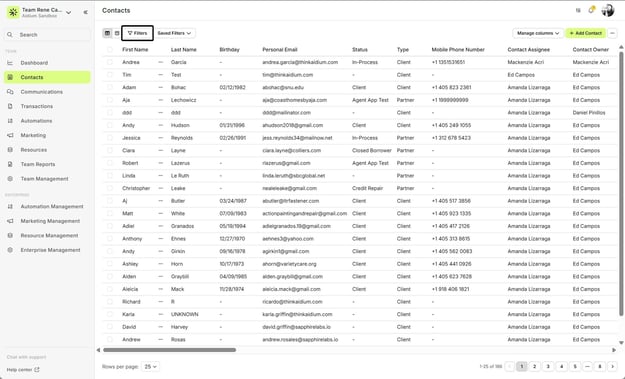
  1. To begin, we'll click the 'Filters' button at the top-left of the Contacts page.

    chrome_T99wC1qXrK
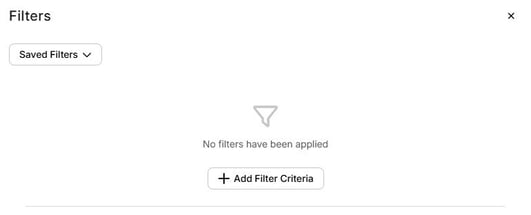
  2. Next, the Filter slide-out appear on the right side of the screen. To create and apply a new Filter, we'll click the '➕ Add Filter Criteria' button.

    chrome_qMkthxwMVT
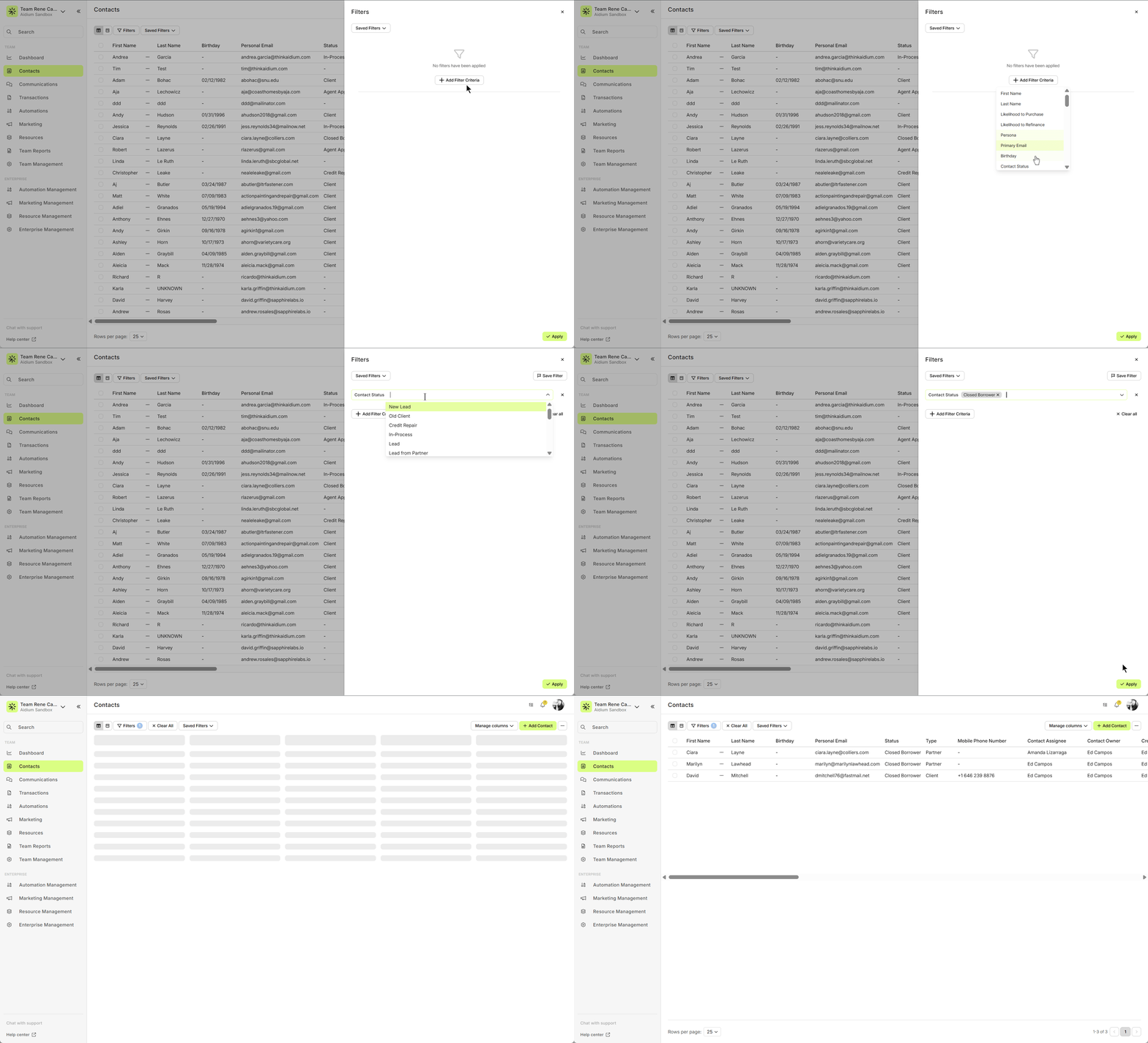
  3. We'll then be provided with a drop-down of available fields to use in our Filter. In the animated GIF below, we'll demonstrate how to choose the 'Status' field as our initial filter criteria.
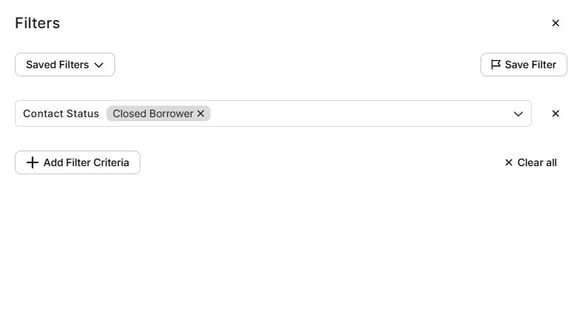
  4. After choosing the field to Filter by, we'll then choose the value for that field. In this case, we will filter for all Contacts with a Status = Closed Borrower, as seen in the animated GIF below. Once satisfied with the Filter Criteria, click the 'Apply' button at the bottom-right.
  5. After clicking the 'Apply' button, our filter is applied and now only the Contacts that fit the Filter Criteria will be visible.

    chrome_R9B3GBvzso

⚙️  Learn how to save and manage saved filters, click here.

👍  This concludes adding a basic filter to your contacts.


Adding multiple Filters to your Contacts

  1. Now that we know how to add a basic Filter, we can apply multiple filters. Return to the Filter slide-out and click the '➕ Add Filter Criteria' button.

    chrome_WkcuU3NSOn
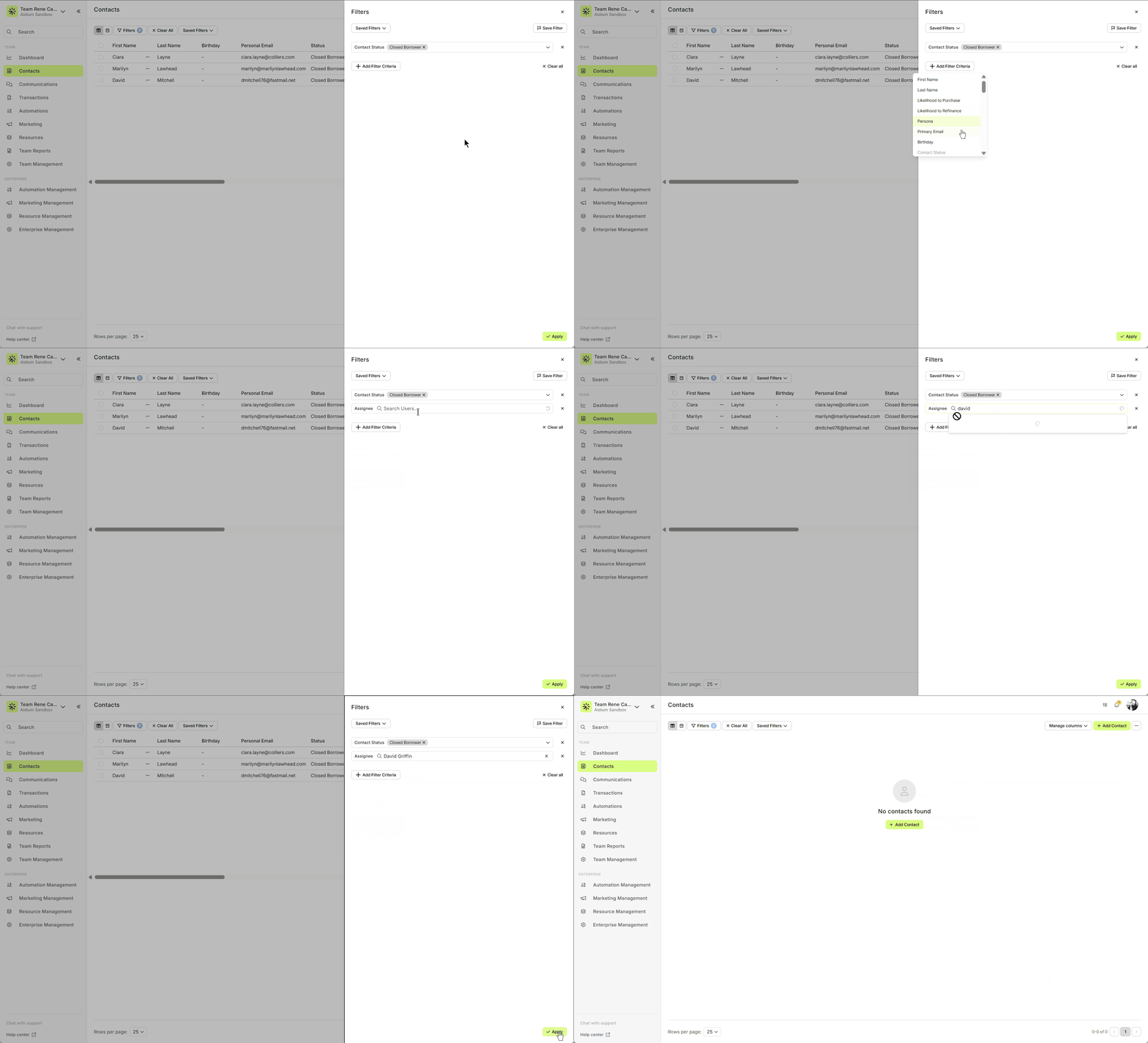
  2. As in the previous section, we'll choose the field we want add to the previous filter, then add a value to the filter. In the animated GIF below, we add a filter for Contact Owner. This will act as "AND": Status = Closed Borrower ::AND:: Owner = David Griffin

    Once the Filter is applied, you will see only the Contacts that fit the Filter Criteria you added. The animated GIF below shows the Contacts that fit.

    filter5

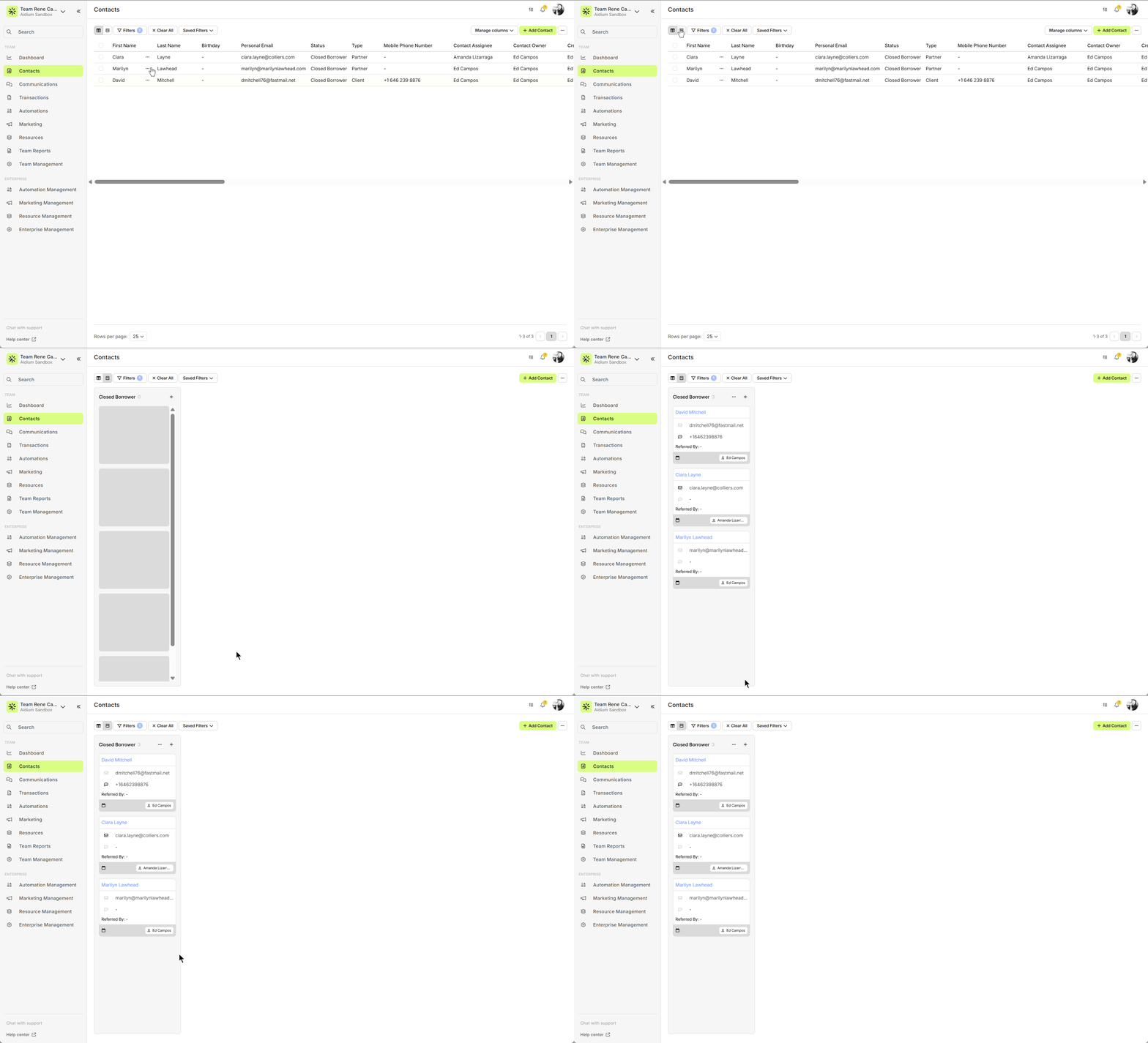
  3. Additionally, since Filters work the same in both the Table view and Pipeline view, you can switched between them and maintain the applied Filters. You can also move to other sections, like Transactions, without losing your applied Filters. Both are demonstrated in the animated GIF below.

    chrome_RRL7S4KvnI

👍  This concludes adding multiple filters and with more than one value to your contacts.


Remove Filters Applied

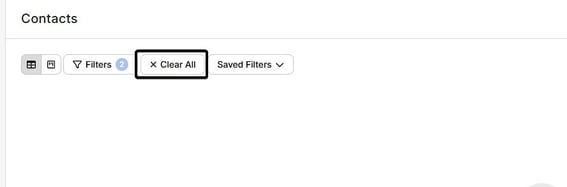
  1. If there are Filters applied, you will see a number in next to 'Filters'. To clear the current filter(s), click 'Clear All' button.

    chrome_wJ9jg21aVV
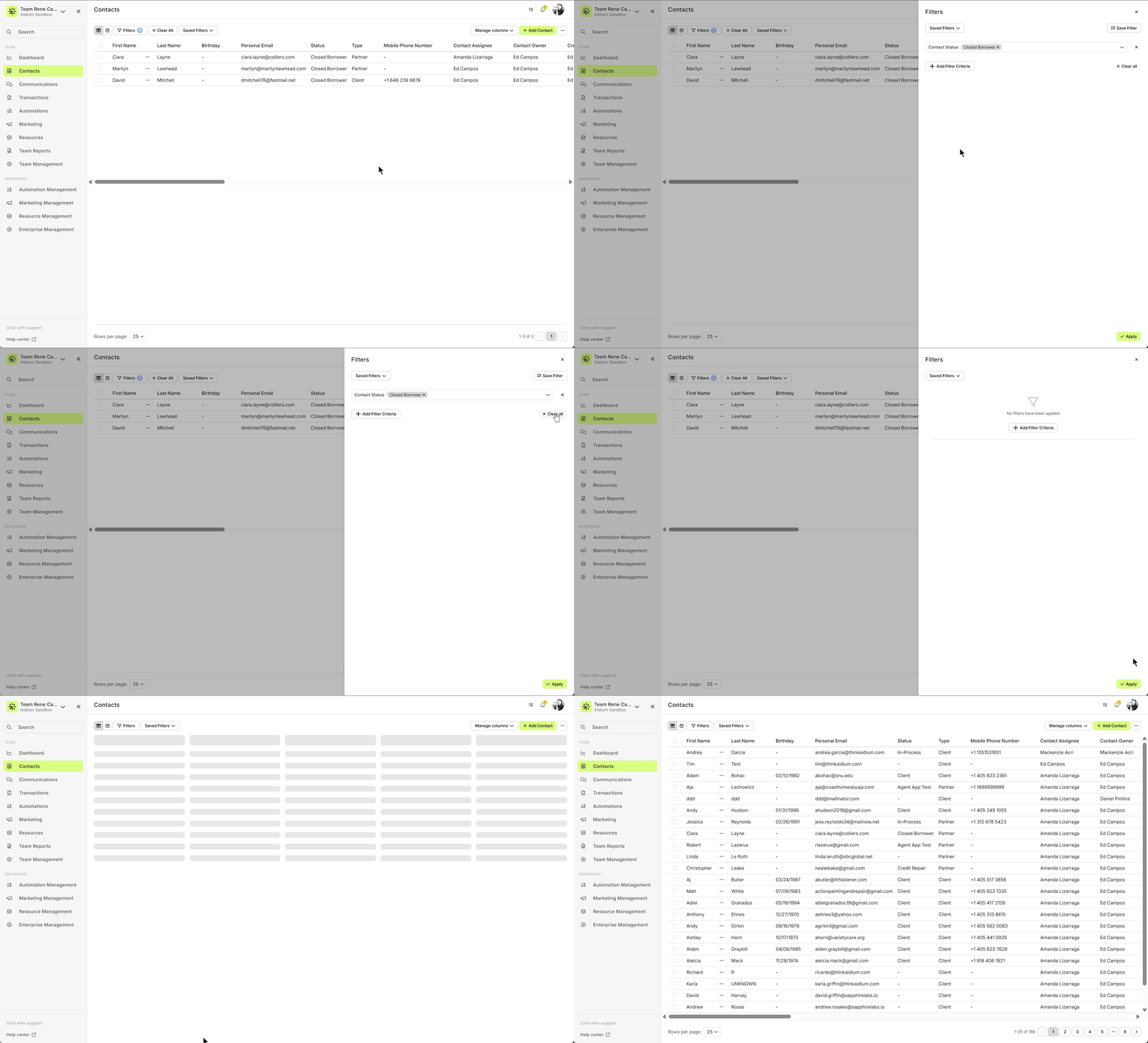
  2. To edit the currently applied Filters, click the 'Filters' button. This will also provide the opportunity to clear the existing Filter(s).

    chrome_5egVhiCOUh

⚠️  Applied Filters are sticky. If you set a filter, it will stay applied until you change it, remove it, or refresh the browser. Be aware that when you come back to Contacts, the Filter may still be applied. To avoid confusion, always look for a number on the 'Filter' button.

👍  This concludes removing filters that were applied to contacts.

    • Related Articles

    • Contacts - Table View vs. Pipeline View

      There are two easy-to-change views within Contacts. Table View, for a customizable list of contacts for a traditional spreadsheet style experience. While Pipeline View provides you with pre-sorted previews of each contact according to their Status. ...
    • Create and Save Contact Filters

      Save time and stay organized by creating and saving filters for your contacts. With saved filters, you and your team can quickly repeat processes, run check-ins, and pull up the exact contacts you need in just a few clicks. Saving contact filters is ...
    • Contact Import Template

      The Contact Import Template is the standardized spreadsheet used to create or update contacts inside Lendware. This template ensures your data maps correctly to the system and prevents upload errors. Below is a step-by-step guide on how to complete ...
    • Transfer a Contact to Another Team

      Another way that Lendware makes it easy for your CRM to grow with you, your Team and Enterprise setup is by allowing for quick and easy transfer of a contact from one team to another. Transferring a contact from one team to another takes just a few ...
    • Using Mass Actions in Contacts

      Mass Actions allow you to efficiently make changes or send communications to multiple contacts at once. Whether it's exporting, deleting, reassigning, or sending mass emails, Mass Actions simplify bulk updates. Before diving into Mass Actions, it's ...