Contact View - Automations Tab
The Automations Tab in the new contact view is where you can view all previously assigned and currently assigned contact-based and transaction-based automations. You can also assign new or currently active contact-based automations.
This tab provides a comprehensive view of all automations previously assigned, offering both a historical and current view of all automated marketing, notifications, check-ins, and any other processes built into an automation.
Additionally, you have the ability to un-assign an active contact automation and assign a new contact automation as needed.
Using the image below, we'll examine each section within this tab, along with each button and element.
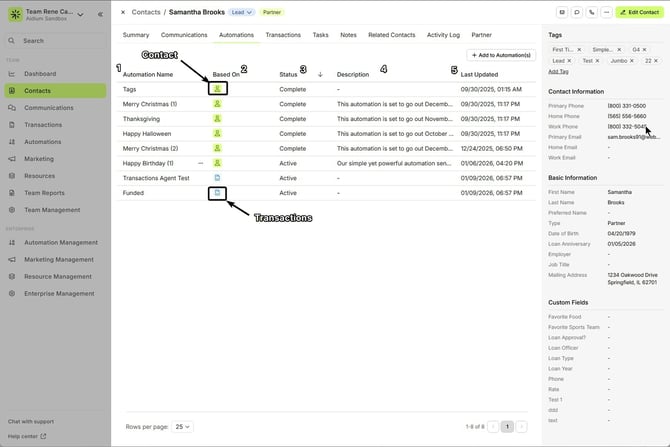
Automation Name: This is the display name of the automation. It appears when the automation is manually assigned or automatically assigned based on entry conditions in the automation.
Based On: This field shows an icon to identify whether the automation is Contact-based or Transaction-based. A yellow silhouette indicates contact-based automations, while a blue document represents transaction-based automations.
Status: Displays the current status of the automation. It will show:
Active: If the automation is currently running.
Complete: If the automation has finished running.
Description: Shows the automation description added by the creator. It’s highly recommended to always include a description to provide more details on the purpose of the automation and how it applies to the contact.
Last Updated: Displays the most recent date the automation was updated or modified. This provides clarity on when the automation was last changed or reviewed.
Managing Automations:
If a contact-based automation has a status of Active, you’ll see an ellipsis (…) next to the automation name. Clicking this ellipsis allows you to remove or unassign the automation, which stops it and removes it from the contact.
This same concept applies to transaction-based automations; however, those must be removed from within the transaction itself rather than from the contact.
If a contact-based automation has a status of Active, you’ll see an ellipsis (…) next to the automation name. Clicking this ellipsis allows you to remove or unassign the automation, which stops it and removes it from the contact.
This same concept applies to transaction-based automations; however, those must be removed from within the transaction itself rather than from the contact.

⚙️ To learn more about automations and how they work, click here.
Adding a New Automation:
At the top-right of the Automations tab, you’ll find the + Add to Automation button. When clicked, it displays a list of all available contact-based automations that can be added to the contact.
For transaction-based automations, this option appears within the Transaction Automations section, where only transaction-based automations are shown and can be added.
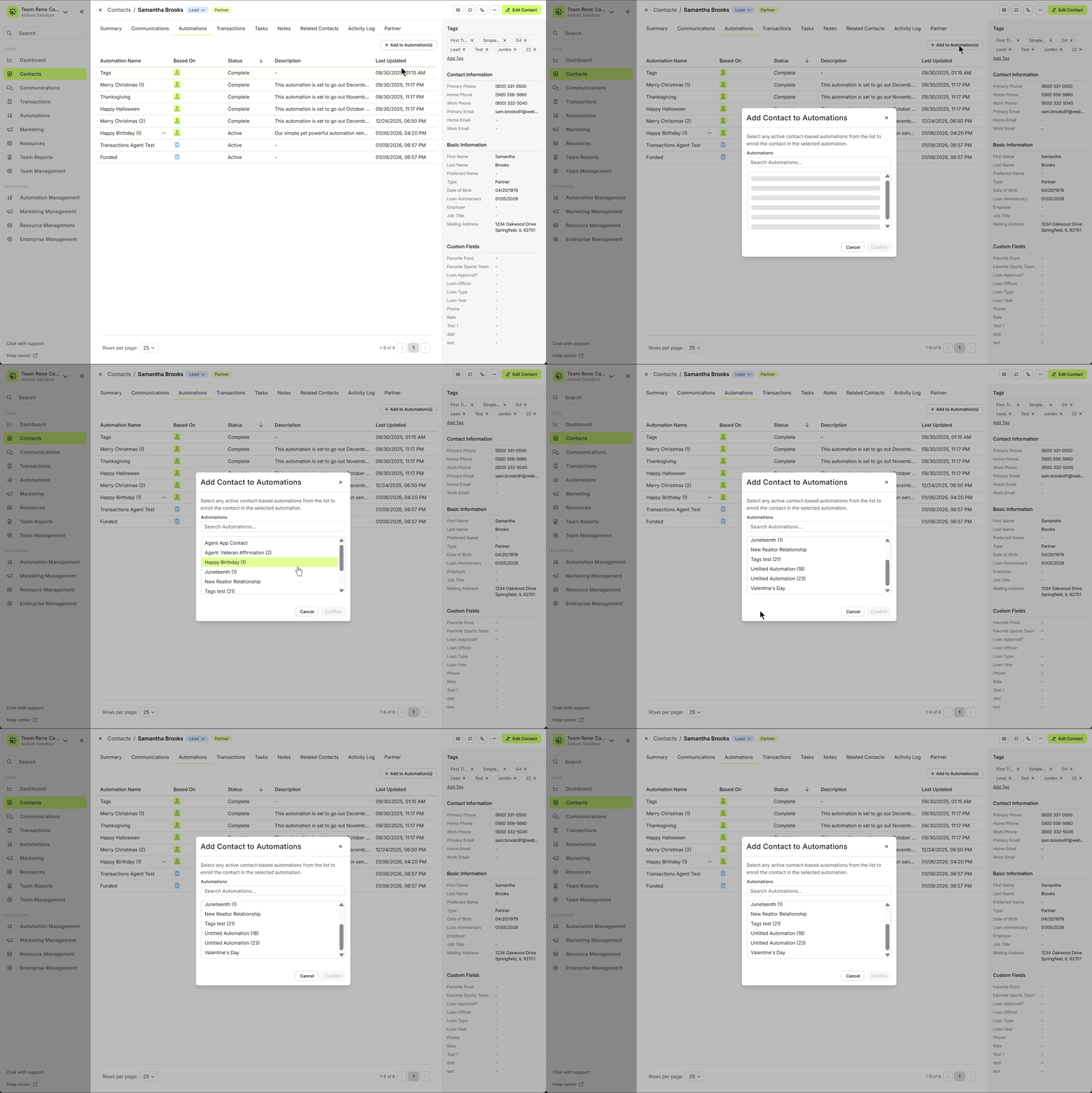
It's important to understand that transaction based automations can only be assigned automatically by using entry conditions. To learn more about that, click here.
👍 This concludes an overview of the contact view - automations tab.
Related Articles
Contact View - Summary Tab
The Summary tab in the new Contact View acts as a snapshot of your contact’s most important details and recent activity. It offers a streamlined overview of tasks, communications, transactions, and more—all in one place. When opening a contact, the ...Contact View - Transactions Tab
The Transactions tab is a straightforward way to view and interact with every transaction (loan) that a single contact is associated with. Whether a borrower, co-borrower, real estate agent or other loan related contact - it will display. This tab ...Contact View - Communication Tab
The Communications tab in the new Contact View provides a centralized, chronological feed of all interactions with a contact—including emails, text messages, calls, and submitted forms. This offers a complete picture of engagement, allowing you to ...Contact View - Activity Log Tab
The Activity Log tab in the new contact view shows you all actions that have taken place on a contact. This can be actions taken by users, automations, communication and much more. Every change or update to a contact is captured here for review. ...Contact Detail View – A Walkthrough
The new Contact Detail View offers a streamlined and organized way to view and manage your contacts. With all information separated into intuitive tabs, you’ll find everything you need at a glance—making it easy to update, communicate, and stay on ...