Contact Detail View – Tags
Tags are a simple yet powerful way to highlight what matters most about a contact. Whether it's their status, source, or role in your process, tags help tell each contact's story—boosting clarity for your team and enabling automations to act more precisely.
Tags can be created and standardized at both the Team and Enterprise levels for consistency, or quickly added on the fly within a contact.
In this article, we'll demonstrate how to view, manually add an existing tag and how to create and add a new tag to a contact.
- View Tags
- Add Existing Tag
- Create New Tag
- Remove Tag
View Tags
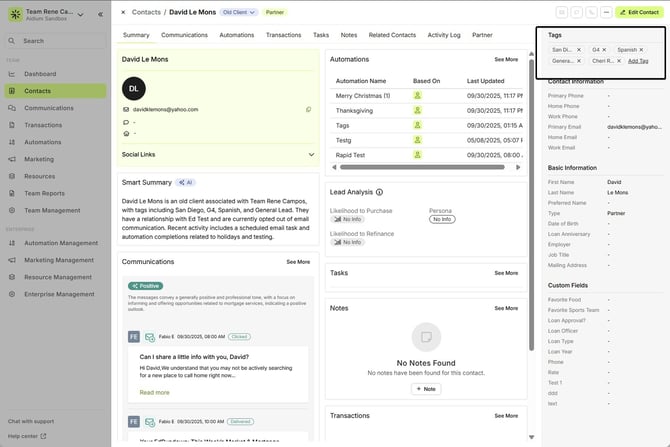
Tags are always visible in the top-right corner of the Contact Detail view. As tags are added—manually or through automation—they’ll appear here.
If a tag is long, just hover over it to see the full text.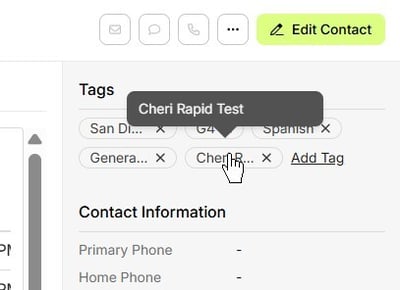
Add Existing Tag
To add an existing tag to a contact:
Click ‘Add Tag’ in the Tags section.
Scroll or type to search for the tag you want.
Click on the tag to apply it.

Create New Tag
Want to add a new, custom tag on the fly? Here’s how:
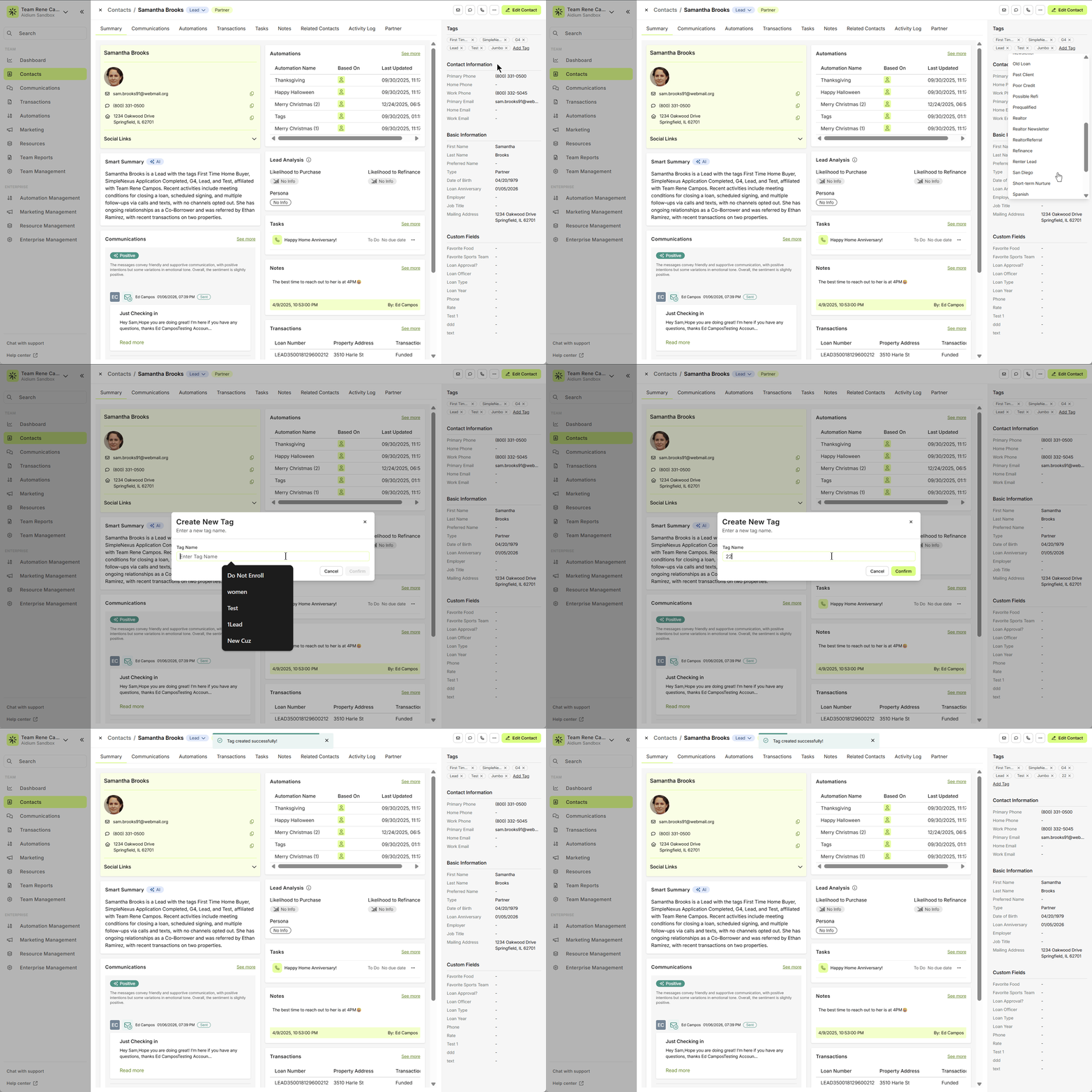
Click ‘Add Tag’ in the Tags section.
Scroll to the bottom or type "Create" to jump down.
Click ‘+ Create New Tag’.
Enter the new tag name and click ‘Confirm’ (yellow button).
If the tag already exists, you’ll be notified automatically.
🧠 Pro Tip: Keep your tag list clean by avoiding duplicates or similar-sounding variations.
✅ Note: Tags can also be created and managed at the Enterprise level to ensure consistency across teams.
⚙️ To learn about creating tags or adjusting existing tags from within Team Settings, click here.
Remove Tag
To remove an existing tag from a contact, we'll simply look for the tag in the Tags section, then click on the 'x' at the right of the tag itself. It will ask us to confirm we want to remove the tag. Once confirmed, the tag is removed from this contact.
Removing a tag from a contact does not delete it from your team's or enterprise's tag list—it remains available to use again. To learn how to delete a tag from your team, click here.

ℹ️ Tags are displayed in the order they were created, not alphabetically. This helps maintain consistency when viewing and editing tags on a contact. If you remove and re-add a tag, it will appear in its original creation order.
👍 This concludes an overview of the contact view - tags.
Related Articles
Contact View - Summary Tab
The Summary tab in the new Contact View acts as a snapshot of your contact’s most important details and recent activity. It offers a streamlined overview of tasks, communications, transactions, and more—all in one place. When opening a contact, the ...Contact Detail View – A Walkthrough
The new Contact Detail View offers a streamlined and organized way to view and manage your contacts. With all information separated into intuitive tabs, you’ll find everything you need at a glance—making it easy to update, communicate, and stay on ...Contact View - Activity Log Tab
The Activity Log tab in the new contact view shows you all actions that have taken place on a contact. This can be actions taken by users, automations, communication and much more. Every change or update to a contact is captured here for review. ...Contact View - Transactions Tab
The Transactions tab is a straightforward way to view and interact with every transaction (loan) that a single contact is associated with. Whether a borrower, co-borrower, real estate agent or other loan related contact - it will display. This tab ...Contact View - Notes Tab
The Notes tab in the new contact view is the ideal place to record detailed, contact-specific information. Whether it’s insights from phone calls, key interests, or any other relevant details, this tab helps you track the story of each contact for ...