Understanding Automation Enrollment at Activation
Depending on how the automation is configured, records that already meet the entry conditions may enroll immediately, or only records that qualify after the automation is enabled will enter the automation.
Understanding how automation enrollment works before activating an automation helps prevent unintended enrollments and unexpected message sends.
What Happens When an Automation Is Turned On
When an automation is enabled, Lendware evaluates records based on the automation’s Entry Conditions and configuration.
Depending on the setup, one of the following behaviors may occur:
Existing records may enroll immediately
If the automation allows the Enroll Existing Records setting and the toggle is enabled, contacts or transactions that already meet the entry conditions may enroll as soon as the automation is activated.
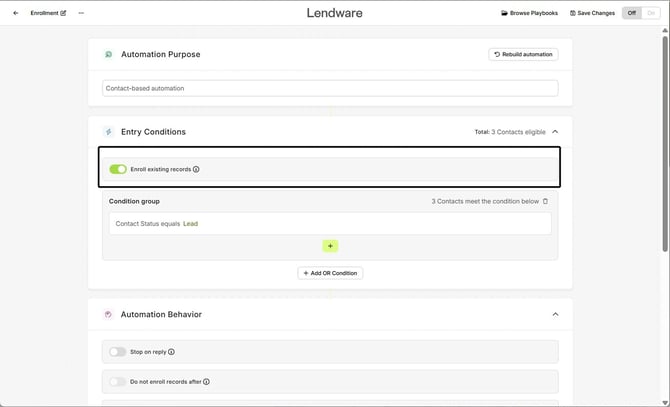
Only future records enroll
If the Enroll Existing Records toggle is disabled (which is the default setting), only records that meet the entry conditions after the automation is enabled will enter the automation.
Some automations rely on trigger events such as:
A tag being added
A status change
A field being updated
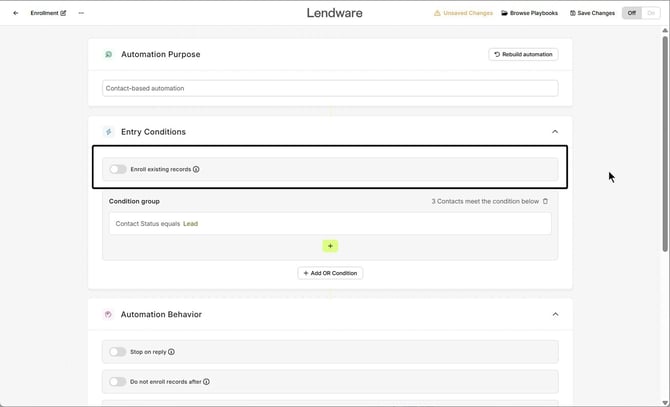
Automation enrollment behavior depends on both the Entry Conditions and the Enroll Existing Records setting.
The “Enroll Existing Records” Setting
Automations include a setting called Enroll Existing Records, which determines whether records that already meet the entry conditions should enroll when the automation is activated.
This option appears in both:
Contact-Based Automations
Transaction-Based Automations
The setting is located directly below the Entry Conditions section when configuring an automation.
By default, this toggle is disabled.
Default Behavior
When this option is unchecked, only records that meet the automation trigger conditions after the automation is enabled will be enrolled.
When the Setting Cannot Be Applied
In some automations, the Enroll Existing Records option may appear unavailable.
This occurs when the automation uses relative date filters in the entry conditions.
Examples include:
On the date
Before or After date
When these filters are used, enrollment is determined by the timing of the date condition, so existing records are not evaluated the same way when the automation is activated.
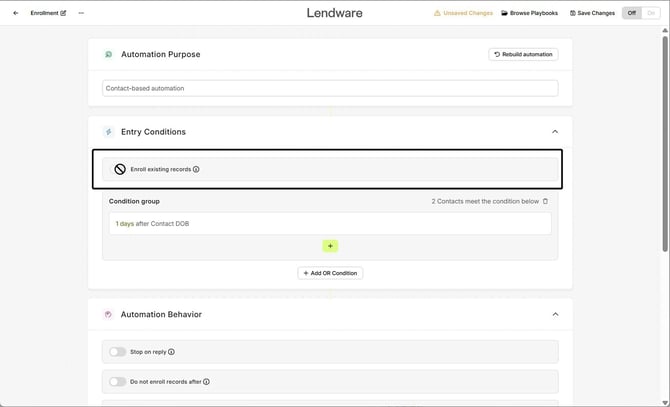
This means the setting is not required, because the automation will automatically evaluate all records that contain a value in the selected date field. Any records that meet the defined conditions will be enrolled when the automation runs according to the date-based criteria.
Why Existing Contacts May Enroll Immediately
Contacts or transactions may enroll immediately when an automation is activated if:
The Enroll Existing Records toggle is enabled
Existing records that are updated with changes that make them meet the automation’s entry conditions will be enrolled once those updates occur.
For example:
Automation condition:
Contact Status = Lead
If your system already contains many contacts with that status and the Enroll Existing Records option is enabled, those contacts may enter the automation immediately when it is activated.
If the automation includes email or SMS steps without delays, messages may begin sending shortly after enrollment.
How to Preview Likely Enrollment Before Activation
Before enabling an automation, it is recommended to review how many records currently meet the automation’s Entry Conditions.
Lendware displays this information directly in the automation builder.
Within the Entry Conditions section, you will see a message indicating how many records currently match the configured conditions.
Example: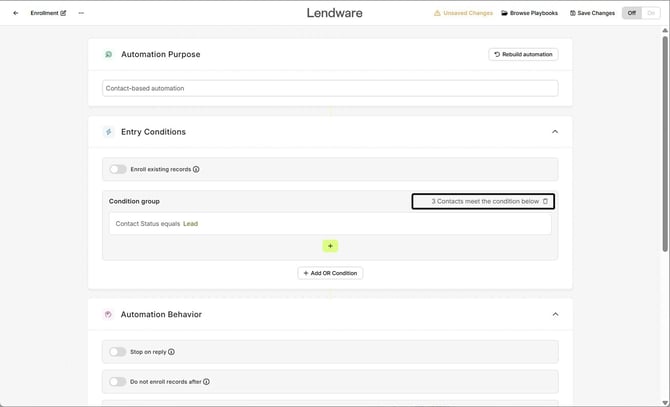
This number shows how many records in your system currently match the defined criteria.
When “Enroll Existing Records” Is Enabled
If you enable the Enroll Existing Records toggle, the automation will also show how many records are eligible to enroll immediately.
Example: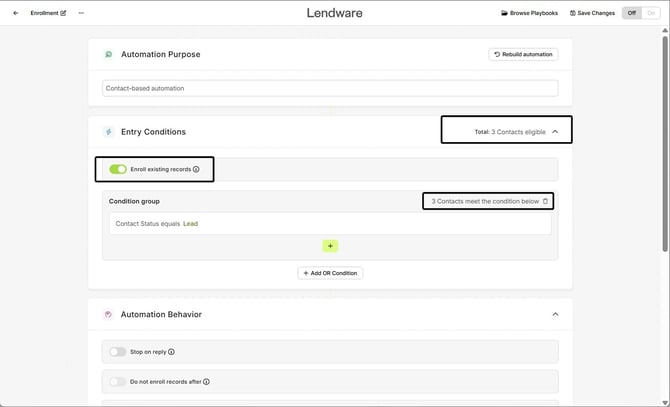
This indicates that those contacts already meet the entry conditions and may enroll when the automation is activated.
How to Scope an Automation to Only New Records
If you want an automation to apply only to new contacts or transactions, you can limit enrollment using additional conditions.
Use a Date-Based Condition
Example:
Created Date is after 03/09/2026
This prevents older records from meeting the entry conditions. Contacts or transactions with an earlier funded date will not be enrolled in the automation.
This approach allows the automation to apply only to records that meet the condition after the specified date.
Use tags to trigger enrollment
Example workflow:
A new contact is created
A tag such as New Lead is applied
The automation triggers when that tag is added
This ensures the automation applies only to contacts moving forward when that tag is applied.
New contacts or transactions will only enroll in the automation when they meet the entry conditions through an update or change to their record.
Additionally, if Enroll Existing Records is disabled, records that already met the conditions before the automation was activated will not be enrolled automatically. Only records that meet the conditions through a new update after activation will enter the automation.
Every enterprise has its own workflow, so the recommendations provided here are meant to be standard suggestions. If you're unsure how these might apply to your specific setup, please reach out to support@lendware.ai and provide as much context as possible. Our team will be happy to review your case and assist you in determining the best approach.
How to Avoid Accidental Bulk Sends
Before activating an automation, review the following checklist.
✔ Confirm the Entry Conditions target the correct audience
✔ Review how many contacts or transactions currently match the conditions
✔ Verify whether the Enroll Existing Records toggle is enabled
✔ Consider adding a short delay before the first message
Adding a short delay (for example, 5–10 minutes) before the first message can provide time to pause the automation if unexpected contacts enroll.
Key Takeaway
Automation enrollment depends on the automation’s Entry Conditions, configuration, and the Enroll Existing Records setting.
Before enabling an automation, it is important to review how many existing records meet the conditions and confirm whether the automation should apply to those records or only to new ones moving forward.
Need more help? Check out: Intro To Automations
Related Articles
How to Test an Automation Before Going Live
Testing an automation before activating it helps ensure that emails send correctly, conditions behave as expected, and contacts move through the workflow properly. Following a simple testing process can help prevent common issues such as automations ...Birthday & Anniversary Automation Setup Guide
Birthday and anniversary automations allow you to automatically send messages to contacts when a specific date occurs each year. These automations are commonly used for: Birthday greetings Loan anniversaries Client appreciation messages Annual ...Duplicate an Existing Automation
Duplicating an existing automation is a quick and effective way to reuse a successful setup or adapt it for a different purpose. This feature creates an exact copy of the selected automation, allowing you to modify or expand upon it without starting ...Date-Based Automation Conditions
Date-based conditions are commonly used in automations to trigger actions like emails, texts, or task creation. While powerful, these conditions can behave differently than expected if they are not paired with additional date filters. This article ...How to Build a Newsletter Automation
A Newsletter Automation is a one-time, contact-based automation designed to send a single communication or campaign to a group of contacts on a scheduled date and time. Think of it like sending a Real Estate Agent Newsletter to all contacts tagged ...