How to Build a Newsletter Automation
A Newsletter Automation is a one-time, contact-based automation designed to send a single communication or campaign to a group of contacts on a scheduled date and time.
Think of it like sending a Real Estate Agent Newsletter to all contacts tagged Realtor Newsletter. Unlike a Workflow (which is ongoing and can have multiple steps), a Newsletter Automation Campaign is simple, one-and-done: it sends a single scheduled communication and then completes.
By starting with the Delay by Date action, you can load all eligible contacts into the automation and hold them until the exact moment you want your email to go out.
What We’ll Cover
- Create New Automation
- Entry Conditions
- Automation Behavior
- Actions
Create a New Automation
Click Automations in the left-hand menu.
Select + Create Automation in the top-right corner.
Choose Contact-based automation + Campaign and click Continue.
Click Automations in the left-hand menu.
Select + Create Automation in the top-right corner.
Choose Contact-based automation + Campaign and click Continue.
Next, give your automation a clear name and description so your team knows what it’s for later.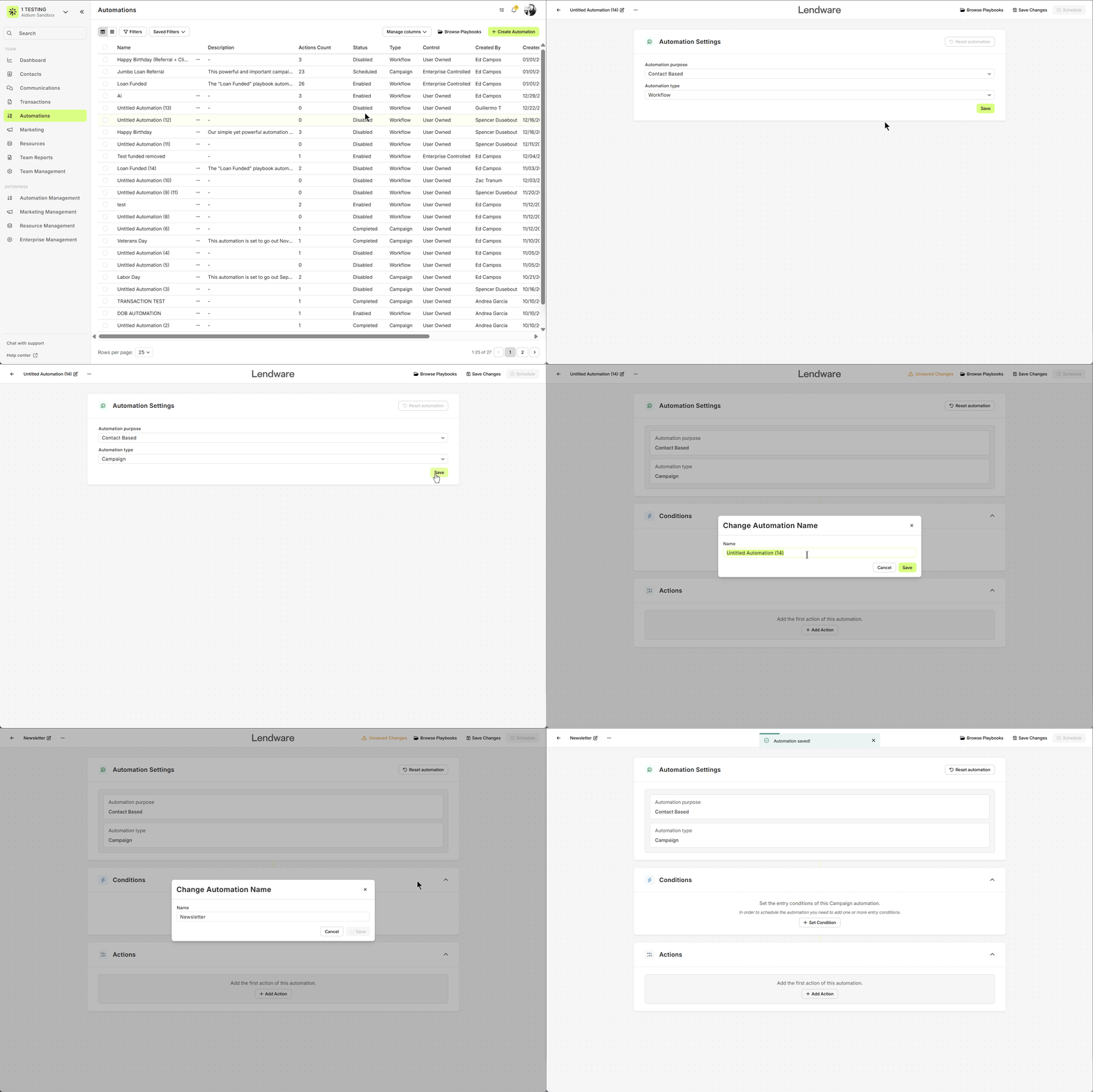
Entry Conditions
Entry conditions control who gets added to the automation.
For a newsletter, you’ll usually use Contact Tags, Contact Type, or Contact Status.
Example: Targeting all contacts with the tag Realtor Newsletter.
- Click + Set Condition.
- Choose Tags from the dropdown.
- Select Contains, then pick Realtor Newsletter.
- Click Apply.
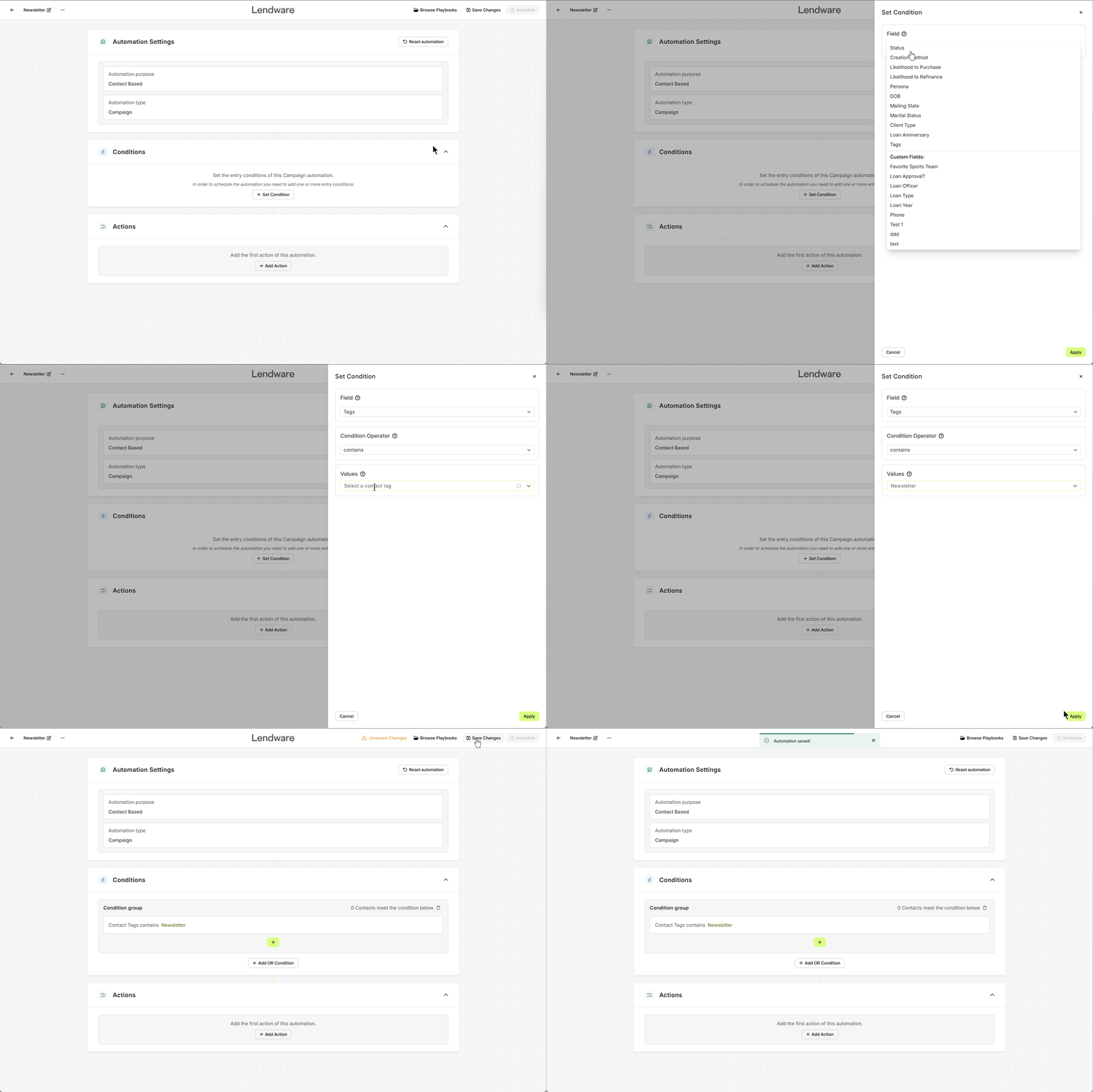
At this point, you’ll see a preview of how many contacts match. For example: 3 contacts match this condition.
Don’t forget: since this is a campaign-style automation, all currently matching contacts will be added as soon as you activate it
Actions
For a newsletter, you’ll typically only need two actions:
Delay by Date
Schedule your automation to start at the exact date and time you want your newsletter to be sent. You can also select a schedule when enabling your automation. To learn more, check out Campaign vs Workflow.
Send Email
Create or select the email you want to send.
You can personalize the content with merge fields to make it more engaging.
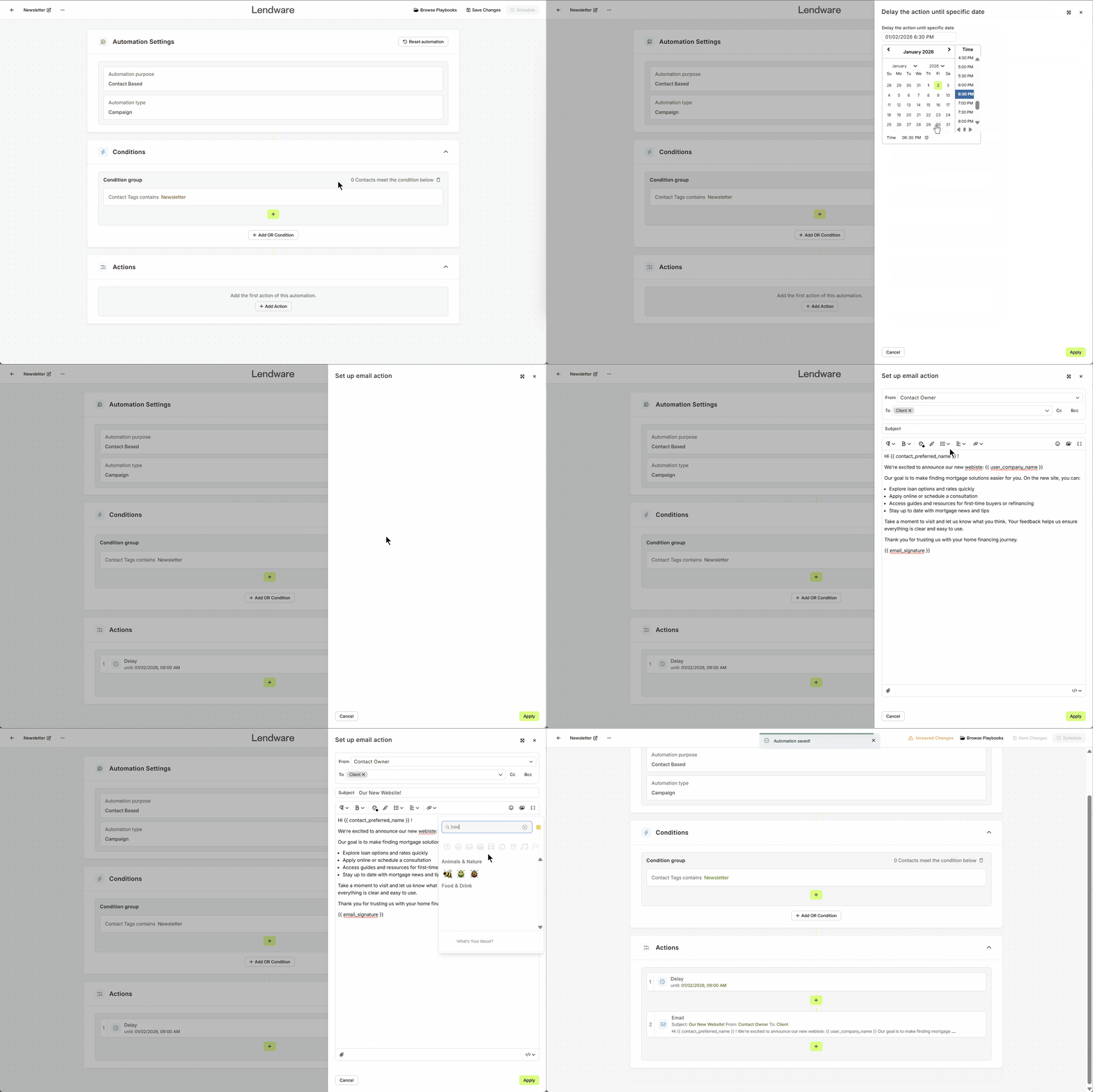
That’s it! Keep newsletters simple: delay until the scheduled time, then send the email.
Once the automation runs, its status changes to Complete.
Automation Behavior + Schedule
The automation immediately enrolls all eligible contacts.
Future contacts that match the conditions will also be enrolled.
However, if they join after the scheduled delay date has passed, they will not receive the newsletter.
The automation immediately enrolls all eligible contacts.
Future contacts that match the conditions will also be enrolled.
However, if they join after the scheduled delay date has passed, they will not receive the newsletter.
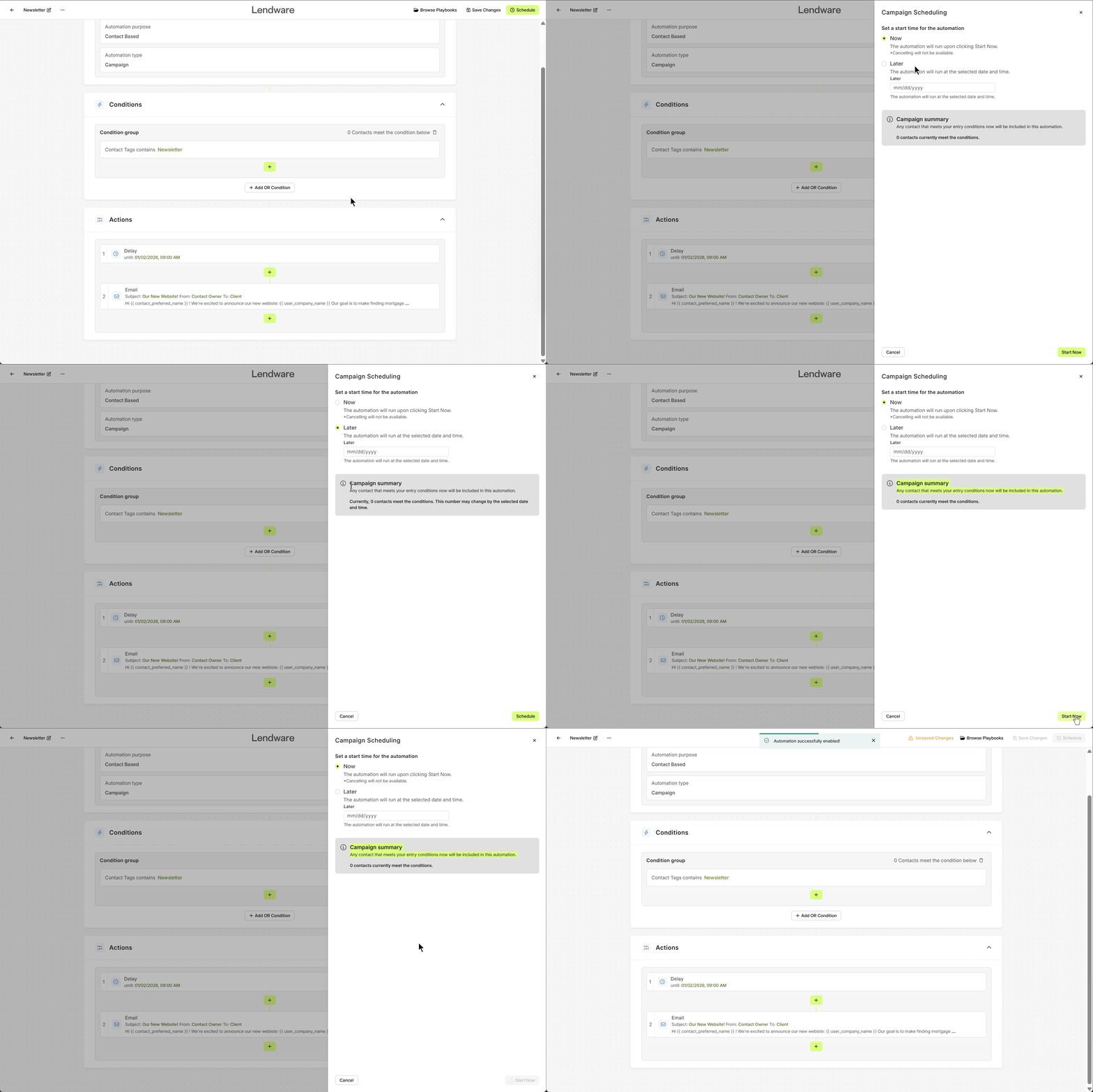
Important:
Once this automation has been scheduled, any edits or modifications will require you to set the schedule again.
Need more help? Check out: Contact Based Automations
Related Articles
Understanding Automation Enrollment at Activation
When an automation is enabled in Lendware, the system determines whether contacts or transactions should be enrolled based on the automation’s Entry Conditions and enrollment settings. Depending on how the automation is configured, records that ...Duplicate an Existing Automation
Duplicating an existing automation is a quick and effective way to reuse a successful setup or adapt it for a different purpose. This feature creates an exact copy of the selected automation, allowing you to modify or expand upon it without starting ...How to Test an Automation Before Going Live
Testing an automation before activating it helps ensure that emails send correctly, conditions behave as expected, and contacts move through the workflow properly. Following a simple testing process can help prevent common issues such as automations ...Birthday & Anniversary Automation Setup Guide
Birthday and anniversary automations allow you to automatically send messages to contacts when a specific date occurs each year. These automations are commonly used for: Birthday greetings Loan anniversaries Client appreciation messages Annual ...Date-Based Automation Conditions
Date-based conditions are commonly used in automations to trigger actions like emails, texts, or task creation. While powerful, these conditions can behave differently than expected if they are not paired with additional date filters. This article ...