Birthday & Anniversary Automation Setup Guide
These automations are commonly used for:
Birthday greetings
Loan anniversaries
Client appreciation messages
Annual follow-ups
This guide walks through the full setup process, how to verify the automation is working correctly, and how to troubleshoot common issues.
Step 1: Confirm the Required Date Field Exists
Birthday and anniversary automations require a date field on the contact record.
Examples include:
Birthday
Loan Anniversary
Custom anniversary field
To verify this:
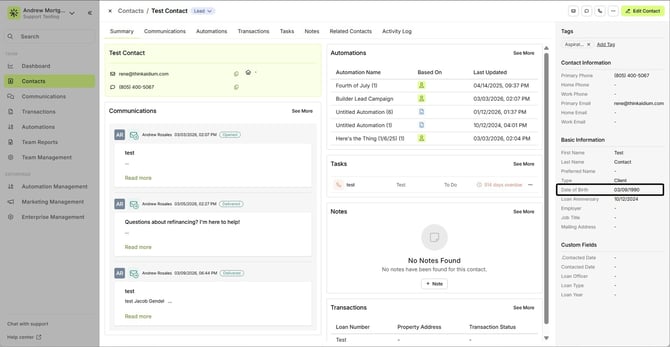
Open a contact record
Confirm the date field is present
Ensure the field contains a valid date
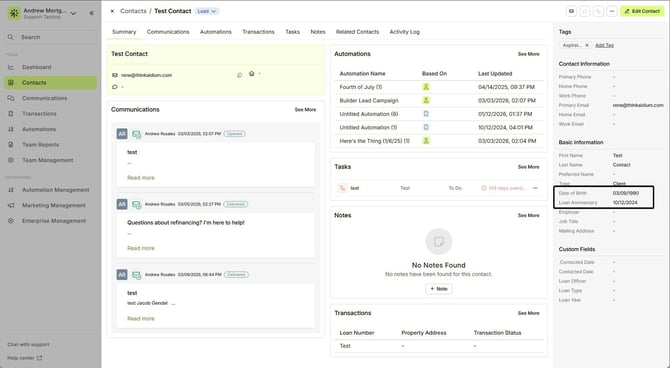
If the date field is empty, the automation will not trigger for that contact.
Step 2: Create the Automation
To create the birthday or anniversary automation:
Navigate to Automations
Click Create Automation
Select Contact-Based Automation
Then configure the Entry Conditions using the appropriate date field.
Example condition: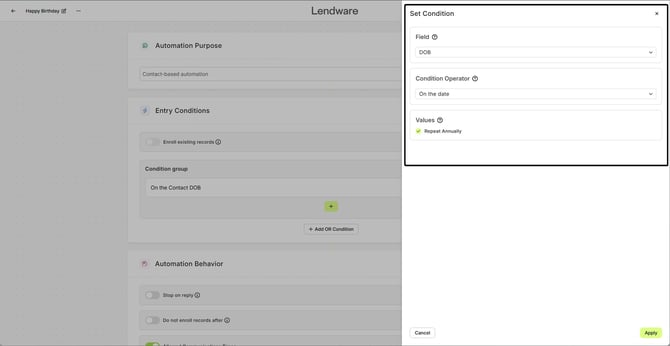
This ensures the automation evaluates the date every year.
We suggest using our Playbook automations and copying the Loan Anniversary and Birthday automations from there. Those are already configured properly, and you can simply update the content or conditions as needed to fit your workflow.
Step 3: Configure the Automation Actions
After the entry condition is set, add the actions you want the automation to perform.
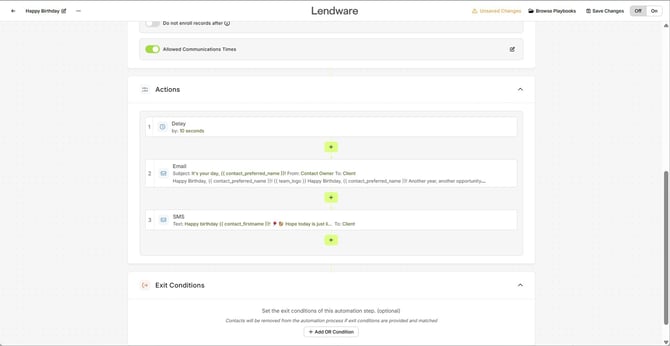
Example workflow:
Step 1
Delay 10 seconds
Step 2
Send Email: Birthday greeting
Step 3
Send SMS: Happy Birthday message
Step 4: Verify SMS Is Enabled
If your automation includes SMS messages, confirm that SMS is properly configured.
Check the following:
The contact has a valid phone number
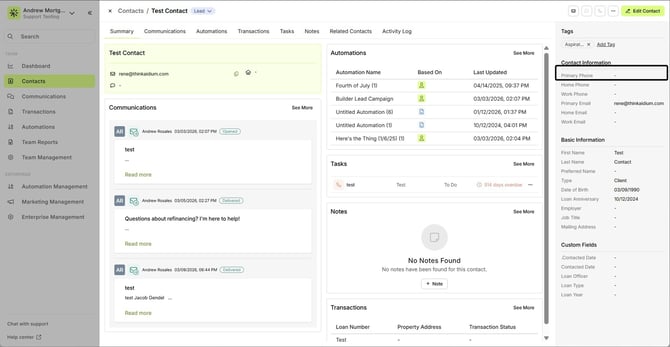
SMS is enabled for your account
The contact has not opted out of SMS
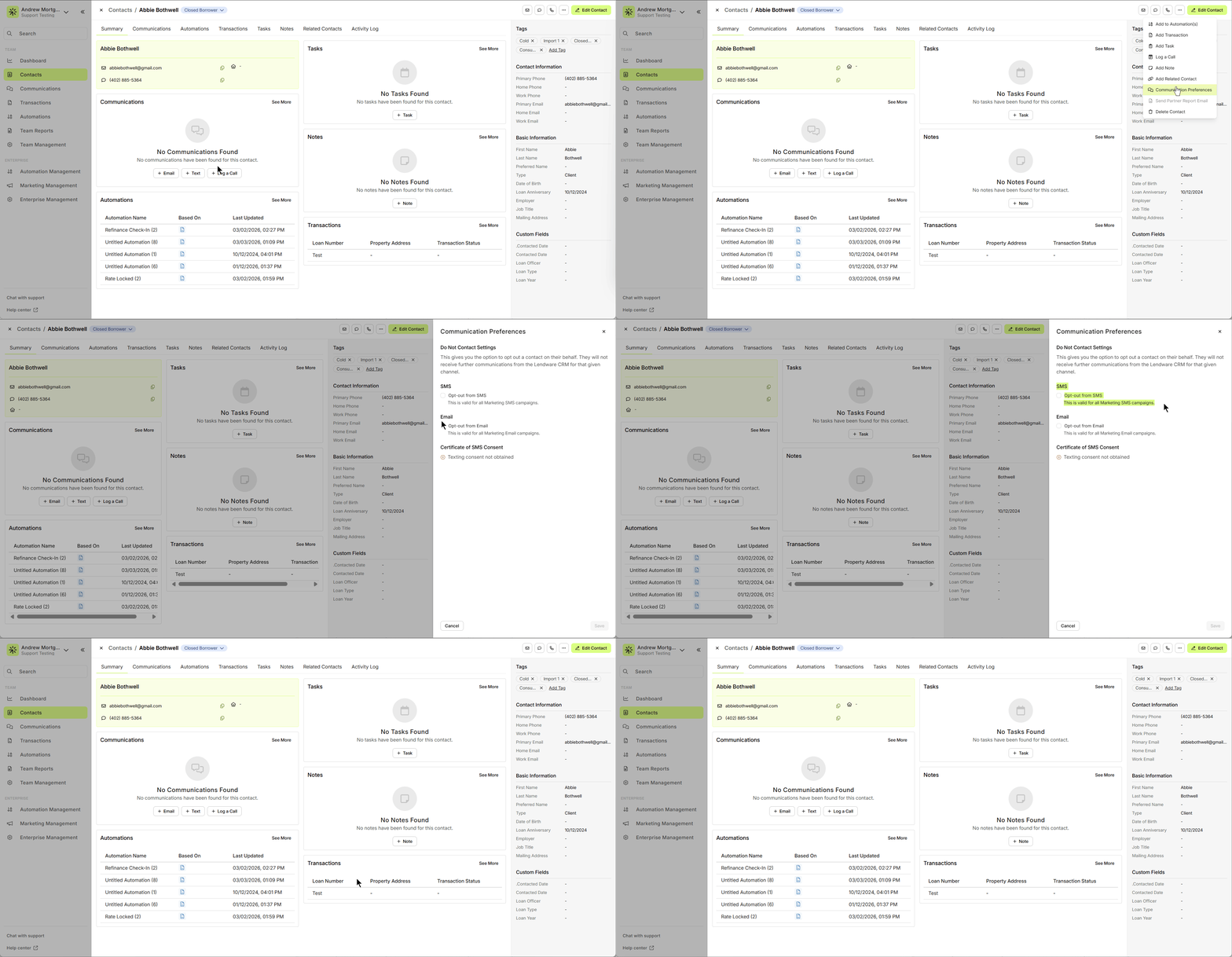
If a contact has opted out of SMS, the system will not send text messages, even if the automation triggers.
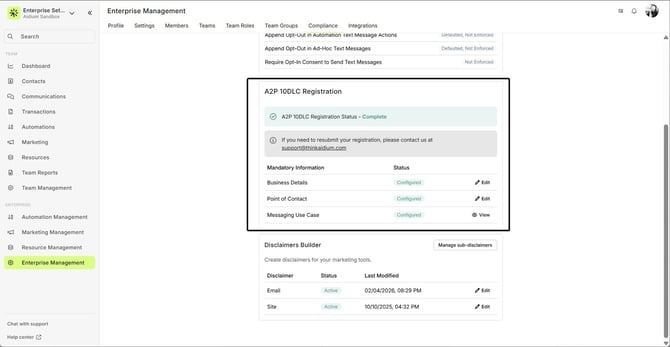
For information about A2P 10DLC registration, please review this Knowledge Base article. This process must be completed in order to send SMS messages from the platform.
Step 5: Test the Automation
Before relying on the automation for real contacts, it is recommended to perform a test.
To test:
Create an internal test contact
Set the birthday or anniversary field to today’s date
Confirm the contact meets the entry conditions
Then monitor the contact’s Activity Log.
You should see events such as:
Contact enrolled in automation
Email or SMS sent
Other automation actions performed
When testing birthday or anniversary automations, temporarily set the date field to today’s date so the automation evaluates immediately.
Remember that date-based conditions are evaluated for all contacts that have a value in the specified field. If you're testing the automation, make sure to temporarily adjust the Communication Preferences so that only your test contact is eligible to enroll. This will help prevent the automation from triggering for other contacts during testing.
How to Confirm the Automation Fired Correctly
If the automation runs successfully, you should see activity recorded on the contact.
To verify this:
Open the contact record
Navigate to the Activity Log
Look for Actions Performed related to the automation
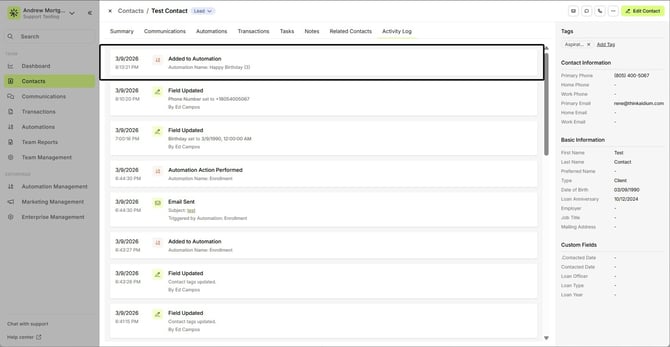
This confirms that the automation enrolled successfully.
Common Failure Points
Birthday and anniversary automations may fail to trigger due to configuration issues.
Below are the most common causes.
| Failure Point | Explanation |
|---|---|
| Missing Date Field | If the birthday or anniversary field is empty, the automation will not evaluate the contact. |
| Incorrect Date Format | Ensure the date field contains a valid date value. Invalid or partially filled dates may prevent the automation from triggering. |
| Entry Conditions Do Not Match | If the automation entry conditions include additional filters (such as tags or contact status), the contact must meet all conditions to enroll. |
| SMS Opt-Out | If the contact has opted out of SMS, text messages will not be sent even if the automation runs successfully. |
| Automation Is Not Enabled | Automations must be active in order to run. Verify that the automation has been enabled. |
Known Behavior
Birthday and anniversary automations rely on date-based evaluation. This means the system checks contacts based on the configured date field and entry conditions.
If the date field does not match the automation logic, the contact will not enroll.
How to Troubleshoot Unexpected Behavior
If a birthday or anniversary automation does not behave as expected, review the following:
Confirm the contact has a valid date in the required field
Verify the contact meets the entry conditions
Check the Activity Log for automation events
Confirm SMS or email delivery settings
Verify the automation is active
These checks usually identify the cause of most issues.
Key Takeaway
Birthday and anniversary automations rely on correctly configured date fields, entry conditions, and messaging settings.
By verifying the date field, testing the automation, and reviewing the Activity Log, you can ensure these automations run reliably each year.
Need more help? Check out: Workflow: Using Repeat Annually in Automation Entry Conditions
Related Articles
Date-Based Automation Conditions
Date-based conditions are commonly used in automations to trigger actions like emails, texts, or task creation. While powerful, these conditions can behave differently than expected if they are not paired with additional date filters. This article ...Understanding Automation Enrollment at Activation
When an automation is enabled in Lendware, the system determines whether contacts or transactions should be enrolled based on the automation’s Entry Conditions and enrollment settings. Depending on how the automation is configured, records that ...Duplicate an Existing Automation
Duplicating an existing automation is a quick and effective way to reuse a successful setup or adapt it for a different purpose. This feature creates an exact copy of the selected automation, allowing you to modify or expand upon it without starting ...Contact-Based Automations
Contact-based automations are designed to support your lead management, contact engagement, education, reminders, and more. These automations help you act on your best intentions without manual follow-up. What is a contact based automation Create new ...Troubleshooting Automations: Step-by-Step Guide and Best Practices
When an automation doesn't perform as expected, it can often be traced back to a few core areas: entry conditions, automation setup, the specific actions within the automation, or the data on the contact or transaction. Step-by-Step Troubleshooting ...