Duplicate an Existing Automation
Duplicating an existing automation is a quick and effective way to reuse a successful setup or adapt it for a different purpose. This feature creates an exact copy of the selected automation, allowing you to modify or expand upon it without starting from scratch.
Why Duplicate an Automation?
Here are a few common reasons for duplicating an automation:
Reusing a weekly or monthly newsletter automation
Repurposing a task flow for a new process
Making adjustments to an existing automation while preserving the original
Rebuilding a current automation for a different goal or audience
Steps to Duplicate an Automation
- Navigate to the Automations Page
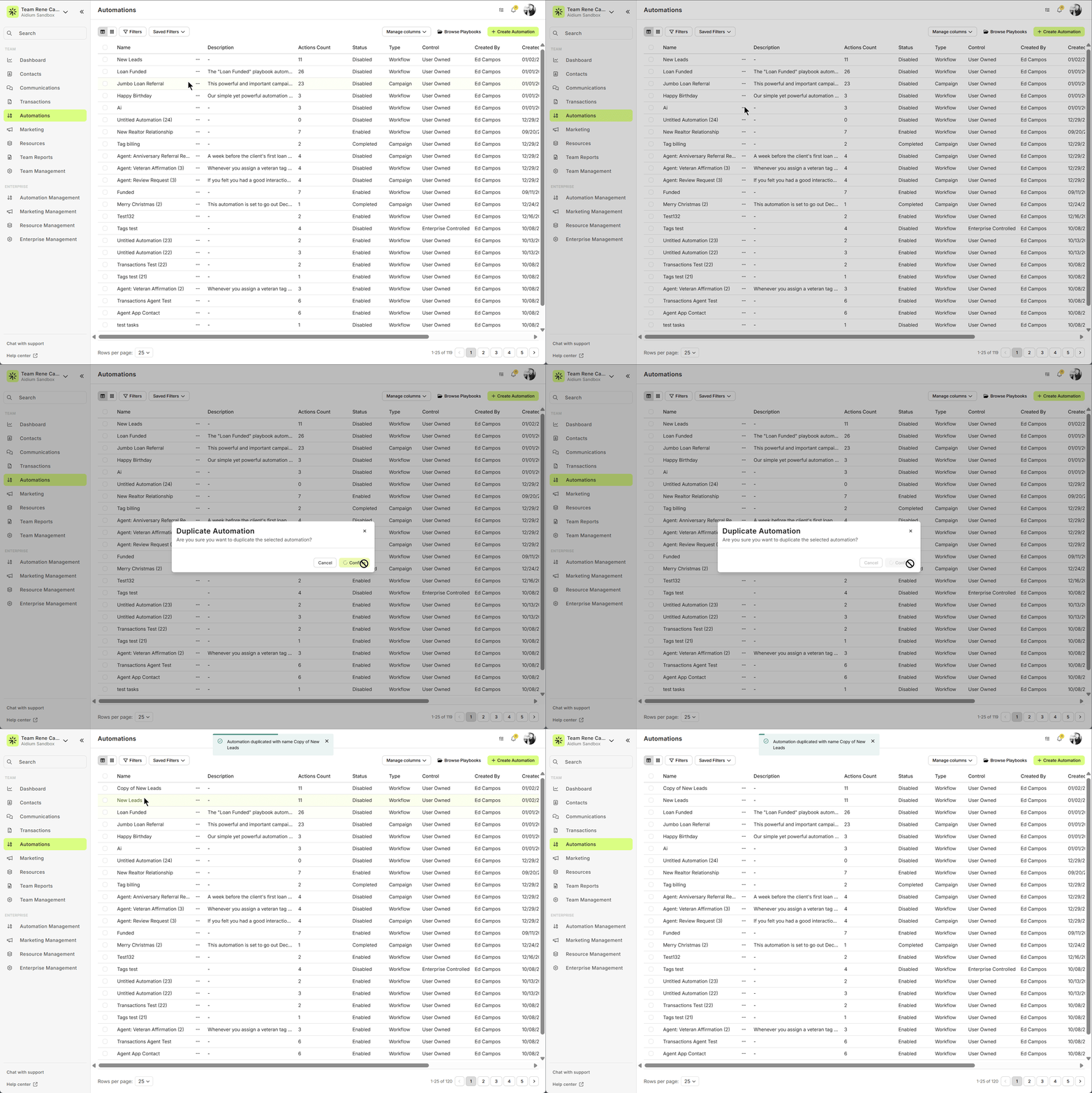
In the left-hand menu, click on “Automations.” - Locate the Automation
Find the automation you'd like to duplicate. Once located, click the vertical ellipsis [...] to the right of the automation name. - Select “Duplicate Automation”
From the drop-down options, click “Duplicate Automation.” - Confirm Duplication
A confirmation window will appear. Click “Confirm.” - Edit the Duplicated AutomationThe newly duplicated automation will appear in the top-left position of the automations list. It will have “Copy of” prefixed to the name and will be disabled by default.
Next Steps: Editing the Duplicated Automation
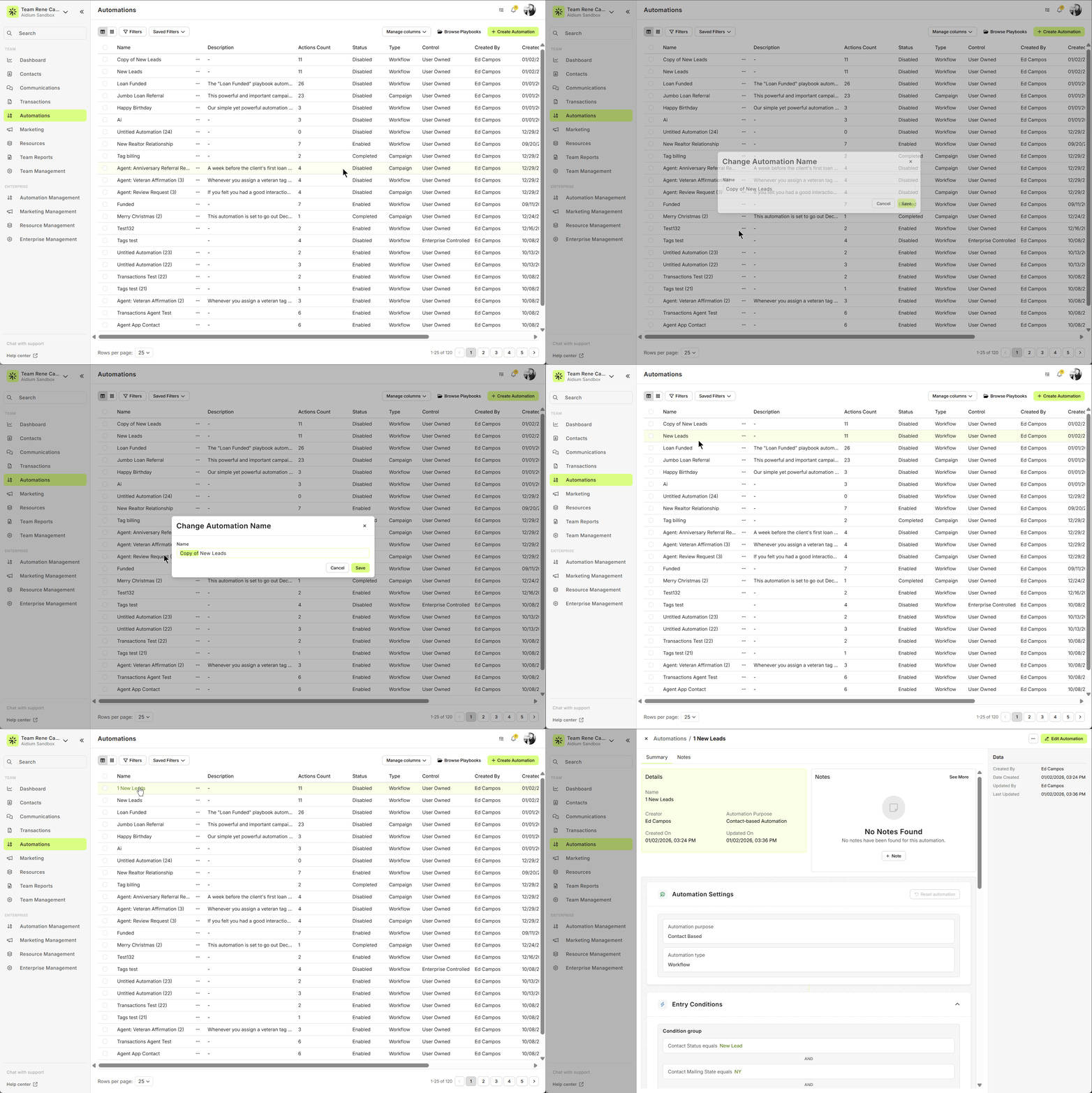
Before enabling the new automation, be sure to update its name and description to reflect its new purpose. You can do this by:
Clicking the ellipsis [...] next to the automation name and selecting the appropriate edit option, or opening the automation and making edits directly inside
📌 Tip: Always review all steps, conditions, and messages within the duplicated automation to ensure everything aligns with its new intended use.
👍 This concludes how to copy or duplicate an existing automation
Related Articles
Copy One or More Automations from an Existing Team
Admins have a couple of powerful ways to build and distribute automations. One of those is through the Team Automation Copy feature—ideal when you need to duplicate one or more automations from a single team to others. We'll be concentrating on the ...Troubleshooting Automations: Step-by-Step Guide and Best Practices
When an automation doesn't perform as expected, it can often be traced back to a few core areas: entry conditions, automation setup, the specific actions within the automation, or the data on the contact or transaction. Step-by-Step Troubleshooting ...Understanding Automation Enrollment at Activation
When an automation is enabled in Lendware, the system determines whether contacts or transactions should be enrolled based on the automation’s Entry Conditions and enrollment settings. Depending on how the automation is configured, records that ...How to Test an Automation Before Going Live
Testing an automation before activating it helps ensure that emails send correctly, conditions behave as expected, and contacts move through the workflow properly. Following a simple testing process can help prevent common issues such as automations ...Birthday & Anniversary Automation Setup Guide
Birthday and anniversary automations allow you to automatically send messages to contacts when a specific date occurs each year. These automations are commonly used for: Birthday greetings Loan anniversaries Client appreciation messages Annual ...