Workflow: Using Repeat Annually in Automation Entry Conditions
The Repeat Annually setting allows you to build a single automation that can trigger and re-trigger each year based on the anniversary of any date field—whether the date occurred in the past, is happening today, or will happen in the future.
Before beginning, it's important to understand how Automations function and how their Entry Conditions work. To get started, click here for the first in a series of Automation how-to articles.
There are many reasons for using Repeat Annually in an automation's entry conditions when based on a date. They can include, loan anniversary check-ins, birthday greetings, yearly check-ins and any other event anniversary.
- What Repeat Annually Does and When to Use It
- How to Use Repeat Annually
- Important Aspects to Repeat Annually
What “Repeat Annually” Does and When to Use It
Repeat Annually allows for a single automation to run and then re-run 'on', 'before', or 'after' the anniversary of a date. The most common use for this would be a "Birthday Greeting" automation that would repeat each year on or about their birthday.
The following graphic demonstrates how using Entry Conditions with a Relative Date and Repeat Annually enabled causes the automation repeat actions each year at the same time.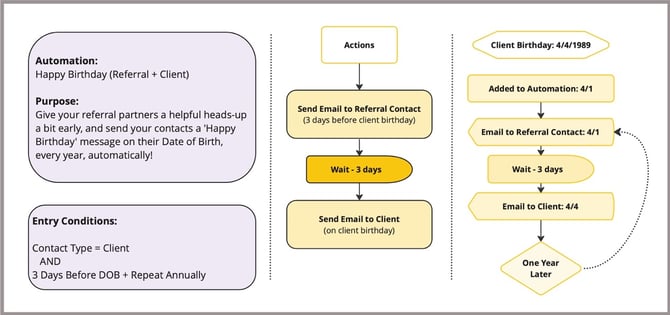
- Repeat Annually will tell an automation to repeat their actions (in order) each year after the initial entry
- Update Email and/or Text Message Actions at anytime to keep communications fresh each year
- Once activated, automation will automatically assign to contacts as they meet the Entry Conditions for an easy: build, activate, move on
How to Use Repeat Annually
Building the automation Entry Conditions mentioned above is easy.
- Create a (or edit an existing) contact based automation with the purpose of sending a "heads-up" to the Referral Contact and a "Happy Birthday" greeting to the Client. The image below shows us adding a name to a new contact based automation.
- After Saving, it's time to build the Entry Conditions. In our case, we'll click the, '+ Set Condition' button and add the following conditions.
- Adding the first condition: Type = "Client"
- Adding the second condition: 3-days before Contact DOB + Repeat Annually
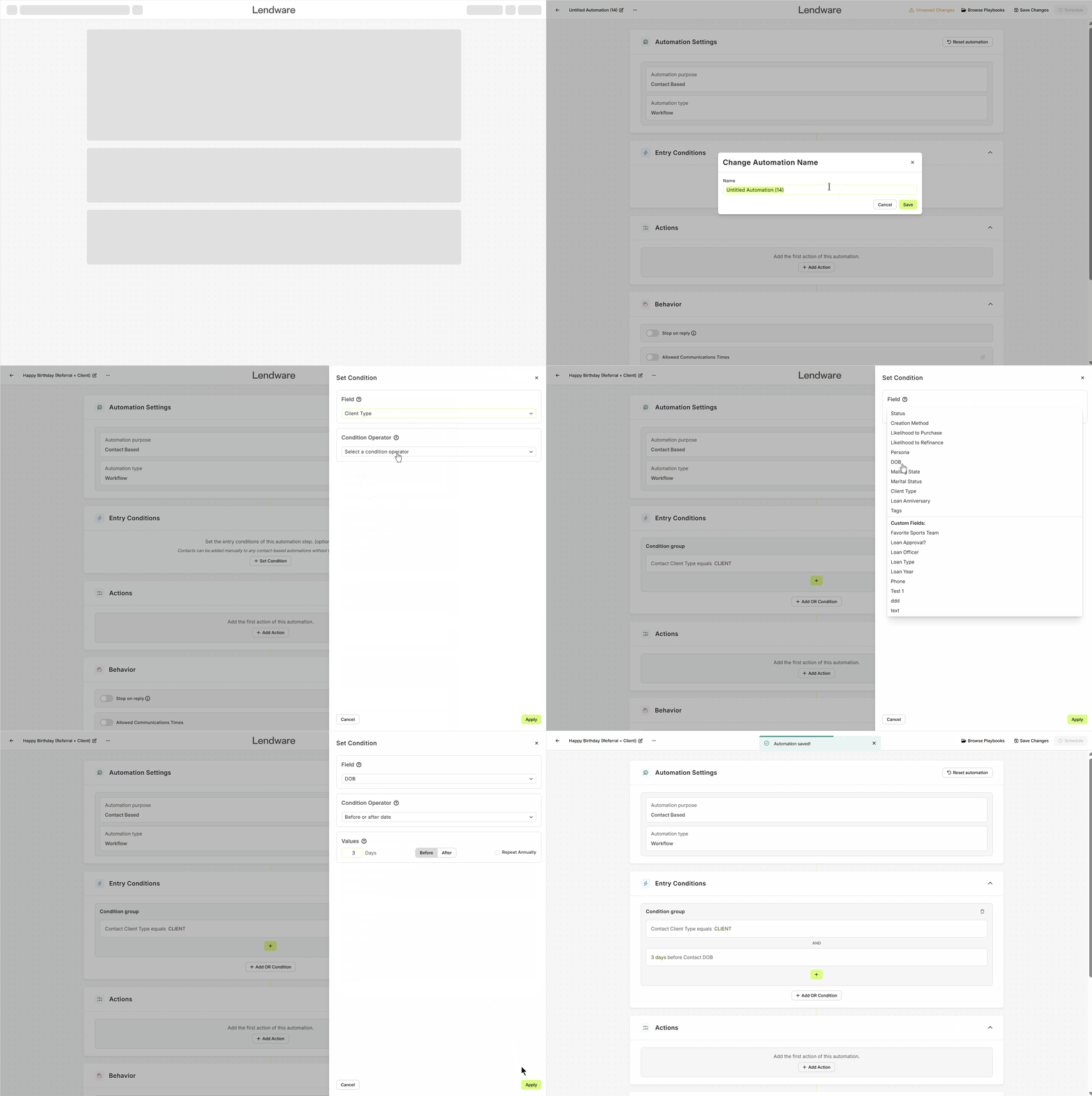
- Once set, any contact that meets the conditions set will automatically be enrolled. .
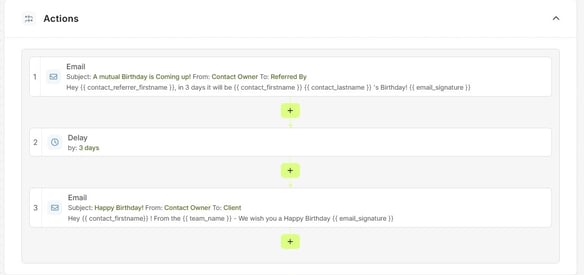
- Now that we have the entry conditions set, we can add Actions. In the below image, we have 3 actions:
- Email to Referral Contact (if one doesn't exist, no worries, it will continue normally)
- Wait 3 days
- Email to Client with a birthday
- Once happy with the automation - Save and Enable it.

This only applies to Workflows. Campaigns do not have this conditions.
Important Aspects to Repeat Annually
Repeated date automations will continue to re-run year-after-year. However, there are some things that a user can adjust. Plus some other important items to be aware of.
Removing the automation from a contact:
You can unassign the automation from a specific contact at any time, preventing it from re-triggering in the future.Disabling the automation entirely:
To cancel the automation for all contacts, you can disable it. This is recommended only if the automation is no longer relevant.Available for both contact and transaction-based workflow automations:
Repeat Annually can be used with any standard date field in a contact or transaction record.
👍 This concludes how repeat annually work and how to use it
Need more help? Check out: Campaigns vs Workflows
Related Articles
Date-Based Automation Conditions
Date-based conditions are commonly used in automations to trigger actions like emails, texts, or task creation. While powerful, these conditions can behave differently than expected if they are not paired with additional date filters. This article ...Birthday & Anniversary Automation Setup Guide
Birthday and anniversary automations allow you to automatically send messages to contacts when a specific date occurs each year. These automations are commonly used for: Birthday greetings Loan anniversaries Client appreciation messages Annual ...Repeat Automations
Repeat Automations allow teams to automatically re-run automation actions on a recurring schedule. This feature supports ongoing workflows such as recurring outreach, reminders, and partner reporting without requiring manual re-enrollment. Repeat ...Understanding Automation Enrollment at Activation
When an automation is enabled in Lendware, the system determines whether contacts or transactions should be enrolled based on the automation’s Entry Conditions and enrollment settings. Depending on how the automation is configured, records that ...How to Test an Automation Before Going Live
Testing an automation before activating it helps ensure that emails send correctly, conditions behave as expected, and contacts move through the workflow properly. Following a simple testing process can help prevent common issues such as automations ...