Preventing Unintended Emails in Lendware
Nobody likes sending an email by accident. Whether it’s an automation firing at the wrong time or someone who shouldn’t have access still being in a team, unintended emails can create confusion. This guide will help you keep your inboxes and teams clean so emails only go where they’re supposed to.
1. Restricting Inbox Integrations
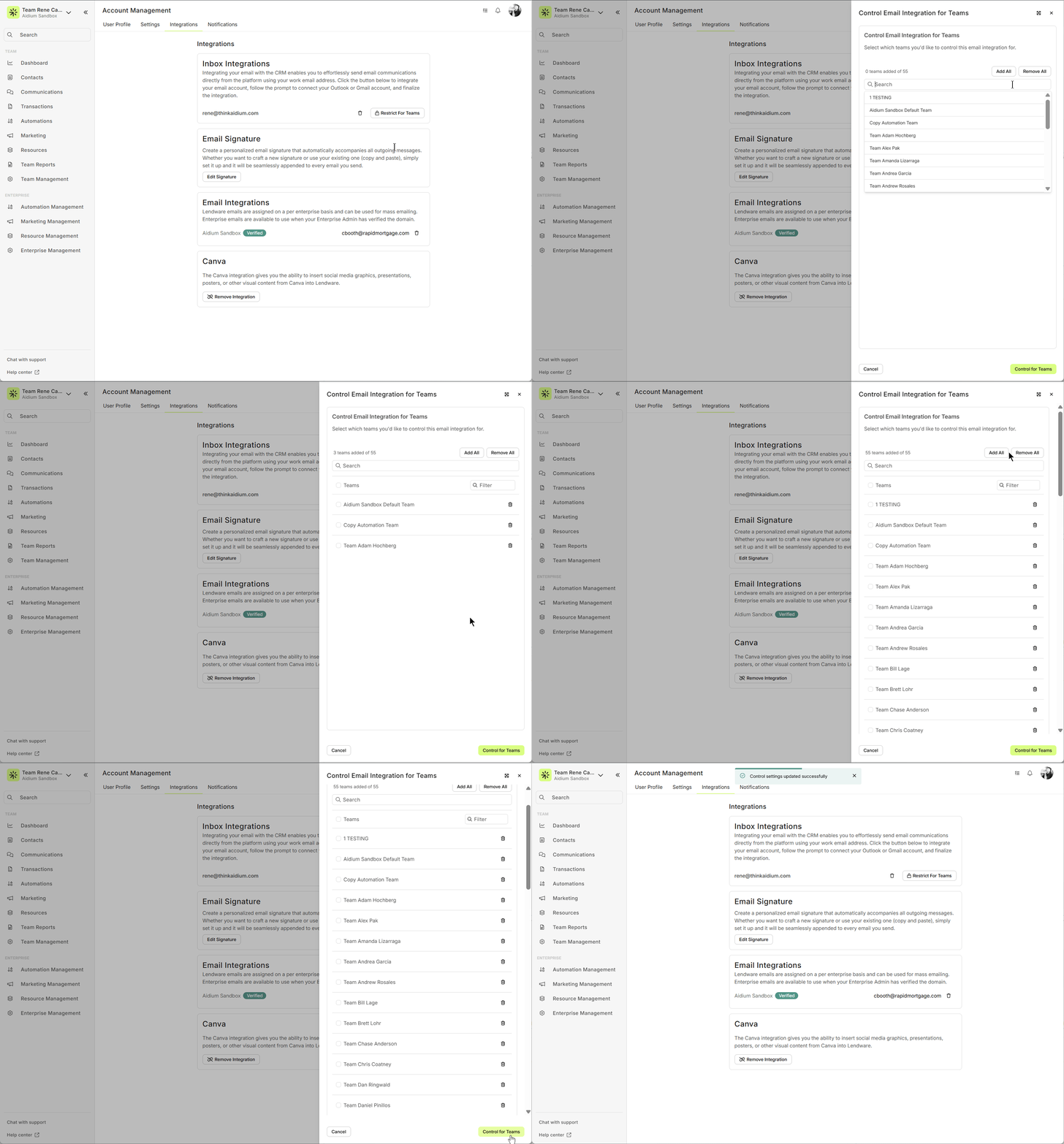
What it does: Prevents emails from syncing automatically to teams that shouldn’t have access. You can choose which teams are allowed to use a specific email integration, keeping email flow controlled and avoiding unintended messages.
How to do it:
Navigate to Settings > Integrations > Inbox Integrations.
Click Restrict Access.
The Control Email Integration for Teams section will appear.
Select which teams are allowed to use this email integration.
Click Save to confirm.
💡 Tip: Double-check which integrations are active—restricting the wrong team may prevent important emails from syncing.
2. Removing Users from Teams
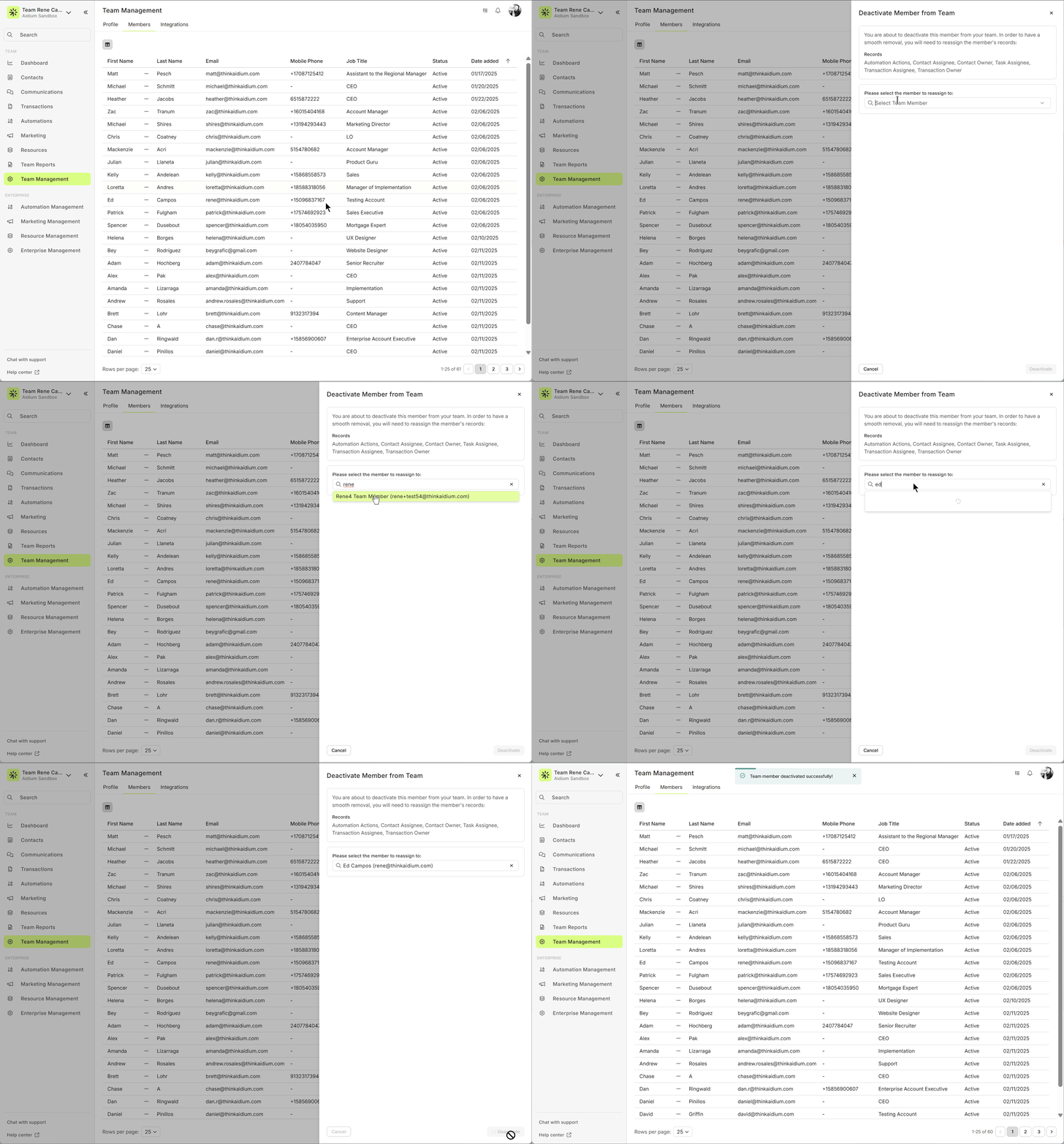
Why it matters: Users who are no longer part of a team shouldn’t have access—they could accidentally trigger emails or see sensitive info.
How to do it:
Go to Team Settings > Users.
Find the person you want to remove.
Click Remove User.
Confirm the removal.
💡 Tip: Before removing someone, make sure they don’t own any active tasks or automations.
3. Common Mistakes to Avoid
❌ Removing the wrong user or inbox integration by accident.
❌ Forgetting to check if someone owns active tasks or automations before removing them.
❌ Leaving old integrations active, which can trigger unintended emails.
❌ Removing the wrong user or inbox integration by accident.
❌ Forgetting to check if someone owns active tasks or automations before removing them.
❌ Leaving old integrations active, which can trigger unintended emails.
Do vs Don’t: Preventing Unintended Emails
✅ Do (Correct Actions) 🚫 Don’t (Common Mistakes) Restrict Inbox Access (and scope by team) – Turn on Restrict Access and use Control Email Integration for Teams to allow syncing only for the teams that should see those emails. Leave inbox active for removed users or all teams – this can sync emails to the wrong team and trigger unintended communications. Remove Users Promptly – As soon as a user leaves the team, remove them from the system. Delay removal – users still in the system can accidentally trigger automations. Disable Automations on Inactive Contacts – If a contact is removed or inactive, pause any automations tied to them. Keep automations running for contacts no longer assigned—emails may go to the wrong recipients. Remove Any Active Integrations – Deactivate or remove integrations like Encompass, LendingPad, or other connected platforms for users or teams that are no longer active. Leave integrations active – old connections can trigger unintended emails or syncs. Reassign Team Responsibilities – If a team is deleted, make sure tasks and contacts are reassigned before deletion. Delete teams without checking – contacts may be left unassigned, causing workflow gaps or lost communication. Double-Check Before Saving Changes – Always confirm restrictions, removals, or deletions to prevent mistakes. Click through quickly – mistakes happen when changes are rushed or unchecked.
| ✅ Do (Correct Actions) | 🚫 Don’t (Common Mistakes) |
|---|---|
| Restrict Inbox Access (and scope by team) – Turn on Restrict Access and use Control Email Integration for Teams to allow syncing only for the teams that should see those emails. | Leave inbox active for removed users or all teams – this can sync emails to the wrong team and trigger unintended communications. |
| Remove Users Promptly – As soon as a user leaves the team, remove them from the system. | Delay removal – users still in the system can accidentally trigger automations. |
| Disable Automations on Inactive Contacts – If a contact is removed or inactive, pause any automations tied to them. | Keep automations running for contacts no longer assigned—emails may go to the wrong recipients. |
| Remove Any Active Integrations – Deactivate or remove integrations like Encompass, LendingPad, or other connected platforms for users or teams that are no longer active. | Leave integrations active – old connections can trigger unintended emails or syncs. |
| Reassign Team Responsibilities – If a team is deleted, make sure tasks and contacts are reassigned before deletion. | Delete teams without checking – contacts may be left unassigned, causing workflow gaps or lost communication. |
| Double-Check Before Saving Changes – Always confirm restrictions, removals, or deletions to prevent mistakes. | Click through quickly – mistakes happen when changes are rushed or unchecked. |
4. Quick Best Practices
Review inbox integrations and team memberships regularly.
Keep a checklist before making changes.
Document any changes in a shared internal log.
Train your team to follow these steps to prevent accidental emails.
Review inbox integrations and team memberships regularly.
Keep a checklist before making changes.
Document any changes in a shared internal log.
Train your team to follow these steps to prevent accidental emails.
5. Summary
By following these steps, you can:
Avoid sending emails by mistake
Keep your teams and inboxes secure
Maintain smooth workflows and reduce errors
Need more help? Check out: Restricting Inbox Integrations in Lendware
How to Deactivate a User in Lendware (Team-Level & Enterprise-Level)
Related Articles
Email Templates in Lendware: Creation, Management, and Usage
Design once, reuse everywhere—create consistent, branded emails across teams with full control over layout and content. Email Templates in Lendware allow you to create reusable, visually rich emails using the Lendware Email Template Builder. These ...When Are Emails Sent via Inbox Integration vs. Lendware’s Email Servers?
Emails sent from Lendware can go through one of two channels, each designed for specific use cases and offering unique benefits: Inbox Integration (Google or Microsoft 365) Lendware's Marketing & Mass Email Servers Our goal with every email is to ...Meet the AI Email Editor for AdHoc & Mass Emails.
Say goodbye to writer’s block! Our AI Email Editor helps you draft, polish, and perfect emails in just a few clicks directly in the AdHoc or Mass Email editors. This feature is currently in beta and not yet generally available. If you’d like early ...Communications Page Overview
The Communications page is your team's centralized inbox for managing email and SMS/text conversations with contacts. It’s designed to provide a clear, organized way to track all recent communications across your team. To get started, click on ...Ways to Send and Respond with Text Message or Email
In just about any place that you find a contact referenced, a text message or email can be quickly sent to that contact. We'll show all the ways that you can send text message or email to a contact within Lendware. Communication is key in building ...