Restricting Inbox Integrations in Lendware
Lendware lets you control which teams can see your email activity. By default, all teams you’re a member of will display your email interactions, but you can restrict visibility to only the teams that matter.
How to Restrict Email Activity
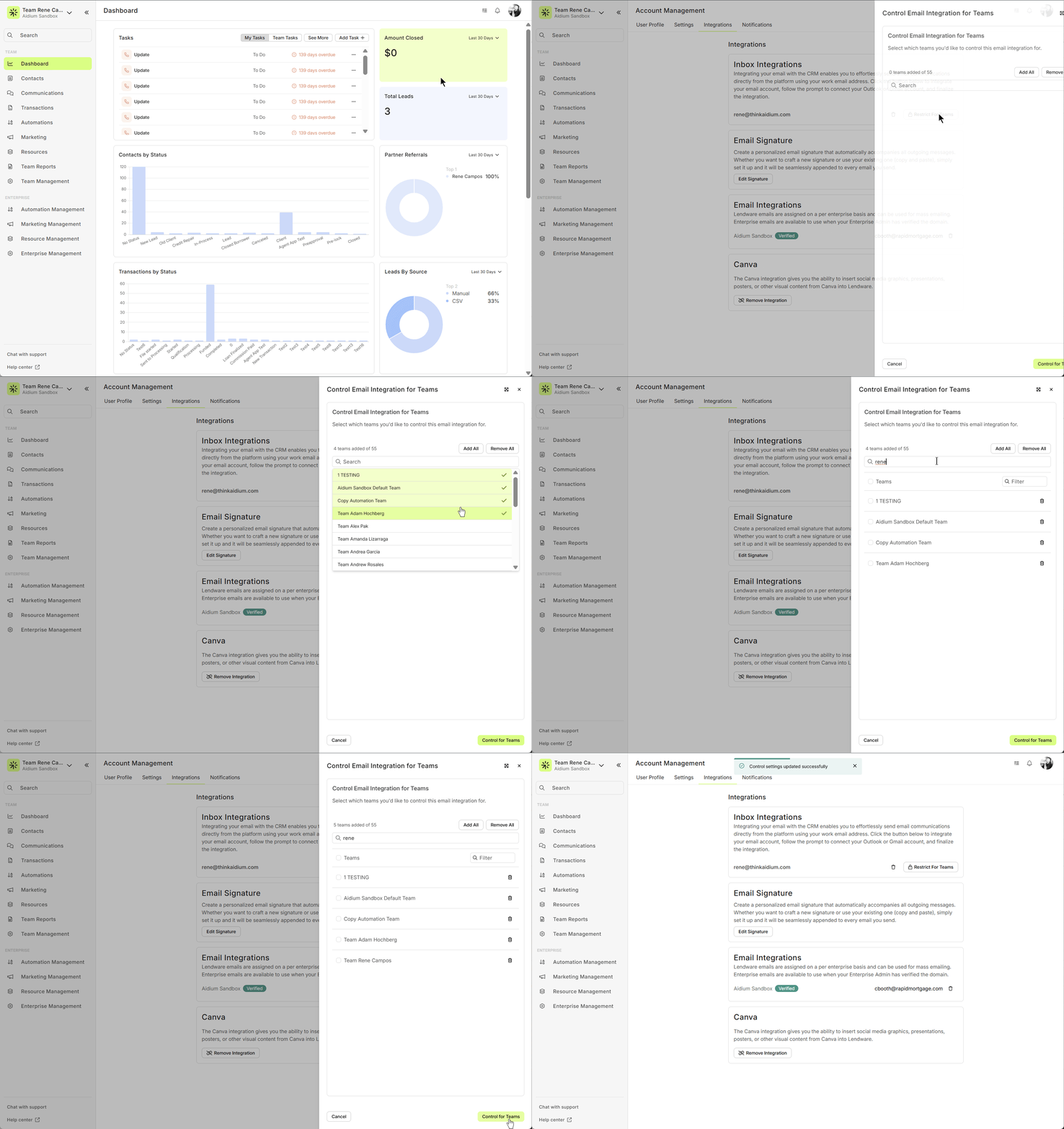
Go to Integrations
Navigate to Account Management → Integrations.
Make sure your email is connected to Lendware .
Open Team Restrictions
Click Restrict for Teams.
A drawer will open showing all teams you belong to.
Select Teams
Choose the teams where you want your email activity to appear.
Leave unselected teams unchecked—these teams will not display your emails.
Save Your Settings
Click Save.
A confirmation toast will appear indicating your changes were applied successfully.
Go to Integrations
Navigate to Account Management → Integrations.
Make sure your email is connected to Lendware .
Open Team Restrictions
Click Restrict for Teams.
A drawer will open showing all teams you belong to.
Select Teams
Choose the teams where you want your email activity to appear.
Leave unselected teams unchecked—these teams will not display your emails.
Save Your Settings
Click Save.
A confirmation toast will appear indicating your changes were applied successfully.
Pro Tip: If you remove all teams, no email activity will be displayed on any team, which can be useful for admins or for privacy purposes.
How It Works
Selected Teams: Emails you send and receive will appear here.
Unselected Teams: Emails will not appear.
Replies from Contacts: May still appear on selected teams if the contact exists there.
No Teams Selected: Your email activity will not appear anywhere.
Selected Teams: Emails you send and receive will appear here.
Unselected Teams: Emails will not appear.
Replies from Contacts: May still appear on selected teams if the contact exists there.
No Teams Selected: Your email activity will not appear anywhere.
Example: Same Contact in Two Teams
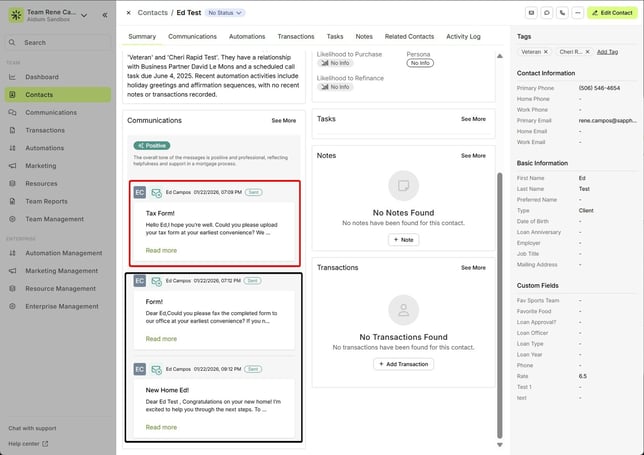
Team Rene ✅ (selected in Restrict)
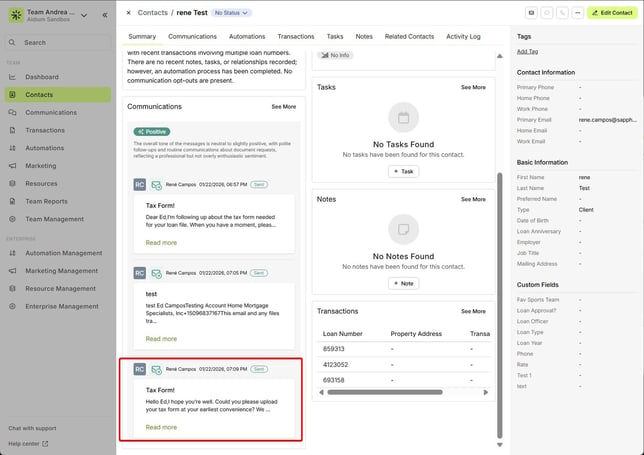
Team Andrea ❌ (not selected in Restrict)
Team Rene ✅ (selected in Restrict)
Team Andrea ❌ (not selected in Restrict)
What You’ll See
Before Restricting
Emails sent outside Lendware show up on both Team Rene and Team Andrea.
Replies from the contact also appear on both teams.
After Restricting (only Team Rene selected)
Emails and replies appear only on Team Rene.
Team Andrea no longer logs those emails.
Benefits of Restricting Inbox Integrations
Stay Focused: Only relevant teams see your email activity.
Maintain Privacy: You control who can view your email interactions.
Streamline Workflows: Reduce clutter across multiple teams and keep your CRM organized.
Admin Control: Admins can ensure sensitive email activity only appears where it should.
Remember: Restricting Inbox Integrations does not stop emails from being sent—it only controls which teams display email activity in Lendware.
Stay Focused: Only relevant teams see your email activity.
Maintain Privacy: You control who can view your email interactions.
Streamline Workflows: Reduce clutter across multiple teams and keep your CRM organized.
Admin Control: Admins can ensure sensitive email activity only appears where it should.
Remember: Restricting Inbox Integrations does not stop emails from being sent—it only controls which teams display email activity in Lendware.
Need more help? Check out: Preventing Unintended Emails in Lendware
Related Articles
ARIVE to Lendware Connection Overview
Lendware LOS Connection via Zapier Basics If a loan origination system (LOS) has a direct integration with Zapier, we may be able to connect it to Lendware to add and update transaction and contact information from the LOS to our system. ARIVE and ...RingCentral Integration
Overview The RingCentral integration replaces the standard Twilio integration, allowing teams to send and receive SMS messages and make calls through RingCentral while logging all communication within the CRM. Important: RingCentral and Twilio cannot ...Lendware Integration: Mortgage Coach
This guide provides a comprehensive overview of the Mortgage Coach integration within Lendware. By connecting your Mortgage Coach account, you can seamlessly generate and manage presentations directly from your Lendware transaction records. Overview ...Lendware Azure Entra SAML SSO & SCIM Integration Guide
This guide provides step-by-step instructions for configuring Single Sign-On (SSO) and automated user provisioning (SCIM) between your Microsoft Entra (formerly Azure AD) environment and Lendware. By completing this integration, your team members ...BytePro & Lendware Field Mapping
This document provides a comprehensive field mapping template for integrating BytePro loan origination system with the Aidium API. The mapping is based on: Executive Summary The integration involves mapping data from BytePro's loan file structure to ...