User Integration with Encompass
Connecting a user to your company’s Encompass integration is quick and easy. It can be completed by the user themselves, a Team Lead, or your Lendware Admin.
Before you are able to integrate a user with your company's Encompass account, it must first be added during your company's account setup process. Once completed, integrating takes just a few steps for each user.
Encompass loans or transactions may begin pushing to Lendware within a few minutes or may take longer, depending upon the current Encompass usage or load as well as many other factors out of our control.
Lendware will automatically request historical or past loans, as well as current (pipeline) transactions. It is your company's Encompass administrator that controls what is allowed to be pushed to Lendware. Additionally, there is likely a limit to the age of the loans available to push.
⚠️ If a user does not start or close loans in their name, there is no need to integrate, as loans must be in that user's name to push into Lendware.
- Add a team member to the Integration
- Remove a team member from the integration
Add one or more team members to the Encompass Integration
- To begin, click on 'Team Management' in the menu group on the far left. Then choose 'Integrations'.
- Next, the Team Integrations will load. Look for the section labeled, 'Encompass Integrations'.
- Click on the 'Team Member' drop-down and choose the User or Team Member you wish to integrate with Encompass.
- After you choose the user you want to integrate, click within the 'Encompass Username' box and type or paste the Encompass UserID of that user. It must match the Encompass Username perfectly.
Once complete, click the 'Add Member' button, in yellow. - At this point, the Encompass Integration will display the User in it's own box above the section we just added them from. It should look like the image below.
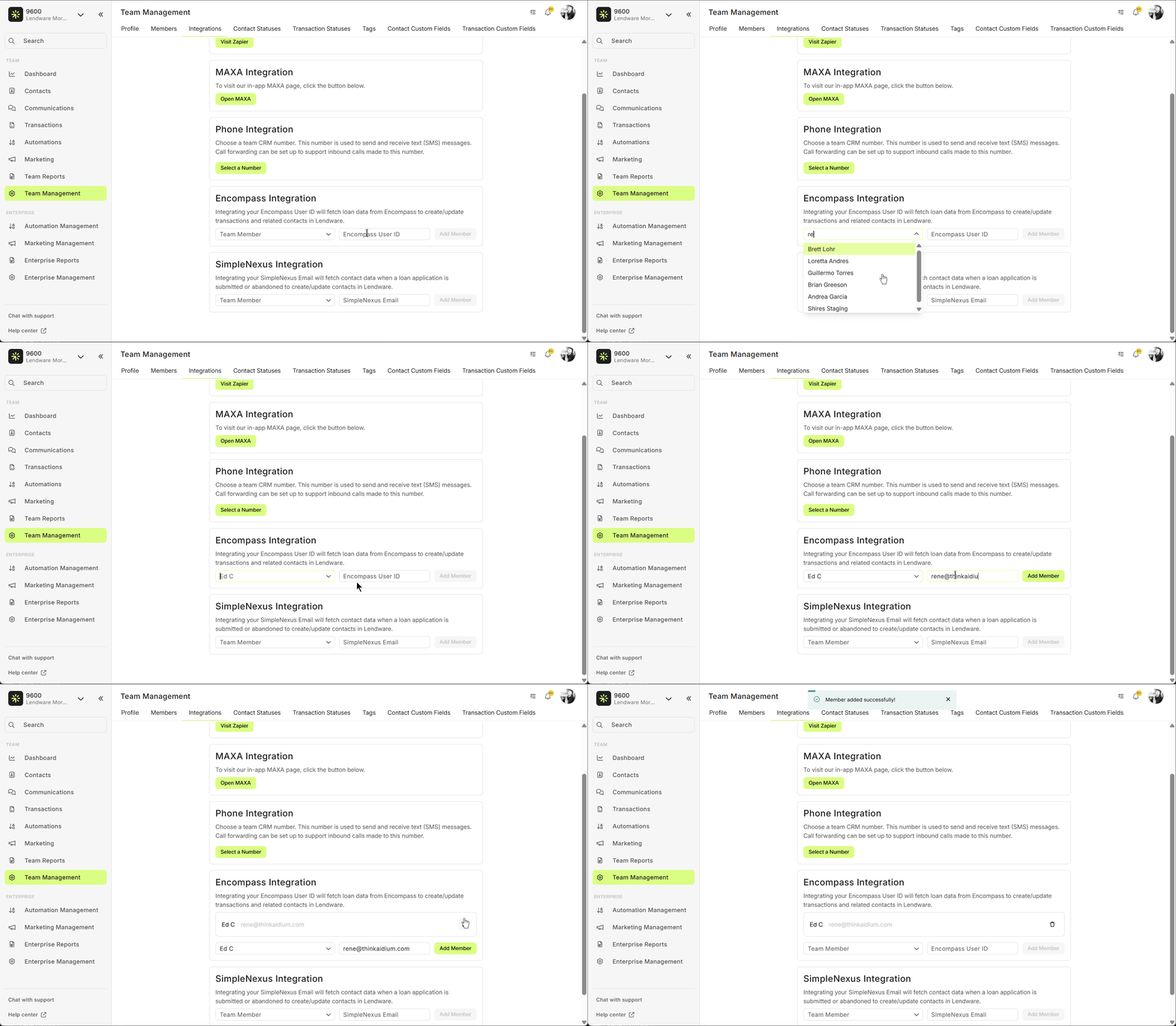
- If you are an Administrator or Team Lead and you wish to add additional team members to the integration, you can do so at this time by following steps 3 through 5 above.
You can only integrate users that are on this. To integrate additional team members that are on a different team, you can switch teams using the drop-down at the upper-left of the screen.
⚠️ When integrating multiple users in rapid succession, there will likely be a delay for each subsequent user's transactions to push to Lendware.
👍 This concludes adding a user or team member to the Encompass Integration
Once complete, click the 'Add Member' button, in yellow.
You can only integrate users that are on this. To integrate additional team members that are on a different team, you can switch teams using the drop-down at the upper-left of the screen.
⚠️ When integrating multiple users in rapid succession, there will likely be a delay for each subsequent user's transactions to push to Lendware.
👍 This concludes adding a user or team member to the Encompass Integration
Remove team member from the Encompass Integration
To remove a team member or user from the integration, follow the previous steps to get to the Team Integrations page.
Find the user you wish to disconnect from the integration and look for the 'trash can' icon to the right. Simply click on the icon to remove that user from the integration.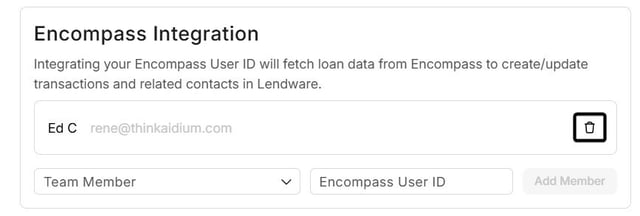
👍 This concludes removing a user or team member to the Encompass Integration
Related Articles
Canva Integration BETA
Canva has become the go-to app for companies large and small, teams and individuals, to create, manage and edit their brand assets for sales and marketing use. Now with the Lendware integration, you can add Canva assets to emails with ease. Lendware ...SimpleNexus Integration for Users
Connecting yourself or another user to the SimpleNexus integration can be completed in just a few steps. Once connected, any new application submitted — or application abandoned — will automatically be added to Lendware as a contact, categorized with ...Intro to User Settings in Lendware
The User Settings section allows each user to personalize their experience within Lendware, update login credentials, and manage outbound communication preferences. All changes made in User Settings apply only to the currently logged-in user, but ...Enterprise Domain User Setup – Send All Email Using Your Company Domain (Email Integration)
If your enterprise admin has enabled an Enterprise Domain, you can easily set up your company email for sending marketing, newsletters, nurture sequences, and more. This ensures full brand consistency for all outgoing emails. This walkthrough is only ...Update User Login Email
Changing or updating your login email is quick and secure with only a few steps. To begin, we'll log-in as the user for whom we want to update the login email. Then following the steps below, within a few minutes, our login email will be updated. ⚠️ ...