Enterprise Domain User Setup – Send All Email Using Your Company Domain (Email Integration)
If your enterprise admin has enabled an Enterprise Domain, you can easily set up your company email for sending marketing, newsletters, nurture sequences, and more. This ensures full brand consistency for all outgoing emails.
This walkthrough is only available if your Lendware enterprise is fully set up for this option. If not, your Enterprise Admin must complete the setup steps firsts, found here.
Skip to a video walk-though
Once your enterprise is setup for this, there are only a few steps necessary to begin sending all emails, through Lendware, from your company email address.
Steps to Set Up Your Company Email
Go to Account Settings
Click your profile photo in the top-right corner.
Select Account Settings from the dropdown menu.
Open Integrations
From the left-hand menu, select Integrations.
Scroll down to the Email Integrations section.
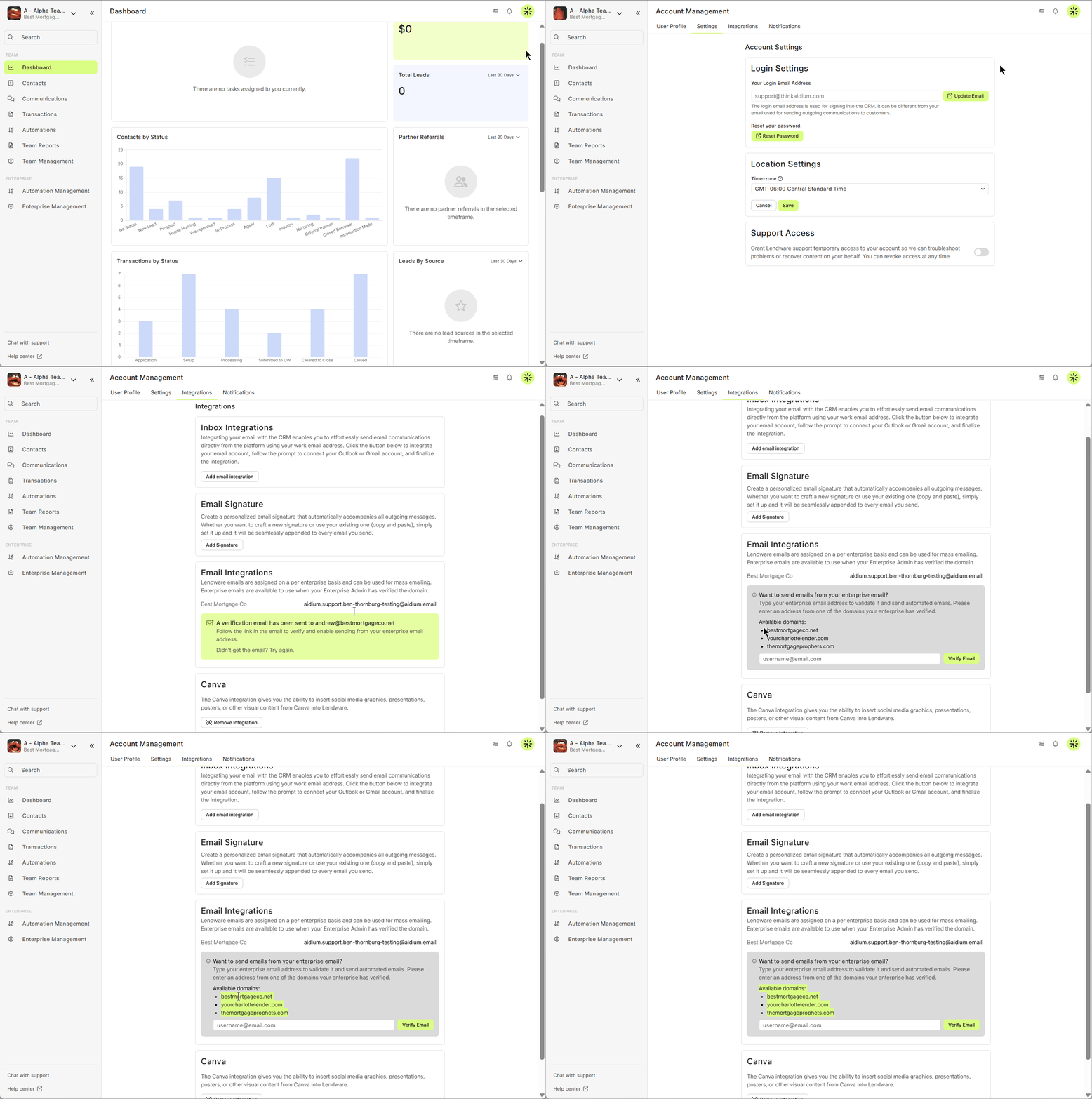
Enter Your Company Email
If your enterprise domain is ready, you’ll see a gray section to add your company email address.
If multiple approved domains are available, they will be listed under Available domains.
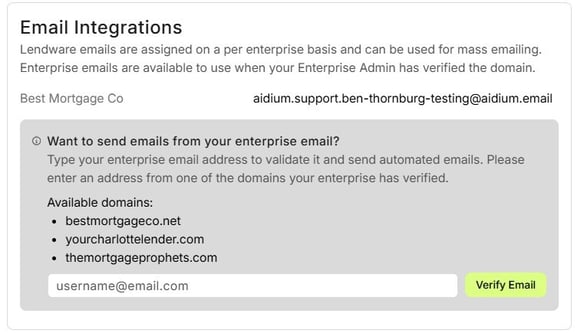
Verify Your Email
Enter your company email and click Verify Email.
Check your inbox for a verification email from no-reply@aidium.app.

Click the link in the email to confirm.
Confirm Setup in Lendware
After verification, you’ll be redirected back to Lendware.
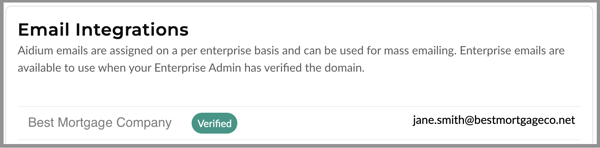
Your email will now display with a Verified badge.
Go to Account Settings
Click your profile photo in the top-right corner.
Select Account Settings from the dropdown menu.
Open Integrations
From the left-hand menu, select Integrations.
Scroll down to the Email Integrations section.
Enter Your Company Email
If your enterprise domain is ready, you’ll see a gray section to add your company email address.
If multiple approved domains are available, they will be listed under Available domains.
Verify Your Email
Enter your company email and click Verify Email.
Check your inbox for a verification email from no-reply@aidium.app.
Click the link in the email to confirm.
Confirm Setup in Lendware
After verification, you’ll be redirected back to Lendware.
Your email will now display with a Verified badge.
That is it! We're finished setting-up our company email address for sending though Contact based automations!
⚠️ This is designed to work in conjunction with 'Inbox Integration' to your business email. Be sure to always integrate your Outlook (Microsoft 365) or Google (Gmail for business). To learn how, click here.
Video walk-through of live setup
👍 This concludes the User setup of a company email with an Enterprise Domain
👍 This concludes the User setup of a company email with an Enterprise Domain
Related Articles
Intro to User Settings in Lendware
The User Settings section allows each user to personalize their experience within Lendware, update login credentials, and manage outbound communication preferences. All changes made in User Settings apply only to the currently logged-in user, but ...User Integration with Encompass
Connecting a user to your company’s Encompass integration is quick and easy. It can be completed by the user themselves, a Team Lead, or your Lendware Admin. Before you are able to integrate a user with your company's Encompass account, it must first ...SimpleNexus Integration for Users
Connecting yourself or another user to the SimpleNexus integration can be completed in just a few steps. Once connected, any new application submitted — or application abandoned — will automatically be added to Lendware as a contact, categorized with ...Add an Email Signature to Your User Settings in Lendware
A professional email signature is essential for consistent branding, compliance, and a polished look in all your communications. In Lendware, adding a signature is quick and easy, whether your company has a Marketing Department, an HTML-savvy ...Canva Integration BETA
Canva has become the go-to app for companies large and small, teams and individuals, to create, manage and edit their brand assets for sales and marketing use. Now with the Lendware integration, you can add Canva assets to emails with ease. Lendware ...