Update User Login Email
Changing or updating your login email is quick and secure with only a few steps.
To begin, we'll log-in as the user for whom we want to update the login email. Then following the steps below, within a few minutes, our login email will be updated.
⚠️ Be sure you have access to the new email before beginning. There will be a verification email sent to the new email address (steps 3 and 4 below). That email will expire 5-minutes after it is sent.
- Update Login Email
- Important Next Steps
Update Login Email
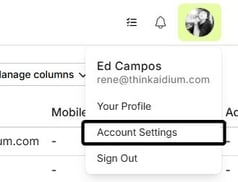
- At the bottom-left of the screen, we'll first click on our name, then choose 'Account Settings'.
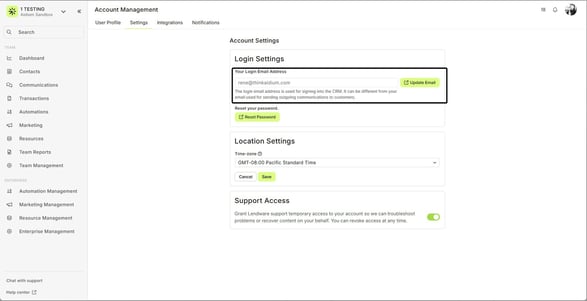
- On the 'Account Settings' page and on the 'Settings' tab, we'll click the 'Update Email' button.
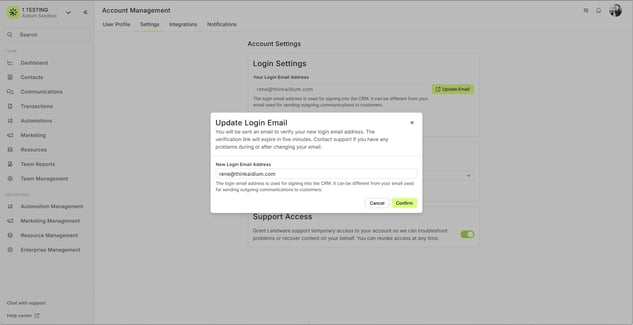
- The 'Update Login Email' dialog will appear where we'll update the email address we want to use for logging in going forward. Then, click the 'Confirm' button. **The email address must be unique to Lendware. It cannot be already in use for another user.
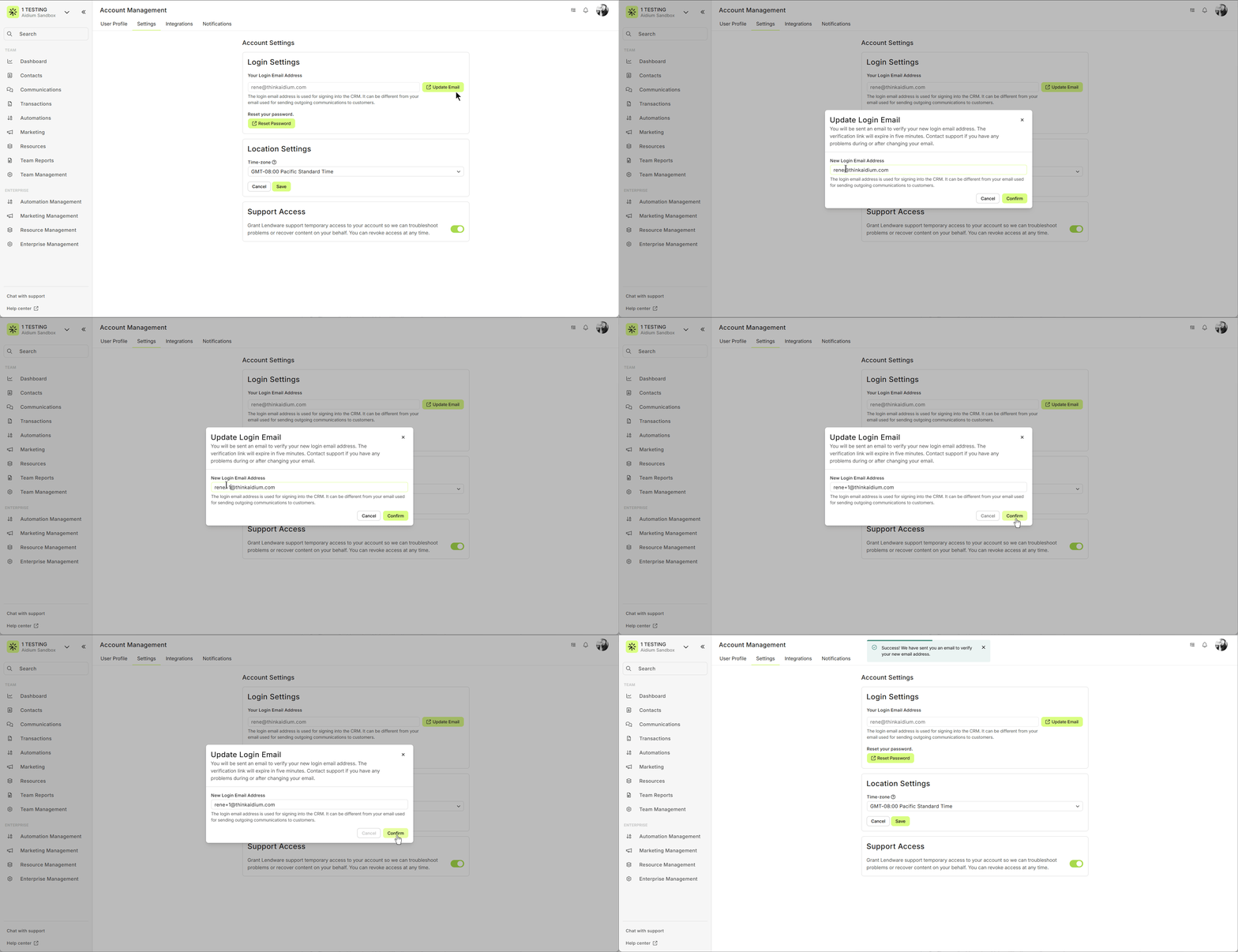
An email will be sent to the updated email address with a 5-minute expiration.
In the animated GIF below, each step above is demonstrated.
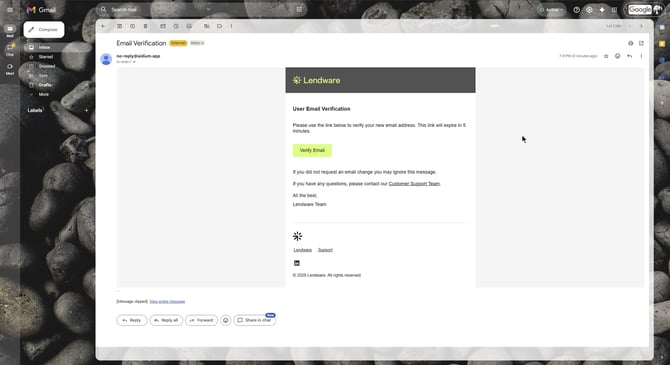
- Confirming new login email. You must have access to the new login email address. Look for the email from "no-reply@aidium.app" and click the 'Verify Email' button. This will open a new browser tab to confirm.
If you do not see the email, be sure to check your 'junk' or 'spam' folders. If your company uses 3rd-party filtering (like, mimecast or barracuda), you may need to check there, as well.
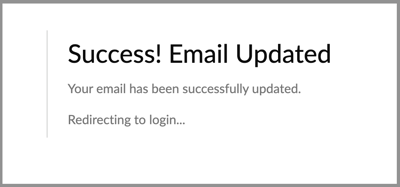
- Once confirmed, we'll see "Success! Email Updated" message.
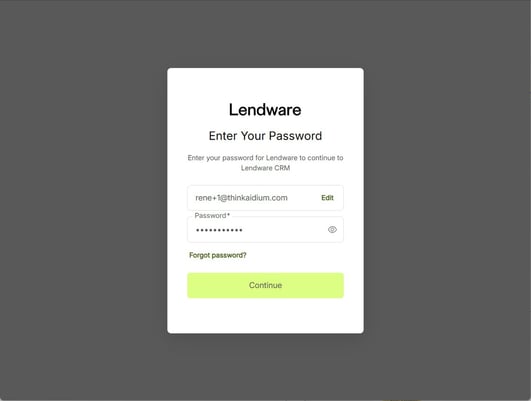
- After a few seconds, we're redirected to the login page. To log in, we'll use our newly verified user login email address, along with the existing password for our account.
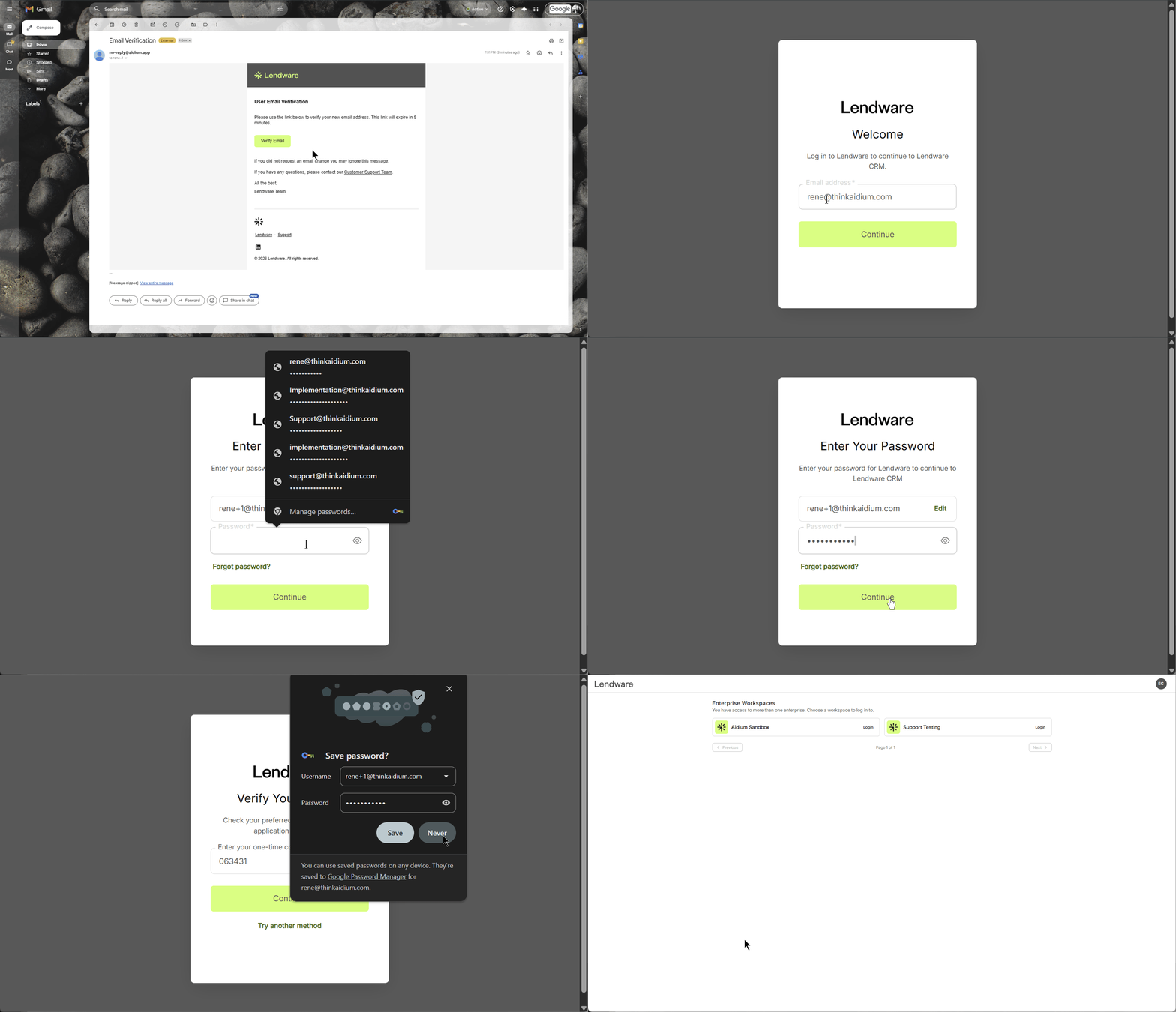
In the animated GIF below, steps 4-6 above are demonstrated.
An email will be sent to the updated email address with a 5-minute expiration.
In the animated GIF below, each step above is demonstrated.
If you do not see the email, be sure to check your 'junk' or 'spam' folders. If your company uses 3rd-party filtering (like, mimecast or barracuda), you may need to check there, as well.
In the animated GIF below, steps 4-6 above are demonstrated.
Important Next Steps
Updating the User Login Email will affect the following:
- The email address used to log into Lendware
- The email address to which notification emails are sent
- The reply-to email address for automation emails and mass emails sent from Lendware (unless we have Custom Domain Email setup)
Follow the links below to learn more about sending and receiving emails:
- To update or add a User Email Inbox Integration - for syncing email to and sending direct emails from Lendware, click here
- To update or add a Custom Domain Email - for sending emails from a branded domain, click here
👍 This concludes updating the User Login Email
Related Articles
Intro to User Settings in Lendware
The User Settings section allows each user to personalize their experience within Lendware, update login credentials, and manage outbound communication preferences. All changes made in User Settings apply only to the currently logged-in user, but ...Enterprise Domain User Setup – Send All Email Using Your Company Domain (Email Integration)
If your enterprise admin has enabled an Enterprise Domain, you can easily set up your company email for sending marketing, newsletters, nurture sequences, and more. This ensures full brand consistency for all outgoing emails. This walkthrough is only ...Add an Email Signature to Your User Settings in Lendware
A professional email signature is essential for consistent branding, compliance, and a polished look in all your communications. In Lendware, adding a signature is quick and easy, whether your company has a Marketing Department, an HTML-savvy ...User Integration with Encompass
Connecting a user to your company’s Encompass integration is quick and easy. It can be completed by the user themselves, a Team Lead, or your Lendware Admin. Before you are able to integrate a user with your company's Encompass account, it must first ...How to Reset Your Lendware Password
There are two easy ways to reset your password. From the initial login screen or from your User Account Settings while logged-in to Lendware. We will explore two easy methods for resetting an Lendware password: Initial Login Screen User Account ...