How to Reset Your Lendware Password
There are two easy ways to reset your password. From the initial login screen or from your User Account Settings while logged-in to Lendware.
We will explore two easy methods for resetting an Lendware password:
⚠️ If you do not know your login email - contact your company's Lendware administrator.
Initial Login Screen - Lendware.app
- If you forget your password while logging in, simply click the ‘Forgot password?’ link.
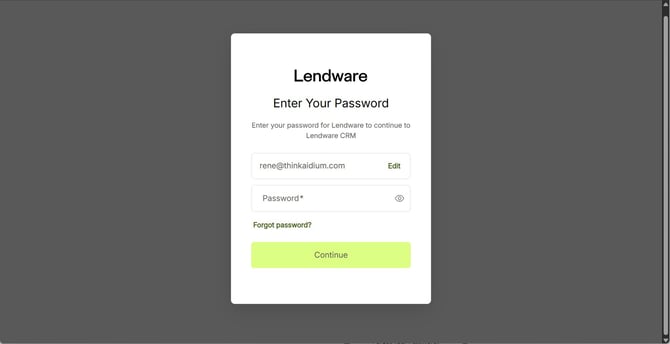
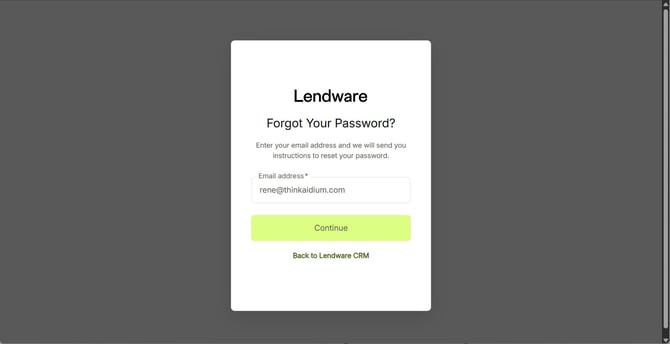
- Add your login email address and click ‘Continue’.
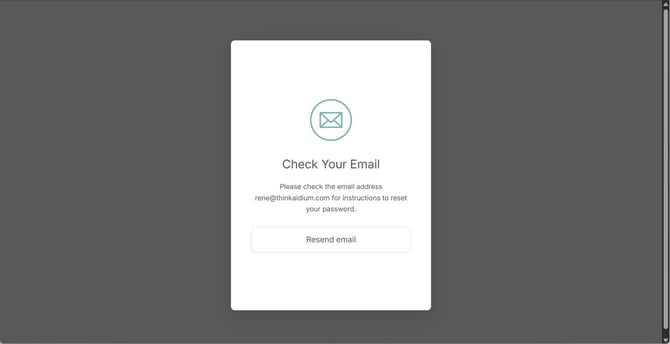
- You will then receive a confirmation that a password reset email was sent to that email address. If you do not see the email, be sure to check your junk/spam folder.
If you still do not see the email, check the email address listed in your browser to ensure it's correct. If it is correct, you can click the 'Resent email' button to request a new email.
If the email address is spelled incorrectly, just click the back button in your browser to start again.
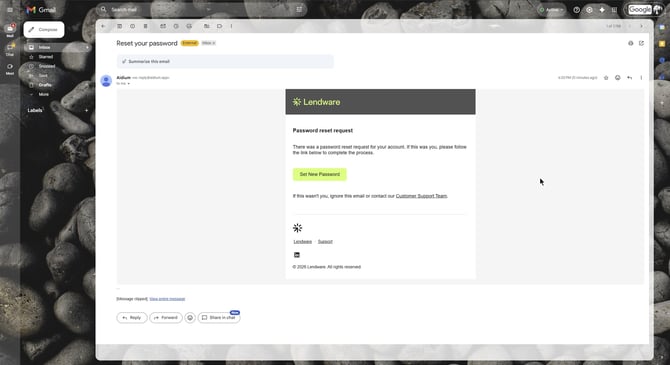
- Check your email - You should receive an email within a few minutes. Open the email and then click the 'Set New Password' button.
- After clicking the button or link, the password reset page will open in your default browser. Enter and confirm your new password. You may preview each entry by pressing the ‘eyeball’ icon next to each. When you confirm your passwords match and fulfill the password requirements, Click, ‘Reset password’ button.
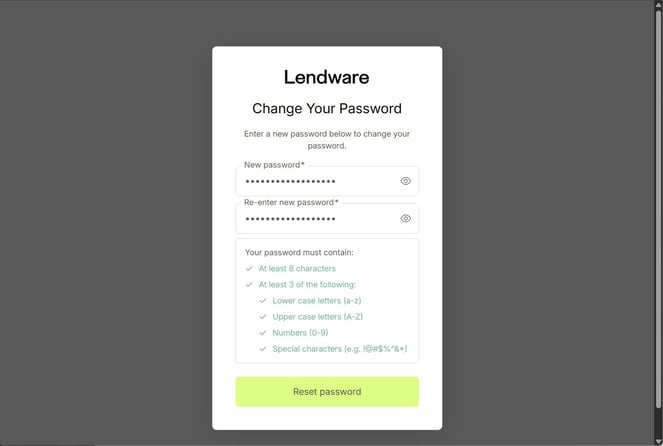
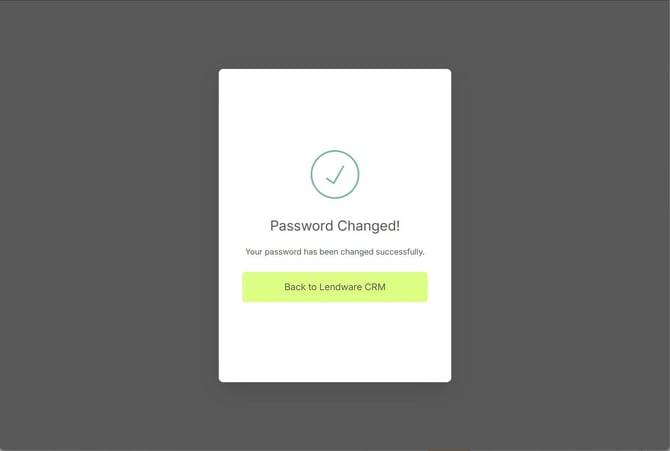
- When completed, you should receive a confirmation of the successful password update. Just click, ‘Back to All Applications’, which will take your to the initial login window to enter your login credentials.
⚠️ If you do not receive the email and you have an account with that email address, please check your Junk or Spam folder.
👍 This concludes resetting your password from the initial login screen
If you still do not see the email, check the email address listed in your browser to ensure it's correct. If it is correct, you can click the 'Resent email' button to request a new email.
If the email address is spelled incorrectly, just click the back button in your browser to start again.
⚠️ If you do not receive the email and you have an account with that email address, please check your Junk or Spam folder.
👍 This concludes resetting your password from the initial login screen
User Account Settings (While logged In)
- In the lower-left corner, look for your name and headshot. Click there and chose ‘Account settings’
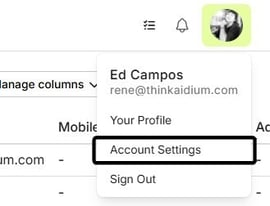
- On the Account Settings page, you will see your login email address. Below that is a 'Reset Password' button. Click that button to open a new browser tab. If pop-ups are blocked, you will want to permanently or temporarily allow them for Lendware.app.
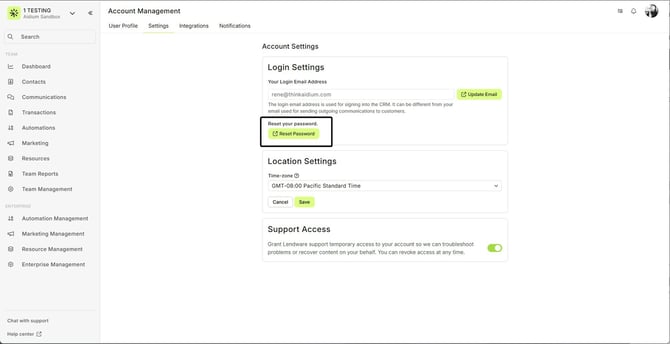
- Once the new tab opens, enter and confirm your new password. You may preview each entry by pressing the ‘eyeball’ icon next to each. When you confirm your passwords match and fulfill the password requirements, Click, ‘Reset password’ button.
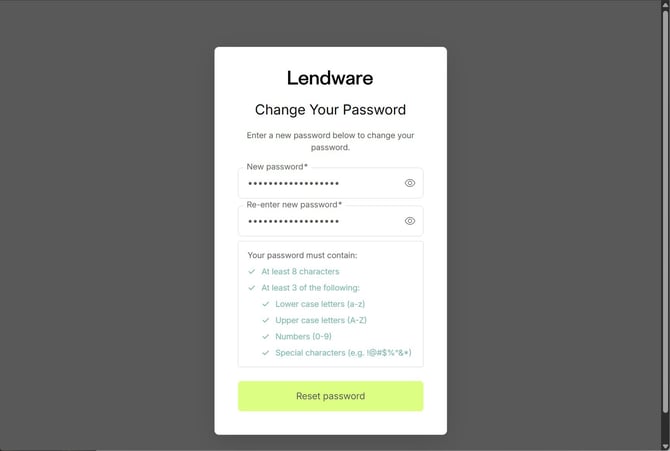
- When completed, you should receive a confirmation of the successful password update. Just click, ‘Back to All Applications’, which will take your to the initial login window to enter your login credentials.
👍 This concludes resetting your password from Account Settings while logged in.
👍 This concludes resetting your password from Account Settings while logged in.
Related Articles
Intro to User Settings in Lendware
The User Settings section allows each user to personalize their experience within Lendware, update login credentials, and manage outbound communication preferences. All changes made in User Settings apply only to the currently logged-in user, but ...Logging into Lendware
Follow these steps to log into your Lendware account: Go to Lendware using your preferred browser. Enter your email address. → Once entered, the password field will appear. Enter your password, then click Continue. A list of available enterprises ...How to Setup 2FA (two-factor authentication) for Users
2FA or two-factor authentication is an additional security measure to protect your account and your data. With a few steps, you can finish the 2FA setup using Google Authenticator or Duo 2FA authentication apps. Your organization's admin will request ...Setting Up Zapier to Push 3rd Party Data to Lendware
Zapier is a low cost and powerful tool to connect platforms together using a 'Zap'. In our case, this will allow you to use triggers that happen in Lendware to trigger events in other platforms -and- use triggers in other platforms to Lendware ⚠️ ...Grant Lendware Support Access to Your Account
To assist with troubleshooting some issues, Lendware Support may request that you grant access to your account. To provide the best possible troubleshooting and support, Lendware Support may occasionally request access to your account. This allows us ...