Grant Lendware Support Access to Your Account
To assist with troubleshooting some issues, Lendware Support may request that you grant access to your account.
To provide the best possible troubleshooting and support, Lendware Support may occasionally request access to your account. This allows us to directly review and resolve issues or assist with content recovery.
As a security measure, this access must be manually enabled by the logged-in user and remains active only as long as you allow it. You’re always in control — you can revoke access at any time with just a few clicks.
When is Support Access Needed?
You may be asked to enable support access during:
A support ticket conversation
A live chat you initiate with our team
A scheduled call or meeting with an Lendware representative
This is always a secure, temporary access request to help us work more efficiently on your behalf.
How to Grant Support Access:
- After logging into your account - In the upper-right corner, click on your profile photo, then select Account Settings from the dropdown.
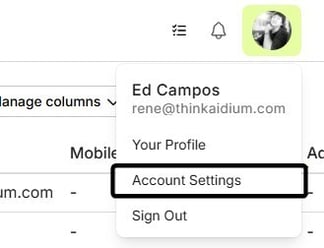
- Next, the Account Settings page will load. Look toward the bottom for the 'Support Access' section. Then, toggle the switch to "on", as seen in the image below (which is on)
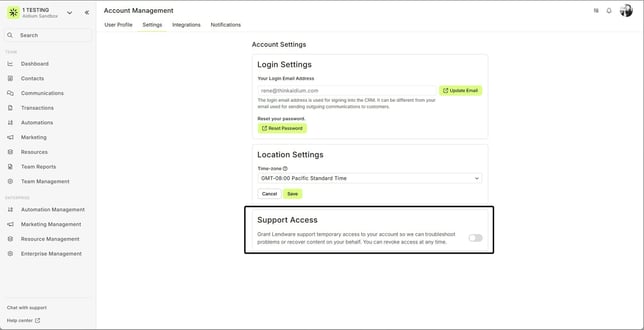
You should also received feedback at the top-right after enabling access.

- Respond to the Lendware Support rep to let them know you have granted them support access to your account. They will then proceed with accessing your account to accomplish the stated goals.
Once they have completed, you will receive a notification (most likely a response to your support ticket) that the process is complete and you can now 'turn-off' the support access.
You should also received feedback at the top-right after enabling access.
Once they have completed, you will receive a notification (most likely a response to your support ticket) that the process is complete and you can now 'turn-off' the support access.
Watch the entire process in the animated GIF below.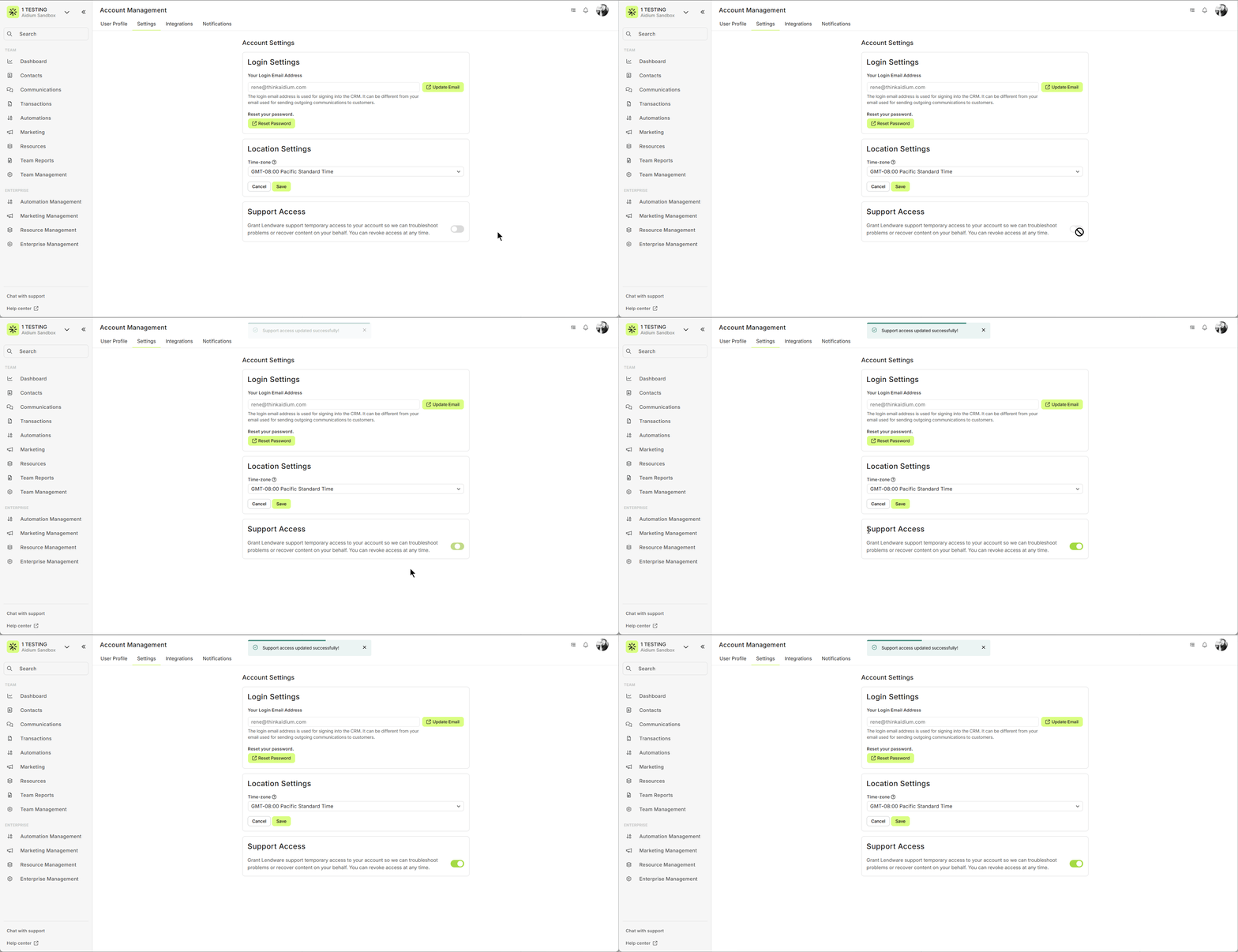
How to Revoke Support Access
- Just as easily as you provided access, you are able to revoke or turn-off access with a few clicks. After logging into your account - Go to Account Settings (by clicking your photo in the upper-right corner).
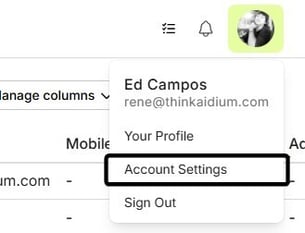
- Next, the Account Settings page will load. Look toward the bottom for the 'Support Access' section. Then, toggle the switch to "off", as seen in the image below (which is off)
You should also received feedback at the top-right after disabling access.
After you've granted access, please let your Lendware Support rep know so they can begin assisting you.
Once the issue is resolved, we’ll notify you (typically via your support ticket), and you can turn off access whenever you'd like.
👍 This concludes providing Support Access to your Lendware account
You should also received feedback at the top-right after disabling access.
After you've granted access, please let your Lendware Support rep know so they can begin assisting you.
Once the issue is resolved, we’ll notify you (typically via your support ticket), and you can turn off access whenever you'd like.
👍 This concludes providing Support Access to your Lendware account
Related Articles
Intro to User Settings in Lendware
The User Settings section allows each user to personalize their experience within Lendware, update login credentials, and manage outbound communication preferences. All changes made in User Settings apply only to the currently logged-in user, but ...Troubleshooting Loading Issues
Sometimes websites don’t load as expected—whether it's slow performance, error messages, or odd behavior that others aren’t experiencing. While the causes can vary, there are a few quick and simple steps you can take to get things back on track. This ...Logging into Lendware
Follow these steps to log into your Lendware account: Go to Lendware using your preferred browser. Enter your email address. → Once entered, the password field will appear. Enter your password, then click Continue. A list of available enterprises ...Integrate Your Inbox in Lendware (Outlook or Gmail)
In the Account Settings, you can connect your company email to send direct emails to contacts and automated transactional emails. This will also enable a two-way integration connecting emails you send from your computer or phone's email client. 🎉 ...Add Lendware.app to Your Mobile Home Screen
Adding Lendware.app to your mobile home screen (as a Progressive Web App – PWA) is a quick way to access Lendware on the go. Since Lendware is designed with mobile in mind, all day-to-day functionality is available right at your fingertips. Setup on ...