Reassign a Contact to New Owner or New Assignee
In Lendware, you can easily reassign a contact to a new Owner or add a Contact Assignee to share access with another team member. Below are the steps for both actions.
There are two types of association on each Contact for User ownership and assignment:
- Update Contact Owner
- Add a Contact Assignee
Update or Reassign to a new User/Owner
Open the Contact you want to reassign.
In the top-right corner, click the blue Update Contact button.
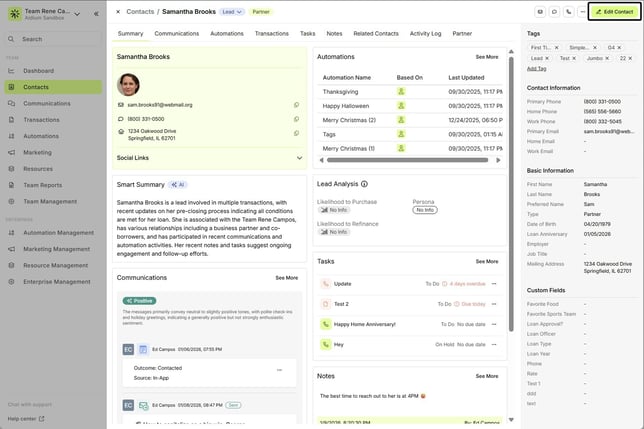
- A slide-out panel titled Update a Contact will appear on the right-hand side.
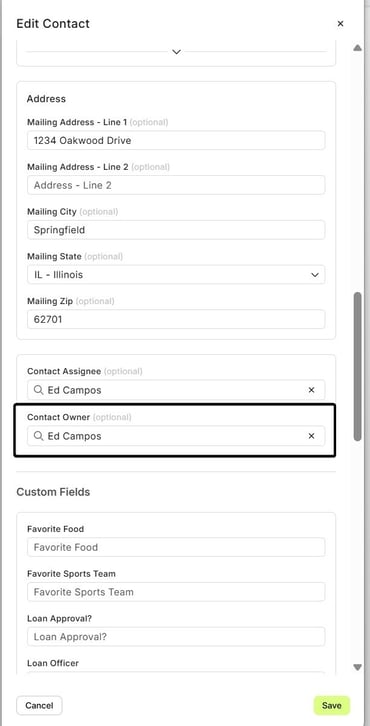
- To update the Contact Owner, simply click the drop-down and choose the new owner from the available users. See the below animated GIF. If you do not see the user you're looking for, you should contact your company Lendware administrator.
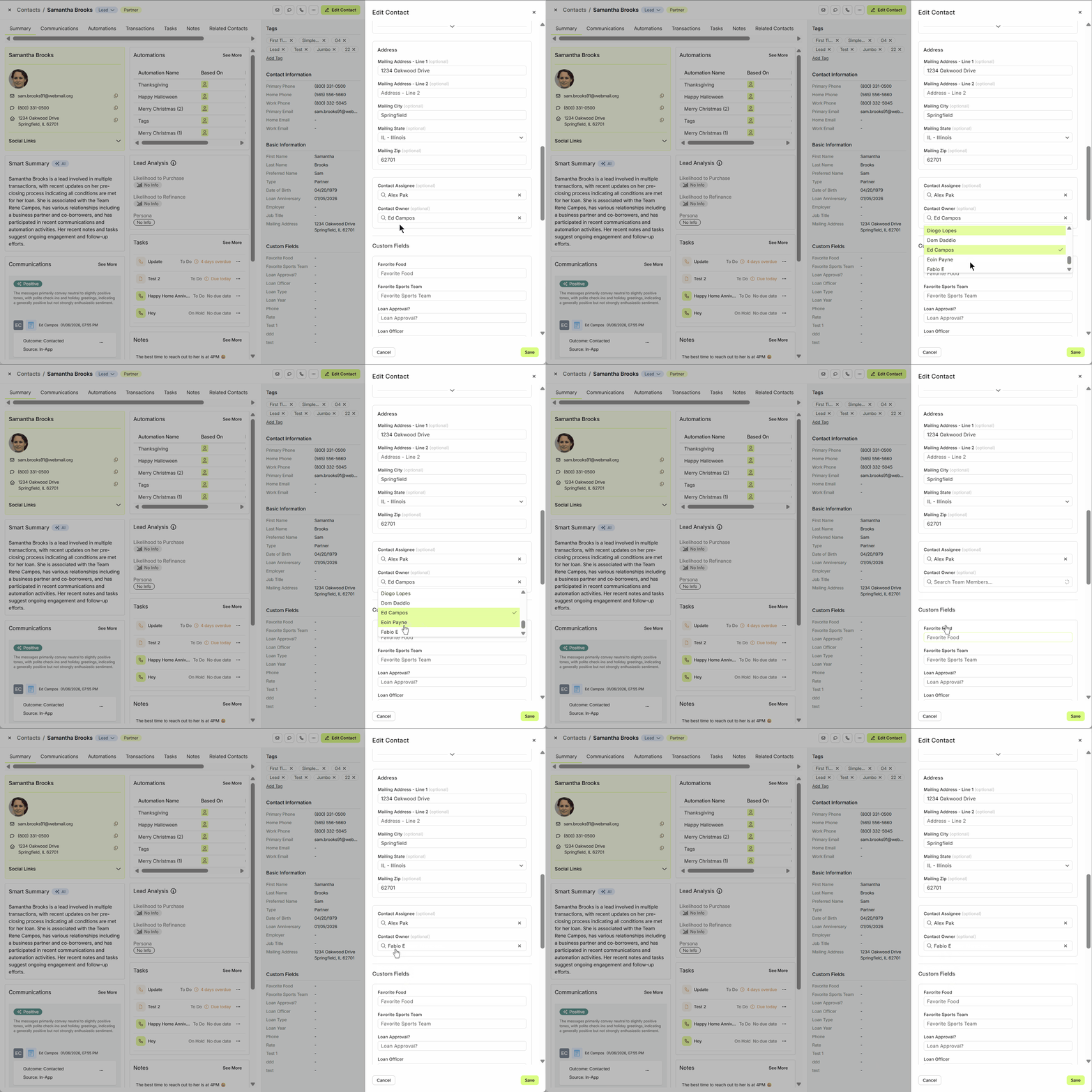
- Once you update the Contact Owner to the appropriate user, be sure to click the 'Save' button.
⚠️ When reassigning to a different user, they may receive a notification of the event based on their own user settings.👍 This concludes reassigning a Contact record to a different user on your team.
Open the Contact you want to reassign.
In the top-right corner, click the blue Update Contact button.
👍 This concludes reassigning a Contact record to a different user on your team.
Add a User on your team as the Contact Assignee
Sharing a contact with another team member allows for collaborative follow-up.
Open the Contact you wish to share.
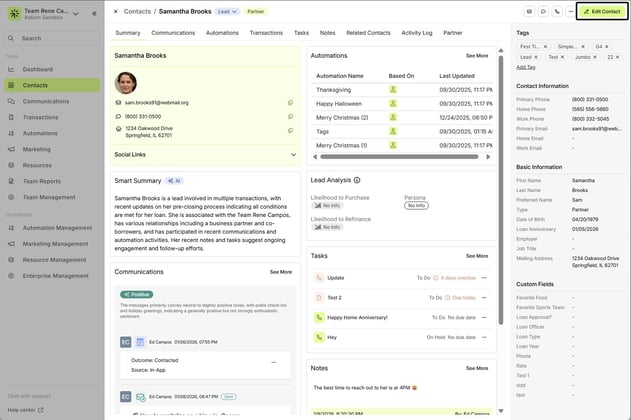
Click the blue Update Contact button in the upper-right corner.
In the Update a Contact slide-out, scroll down to find Contact Assignee.
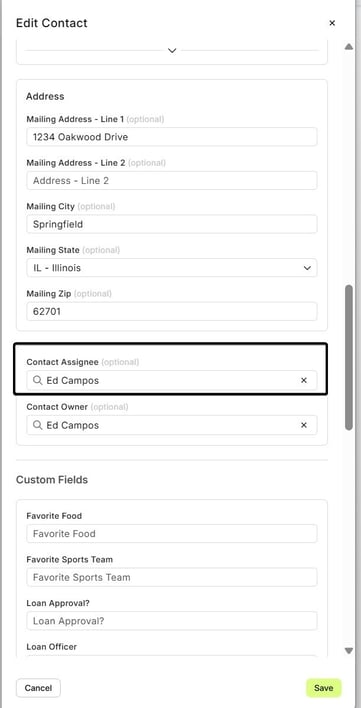
Use the drop-down menu to select the user you want to assign.
If you do not see the user you're looking for, you should contact your company Lendware administrator.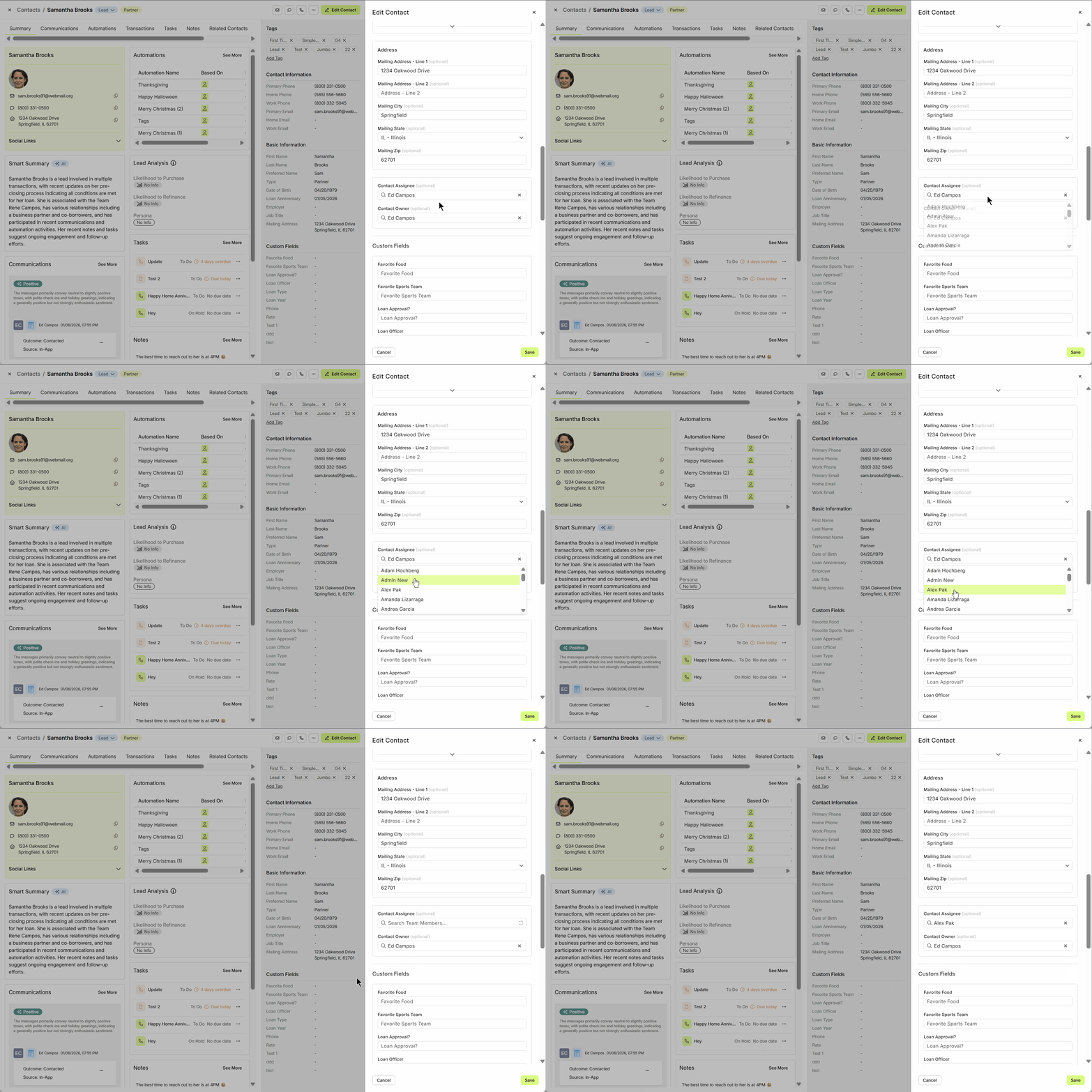
- Once you update the Contact Assignee to the appropriate user, be sure to click the 'Save' button.
Contact Ownership & Assignment — How It Works
CSV Uploads
When uploading a contact list via CSV, you’ll see an option labeled “Upload on behalf of…”
This sets both the Contact Owner and the Contact Assignee for all contacts in the file.
Manual Contact Creation
When a user creates a contact manually within Lendware:
That user is automatically assigned as both the Owner and Assignee of the contact.
Integrations (e.g. Zapier, Arive)
When a contact is created through an integration:
The Loan Officer associated with the integration is set as both the Owner and Assignee of the contact.
👍 This concludes adding a Contact Assignee for a user on your team.
CSV Uploads
When uploading a contact list via CSV, you’ll see an option labeled “Upload on behalf of…”
This sets both the Contact Owner and the Contact Assignee for all contacts in the file.
Manual Contact Creation
When a user creates a contact manually within Lendware:
That user is automatically assigned as both the Owner and Assignee of the contact.
Integrations (e.g. Zapier, Arive)
When a contact is created through an integration:
The Loan Officer associated with the integration is set as both the Owner and Assignee of the contact.
👍 This concludes adding a Contact Assignee for a user on your team.
Related Articles
Contact View - Summary Tab
The Summary tab in the new Contact View acts as a snapshot of your contact’s most important details and recent activity. It offers a streamlined overview of tasks, communications, transactions, and more—all in one place. When opening a contact, the ...Contact View - Transactions Tab
The Transactions tab is a straightforward way to view and interact with every transaction (loan) that a single contact is associated with. Whether a borrower, co-borrower, real estate agent or other loan related contact - it will display. This tab ...Manually Create a New Contact
Creating a contact manually in Lendware is quick and ensures every lead, client, or partner is captured for future engagement. Whether it’s a potential lead or a closed client, logging every interaction helps build stronger, more organized ...Quick Tips – Creating a Contact and Adding a Referral
Making sure your new leads are created and set up correctly is one of the most powerful ways to stay on top of your pipeline. Not only does it ensure no lead gets forgotten, but it also shows your referral partners that you are organized, reliable, ...Contact Detail View – Tags
Tags are a simple yet powerful way to highlight what matters most about a contact. Whether it's their status, source, or role in your process, tags help tell each contact's story—boosting clarity for your team and enabling automations to act more ...