LendingPad Integration
This guide provides a step-by-step explanation of how the integration works, how to set it up, and what to expect during daily use. You will also find troubleshooting tips and best practices to ensure a smooth operation.
 Seamless Data Sync & Reduced Manual Entry
The integration allows borrower and loan details to automatically sync between Lendware and LendingPad, eliminating the need for duplicate data entry. This ensures consistency across platforms, reduces errors, and saves time for loan officers and processors.
Improved Pipeline Visibility & Workflow Efficiency
With real-time updates, users can track loan progress and borrower interactions within Lendware, while ensuring LendingPad remains the source of truth for loan origination. This improves team collaboration, enhances task automation, and speeds up loan processing.
Better Compliance & Data Accuracy
Automating data transfer between the two platforms helps maintain accurate borrower records and ensures compliance with industry regulations. By reducing manual input, the risk of missing or incorrect information is minimized, supporting a more reliable loan origination process.
.png?width=670&height=84&name=How%20it%20Works%20(1).png)
- Borrower details entered in Lendware are automatically pushed to LendingPad.
- Any updates to the borrower will be pushed back to Lendware.
- Once a loan file is started a transaction will be created in Lendware.
- Any loan status changes will sync automatically to the transaction record in Lendware.
The integration allows Admins and users alike to leverage Lendware’s Automations to streamline the loan origination process.


Display Nam |
Appraisal Received Date |
Appraisal Received Date |
Appraisal Value |
Assignments
|
Borrowers
|
Created At |
Credit Score (Borrower) |
Credit Pulled Date (Borrower & Co-Borrower) |
1st Payment Date |
Estimated Closing Date |
Funded Date |
Last Modified By |
Loan Number |
Loan Amount |
Loan Purpose |
Loan Status |
Loan Type |
Note Rate |
Loan Term |
Lock Date |
Occupancy Type |
Property Address |
Property Address 1 |
Property City |
Property State |
Property Zip Code |
Sales Price |
Stause |
Credit Pulled Date (Borrower & Co-Borrower |

End users that utilize LendingPad will connect their LendingPad account in their Lendware Account Settings. Users will need their LendingPad API Key and the LendingPad Company ID.
- Click on Team Management on the left hand side menu (at the bottom of the navigation).
- Click on Integrations.
- Scroll down to the LendingPad Integration card.
- Select the applicable Team Member from the drop down menu.
- Enter your LendingPad Email to connect to your Blend account.
- Click on Add Member.
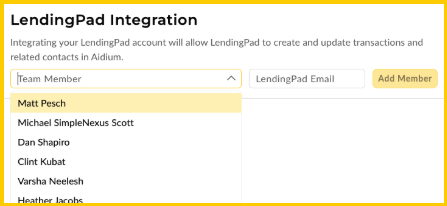
Your LendingPad account is now connected to your Lendware account and you should start to see contacts come over from LendingPad once they have started a contact.

The following contact and transaction statuses need to be added or updated in your Lendware Platform. See Contact Statuses and Transaction Statuses for more information.
* indicates a default Lendware Status
Contact Statuses | Transaction Statuses |
New Lead* | Lead |
Lead* | Prospect |
Lead From Partner* | Pre Qualify |
Credit Repair* | Pre Approval |
Prospect* | Application Taken |
Pre Qualify (Update Prequalified) | Processing (update Sent to Processing) |
Pre Approval (Update Preapproved) | Registered |
Application Taken | Initial Submission (update Submitted to UA) |
In Process | Approved (update Conditionally Approved) |
Funded (Update Closed Won) | Conditions Submission (update Resubmitted to UA) |
Closed Lost* | Clear to Close* |
Withdrawn (needs to be added) | Funded* |
Post Closing (needs to be added) | |
Withdrawn (needs to be added) |

Ensure the following In Process Campaigns are copied to your team(s)/user(s). To copy a Playbook please refer to Advanced Automations.
Automation Name | Update(s) to be Made |
Rate Locked |
|
Appraisal Ordered |
|
Appraisal Received |
|
CD Sent |
|
Conditionally Approved | |
Sent to Processing | |
Submitted to UW | |
Resubmitted to UW | |
Clear to Close | |
Loan Funded |
Related Articles
Blend Integration
Blend is one of the most recognized point-of-sale (POS) systems in the mortgage industry, streamlining the loan application experience for borrowers. ⚠️ Please note that this integration is currently in Beta. Please refer to this article regarding ...Encompass Integration Guide
Using Encompass, loan officers can originate loans and push the relevant borrower, partner, and loan data to Lendware. Pushing this data to Lendware allows us to trigger automations based on almost any criteria. Value Proposition for Loan Officers ...Lendware Integration: Mortgage Coach
This guide provides a comprehensive overview of the Mortgage Coach integration within Lendware. By connecting your Mortgage Coach account, you can seamlessly generate and manage presentations directly from your Lendware transaction records. Overview ...Configuring Okta for SCIM Integration
This guide will walk you through the steps needed to configure Okta for SCIM integration with Lendware. Prerequisites Administrative access to your Okta Workforce Identity Cloud tenant The SCIM endpoint URL and authentication token (we will provide ...Lendware Azure Entra SAML SSO & SCIM Integration Guide
This guide provides step-by-step instructions for configuring Single Sign-On (SSO) and automated user provisioning (SCIM) between your Microsoft Entra (formerly Azure AD) environment and Lendware. By completing this integration, your team members ...