Copy Automations to Teams with EAM
EAM - Enterprise Automation Management - provides your marketing team and admins access to push/copy automations quickly and easily to any or all Teams within your Enterprise.
Copying one or more automations to teams has never been easier and efficient. Once there are automations setup in EAM, copying them to teams can be done with a little planning and a few clicks. In this article, we'll show you step-by-step how to copy individual and groups of automations to teams.
Privileged access is required for EAM. If you do not have access, contact your Enterprise Admin.
- Copy a single automation to a single team
- Copy multiple automations to a single team
- Copy a single automation to multiple teams
- Copy multiple automations to multiple teams
- Video walk-through
To access Enterprise Automation Management (EAM), navigate to the left-hand menu. Under the Enterprise section, you’ll find Automation Management alongside Enterprise Management and Marketing Management.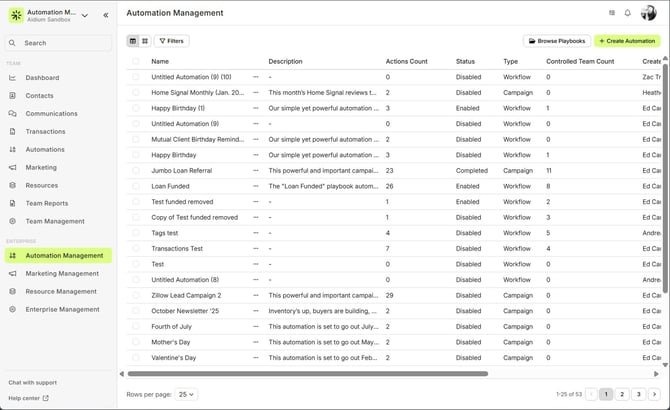
Copy a Single Automation to a Single Team
Use this when a team requests a specific automation, for new team setup, or team-specific post-close automations.
Steps:
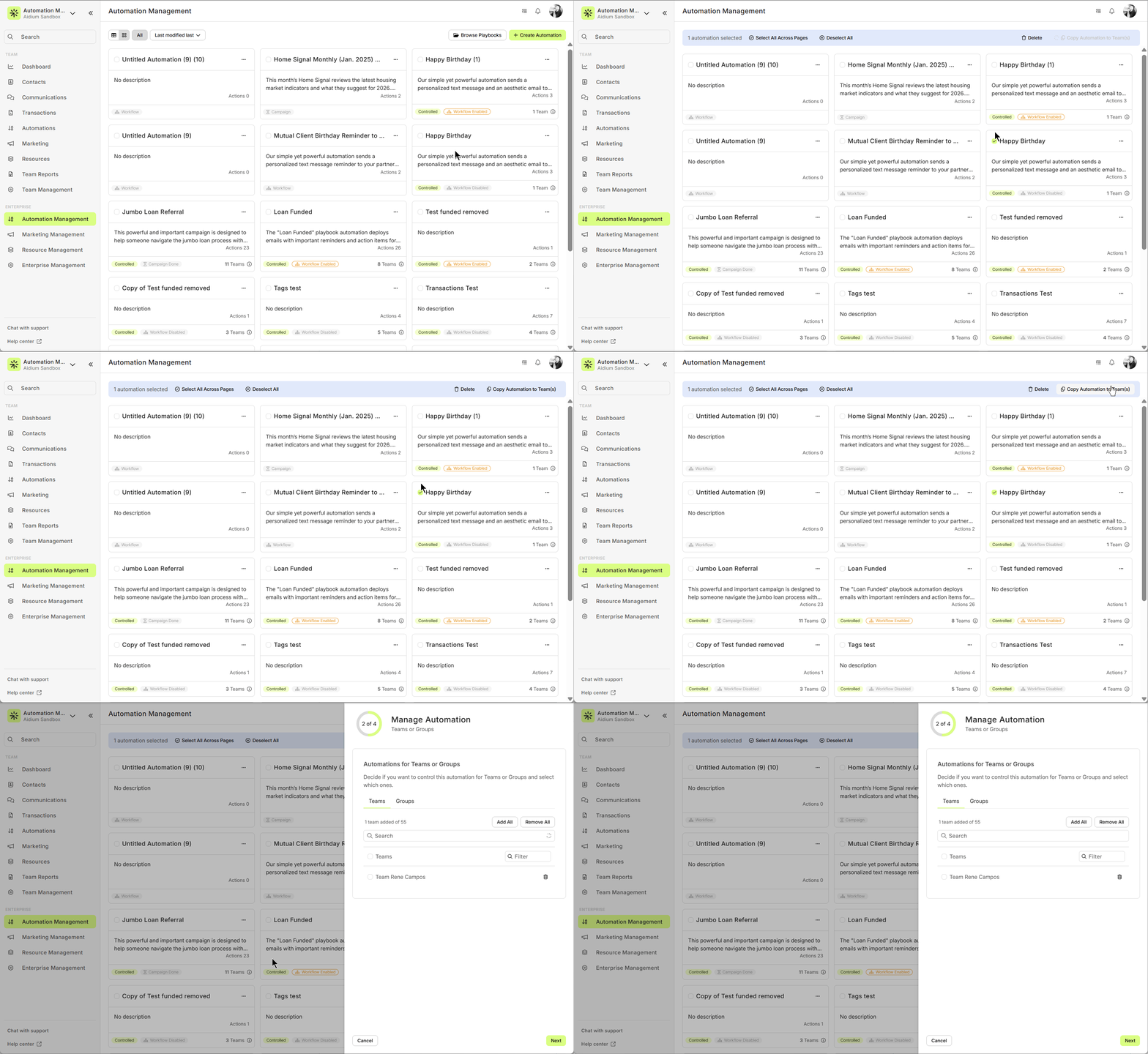
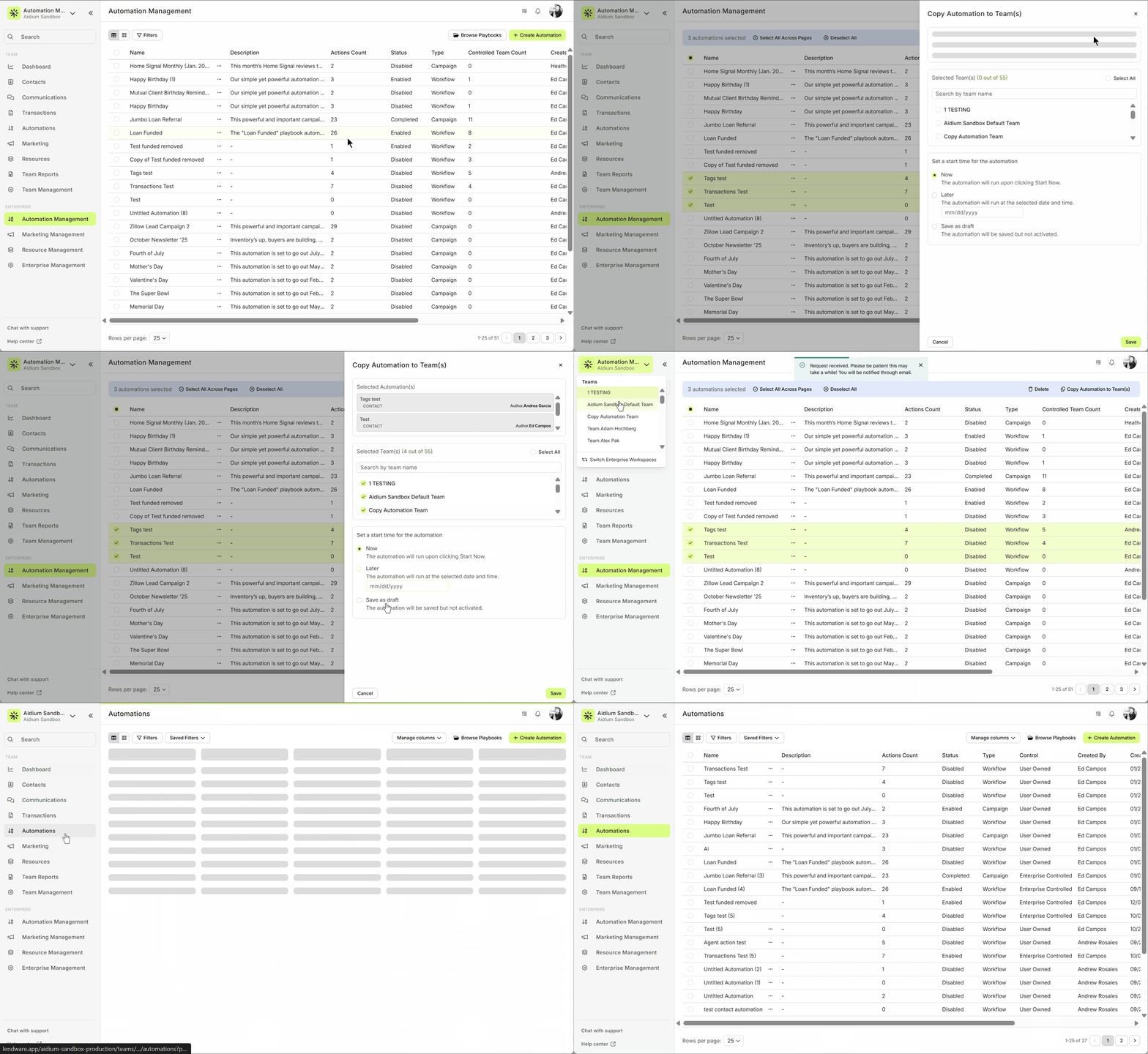
Select the checkbox of the automation in EAM.
Click Copy Automations to Team(s).
Choose the target team.
Set Enabled or Disabled.
Click Save to begin the copy process.
You’ll receive a confirmation email once complete.
Switch to the selected team and check Automations to view the copied automation (Enabled).
Copy a Single Automations to Multiple Teams
Commonly used to set up new teams or update automations for team members.
Steps:
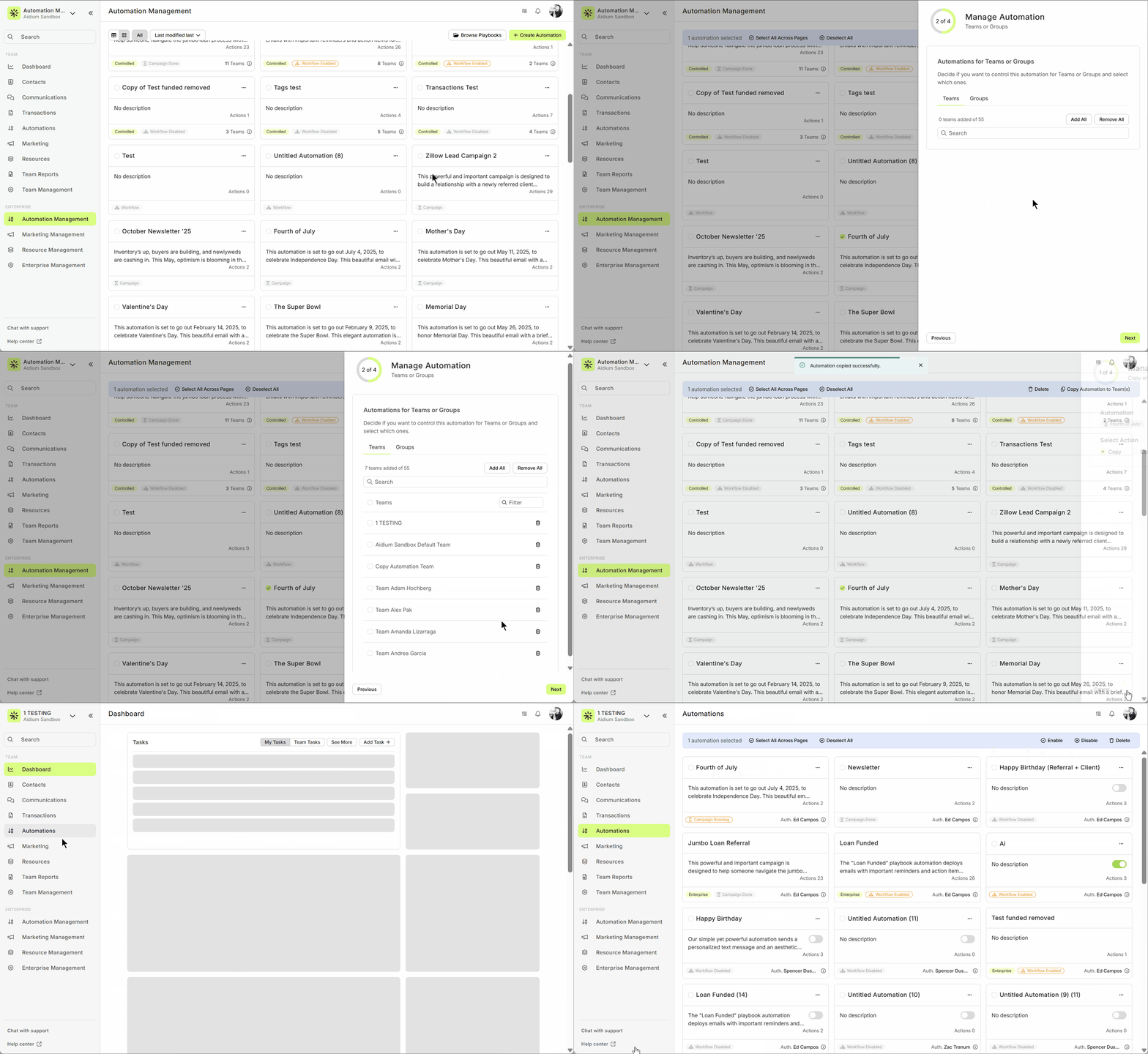
Select the checkbox of the automation in EAM.
Click Copy Automations to Team(s).
Select the teams and set Enabled/Disabled.
Click Save.
Confirmation email is sent when the process completes.
View copied automations under Automations for that team (Disabled by default).
Copy Multiple Automations to a Single Team
Commonly used to set up new teams or update automations for team members.
Steps:
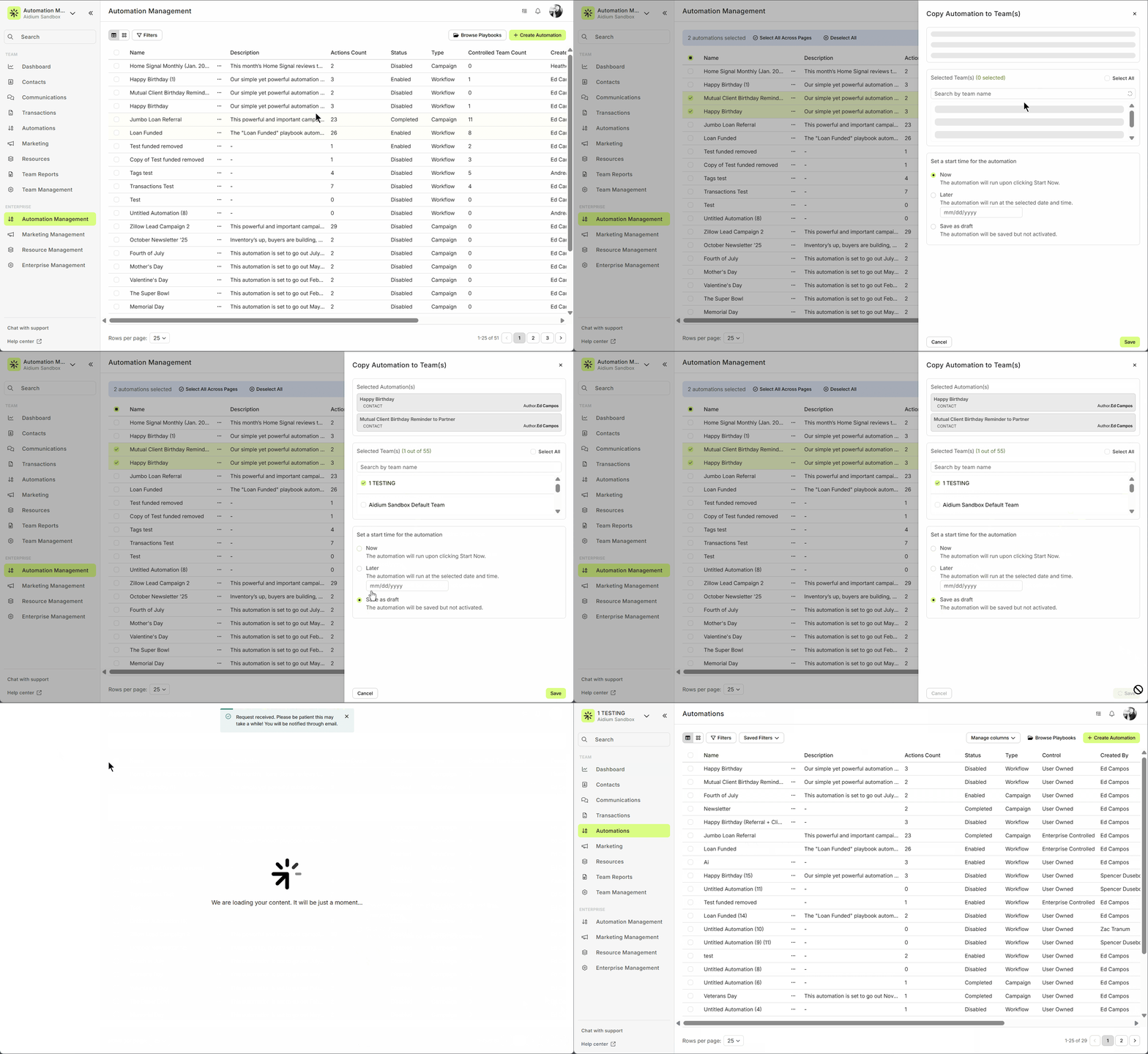
Check the automations you want to copy (or use Select All).
Click Copy Automations to Team(s).
Select the team and set Enabled/Disabled.
Click Save.
Confirmation email is sent when the process completes.
View copied automations under Automations for that team (Disabled by default).
Copy Multiple Automations to Multiple Teams
Best for onboarding multiple teams simultaneously or distributing a new series of automations enterprise-wide.
Steps:
Check the automations you want to copy (or Select All).
Click Copy Automations to Team(s).
Choose one or more teams (or Select All), un-check any not needed.
Set Enabled/Disabled carefully (Disabled is default; enabling multiple automations can have unintended consequences).
Click Save to start the copy process.
Confirmation email lists all selected teams.
Switch to any team to view copied automations under Automations (Disabled).
Enabling a Disabled Automation
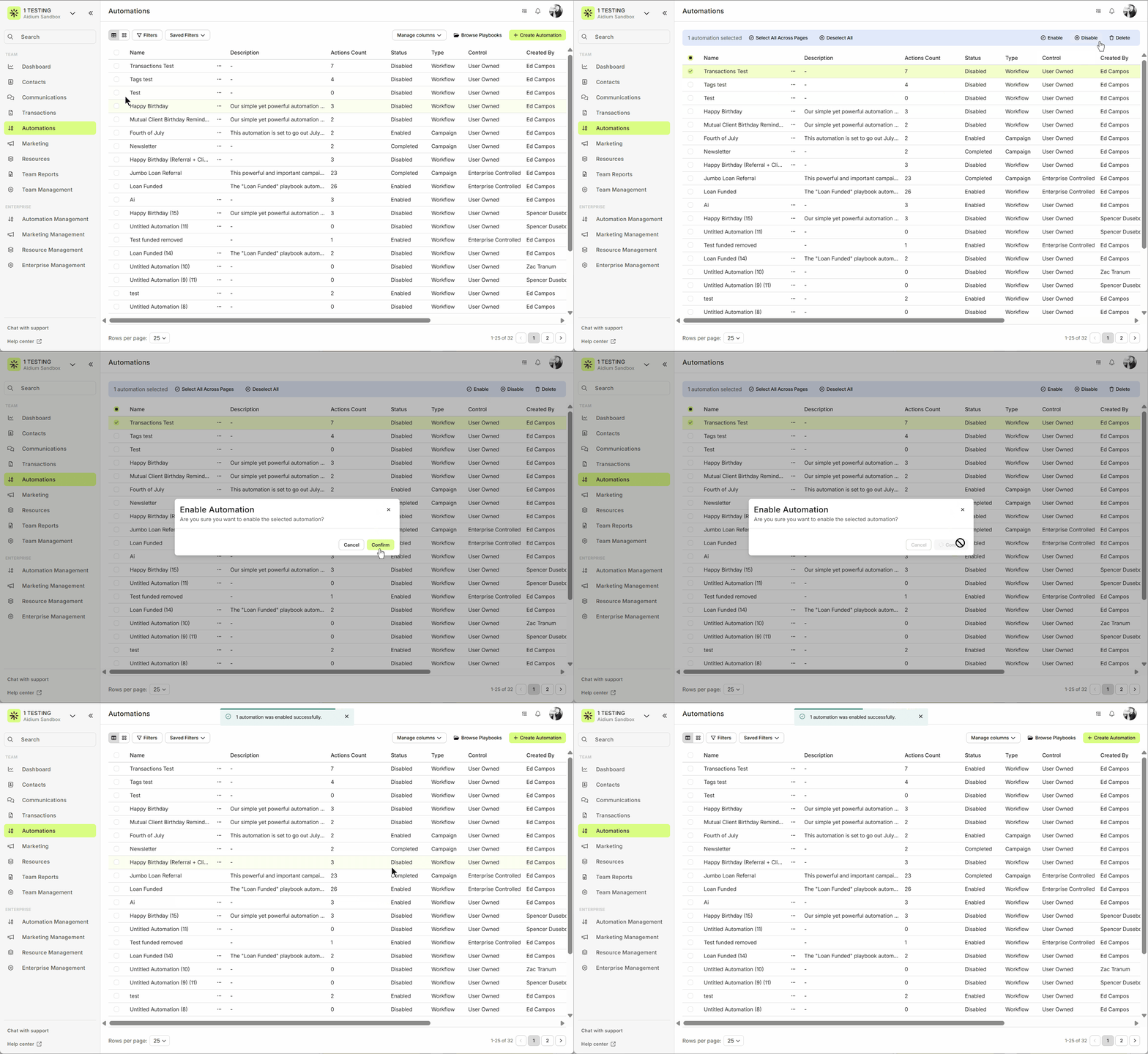
If you need to enable an automation that is currently disabled, follow these steps:
Video walk-through
Need more help? Check out: Control Automations for Teams and Groups
Related Articles
Enterprise Management Overview
Enterprise Management is the single place where Admins configure and govern settings that apply across your whole organization. From branding and compliance to integrations, teams, user roles and custom fields. Enterprise Management gives you the ...How to Deactivate a User in Lendware (Team-Level & Enterprise-Level)
This guide provides instructions on how to deactivate a user in Lendware, either at the team level or the enterprise level. Deactivating a user will revoke their access to the associated teams or the entire enterprise, depending on the action taken. ...Enterprise Domain Admin Setup – Send Automated and Bulk Email Using Your Company Domain
Lendware offers the ability to send automated and bulk emails directly from your Company or Team domain. This allows you to send emails through Lendware’s warmed-up email infrastructure with optional DKIM authentication for full branding, identity, ...How to Delete Teams
This guide provides step-by-step instructions on how to delete a team from the Lendware platform. ❗️Deletions of teams are PERMANENT and cannot be reversed. Deleting a team will also delete all associated contacts, transactions, tasks, automations, ...Invite and Edit Enterprise Members
This guide explains how to set roles and permissions when inviting a new enterprise member or updating an existing one. Managing member access in your enterprise is essential for security and productivity. This article will walk you through the ...