Invite and Edit Enterprise Members
This guide explains how to set roles and permissions when inviting a new enterprise member or updating an existing one.
Managing member access in your enterprise is essential for security and productivity. This article will walk you through the enterprise and team roles, how to invite new members, and how to edit existing members.
- Enterprise Roles
- Teams and Team Roles
- Inviting New Enterprise Members
- Editing Existing Enterprise Members
Enterprise Roles
Enterprise roles dictate the enterprise level access a member should have. Some enterprise roles automatically impact team access as well.
Enterprise Owner:
Owners have full access to the enterprise and no restrictions on managing enterprise members.
Owners are automatically assigned all roles on all teams.
Enterprise Admin:
Admins have access to most enterprise functionality and settings, but cannot assign or unassign the Enterprise Owner role. They can be assigned additional roles to access additional enterprise functionality and settings:
- Enterprise Automation Manager
- Reporting Admin (note: this require the enterprise reporting feature to be enabled on your enterprise)
Admins are automatically assigned all roles on all teams.
Enterprise Member:
Members are all other users on the enterprise. No enterprise access is given, but specific team-level access can be assigned to members.
👍 This concludes Enterprise Roles
Teams and Team Roles
Enterprise Members without the Owner/Admin role must be assigned at least one team role to be added to a team. Roles are permissive, meaning if one role grants a permission and another doesn't, the user will be granted the permission.
👍 This concludes Teams and Team Roles
Inviting New Enterprise Members
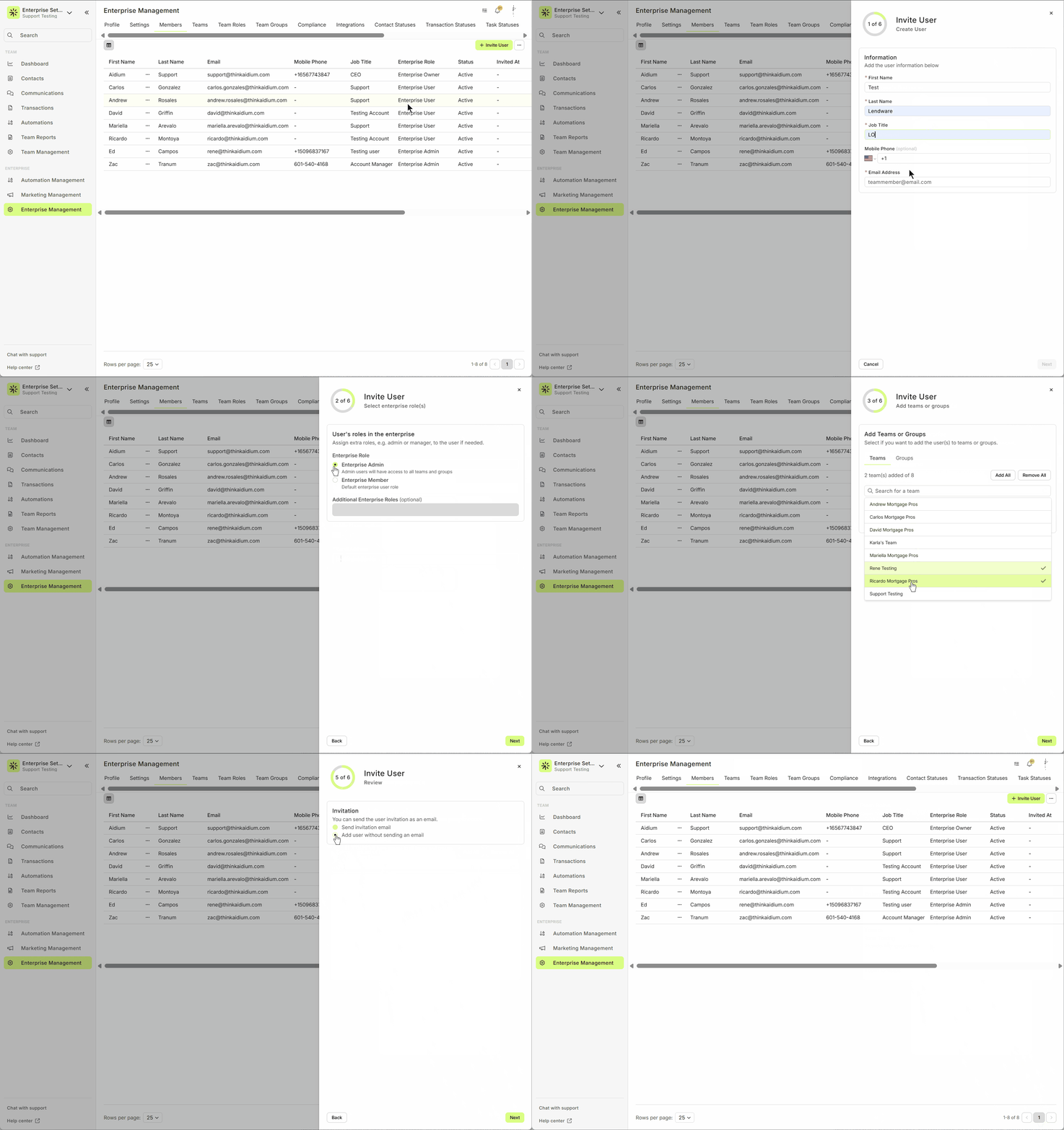
When inviting a new Enterprise Member, you will assign them an enterprise role. Unless they are an Owner or Admin, you will also select which team's they are added to and which role(s) they are assigned.
- Navigate to Enterprise Members
- Login to your Adium Account
- Go to the Enterprise Management menu
- Click on the Members tab.
- Click the Invite User button
- Enter the member's basic information
- Select the member's enterprise role(s)
- Add to teams or groups
- Assign team role(s)
- Select whether or not you want to send an invite email to the member upon creation
- Review your selections
- Click Add User
👍 This concludes Inviting New Enterprise Members
Editing Existing Enterprise Members
When editing an existing member, you can change their enterprise role and assign them to additional teams with and/or assign additional team roles.- Navigate to Enterprise Members
- Login to your Adium Account
- Go to the Enterprise Management menu
- Click on the Members tab.
- Click the 3 dots next to the member's first name you wish to edit and click Edit Teams and Roles
- Select the member's enterprise role(s)
- Add to teams or groups
- Assign team role(s)
- Select whether or not you want to send an invite email to the member upon saving
- Review your selections
- Click Edit User
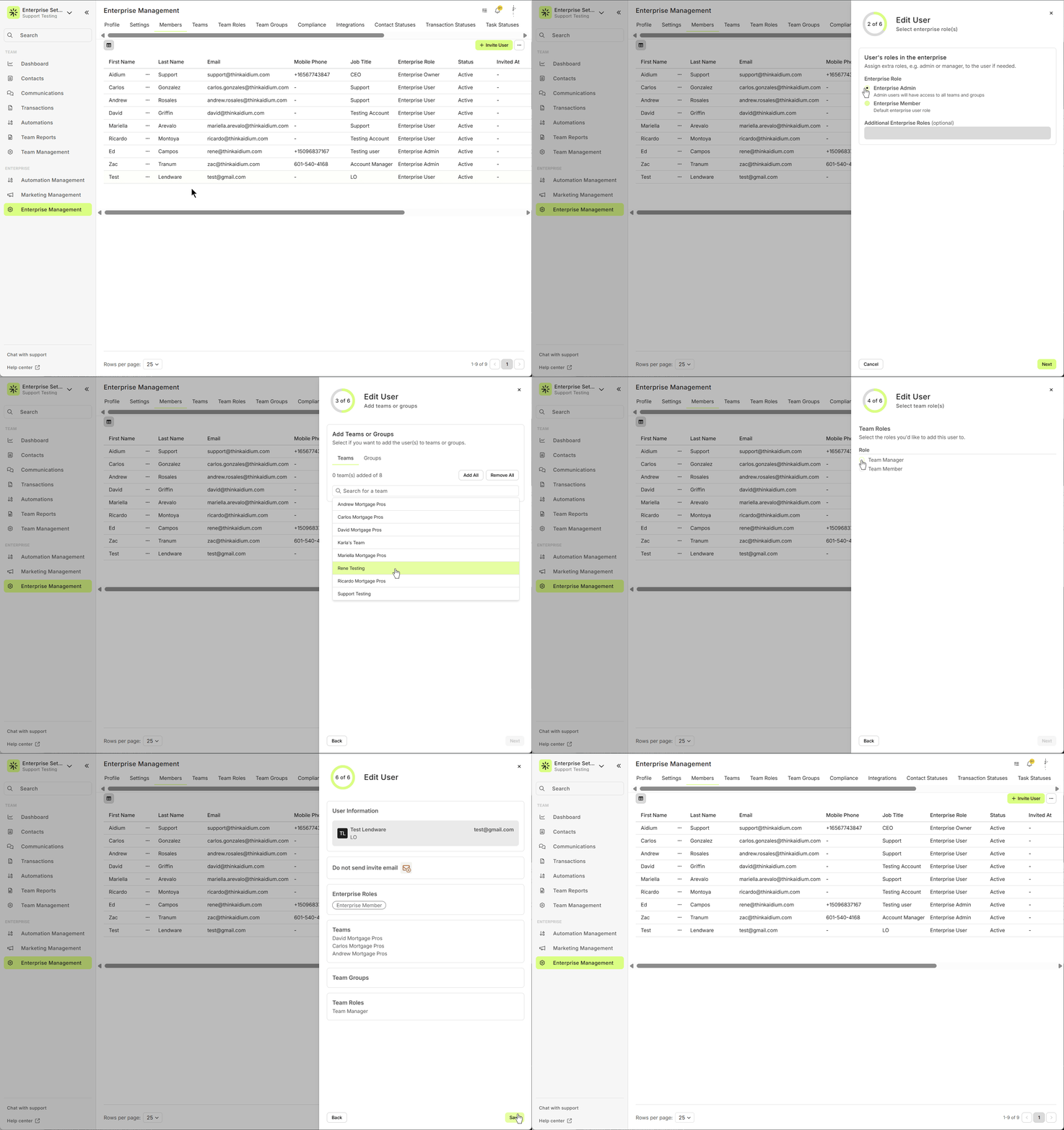
Team Roles are only added when editing a member.
💡 Need to remove team access? Check out our Deactivate Members article.
👍 This concludes Editing Existing Enterprise Members
Still have questions? Contact Support — we're happy to help!
- Navigate to Enterprise Members
- Login to your Adium Account
- Go to the Enterprise Management menu
- Click on the Members tab.
- Click the 3 dots next to the member's first name you wish to edit and click Edit Teams and Roles
- Select the member's enterprise role(s)
- Add to teams or groups
- Assign team role(s)
- Select whether or not you want to send an invite email to the member upon saving
- Review your selections
- Click Edit User
Team Roles are only added when editing a member.
💡 Need to remove team access? Check out our Deactivate Members article.
👍 This concludes Editing Existing Enterprise Members
Still have questions? Contact Support — we're happy to help!
Related Articles
Enterprise Management Overview
Enterprise Management is the single place where Admins configure and govern settings that apply across your whole organization. From branding and compliance to integrations, teams, user roles and custom fields. Enterprise Management gives you the ...User Invite and Login Tracking in Lendware
This guide explains how to use the User Invite and Login Tracking feature available in Enterprise Management > Members to track when an enterprise member last logged in, who invited them, and how to send or resend invitation emails. Overview The User ...Enterprise Permissions in Enterprise Management Settings
This article explains the functionality of the Enterprise Permissions section within the Enterprise Management Settings page, focusing on key features like email signature control, Canva integration, and user profile edit access. Accessing Enterprise ...How to Deactivate a User in Lendware (Team-Level & Enterprise-Level)
This guide provides instructions on how to deactivate a user in Lendware, either at the team level or the enterprise level. Deactivating a user will revoke their access to the associated teams or the entire enterprise, depending on the action taken. ...Enterprise Domain Admin Setup – Send Automated and Bulk Email Using Your Company Domain
Lendware offers the ability to send automated and bulk emails directly from your Company or Team domain. This allows you to send emails through Lendware’s warmed-up email infrastructure with optional DKIM authentication for full branding, identity, ...