How to Delete Teams
This guide provides step-by-step instructions on how to delete a team from the Lendware platform.
❗️Deletions of teams are PERMANENT and cannot be reversed. Deleting a team will also delete all associated contacts, transactions, tasks, automations, statuses, tags, custom fields, and integrations. This action will also release the team phone number.
Step-by-Step Instructions
- Navigate to Enterprise Settings:
- Log in to your Lendware account.
- From the main dashboard, go to the Enterprise Settings menu.
- Access the Teams Section:
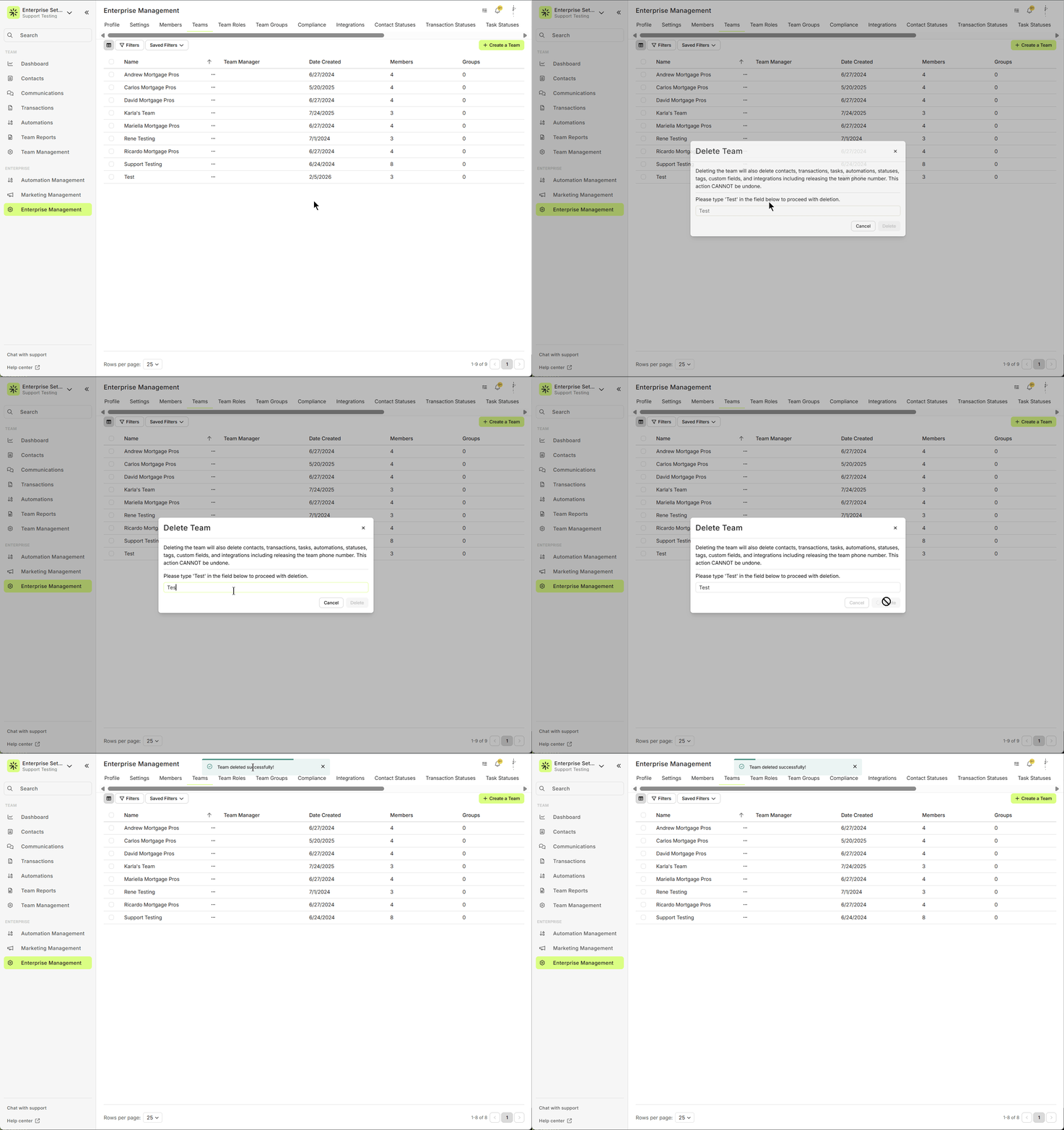
- Within Enterprise Settings, click on Teams to view the list of current teams.
- Select the Team to Delete:
- Locate the team you wish to delete.
- Click on the ellipses (three dots) next to the team name to open more options.
- Initiate Team Deletion:
- From the dropdown, select Delete Team.
- Acknowledge the Deletion Warning:
- Carefully review the following note that appears:
“Deleting the team will also delete contacts, transactions, tasks, automations, statuses, tags, custom fields, and integrations including releasing the team phone number. This action cannot be undone.”
- Carefully review the following note that appears:
- Confirm the Action:
- To proceed with deletion, type the required call to action phrase in the designated field as instructed on the screen.
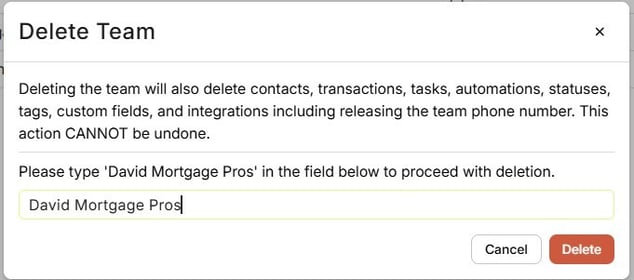
⚠️ Please note that this call to action is case sensitive and must be entered as it appears in the box.
- Finalize the Deletion:
- After entering the call to action, click on Delete to permanently remove the team.
Related Articles
Enterprise Domain Admin Setup – Send Automated and Bulk Email Using Your Company Domain
Lendware offers the ability to send automated and bulk emails directly from your Company or Team domain. This allows you to send emails through Lendware’s warmed-up email infrastructure with optional DKIM authentication for full branding, identity, ...Copy Automations to Teams with EAM
EAM - Enterprise Automation Management - provides your marketing team and admins access to push/copy automations quickly and easily to any or all Teams within your Enterprise. Copying one or more automations to teams has never been easier and ...Admin: Add or Update Any User’s Email Signature
With a few clicks in Enterprise Settings an Admin User can access, add, and edit any user's email signature. This is an efficient way to ensure compliant and consistent brand signatures across the entire Enterprise. In the video below, we’ll walk you ...Gmail Whitelisting - Provide Admin Security Approval for Lendware
Google Workspace admins can make the Email Inbox Integration process even easier for Lendware users by approving Gmail integration. This is a one-time processes that will ensure any Lendware user in your org can easily integrate their email inbox. ...How to Deactivate a User in Lendware (Team-Level & Enterprise-Level)
This guide provides instructions on how to deactivate a user in Lendware, either at the team level or the enterprise level. Deactivating a user will revoke their access to the associated teams or the entire enterprise, depending on the action taken. ...