Assign Related or Referral Contact
Linking a Related Contact to your leads or borrowers is a key part of building long-term referral relationships. You can also use this feature to track other relationship types, like family members or business partners.
⚠️ A Related Contact must exist in your database before linking them to a Contact.
- Add Related Contact to an existing Contact
- Add Referral Contact while creating a new Contact
Add Related Contact to an existing Contact
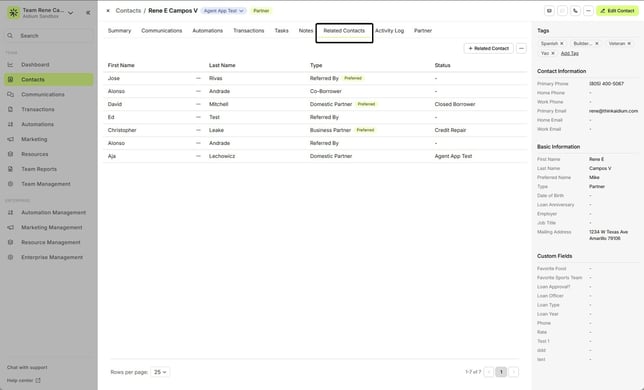
After opening the lead/borrower Contact you want to link to an existing Referral Contact, click on, “Related Contacts”
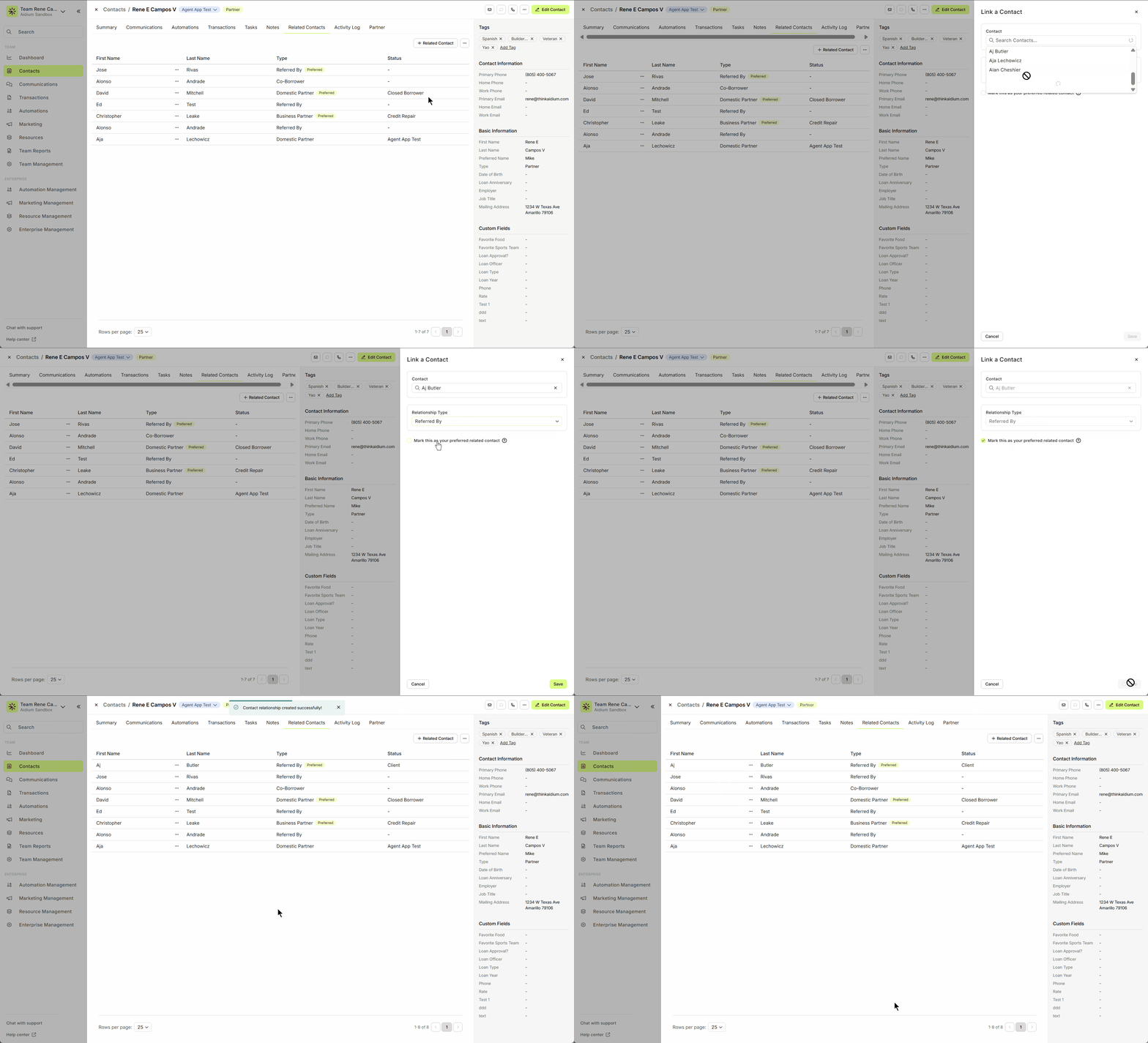
- A ‘Link A Contact’ drawer will slide-out on the right side of the screen. In the ‘Link with a contact’ field, start typing the name (first or last) to narrow your choices down. When you find the appropriate Contact to link, click on the name.
- In the ‘Choose a relationship type’ field, choose, ‘Referred By’ to link the Referral Contact. You can also use this function to link other related contacts, in addition. This feature is not limited to a single relationship or relationship type.
- When complete, click ‘Save’ (in yellow) at bottom.
- You should now see the new 'Related Contact'
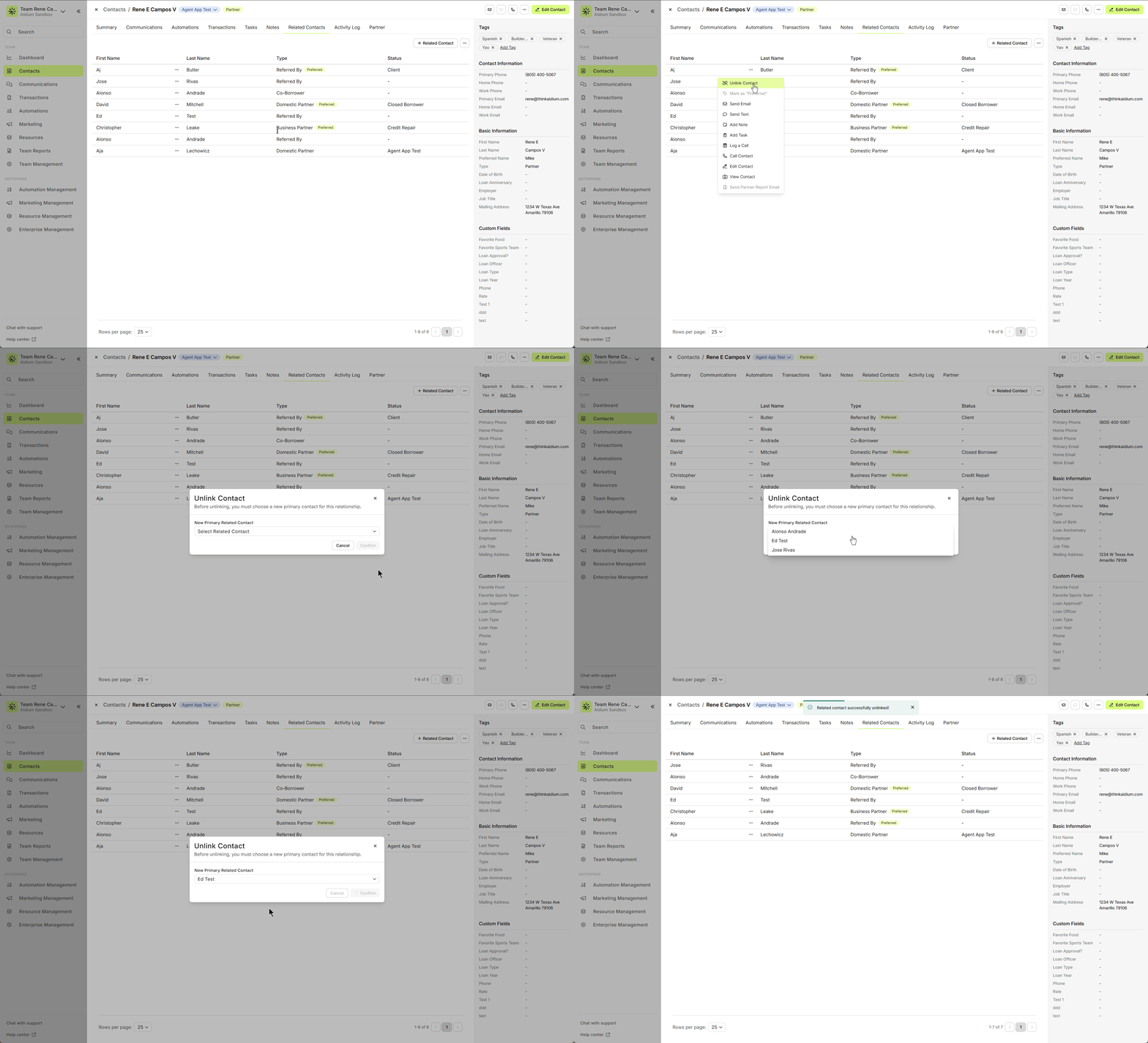
- To remove a 'Related Contact', click the 'un-link' button next to the contact relationship.
👍 This concludes linking and un-linking an existing Contact
Add Referral Contact while creating a new Contact
- While adding a new contact, scroll to bottom of the ‘Create a Contact’ drawer. In the ‘Referred by’ field, start typing the name (first or last) to narrow your choices down. When you find the appropriate Referral, click it.
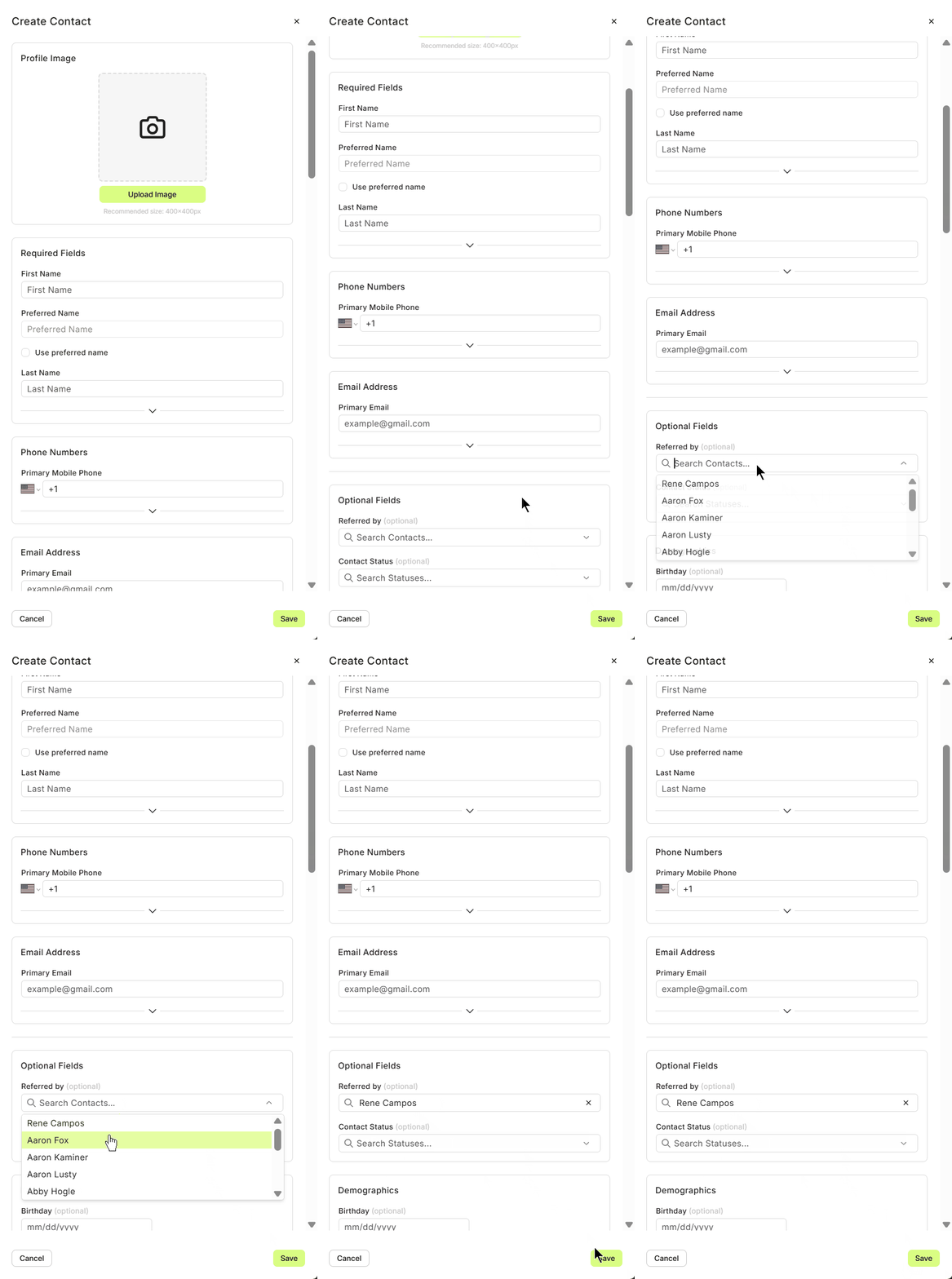
When complete, click ‘Save’ (in yellow) at the bottom
⚠️ When linking a 'Related Contact', it must exist already. You cannot create a contact while linking.
👍 This concludes linking a Referral Contact while creating a new Contact.
Related Articles
Contact Detail View – A Walkthrough
The new Contact Detail View offers a streamlined and organized way to view and manage your contacts. With all information separated into intuitive tabs, you’ll find everything you need at a glance—making it easy to update, communicate, and stay on ...Contact View – Related Contacts Tab
The Related Contacts tab in the new contact view makes it easy to link any contact to another using a relationship type. This helps your team quickly understand connections, keep track of referrals and partners, and streamline communication. There’s ...Quick Tips – Creating a Contact and Adding a Referral
Making sure your new leads are created and set up correctly is one of the most powerful ways to stay on top of your pipeline. Not only does it ensure no lead gets forgotten, but it also shows your referral partners that you are organized, reliable, ...Contact View - Summary Tab
The Summary tab in the new Contact View acts as a snapshot of your contact’s most important details and recent activity. It offers a streamlined overview of tasks, communications, transactions, and more—all in one place. When opening a contact, the ...Contact View - Transactions Tab
The Transactions tab is a straightforward way to view and interact with every transaction (loan) that a single contact is associated with. Whether a borrower, co-borrower, real estate agent or other loan related contact - it will display. This tab ...