Configuring Realtor.com Lead Source
This document explains how to connect your CRM or third-party system to Realtor.com Connections℠ Plus using the Lead Delivery API. You’ll configure a webhook endpoint (where leads are sent) and an API key (for authentication).

Prerequisites
Before setup, make sure you have:
- An active Connections℠ Plus account.
- Secure HTTPS endpoint provided by your Lendware Implementation Manager.
- An API key generated by your Lendware Implementation Manager.
- A Partner Customer ID (Your user email address within Lendware)
- Admin access to your Realtor.com dashboard.
Step-by-Step Configuration
Check out more detail at https://support.realtor.com/s/lead-api-quick-start.
1. Log in to Realtor.com Dashboard
Depending on your account type:
Agent Accounts
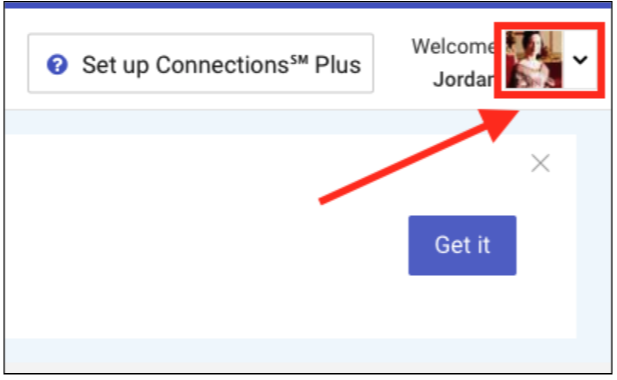
- Click your avatar (top-right corner).
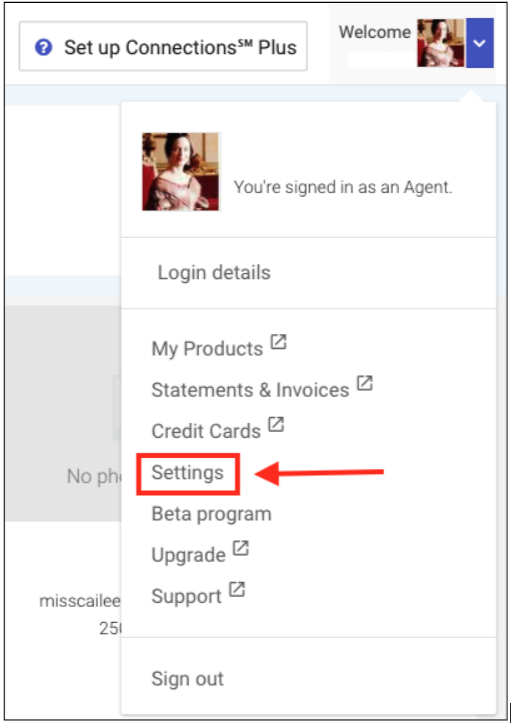
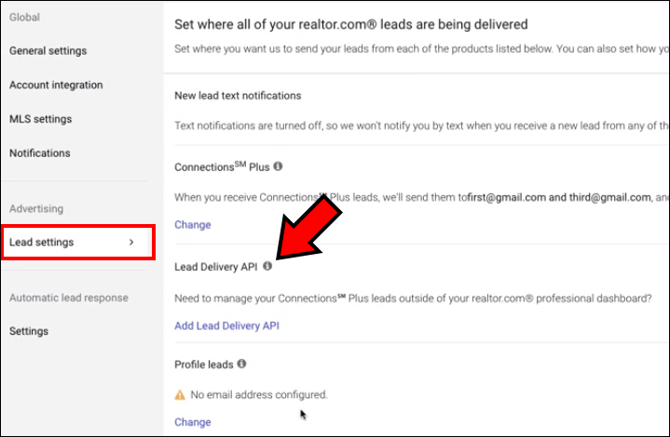
- Select Settings → Lead Settings → Connections℠ Plus → Add a Lead Delivery API.
Broker Accounts
- From the left navigation rail, select
Brokerage → Organization Settings → Lead Products → Connections℠ Plus → Add a Lead Delivery API.
- Enter Required Integration Fields
- Select Other Application on the Implementation Guide screen.
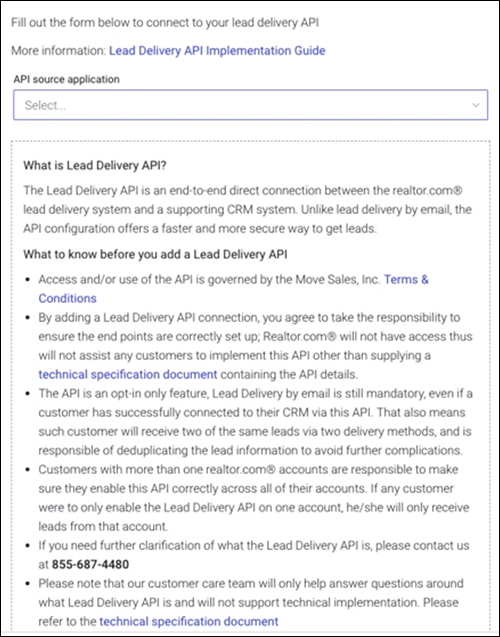
- Enter the information on the page after choosing Other Application.
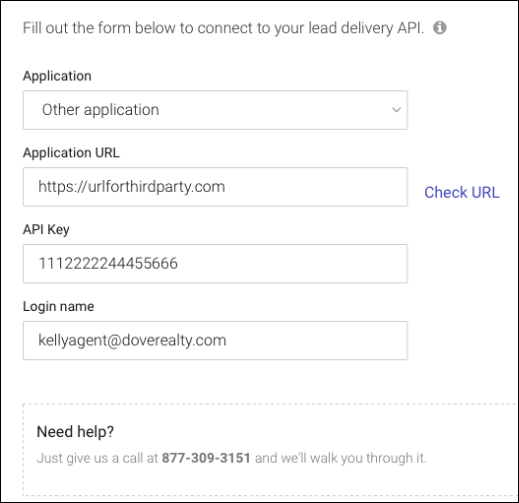
Field | Description |
Application | This is the source application to which the Leads API will send data to. |
Customer API Endpoint URL | The webhook URL where Realtor.com sends leads. This must accept POST requests over HTTPS. |
Customer API Key (API Token) | Your private key used to verify Realtor.com requests. Realtor.com includes this in each X-API-KEY header. |
Partner Customer ID | Unique CRM or vendor identifier for your account. Used to link the lead recipient in your CRM. |
💡 Tip: Ask your Implementation Manager for these values. If you’re using Zapier or a webhook listener, use your generated Zapier URL for the endpoint.
3. Click Test Connection

Troubleshooting
Issue | Likely Cause | Resolution |
Realtor.com not delivering leads | Incorrect endpoint URL or SSL issue | Confirm URL is HTTPS and reachable. |
Duplicate leads appearing | Realtor.com retried delivery | Deduplicate using lead_guid or communication_guid. |
“Unauthorized” errors | API key mismatch | Verify the value entered in both systems. |
Need Help?
Reach out to Realtor.com:
📞 Customer Care: (855) 687-4480
🔗 Terms & Conditions: https://dashboard.realtor.com/policies/terms
Reach out to Lendware:
✉️ Customer Care: Use the in platform chat functionality or email support@lendware.ai
🔗 Lendware Knowledge Base: Access our comprehensive knowledge base at https://lendware.zohodesk.com/portal/en/kb
Related Articles
LendingPad Integration
This guide provides a step-by-step explanation of how the integration works, how to set it up, and what to expect during daily use. You will also find troubleshooting tips and best practices to ensure a smooth operation. Key Benefits How It Works ...Blend Integration
Blend is one of the most recognized point-of-sale (POS) systems in the mortgage industry, streamlining the loan application experience for borrowers. ⚠️ Please note that this integration is currently in Beta. Please refer to this article regarding ...Configuring Okta for SCIM Integration
This guide will walk you through the steps needed to configure Okta for SCIM integration with Lendware. Prerequisites Administrative access to your Okta Workforce Identity Cloud tenant The SCIM endpoint URL and authentication token (we will provide ...Lendware Azure Entra SAML SSO & SCIM Integration Guide
This guide provides step-by-step instructions for configuring Single Sign-On (SSO) and automated user provisioning (SCIM) between your Microsoft Entra (formerly Azure AD) environment and Lendware. By completing this integration, your team members ...Encompass Integration Guide
Using Encompass, loan officers can originate loans and push the relevant borrower, partner, and loan data to Lendware. Pushing this data to Lendware allows us to trigger automations based on almost any criteria. Value Proposition for Loan Officers ...