Using Tags and Status Changes to Chain Automations
This technique helps create a structured workflow where contacts move through different stages automatically.
For example:
A lead follow-up automation runs when a contact becomes a Lead
Once completed, it adds a tag that triggers a long-term nurture automation
This creates a continuous communication flow without manually enrolling contacts into multiple automations.
How Automation Chaining Works
Automation chaining works when one automation performs an action that matches the entry conditions of another automation.
Common chaining triggers include:
Adding a tag
Updating Contact Status
Updating Transaction Status
Example workflow:
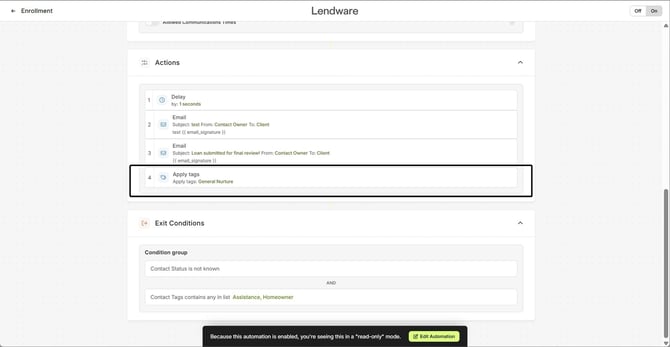
Automation A
Lead Follow-Up Sequence
Actions:
Send welcome email
Send follow-up SMS
Add tag: General Nurture
Automation B
Long-Term Nurture Sequence
Entry Condition:
Tag = General Nurture
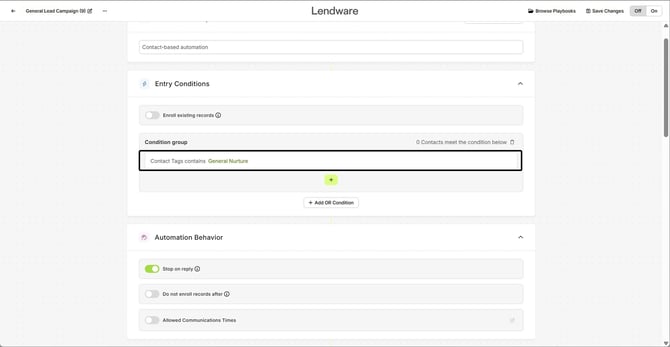
When Automation A adds the tag, Automation B automatically enrolls the contact.
Timing and Order of Operations
Automations evaluate entry conditions after the triggering action occurs.
This means:
Automation A performs an action (for example, adds a tag)
The system updates the contact record
Automations that use that tag as an entry condition are evaluated
If the conditions match, the contact enrolls in the new automation
In most cases, this happens almost immediately after the update.
Automations only trigger when an entry condition changes.
If a contact already has the tag or status before the automation is enabled, it will not trigger unless Enroll Existing Records is enabled.
Contact-Based vs Transaction-Based Automation Behavior
When chaining automations, it’s crucial to understand how Contact-Based and Transaction-Based automations handle enrollments.
| Automation Type | Runs Per | Can Trigger Multiple Times? |
|---|---|---|
| Contact-Based | Contact | No, unless a duplicate automation exists with matching entry conditions |
| Transaction-Based | Transaction | Yes, for each transaction that meets the entry conditions |
Key Notes:
Contact-Based automations run once per contact unless a different automation is triggered.
Transaction-Based automations run once per transaction. A contact with multiple transactions may enter the automation multiple times.
Important: Misunderstanding this behavior is a common cause of duplicate enrollments or perceived errors when chaining automations.
How Re-Entry Issues Occur
Re-entry issues happen when a contact qualifies for the same automation more than once. The behavior depends on the automation type:
Contact-Based Automations
Each contact can only be enrolled once per automation.
Even if the contact is updated to meet entry conditions again, it will not trigger a re-enrollment unless a duplicate automation exists.
Transaction-Based Automations
Each qualifying transaction can trigger enrollment.
A contact may be enrolled multiple times if they have multiple transactions, but each enrollment is tied to a separate transaction.
Key Behavior:
Tags or status updates added manually after the contact has already been enrolled will not retrigger the same contact-based automation.
Re-entry can only occur if a duplicate automation exists or in transaction-based automations with new transactions.
Some users think that re-adding a tag will retrigger an automation—this is not the case for contact-based automations. Only new transactions or separate automation instances can cause re-enrollment.
How Automation Feedback Loops Happen
Sometimes users worry that chaining automations could create continuous feedback loops.
Clarification:
In contact-based automations, once a contact has been enrolled in an automation, that automation will not fire again for the same contact, even if the entry conditions are met again via another automation.
In transaction-based automations, each new transaction can trigger enrollment, so repeated enrollments are possible—but still tied to separate transactions.
Example (Contact-Based Scenario):
Automation A: Adds tag Qualified
Automation B: Entry condition = Tag Qualified → updates Contact Status to Lead
Automation C: Entry condition = Contact Status = Lead → adds tag Qualified
Flow:
Automation A triggers Automation B
Automation B triggers Automation C
Automation C triggers Automation B
Key Point:
Automation B will not re-enroll the same contact again because each contact-based automation only runs once per contact.
What may appear as a loop in logs is just sequential updates, not repeated automation execution.
Warning:
While true infinite loops are prevented for contact-based automations, always review automation dependencies to ensure intended behavior and avoid confusion when reading activity logs.
For transaction-based automations, ensure each new enrollment is expected to avoid duplicate sends.
Best Practices for Chaining Automations
Following a few design practices can help prevent loops and duplicate enrollments.
Use Dedicated Trigger Tags
Create tags specifically for triggering automations rather than using general-purpose tags.
Example:
✅ Good:
Lead-Nurture-Start❌ Avoid:
Lead
This ensures tags are only used for automation transitions and prevents accidental enrollment in unrelated automations.
Be Mindful of Manual Tag Removals
Automation actions cannot remove tags; they only add them.
If a tag is removed manually after being added by an automation, the contact may appear to no longer meet conditions.
Reviewing the Activity Log will show when a tag was removed and help explain why a contact no longer seems to qualify.
Manual removal does not retrigger a contact-based automation. The automation only runs once per contact unless a separate automation instance exists.
Use Exit Conditions
Exit conditions ensure contacts leave automations when they no longer meet intended criteria.
Examples:
Contact Status is not LeadContact has tag ClientTransaction status is not Funded
This prevents contacts from remaining in automations that no longer apply.
Please note that Exit Conditions are evaluated at the same time as entry conditions. If a contact or transaction meets both entry and exit conditions, it will not be added to the automation.
Plan Automation Stages
Think of automations as a communication timeline rather than independent workflows.
Example stages:
Lead Follow-Up
Appointment Scheduled
Active Client
Long-Term Nurture
Each stage can trigger the next automation using tags or status changes.
Properly staged automations with clear entry and exit criteria help ensure smooth transitions between workflows and reduce questions about unexpected behavior.
How to Verify Chained Automations Are Working
If you are chaining automations together, it is recommended to test the process.
To verify the chain:
Create a test contact
Trigger the first automation
Monitor the Activity Log
Confirm that the second automation enrolls when the tag or status change occurs
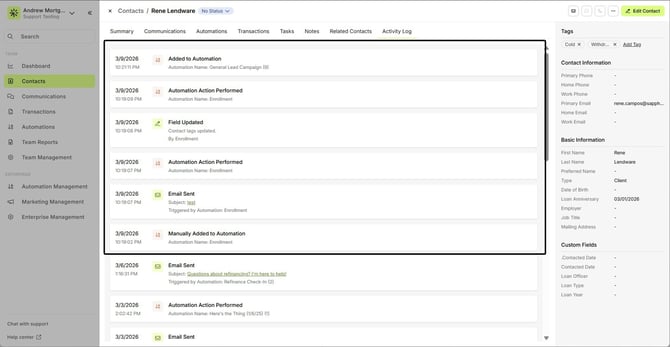
This confirms that the automation chain is functioning correctly.
When testing automation chaining, review the Activity Log to confirm the order in which automations were triggered.
Key Takeaway
Automation chaining allows you to create powerful workflows where contacts move automatically between automations.
However, without careful planning, chaining can also create duplicate enrollments or automation loops.
Using dedicated trigger tags, clear entry conditions, and structured automation stages will help ensure automations transition contacts smoothly between workflows.
Need more help? Check out: Intro to Automations
Related Articles
Intro to Automations
Automations is your one area to create and manage all things automatically created or managed. From Transaction (loan) communications to Drip (nurture) campaigns to New Lead workflows, tasks and comms - Automations manage your best intentions. ...Managing Multiple Automations on the Same Contact
In Lendware, contacts and transactions can be enrolled in multiple automations at the same time. While this flexibility allows teams to create powerful workflows, it can also lead to situations where contacts receive too many emails or SMS messages ...Contact-Based Automations
Contact-based automations are designed to support your lead management, contact engagement, education, reminders, and more. These automations help you act on your best intentions without manual follow-up. What is a contact based automation Create new ...Repeat Automations
Repeat Automations allow teams to automatically re-run automation actions on a recurring schedule. This feature supports ongoing workflows such as recurring outreach, reminders, and partner reporting without requiring manual re-enrollment. Repeat ...Transaction-Based Automations in Lendware
Transaction-based automations help streamline and enhance communication throughout the loan process. From loan milestone updates to assigning tasks and sending follow-ups, they play a key role in keeping your team and clients aligned. In this ...