Pipeline View of Tasks Assigned to You and Your Team
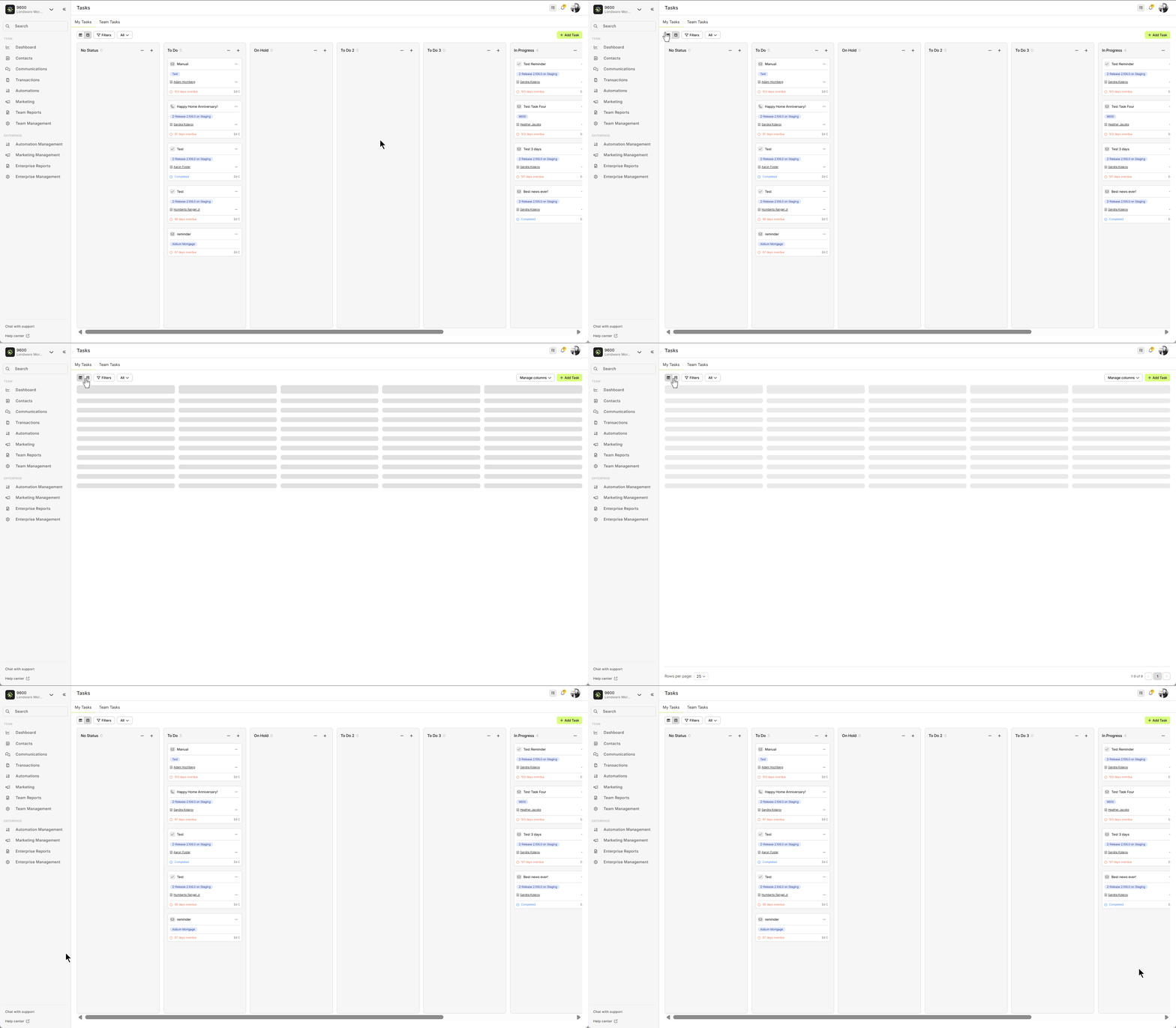
The Tasks page provides two display modes: List View and Pipeline View. In this article, we’ll focus on how to use the Pipeline View to efficiently manage tasks for yourself and your team.
Like the Contacts and Transactions pipeline views, the Tasks pipeline view gives a clear, visual overview of tasks organized by status. You can also toggle between My Tasks and Team Tasks to keep track of what’s assigned to you—or collaborate and follow up on team responsibilities.
To get started:
Click Tasks (📌 top-right corner).
Switch to Pipeline View if you’re not already there.
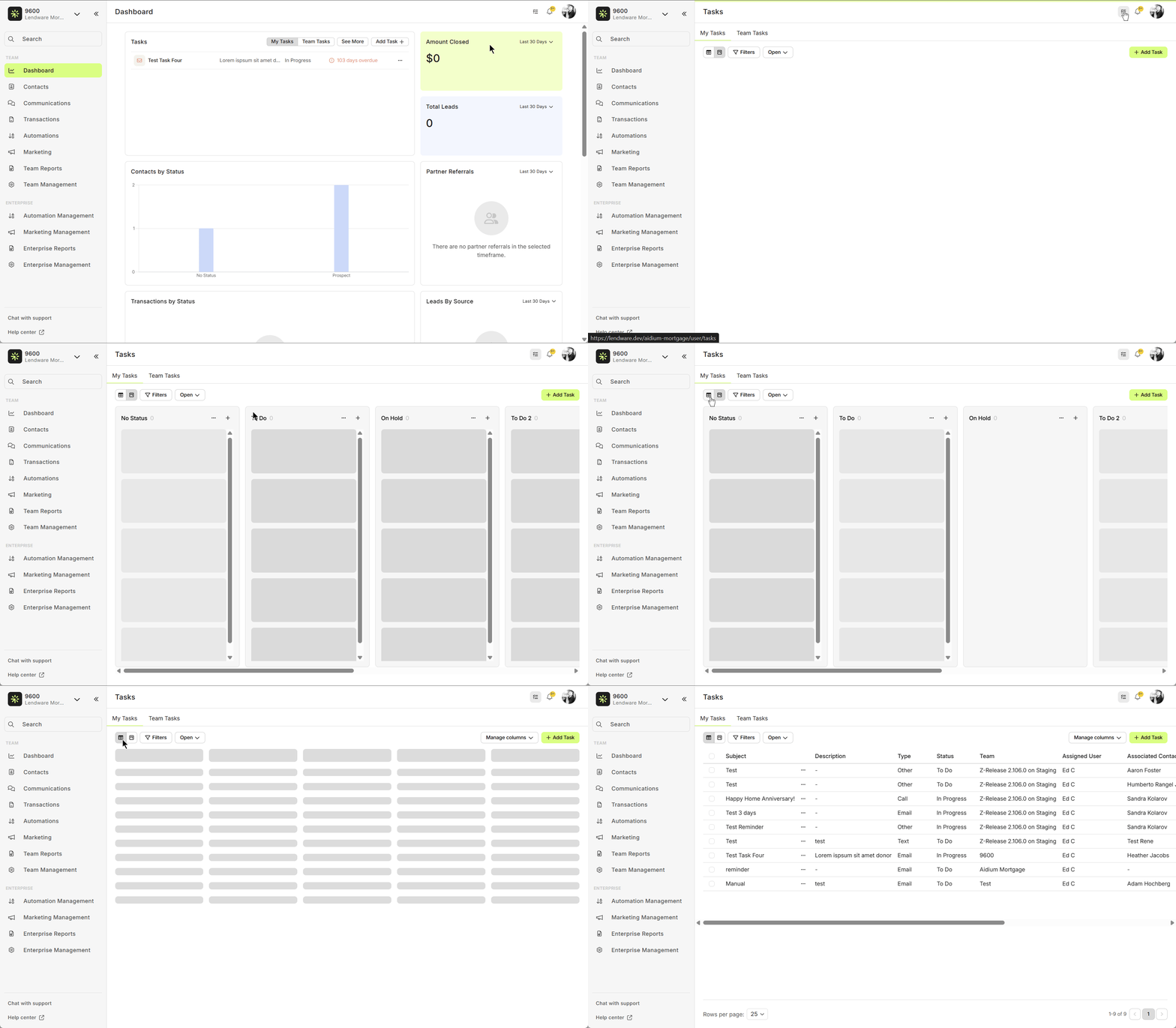
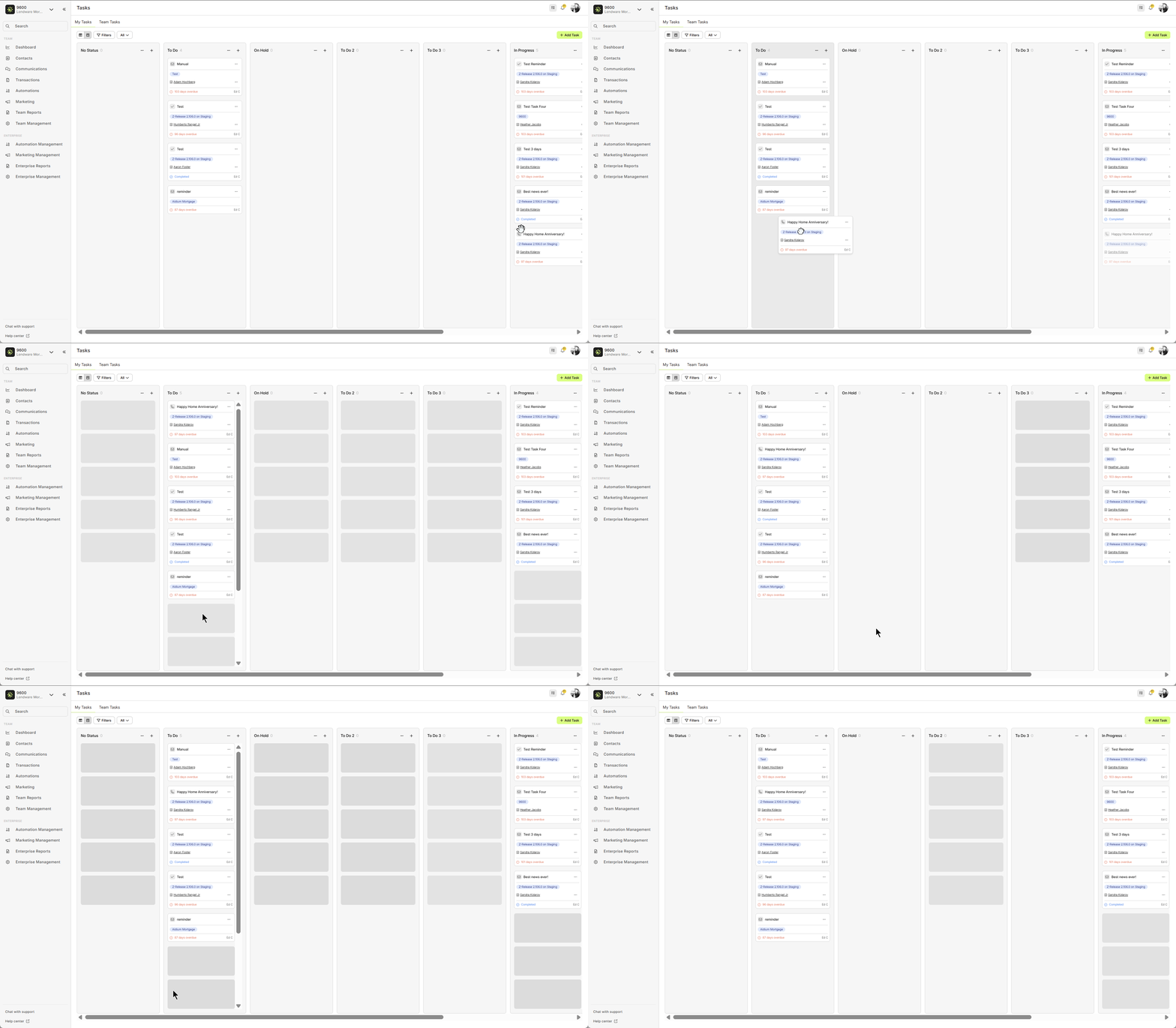
The Pipeline View arranges your tasks into four columns based on their status, allowing you to quickly update their status by dragging them between columns.
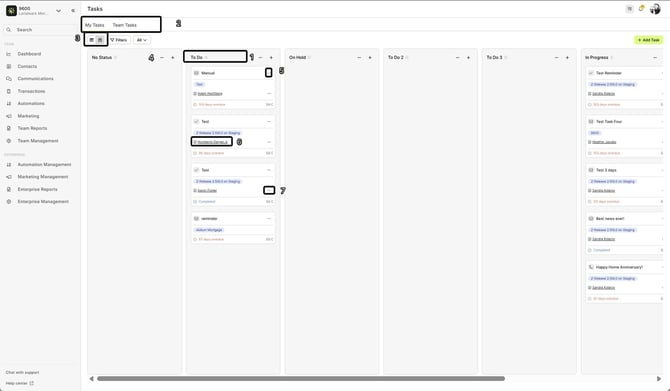
- Status: Pipeline View organizes your tasks into the following status-based columns:
To Do
In Progress
Done
On Hold (for tasks that need to be paused or temporarily delayed)
No Status (for tasks that haven’t been assigned a status yet)
You can easily drag and drop tasks between columns to update their status.
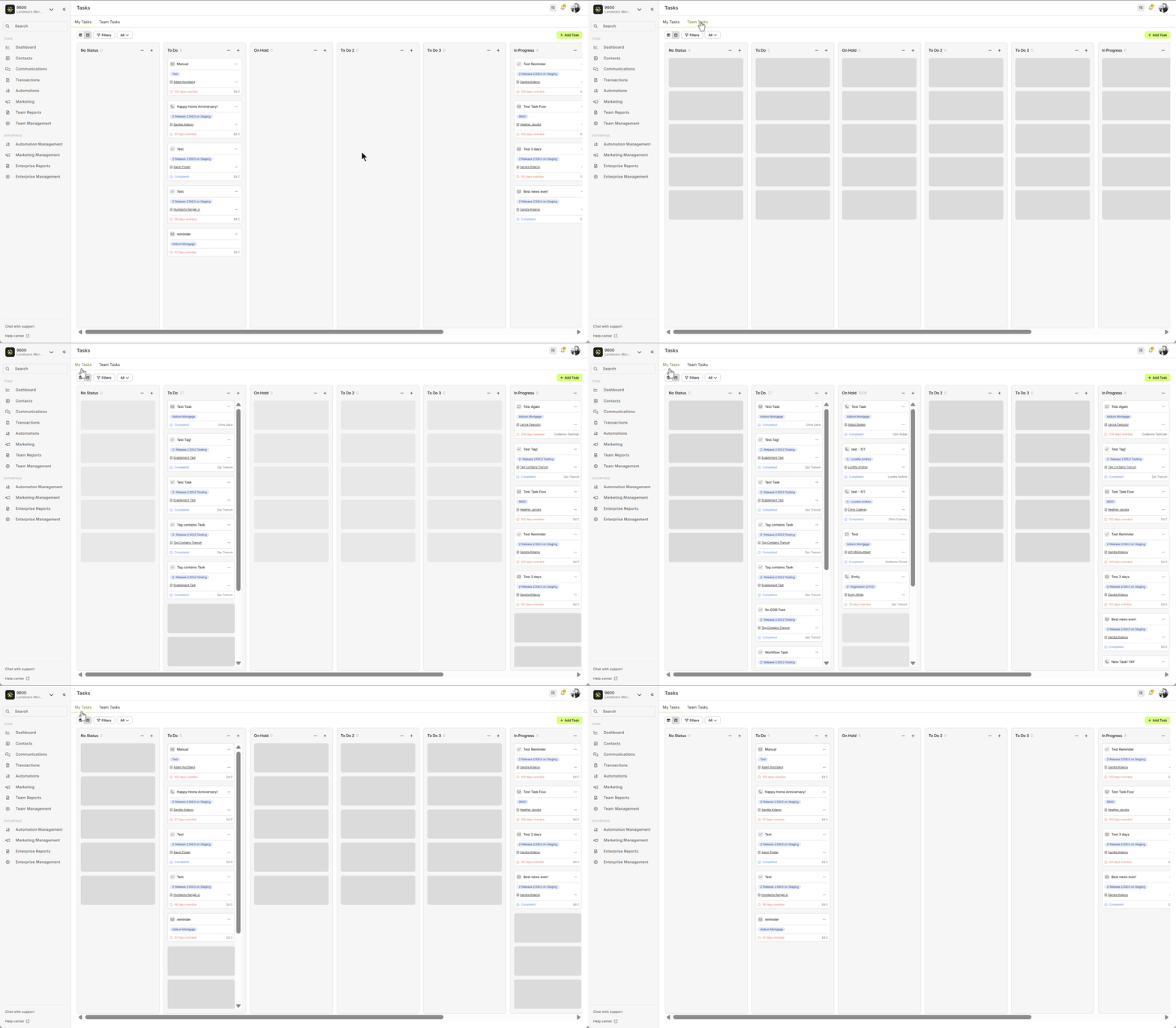
My Tasks vs. Team Tasks
Toggle between:
My Tasks – Only shows tasks assigned to you.
Team Tasks – Displays all tasks across the team.
Toggle between:
My Tasks – Only shows tasks assigned to you.
Team Tasks – Displays all tasks across the team.
List View vs. Pipeline View
Use the toggle button to switch between:
List View – Traditional table layout.
Pipeline View – Drag-and-drop visual board.
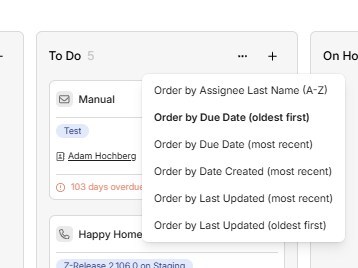
Sorting Options: In Pipeline View, you can sort your tasks to find the most relevant ones easily. Here are the available sorting options:
Order by Assignee Last Name (A-Z) – Sort tasks by the assignee’s last name in ascending order.
Order by Due Date (Oldest First) – Sort tasks by their due date, from the oldest to the most recent.
Order by Due Date (Most Recent) – Sort tasks by their due date, from the most recent to the oldest.
Order by Date Created (Most Recent) – Sort tasks based on the creation date, showing the most recently created tasks first.
Order by Last Updated (Most Recent) – Sort tasks by the most recent update date.
Order by Last Updated (Oldest First) – Sort tasks by the most recent update date, from the oldest to the most recent.
These sorting options allow for a customized view, helping you stay organized and prioritize your tasks efficiently.
Use the toggle button to switch between:
List View – Traditional table layout.
Pipeline View – Drag-and-drop visual board.
Sorting Options: In Pipeline View, you can sort your tasks to find the most relevant ones easily. Here are the available sorting options:
Order by Assignee Last Name (A-Z) – Sort tasks by the assignee’s last name in ascending order.
Order by Due Date (Oldest First) – Sort tasks by their due date, from the oldest to the most recent.
Order by Due Date (Most Recent) – Sort tasks by their due date, from the most recent to the oldest.
Order by Date Created (Most Recent) – Sort tasks based on the creation date, showing the most recently created tasks first.
Order by Last Updated (Most Recent) – Sort tasks by the most recent update date.
Order by Last Updated (Oldest First) – Sort tasks by the most recent update date, from the oldest to the most recent.
These sorting options allow for a customized view, helping you stay organized and prioritize your tasks efficiently.
Edit or Delete Tasks
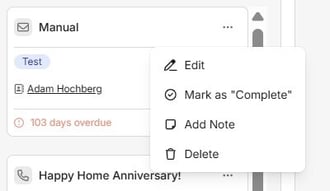
Each task has action options:
✏️ Edit – Opens the Edit Task drawer.
- Add Note – You can add a note to a task
- Mark as "Open" / "Completed" – This option allows you to toggle the task’s status.
🗑️ Delete – Permanently removes the task.
Each task has action options:
✏️ Edit – Opens the Edit Task drawer.
- Add Note – You can add a note to a task
- Mark as "Open" / "Completed" – This option allows you to toggle the task’s status.
🗑️ Delete – Permanently removes the task.
Open Contact Detail
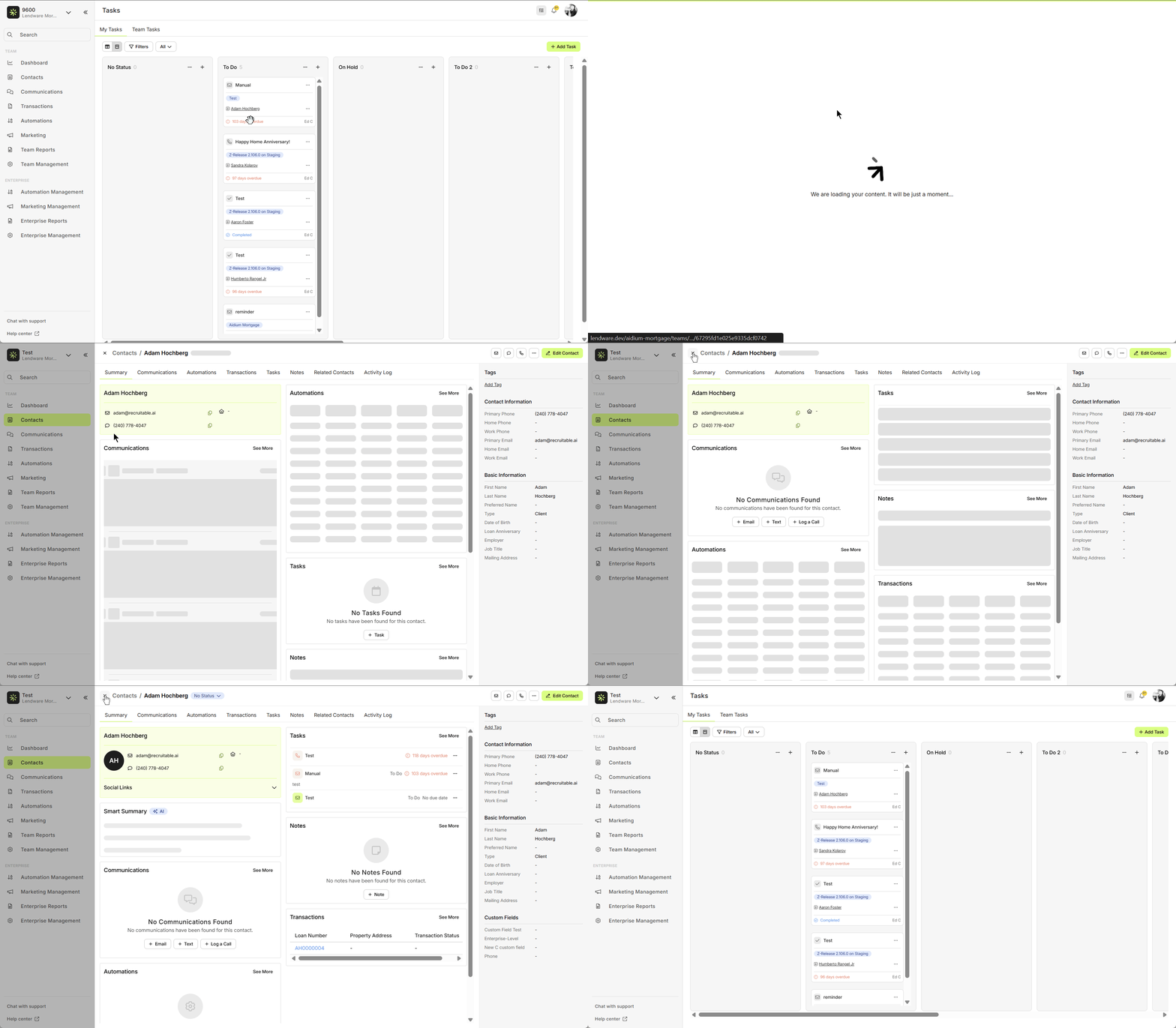
Clicking a contact’s name on a task opens the Contact Detail page in a new drawer.
Use the ''X" button to return to your previous view.
Clicking a contact’s name on a task opens the Contact Detail page in a new drawer.
Use the ''X" button to return to your previous view.
Quick Actions on Linked Contact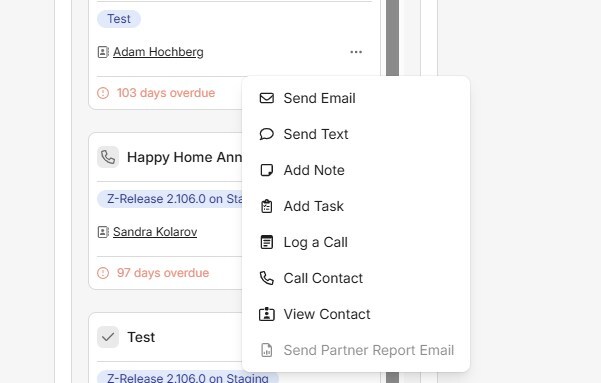
Available options for instant action:
Send Email
Send Text
Add Note
Add Task
Log a Call
- Call Contact
View Contact
Send Partner Report Email (if the contact is a partner Learn more)
Task statuses can be customized at the enterprise level, meaning your system administrator can create or modify statuses as needed.
Send Email, Send Text, Add Note, Add Task, Edit Contact – Access these actions directly from the pipeline view, allowing you to quickly communicate or make updates without leaving the page. This saves time and keeps you focused on managing tasks and contacts efficiently.
👍 This concludes a walk-through of the Task Pipeline View
Available options for instant action:
Send Email
Send Text
Add Note
Add Task
Log a Call
- Call Contact
View Contact
Send Partner Report Email (if the contact is a partner Learn more)
Task statuses can be customized at the enterprise level, meaning your system administrator can create or modify statuses as needed.
Send Email, Send Text, Add Note, Add Task, Edit Contact – Access these actions directly from the pipeline view, allowing you to quickly communicate or make updates without leaving the page. This saves time and keeps you focused on managing tasks and contacts efficiently.
👍 This concludes a walk-through of the Task Pipeline View
Need more help? Check out: Task Management: Understanding Task States
Related Articles
Task Management: Understanding Task States
The Tasks page now includes updates that make it easier to organize and manage your workflow. A key change in this update is how completed tasks are handled, improving visibility and keeping your workspace cleaner. What’s New Tasks in Lendware have ...Cross-Team Tasks
Cross-Team Tasks make it easy to manage responsibilities across multiple teams—perfect for roles like Processors, Managers, or Post-Close Support who assist more than one team. This feature gives users a centralized view of all assigned tasks, ...List View of Tasks Assigned to You and Your Team
The Tasks view in Lendware allows you to organize and easily manage both your tasks and your team’s tasks. Accessing the Task View Tasks can now be accessed from any page in Lendware using the Task button located in the upper-right corner, near your ...Create New Task
Tasks help you stay on track and follow through on your commitments—whether it's connecting with leads, agents, or borrowers. You can create tasks manually or through automations. This article walks you through how to create a task manually from ...