In-App Notifications
Stay on top of your work with In-App Notifications – your central hub for important activities. These notifications make sure you never miss a key event and keep you organized, whether it’s a new contact, task, message, or team action.
What You Can Get Notified About
- New SMS/Text – Messages from contacts you’re assigned to.
- New Task – Tasks created and assigned to you.
- New Contact – Contacts created by other team members where you’re the assignee.
- CSV Import Complete – Updates when an import finishes processing.
- Agent Actions – Automation Action
You can also choose to receive notifications via email – perfect for staying on top of things even when you’re away from the app.
You can also choose to receive notifications via email – perfect for staying on top of things even when you’re away from the app.
If you work with multiple teams, all notifications appear in one place, making it easy to manage everything without switching contexts.
Overview
Click to View Notification Source – Jump straight to the contact, task, or transaction that triggered the notification.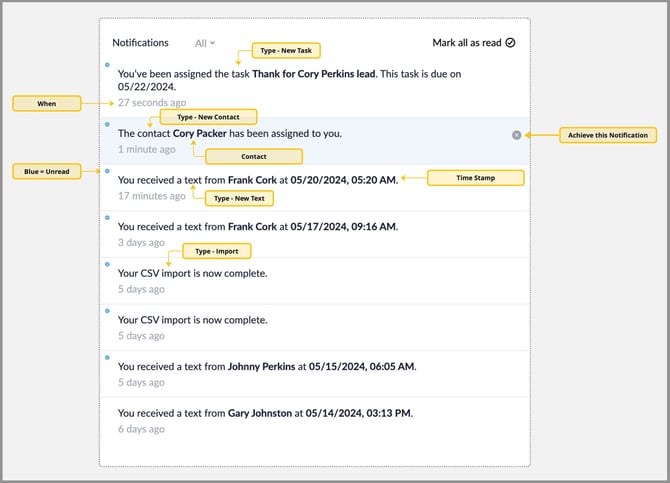
Unread, Read, Archived Notifications – Keep your feed organized and focused.
Manage Notification Settings – Control what you see and how you get notified.
Click to View Notification Source – Jump straight to the contact, task, or transaction that triggered the notification.
Unread, Read, Archived Notifications – Keep your feed organized and focused.
Manage Notification Settings – Control what you see and how you get notified.
How In-App Notifications Work
Notifications are now located in the bottom menu, near your Tasks and profile photo. A yellow circle indicates the number of new alerts.
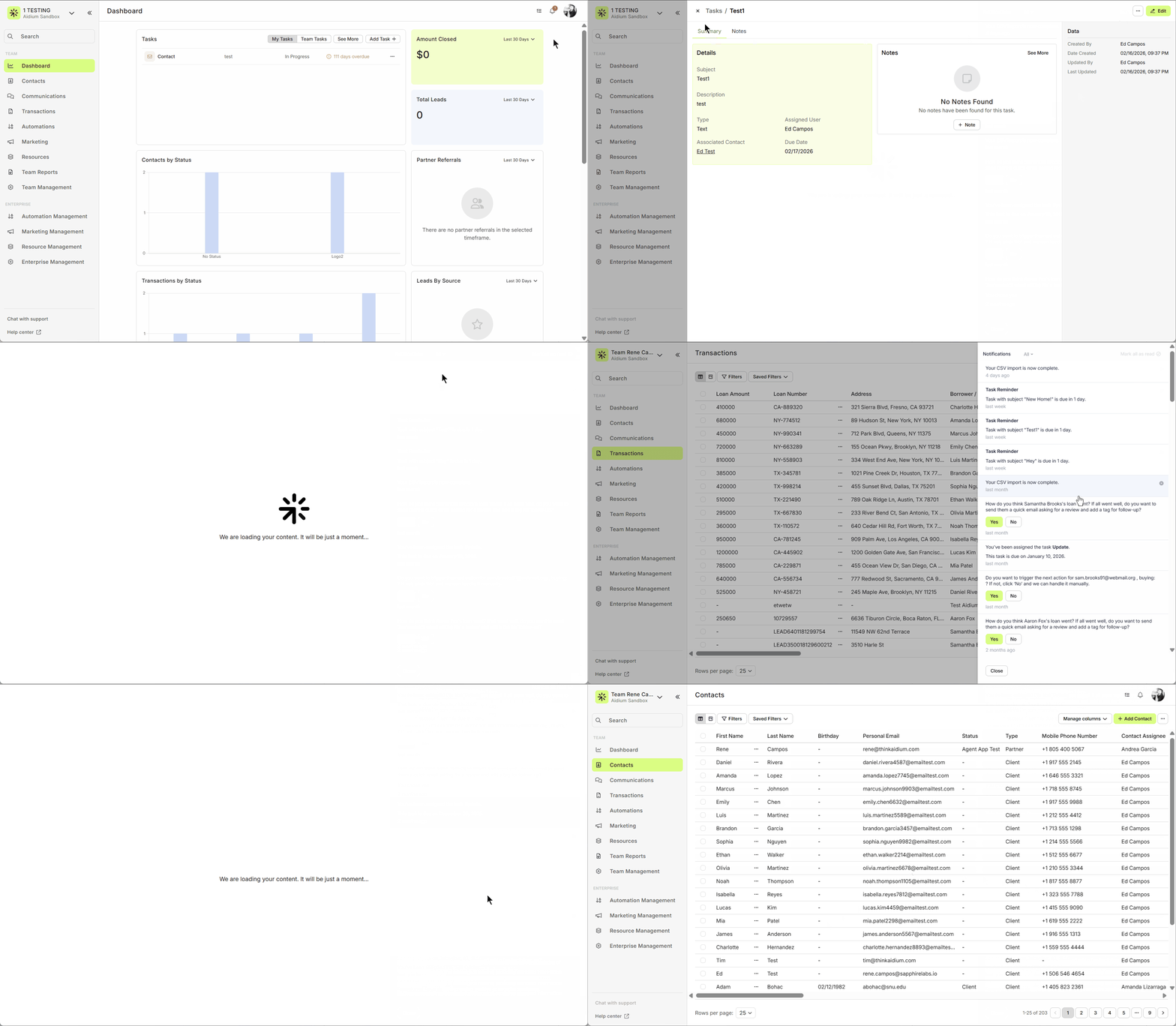
Click the Notifications button to open a slide-out panel on the right, showing all notifications with the newest at the top.
Notification Types & Actions
New Contact
Opens the contact page
Quickly add an Automation, update Status, or create a Task
New Text
Opens the contact page at the Communications tab
View, reply, or take further action
New Task
Opens the specific task on the Tasks page
Edit or complete the task
CSV Import Complete
Opens Contacts or Transactions page, depending on import type
Agent Actions
Review the action, then confirm or deny it based on your needs.
Keep Your Notifications Organized
Notifications have three states:
Unread – New and untouched
Read – Previously clicked and viewed
Archived – Removed from the feed
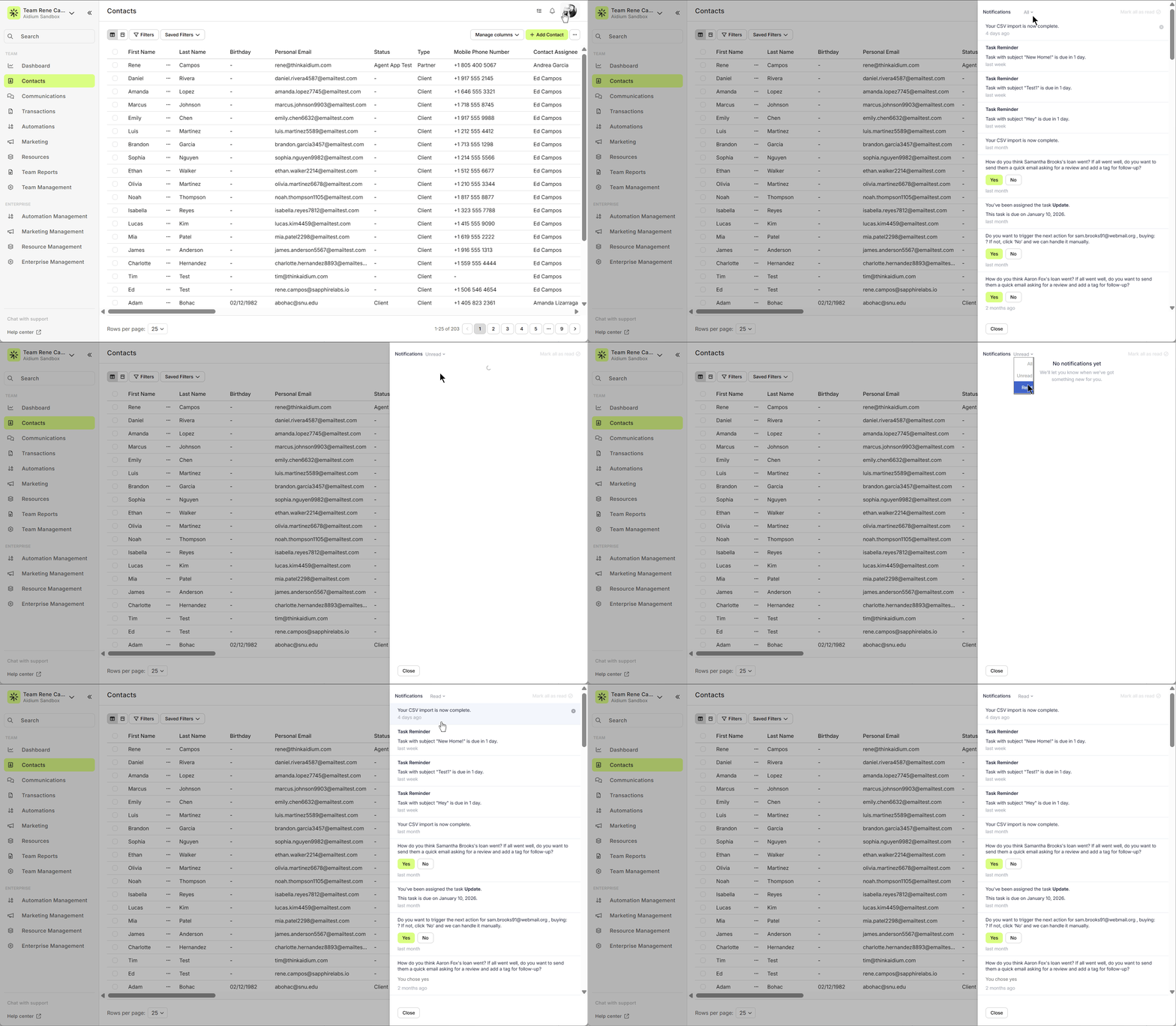
Tip: Sort by status to focus on the most important notifications. Archive items you no longer need to keep your list clean.
Manage Your Notification Settings
Take control of what you see and how you receive alerts:
Click your name (bottom-left) → Account Settings
Go to the Notifications tab
In Activity Updates, toggle notifications on/off for each type and method
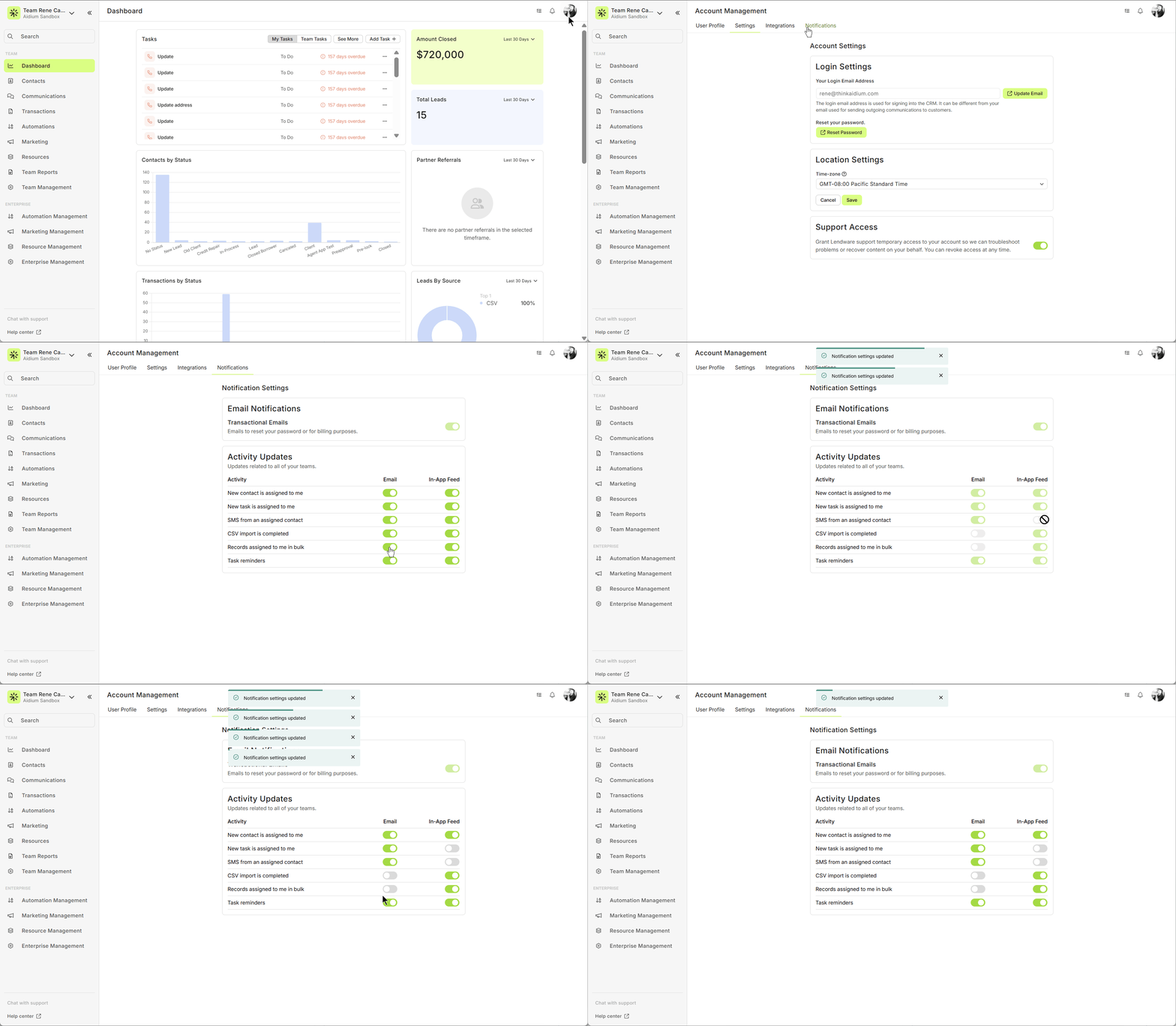
Pro Tips:
- Keep In-App Feed notifications on for “SMS from an assigned contact.”
- Enable CSV Import Complete notifications via email for import issue alerts.
💡 Why it matters: With all your notifications in one place, you’ll never miss an important update. From messages to team actions, the in-app feed keeps you connected, organized, and ready to act.
Need more help? Check out: Lendware Agents: Intelligent Suggestions That Put You in Control
Related Articles
Add Lendware.app to Your Mobile Home Screen
Adding Lendware.app to your mobile home screen (as a Progressive Web App – PWA) is a quick way to access Lendware on the go. Since Lendware is designed with mobile in mind, all day-to-day functionality is available right at your fingertips. Setup on ...Set Forwarding Phone Number for Your Team's Lendware Number
When someone calls your Lendware Texting (SMS) number, you can forward that number to any phone you choose. You can also forward to multiple phone numbers at the same time. This setting will also ensure you receive immediate notifications when an SMS ...SimpleNexus Integration for Users
Connecting yourself or another user to the SimpleNexus integration can be completed in just a few steps. Once connected, any new application submitted — or application abandoned — will automatically be added to Lendware as a contact, categorized with ...Intro to User Settings in Lendware
The User Settings section allows each user to personalize their experience within Lendware, update login credentials, and manage outbound communication preferences. All changes made in User Settings apply only to the currently logged-in user, but ...How to Setup 2FA (two-factor authentication) for Users
2FA or two-factor authentication is an additional security measure to protect your account and your data. With a few steps, you can finish the 2FA setup using Google Authenticator or Duo 2FA authentication apps. Your organization's admin will request ...