How to Use Disclaimers and Sub-Disclaimers in Lendware
A Guide to Setting Up Email and Website Disclaimers with Conditional Logic, State Licensing, and Compliance Branding
Overview
Lendware's Disclaimers feature allows enterprise clients to manage and apply dynamic legal content across websites and emails. These disclaimers help meet licensing, compliance, and branding requirements, tailored by user, state, or team.
What Is a Disclaimer?
A disclaimer is a legal or informational statement appended to the bottom of emails or webpages. Common examples include:
Licensing disclosures
Co-branding notices
DBA (Doing Business As) statements
Equal Housing or REALTOR® logos
State-specific compliance language
Where Are Disclaimers Applied?
Disclaimers can be toggled and applied in two primary locations:
Websites: Appended to the bottom of published pages.
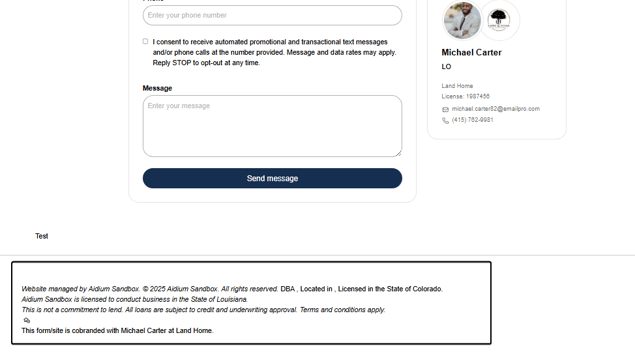
Emails: Appended to the bottom of outgoing messages.
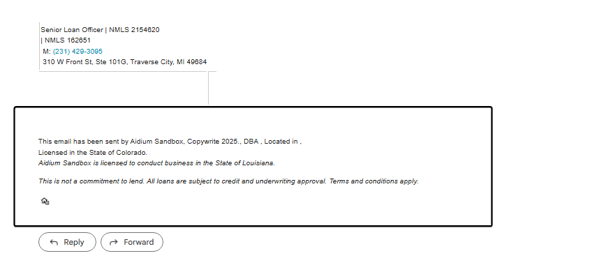
You can enable each independently in your Enterprise settings for compliance flexibility.
TIP: Sites is Currently Still in Beta
Accessing the Disclaimers Settings
Navigate to:
Enterprise Management > Compliance Tab > Disclaimers Builder Widget
This is the same section where SMS compliance settings (e.g., A2P 10DLC) are managed.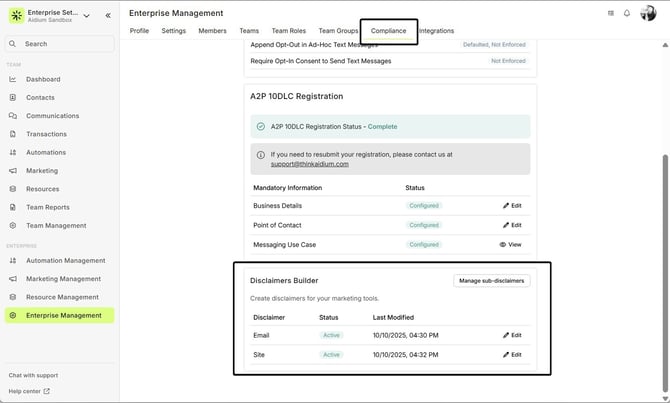
Disclaimers vs. Sub-Disclaimers
A Disclaimer is the final output that gets appended to an email or website.
A Sub-disclaimer is a reusable content block that can be inserted into a Disclaimer using merge fields, with or without conditional logic.
A Disclaimer is the final output that gets appended to an email or website.
A Sub-disclaimer is a reusable content block that can be inserted into a Disclaimer using merge fields, with or without conditional logic.
Sub-disclaimers enable dynamic rendering based on user settings like licensing states, DBAs, or co-branding partners.
Sub-Disclaimer Categories
Category Description Standard Static content for email or site disclaimers. No conditional logic applied. Official Logo Upload image-based content such as Equal Housing or REALTOR® logos. DBA Displays only if the sender’s team has a DBA set in Team Settings > Profile. State Shows based on the licensed states configured in Account Profile > Business Info. One per state. Co-Branding Used when a site includes a form with a co-branding partner.
| Category | Description |
|---|---|
| Standard | Static content for email or site disclaimers. No conditional logic applied. |
| Official Logo | Upload image-based content such as Equal Housing or REALTOR® logos. |
| DBA | Displays only if the sender’s team has a DBA set in Team Settings > Profile. |
| State | Shows based on the licensed states configured in Account Profile > Business Info. One per state. |
| Co-Branding | Used when a site includes a form with a co-branding partner. |
Managing Sub-Disclaimers
To edit existing sub-disclaimers:
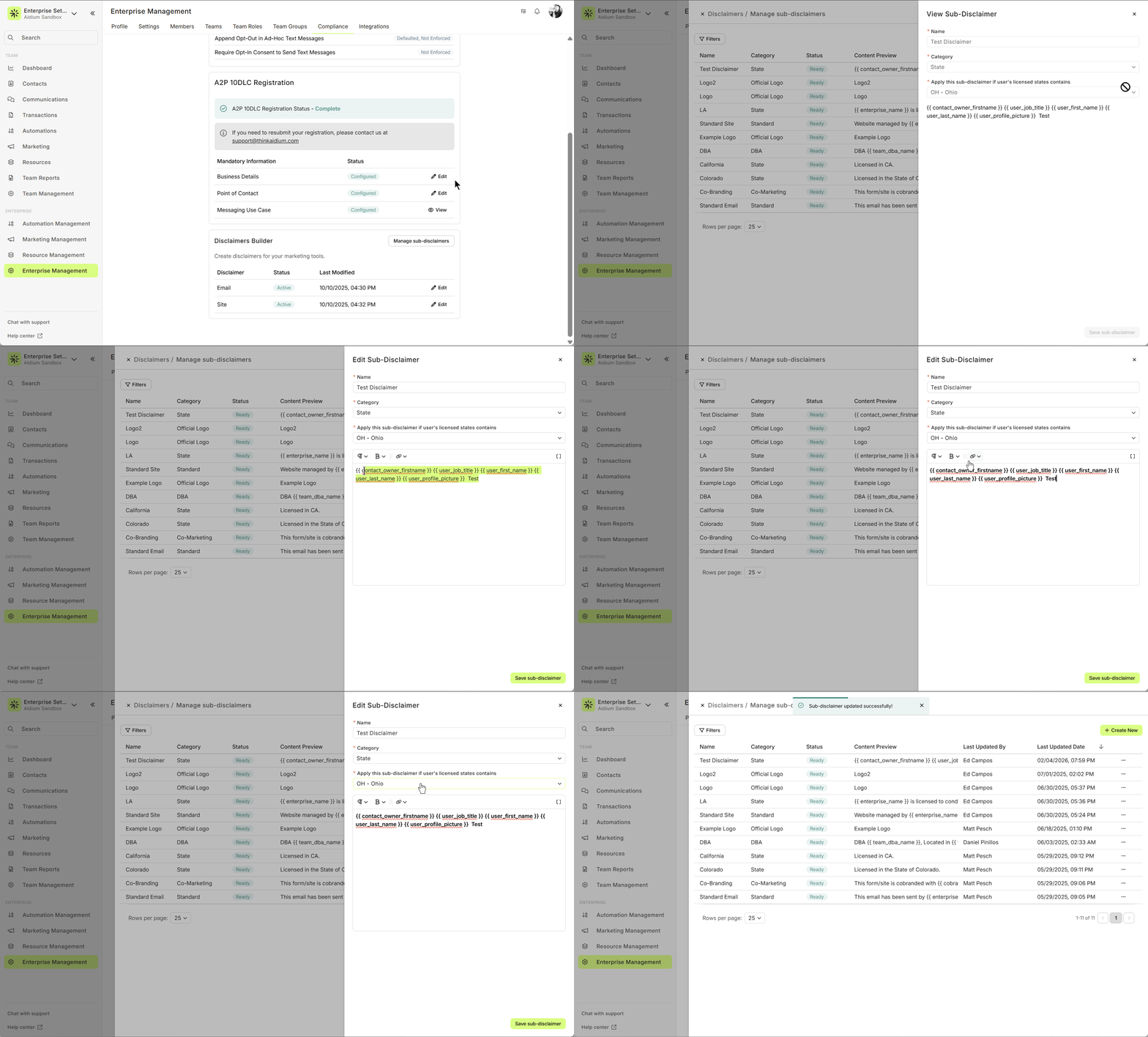
Go to Compliance > Disclaimers tab
Click Manage Sub-disclaimers
Click the three-dot menu next to a sub-disclaimer
Select Edit, make your changes, and click Save Sub-disclaimer
Creating a New Sub-Disclaimer
Go to Compliance > Disclaimers tab
Click Manage Sub-disclaimers
Click Create New
Enter a unique name
Select a category:
For State, select the applicable state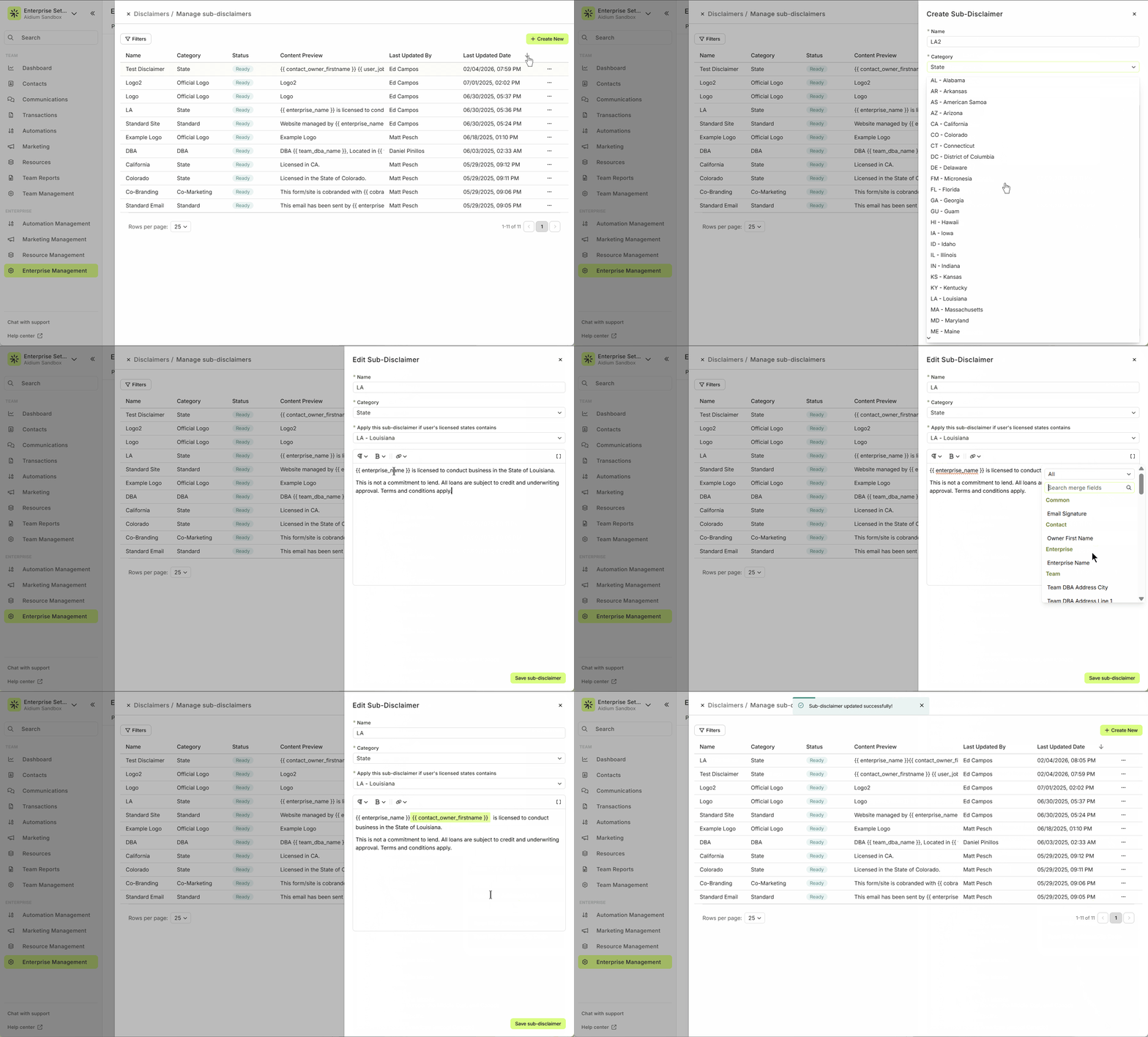
For Official Logo, customize the merge field name (optional)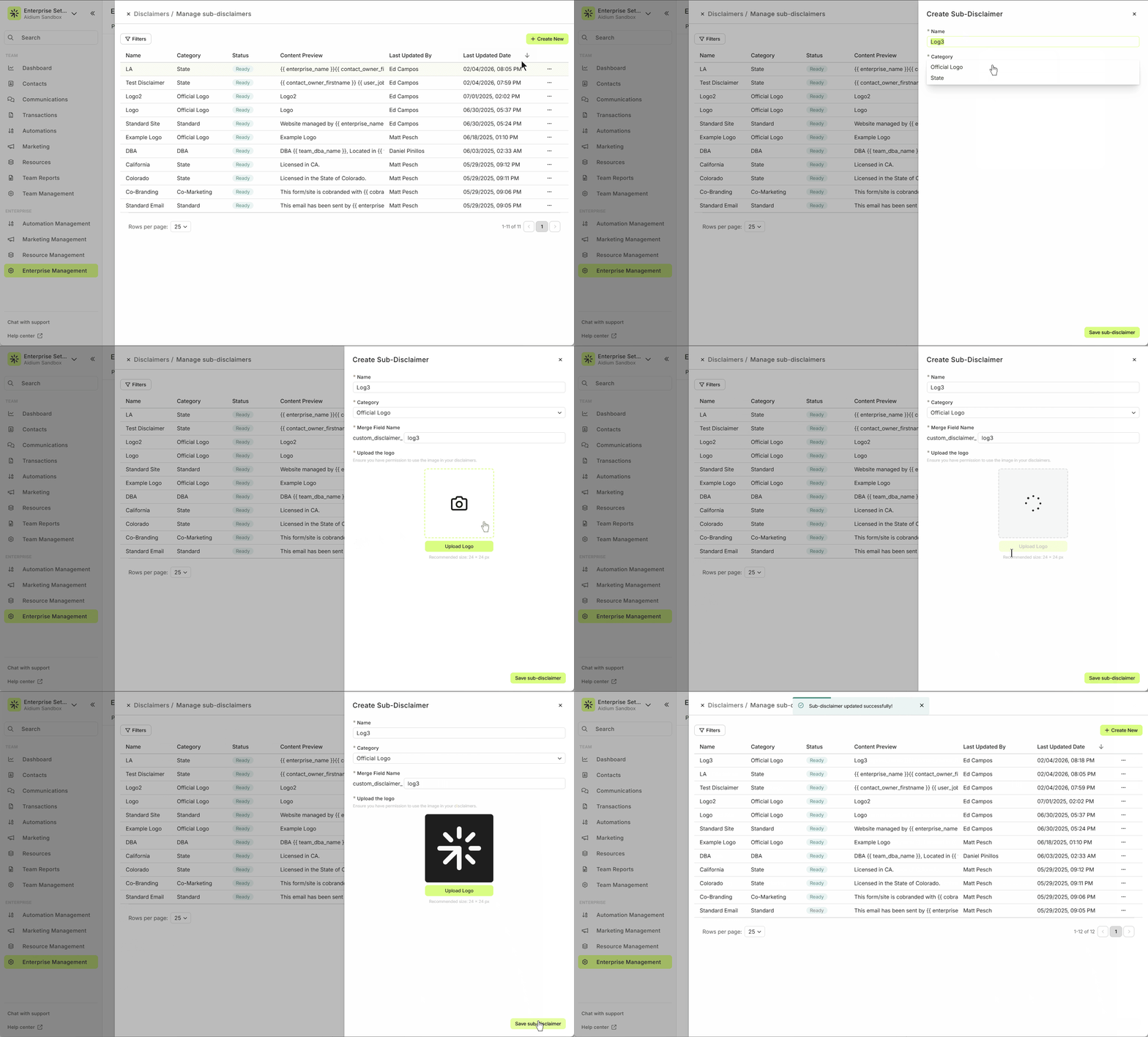
Add content or upload logo
Click Save Sub-disclaimer
Go to Compliance > Disclaimers tab
Click Manage Sub-disclaimers
Click Create New
Enter a unique name
Select a category:
For State, select the applicable state
For Official Logo, customize the merge field name (optional)
Add content or upload logo
Click Save Sub-disclaimer
Tip: Use clear naming conventions and merge field labels for easy identification when building your Disclaimers.
Logo Sub-Disclaimers (Official Logos)
You can include logos such as the Equal Housing logo or REALTOR® mark in disclaimers.
Recommended size: 24x24 pixels
Larger sizes may display incorrectly
Logos are embedded using merge fields from the “Official Logo” category
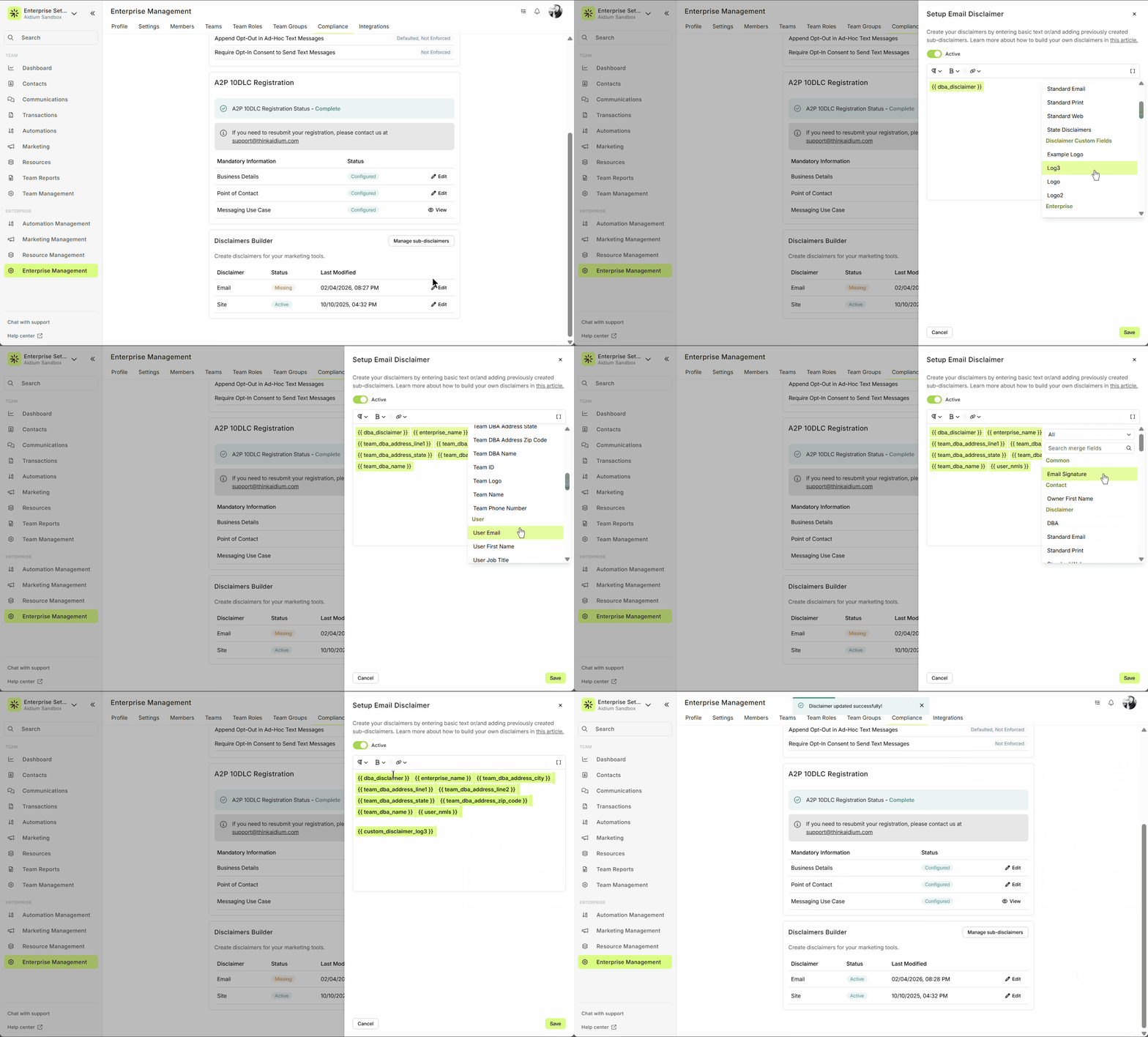
Using Sub-Disclaimers in Disclaimers
When building a Disclaimer:
Use the Setup Disclaimer drawer
Select sub-disclaimers from the merge field dropdown:
Official Logo sub-disclaimers appear under Disclaimer Custom Fields
All others appear under the Disclaimer section
Display Order & Formatting
Formatting such as spacing, line breaks, and ordering is fully customizable within each Disclaimer
State sub-disclaimers are shown in alphabetical order by default with line breaks between each
Formatting such as spacing, line breaks, and ordering is fully customizable within each Disclaimer
State sub-disclaimers are shown in alphabetical order by default with line breaks between each
Frequently Asked Questions
Q: Can I preview different disclaimers before they populate?
No. Disclaimer content is dynamically generated based on user, team, and site-specific conditions.
Q: Can I tailor disclaimers based on the recipient’s location?
No. Disclaimers are driven by the sender’s licensed state, not the recipient's location.
Q: How do disclaimers interact with email signatures?
Disclaimers are appended to the very end of the email, after the .
Q: Are changes applied immediately?
Yes. Updates are reflected in emails and sites upon saving. You may need to refresh a site page to see updates live.
Need Help? Contact support@lendware.ai with any questions.
Related Articles
User Invite and Login Tracking in Lendware
This guide explains how to use the User Invite and Login Tracking feature available in Enterprise Management > Members to track when an enterprise member last logged in, who invited them, and how to send or resend invitation emails. Overview The User ...How to Deactivate a User in Lendware (Team-Level & Enterprise-Level)
This guide provides instructions on how to deactivate a user in Lendware, either at the team level or the enterprise level. Deactivating a user will revoke their access to the associated teams or the entire enterprise, depending on the action taken. ...Gmail Whitelisting - Provide Admin Security Approval for Lendware
Google Workspace admins can make the Email Inbox Integration process even easier for Lendware users by approving Gmail integration. This is a one-time processes that will ensure any Lendware user in your org can easily integrate their email inbox. ...Submit for A2P 10DLC Campaign Registry Approval to Allow SMS/Texting from Lendware
A2P 10DLC Campaign Registry is a 3rd party requirement for sending SMS/Texts from any platform, including Lendware. This process involves a few steps that must be completed by an Lendware admin and requires basic and legal information about your ...Enterprise Management Overview
Enterprise Management is the single place where Admins configure and govern settings that apply across your whole organization. From branding and compliance to integrations, teams, user roles and custom fields. Enterprise Management gives you the ...